Bilješka
Pristup ovoj stranici zahtijeva provjeru vjerodostojnosti. Možete pokušati da se prijavite ili promijenite direktorije.
Pristup ovoj stranici zahtijeva provjeru vjerodostojnosti. Možete pokušati promijeniti direktorije.
Connect an external Azure OpenAI or Foundry resource to your Content Understanding resource. Route model usage through the connected resource to reuse existing capacity.
Prerequisites
- An active Azure subscription. If you don't have one, create a free account.
- A Microsoft Foundry resource created in a supported region.
- An Azure OpenAI or Foundry resource with supported chat completion and embeddings deployments. For model and deployment requirements, see Connect your Content Understanding resource with Foundry models and Service quotas and limits.
- Access to configure both resources in the Azure portal, including permissions to create connected resources and add role assignments.
- One of the following supported authentication configurations:
- API key authentication with key-based authentication and public network access enabled on the connected resource.
- Account Managed Identity authentication with a system-assigned managed identity enabled on the Content Understanding resource.
Review the cross-resource flow
Use this high-level diagram to understand how Content Understanding uses a connected resource for model inference.
+---------------------------------------------------------------+
| Azure subscription                                            |
|                                                               |
|  +---------------------------+                                |
|  | Content Understanding     |                                |
|  | resource                  |                                |
|  |                           |                                |
|  | defaults:                 |                                |
|  | gpt-5.2 -> connA/gpt52    |                                |
|  +-------------+-------------+                                |
|                |                                              |
|    analyze API | uses default deployment mapping              |
|                v                                              |
|  +---------------------------+                                |
|  | Connected resource        |                                |
|  | (Azure OpenAI or Foundry) |                                |
|  |                           |                                |
|  | deployments:              |                                |
|  | - gpt-5.2                 |                                |
|  | - text-embedding-3-large  |                                |
|  +---------------------------+                                |
|                                                               |
|  Authentication path: API key or Account Managed Identity     |
+---------------------------------------------------------------+
Connect an Azure OpenAI or Foundry resource
Connect your model resource from the management center of your Content Understanding resource.
Note
The portal might require a project to open the management center, but the connection must be associated with the resource, not under a specific project.
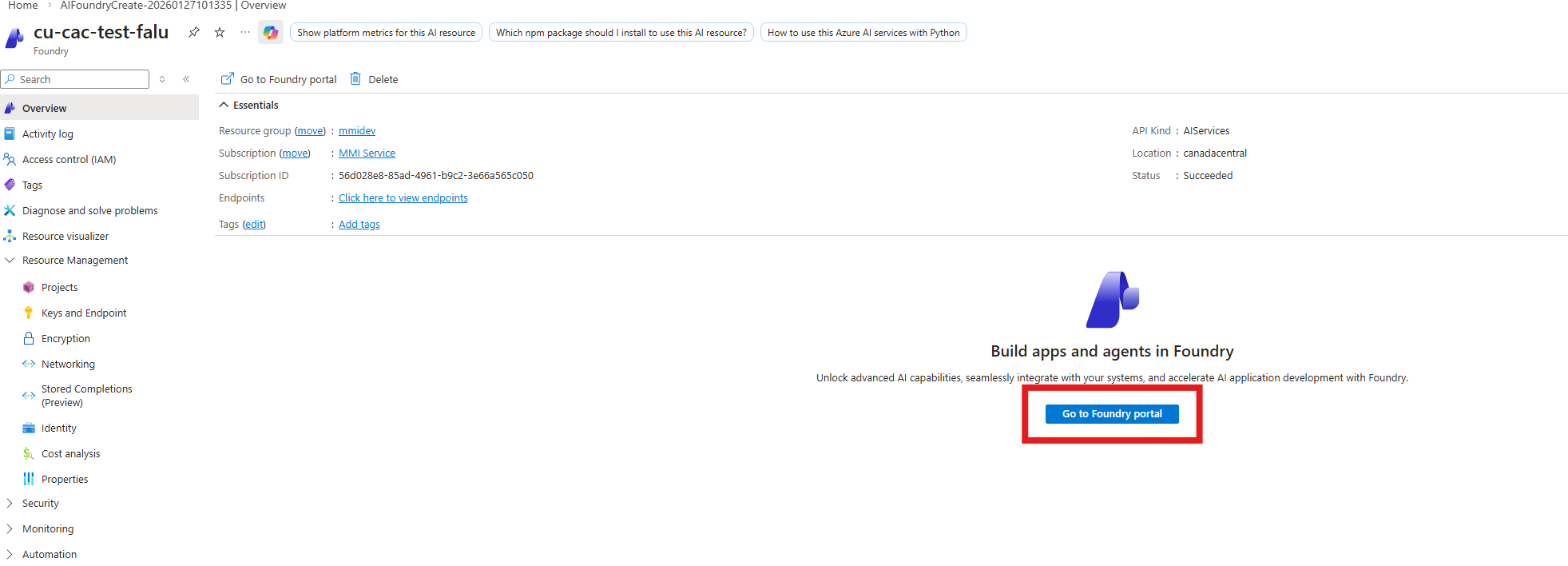
Open the Foundry resourse where you're using Content Understanding in the Azure portal.
Open the Foundry resource where you're using Content Understanding in the Azure portal.
Select Go to Azure AI Foundry portal.
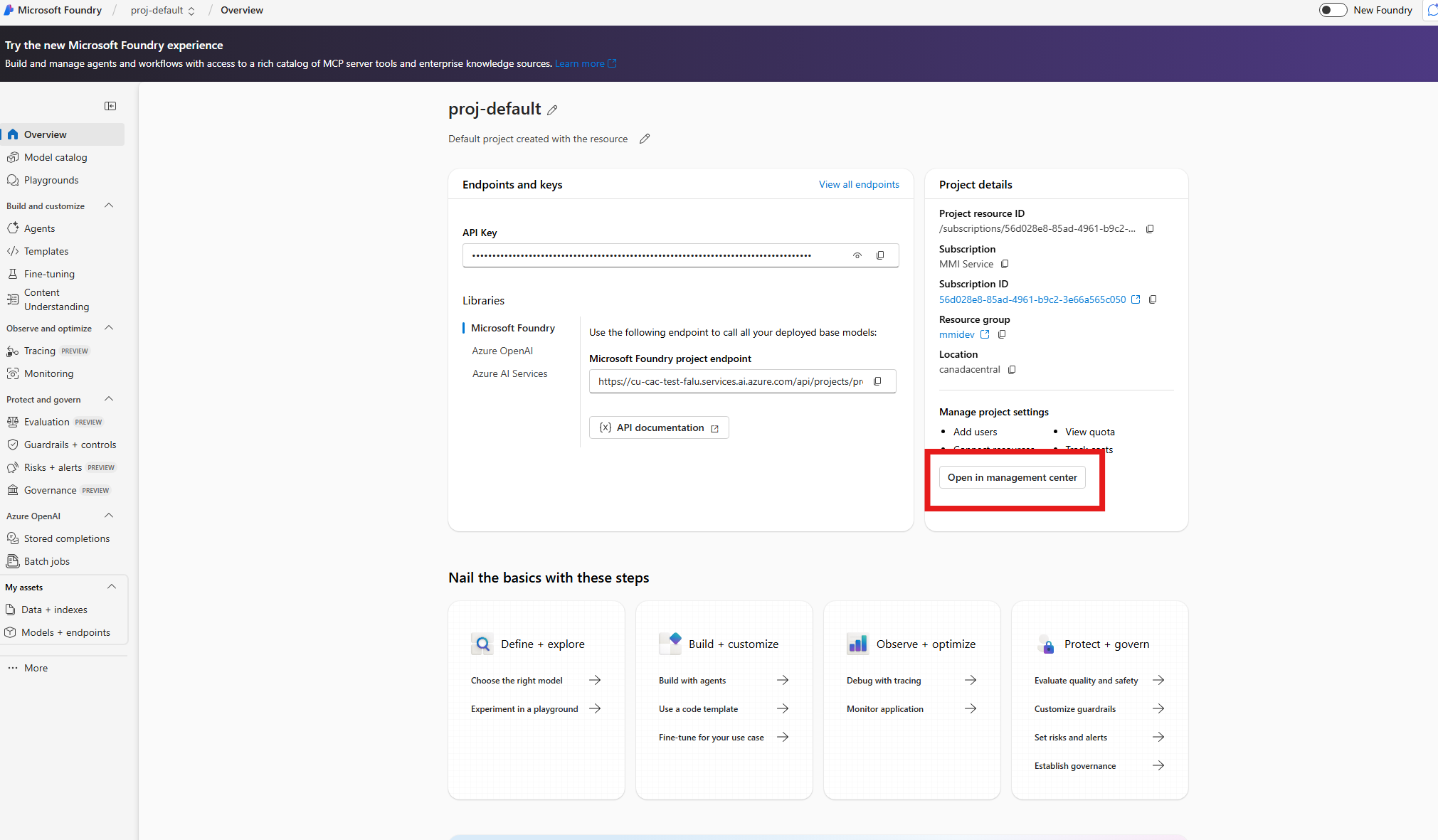
Open Management center. You need to open management center at the resource level, not the project level.
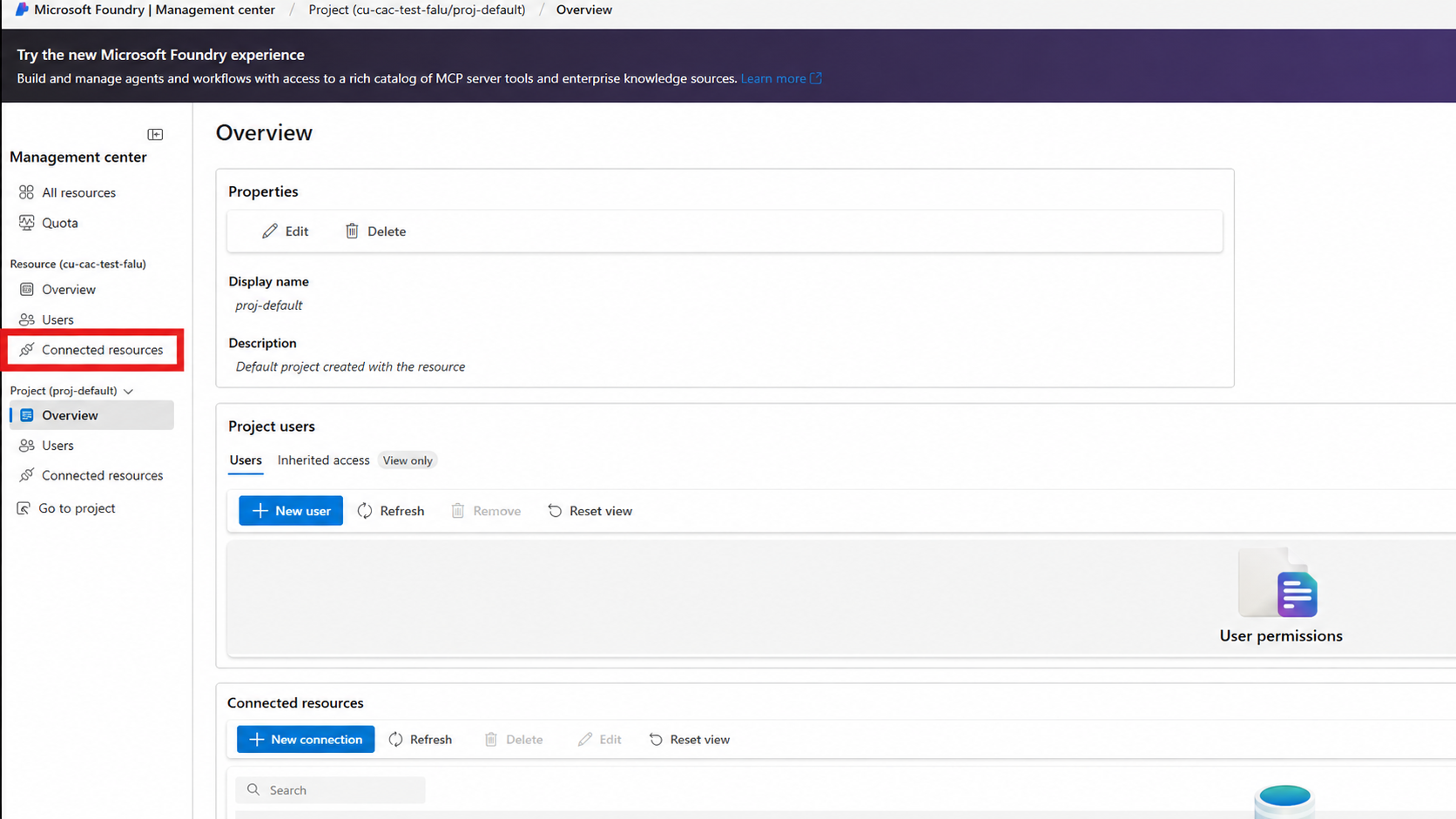
Select Connected resources.
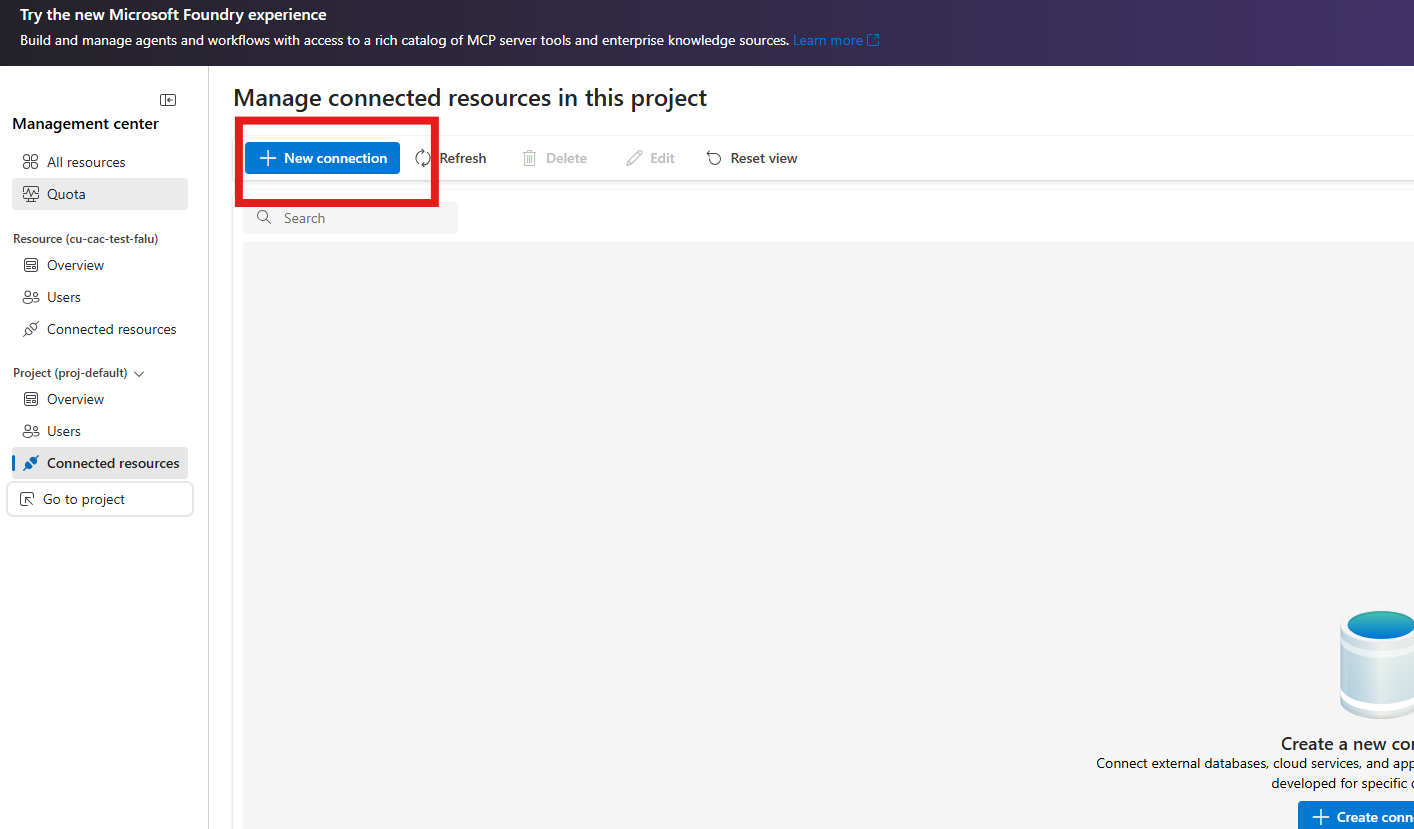
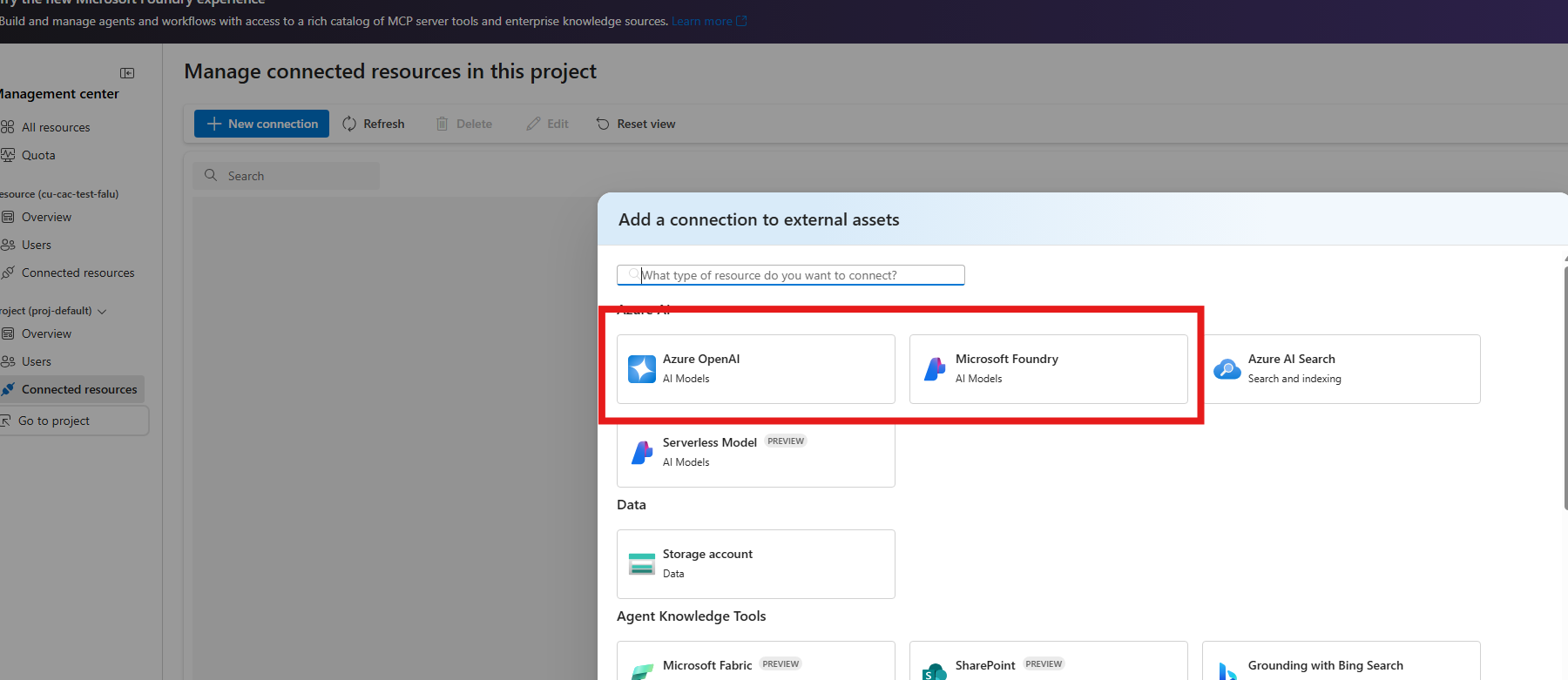
Select New connection.
Select Azure OpenAI or Microsoft Foundry.
Search for and select your resource.
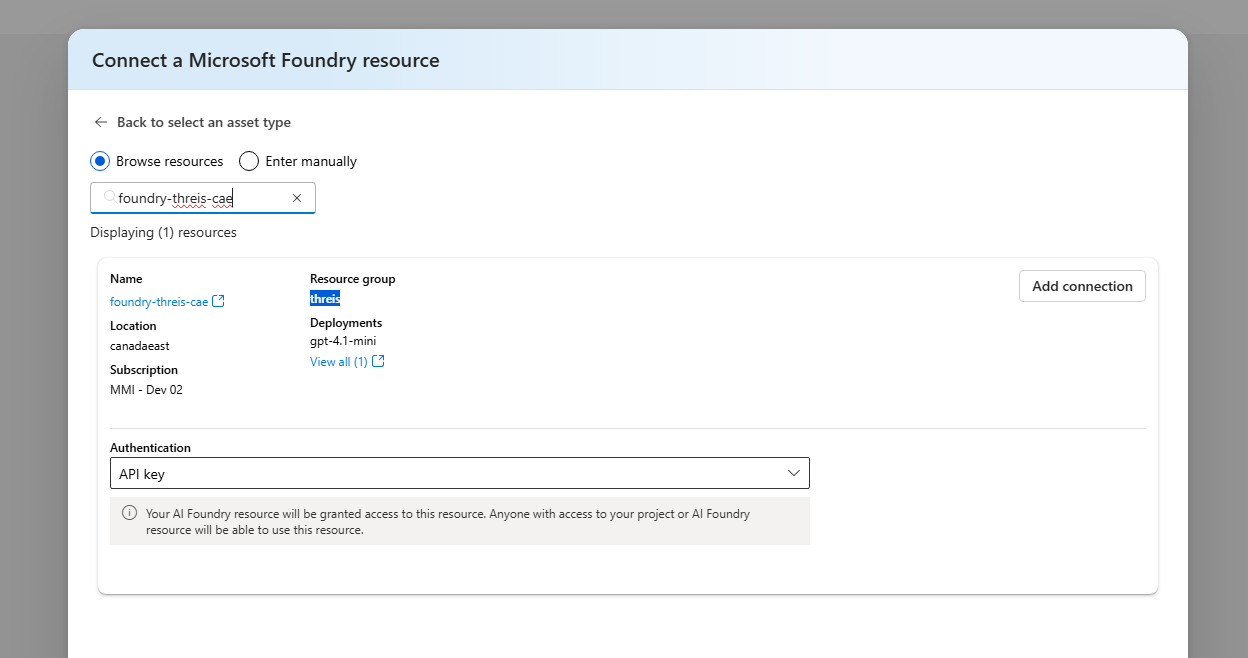
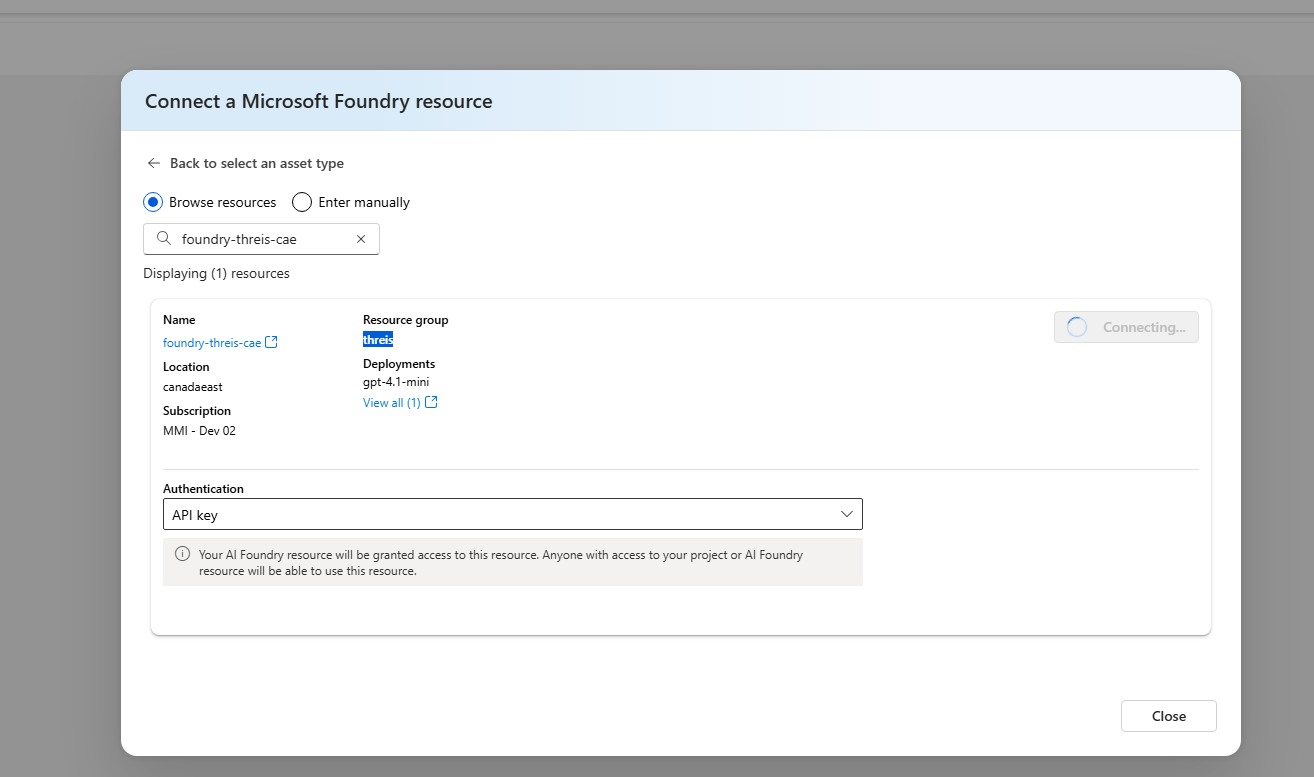
Select a supported authentication type, and then select Add connection.
Authentication details:
- API key: Content Understanding uses the API key from the connected resource.
- The connected resource must allow API key authentication.
- The public endpoint of the connected resource must be available. API key authentication isn't supported when the connected resource restricts access to selected networks or a virtual network.
- Account Managed Identity: Content Understanding uses the system-assigned managed identity of the Content Understanding resource.
- Enable the system-assigned managed identity on the Content Understanding resource.
- Complete the role assignment in Grant access to the connected resource.
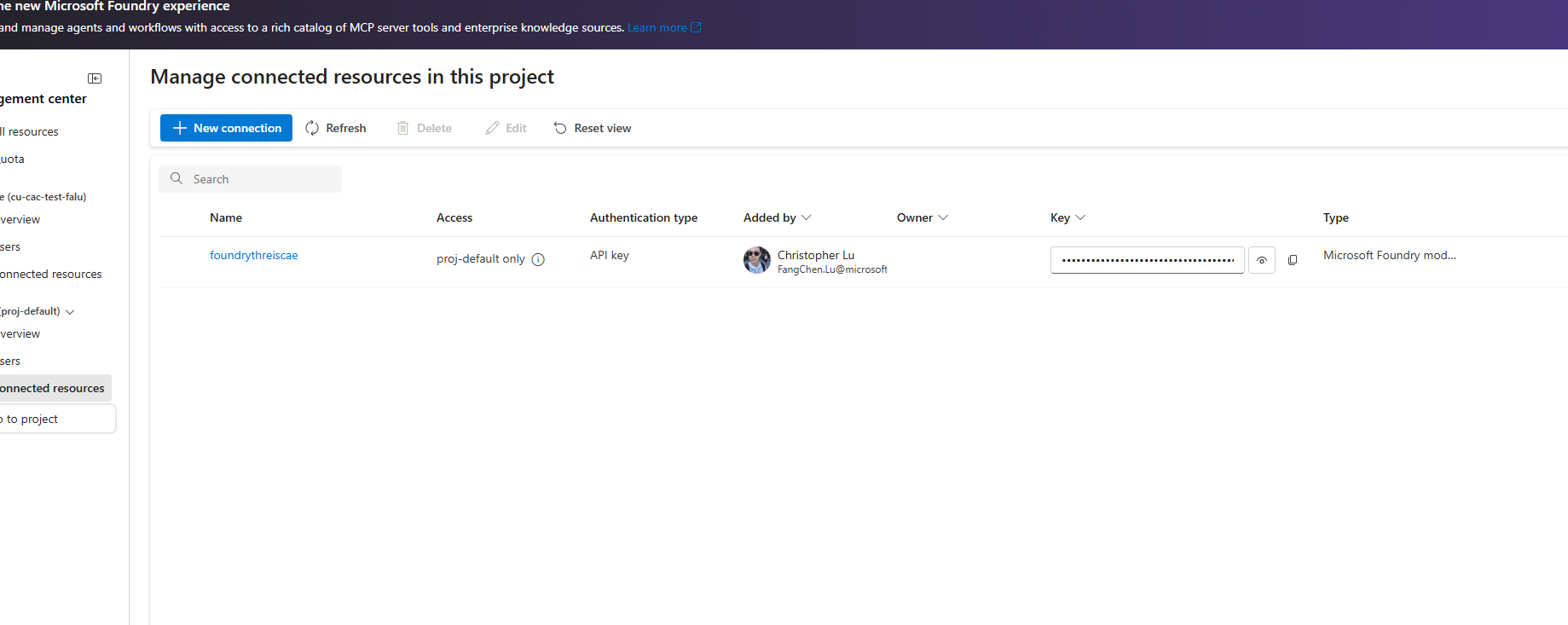
After the operation completes, the connection appears in Connected resources.
- API key: Content Understanding uses the API key from the connected resource.
Creating the connection doesn't grant the Content Understanding resource access to the connected resource.
Grant access to the connected resource
If you select Account Managed Identity, grant the Content Understanding resource's system-assigned managed identity access to the connected resource.
- In the Azure portal, open the connected Azure OpenAI or Foundry resource.
- Select Access control (IAM).
- Select Add > Add role assignment.
- Select the Cognitive Services User role.
- For Assign access to, select Managed identity, and then select Select members.
- Select the system-assigned managed identity of your Content Understanding resource.
- Select Review + assign.
For more information about managed identities, see Security features in Azure Content Understanding in Foundry Tools.
Configure network access
Configure network access on the connected resource for the authentication type that you selected:
- API key requires public network access to the connected resource.
- Account Managed Identity supports a connected resource that uses selected networks. On the connected resource's Networking page, select Allow Azure services on the trusted services list to access this account, and then save the change.
Set default deployments for cross-resource usage
Set resource defaults so analyzers can use the connected deployment with the {ConnectionName}/{DeploymentName} format.
Before you start:
- Get the connection name from Connected resources.
- Get the deployment name from Models + endpoints in the connected resource.
Use the defaults API to set model deployments:
PATCH {endpoint}/contentunderstanding/defaults?api-version=2025-11-01
Content-Type: application/json

{
  "modelDeployments": {
    "prebuilt-analyzer-completion": "MyConnection/MyGPTDeployment",
    "prebuilt-analyzer-embedding": "MyConnection/MyEmbeddingsDeployment"
  }
}
Verify the configuration
Choose one of the following options to verify your setup.
Option 1: Verify with Content Understanding Studio
- Follow Quickstart: Try out Content Understanding Studio with the primary resource.
- In Studio, run a prebuilt analyzer on a sample file.
- Confirm the analysis completes and returns structured results in the results pane.
Option 2: Verify with the REST quickstart
- Follow Quickstart: Use Azure Content Understanding in Foundry Tools REST API.
- Run the sample request in Send a file for analysis.
- Confirm the operation succeeds by checking Get analyze result and verifying
statusisSucceeded.
If either verification path succeeds, your Content Understanding resource is using the connected cross-resource capacity.