Bilješka
Pristup ovoj stranici zahtijeva provjeru vjerodostojnosti. Možete pokušati da se prijavite ili promijenite direktorije.
Pristup ovoj stranici zahtijeva provjeru vjerodostojnosti. Možete pokušati promijeniti direktorije.
This article describes how to use the Link Layer Discovery Protocol (LLDP) validator in a standalone mode to assess how ready your environment is for deploying rack aware cluster.
About the LLDP validator
The Link Layer Discovery Protocol (LLDP) validator collects and analyzes network topology information from your switches to document the physical network connections for Azure Local rack aware cluster deployments. The validator uses LLDP data advertised by your network switches to map the connectivity between nodes and switches.
The LLDP validator isn't included in the default deployment validation process. You can run the tool before deployment to verify your network configurations.
Prerequisites
- LLDP must be enabled on your network switches.
- Run the validator on the actual hardware intended for deployment.
Tests performed
The LLDP validator performs the following checks:
LLDP neighbor discovery. Collects LLDP information from all network adapters and verifies switches are advertising their identity.
Availability zone consistency (rack aware clusters). Documents the switches each rack connects to and validates the following:
- All nodes within a rack connect to the same switches.
- Different racks connect to separate switches with no overlap.
Topology mapping. Creates detailed JSON files documenting the discovered network topology.
Run the LLDP validator
To run the validator before deployment, sign in to one cluster server and run the following PowerShell cmdlets:
# Define all server IPs for your Rack Aware Cluster
$allServers = @("<ServerIP1>", "<ServerIP2>", "<ServerIP3>", "<ServerIP4>")  # Replace with actual IPs
$userName = "<LOCALADMIN>"
$secPassWord = ConvertTo-SecureString "<LOCALADMINPASSWORD>" -AsPlainText -Force
$hostCred = New-Object System.Management.Automation.PSCredential($userName, $secPassWord)

# Create PowerShell sessions to all nodes
[System.Management.Automation.Runspaces.PSSession[]] $allServerSessions = @()
foreach ($currentServer in $allServers) {
    $currentSession = Microsoft.PowerShell.Core\New-PSSession -ComputerName $currentServer -Credential $hostCred -ErrorAction Stop
    $allServerSessions += $currentSession
}

# Create an alias for Trace-Execution
function TraceExecutionPreviewBypass { [CmdletBinding()] param( [Parameter(ValueFromRemainingArguments=$true)] $RemainingArgs ) }
Set-Alias -Name Trace-Execution -Value TraceExecutionPreviewBypass -Force -Scope Global

# Run the LLDP validator
$localAvailabilityZones = @(
    @{
        localAvailabilityZoneName = "Rack01"
        nodes = @("Node01", "Node02")
    },
    @{
        localAvailabilityZoneName = "Rack02"
 nodes = @("Node03", "Node04")
    }
)

$physicalNodes = @(
    @{
        Name = "Node01"
        IPv4Address = "10.x.x.x"
    },
    @{
        Name = "Node02"
        IPv4Address = "10.x.x.x"
    },
    @{
        Name = "Node03"
        IPv4Address = "10.x.x.x"
    },
    @{
        Name = "Node04"
        IPv4Address = "10.x.x.x"
    }
)

Invoke-AzStackHciLLDPValidation -PSSession $allServerSessions -PhysicalNodeList $physicalNodes -LocalAvailabilityZones $localAvailabilityZones -ClusterPattern 'RackAware'
Sample output
The following sample output shows results from a run of the LLDP validator. The result shows that the merged LLDP JSON file was successfully generated. It also shows validation checks that need attention, including Cross-Zone Switch Isolation, Host LLDP Neighbor Existence, and Intra-Zone Switch Consistency. Each item includes a description of the issue and the recommended remediation steps to resolve the issue.

Validator output
When you run the LLDP validator, it produces two types of output:
Log files
These files contain detailed LLDP discovery information. The default location for log files is $env:TEMP\LLDPValidation.
Generated JSON files
These files contain structured data that documents your network topology. The following table lists the generated JSON files with their descriptions:
| Files | Description |
|---|---|
| MergedLLDPData.json | Shows complete LLDP information from all nodes. |
| Node2Switch.json | Shows which switches each node connects to. |
| Switch2Node.json | Shows which nodes connect to each switch. |
| Connections.json | Shows full connection mapping. |
Review topology files
After the LLDP validator completes, you can review the generated topology files to understand how nodes and switches are connected in your environment. You can run the following PowerShell cmdlets to review the generated JSON files:
# View node-to-switch mapping
Get-Content "C:\CloudDeployment\Logs\Node2Switch.json" | ConvertFrom-Json | Format-List

# View switch-to-node mapping
Get-Content "C:\CloudDeployment\Logs\Switch2Node.json" | ConvertFrom-Json | Format-List

# View complete LLDP data
Get-Content "C:\CloudDeployment\Logs\MergedLLDPData.json" | ConvertFrom-Json
Important
Even if the LLDP validator reports a SUCCESS status, always manually review the detailed AzStackHciEnvironmentReport located in $env:TEMP\LLDPValidation (or your specified OutputPath) to ensure switch connection validations are correctly. This report contains comprehensive information about network topology, connection consistency, and any configuration information that requires attention.
Sample JSON outputs
If the test result shows remediation steps, it indicates that the test failed. These remediation steps provide guidance to help you resolve the issue.
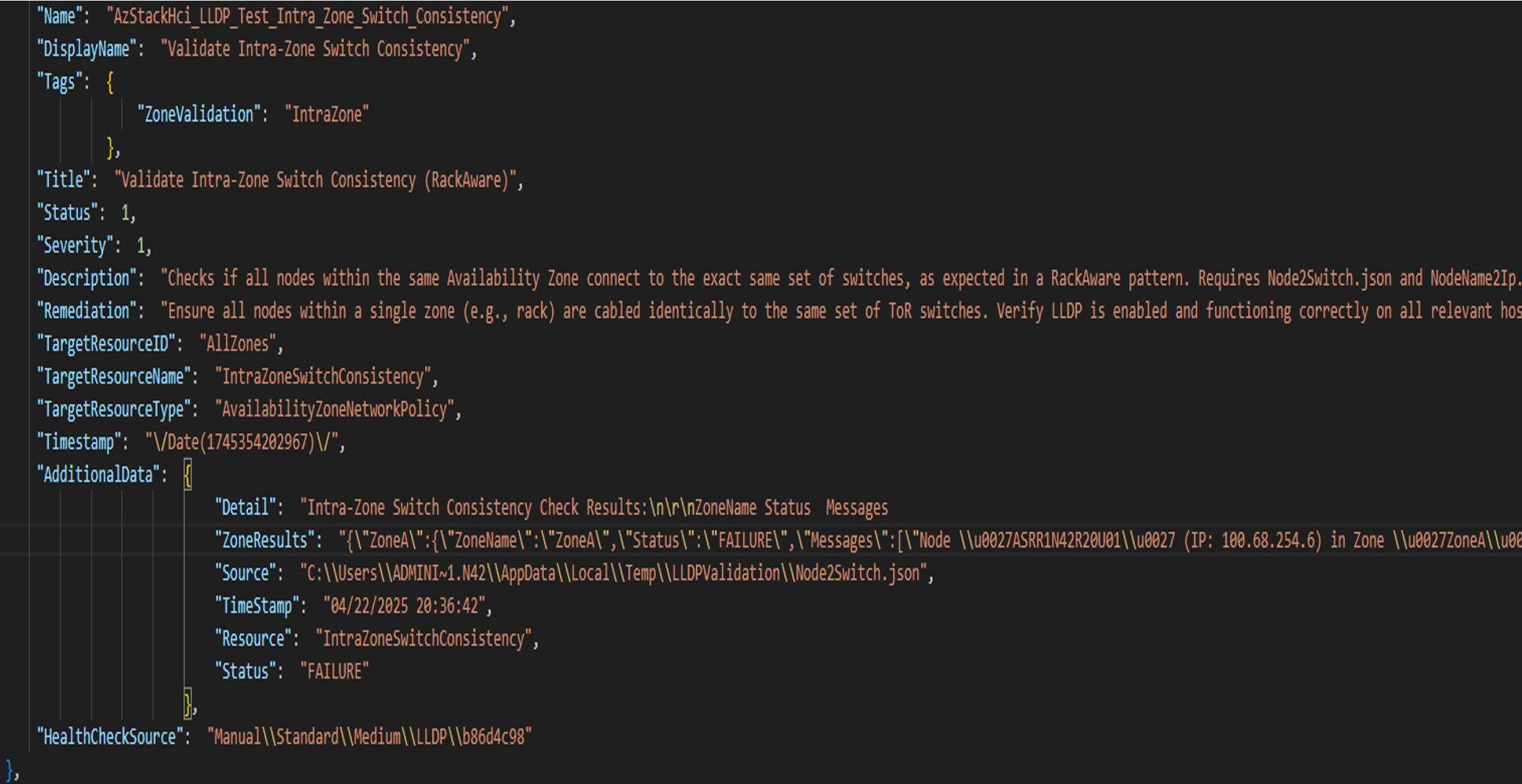
Sample output of the AzStackHci_LLDP_Test_Intra_Zone_Switch_Consistency validation test:
This test validates that all nodes within the same Availability Zone (rack) are connected to the same set of switches, as required by the rack aware cluster configuration.
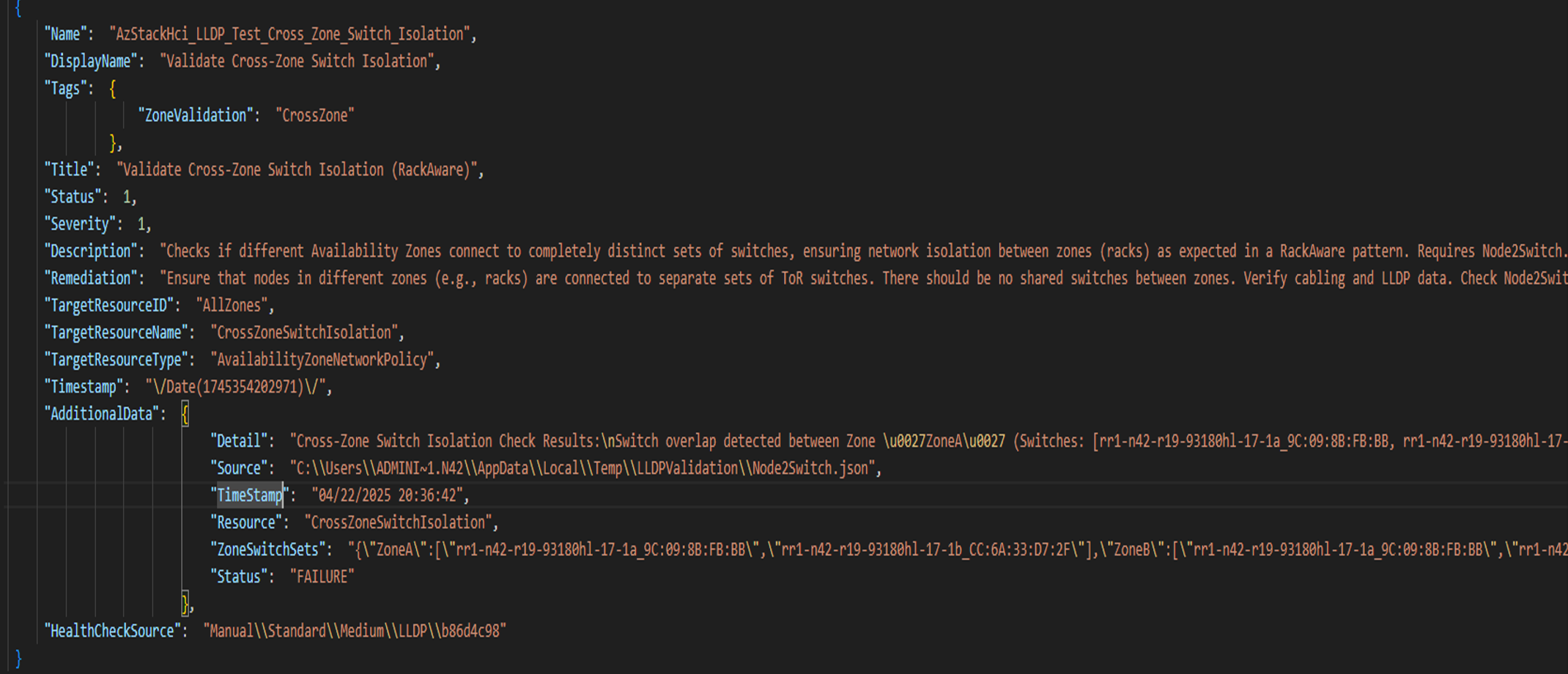
Sample output of the AzStackHci_LLDP_Test_Cross_Zone_Switch_Isolation validation test:
This test validates cross-zone switch isolation in a rack aware cluster environment.
Next steps
- After validating your environment with the LLDP validator, proceed to deploy your Azure Local rack aware cluster by following the instructions in one of the following articles:
This feature is available in Azure Local 2510 and later.