Bilješka
Pristup ovoj stranici zahtijeva provjeru vjerodostojnosti. Možete pokušati da se prijavite ili promijenite direktorije.
Pristup ovoj stranici zahtijeva provjeru vjerodostojnosti. Možete pokušati promijeniti direktorije.
This article explains how to manage graphics processing unit (GPU) fabric resources in Azure Local clusters.
Important
This feature is currently in PREVIEW. See the Supplemental Terms of Use for Microsoft Azure Previews for legal terms that apply to Azure features that are in beta, preview, or otherwise not yet released into general availability.
Overview
Use GPU management in the Azure portal to monitor and manage GPU fabric resources in Azure Local clusters. From your Azure Local cluster resource, you can:
- View the GPU inventory.
- Configure partition settings for GPU partitioning (GPU-P).
- Assign and unassign GPUs (Discrete Device Assignment (DDA) or GPU-P) to workloads.
For information about GPU-P limitations, see the Limitations section in Manage GPUs using partitioning.
Prerequisites
- Prepare GPUs for an Azure Local instance.
- You must be assigned the Azure Stack HCI Administrator role to run the API. For more information, see Use Role-based Access Control to manage Azure Local VMs enabled by Azure Arc.
- A machine with a supported GPU model. For more information, see Supported GPU models.
- The GPU APIs support only edge machines. If needed, run the Edge machine creation script before proceeding.
- Run the
Sync-AzureStackHcicmdlet on one of the cluster nodes to ensure that GPU capabilities appear on the cluster. - To use GPU management, you must have solution version 12.2604.1003.x or later. For more information, see Azure Local release information.
View GPU utilization
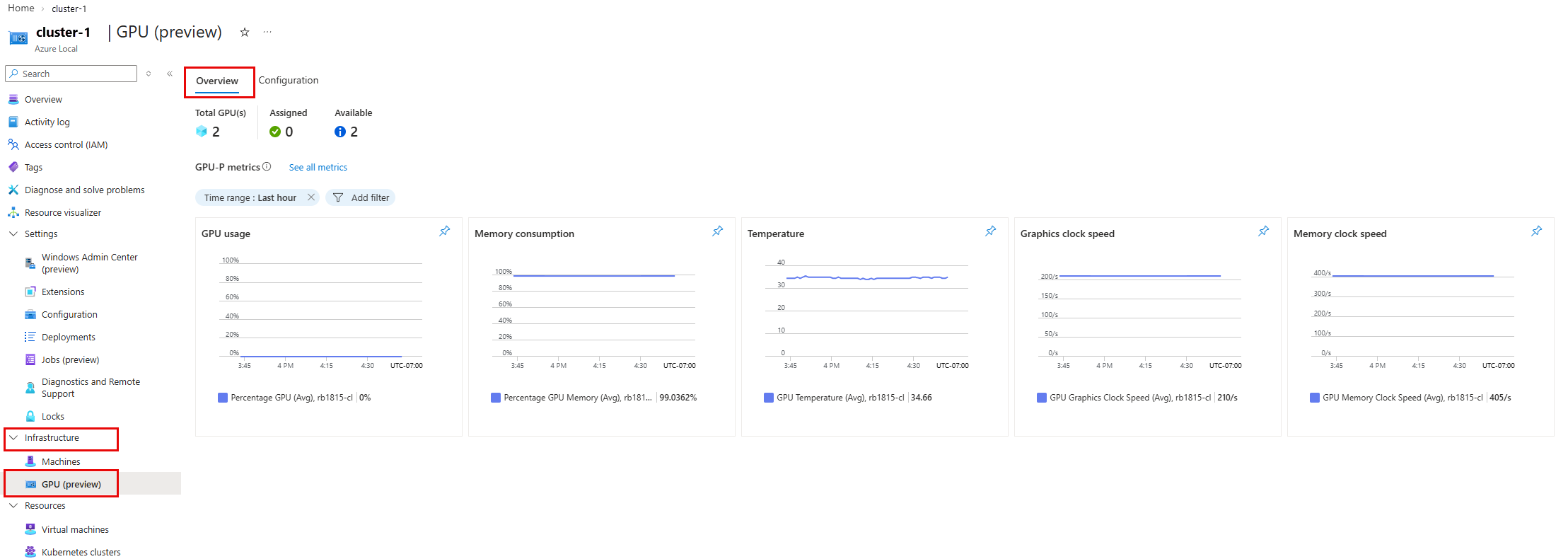
By default, the GPU page opens to the Overview tab. Use this tab to view GPU availability, utilization trends, and assignment status before you configure GPUs or place workloads.
The Overview tab provides:
- Cluster-wide GPU key performance indicators (KPIs).
- The total number of detected GPU devices.
- Cluster-level GPU utilization metrics.
GPU metrics provide insights into GPU utilization and performance. These metrics are collected from nvidia-smi. For definitions of available GPU metrics, see Monitor Azure Local with Azure Monitor metrics.
Note
The Overview tab is available only for GPU-P mode. DDA doesn't have host level metrics.
To view GPU utilization for an Azure Local cluster in the Azure portal:
In the cluster navigation pane, select Infrastructure.
Select GPU.
The Overview tab opens and displays a summary of GPU resources and GPU-P metrics for the cluster.
View GPU inventory and details
Select the Configuration tab to view the GPU inventory and cluster-level settings.
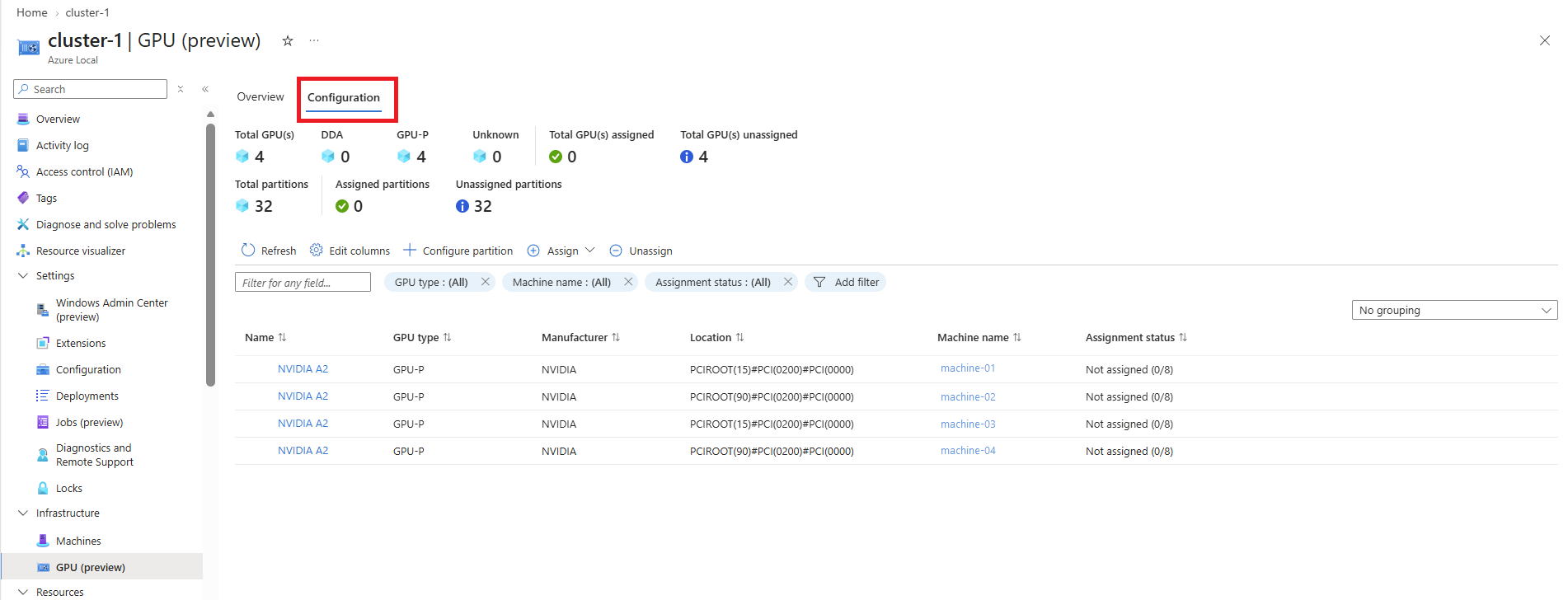
At the top of the page, KPI cards summarize:
- Total GPUs.
- Total DDA assignments.
- Total GPU-P assignments.
- Assigned and unassigned GPUs.
- Total, assigned, and unassigned partitions.
The inventory grid lists all GPUs and includes details such as GPU type, manufacturer, location, node name, and assignment status.
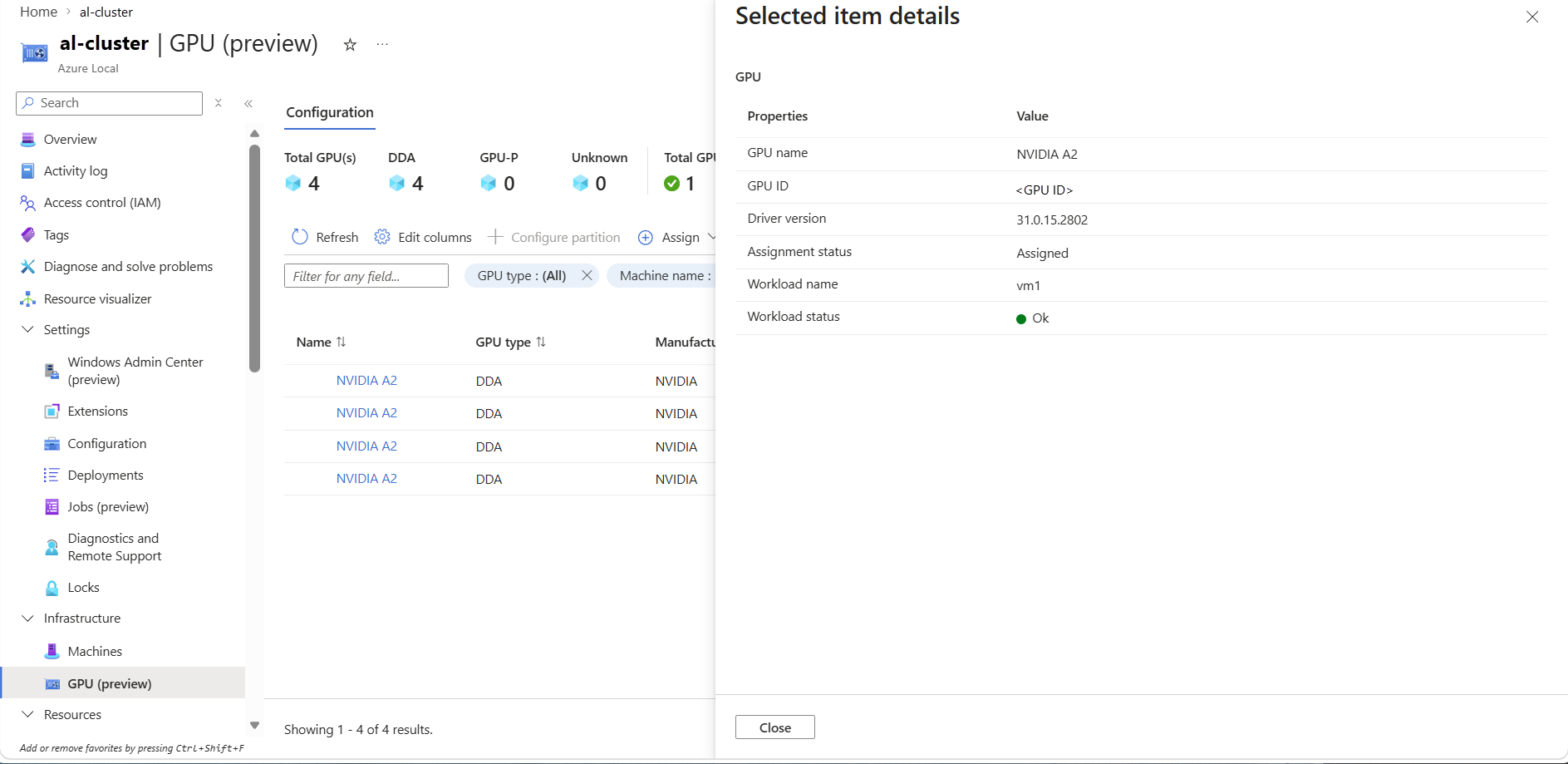
Select a GPU name to open the details pane.
The details pane includes:
- GPU name and GPU ID.
- Driver version.
- Assignment status.
- Workload name and status.
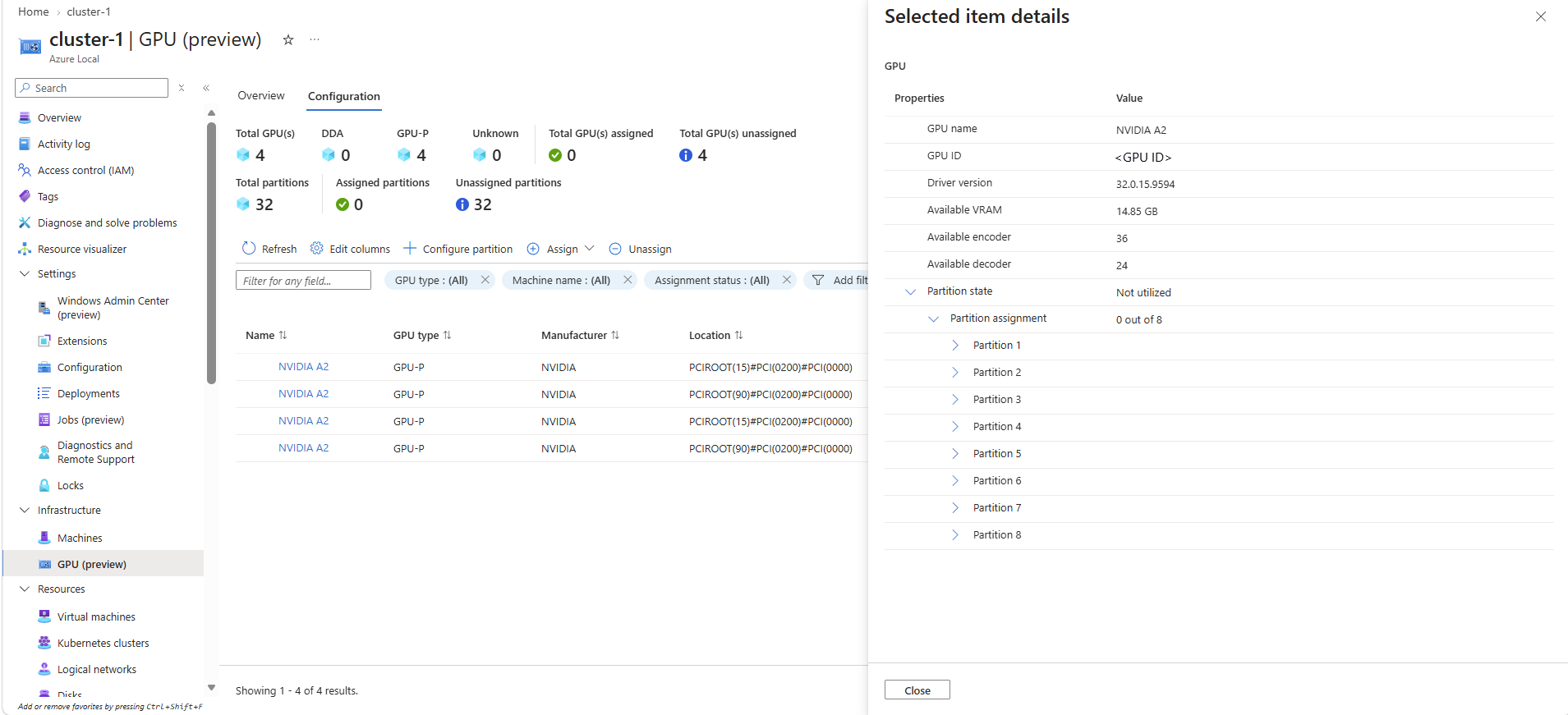
For GPU-P, the pane also includes partition-related information such as available VRAM, encoder, decoder, and per-partition assignment status.
Assign a GPU to a VM
Note
The system automatically assigns GPUs. You can't select a specific physical GPU or partition.
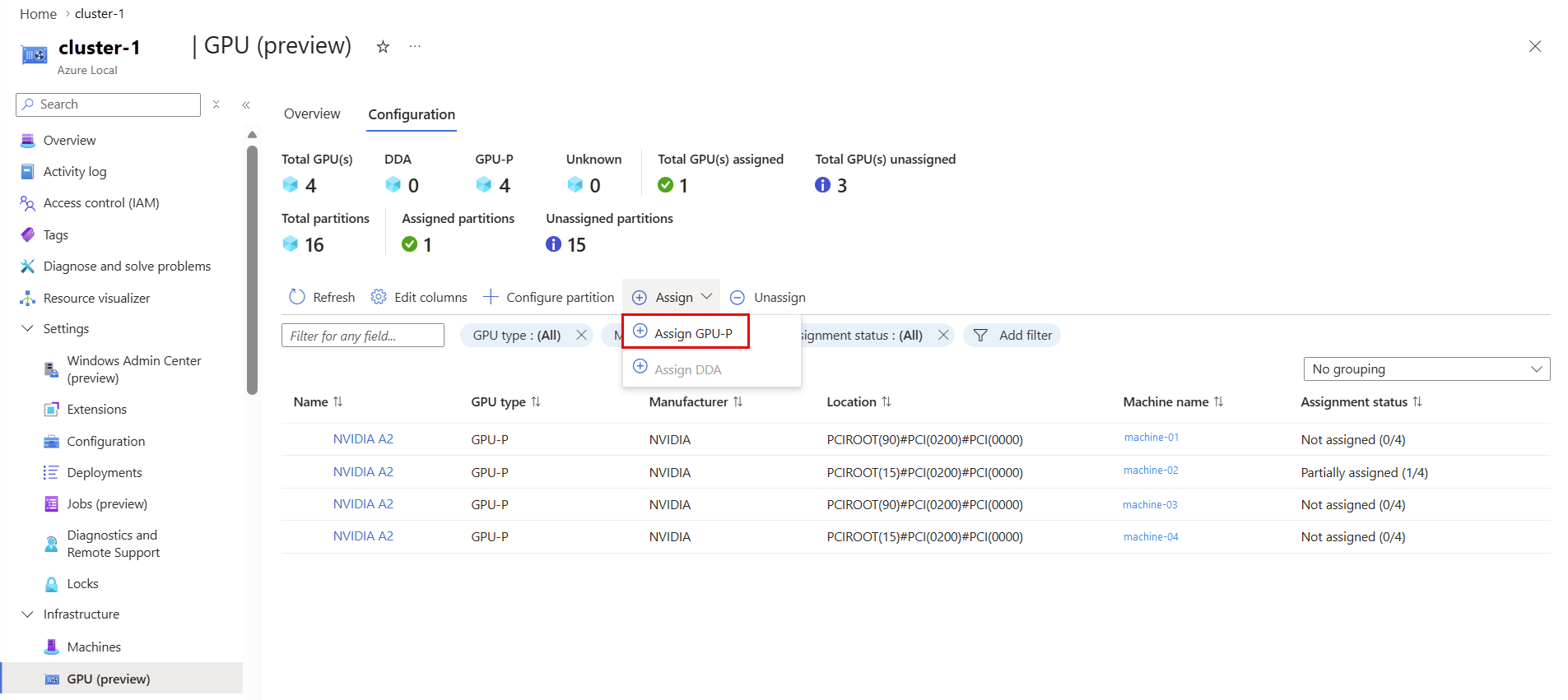
On the Configuration tab, select Assign to attach a DDA or GPU partition (GPU-P) to a VM.
Choose from the following options:
- Assign GPU-P. Attaches a GPU partition from a physical GPU to the VM, so GPU resources can be shared across multiple workloads. You can assign only one GPU partition to a VM. The system automatically allocates GPU partitions, and you can't select a specific partition.
- Assign DDA. Attaches an entire physical GPU to the VM, giving the VM exclusive access to that GPU.
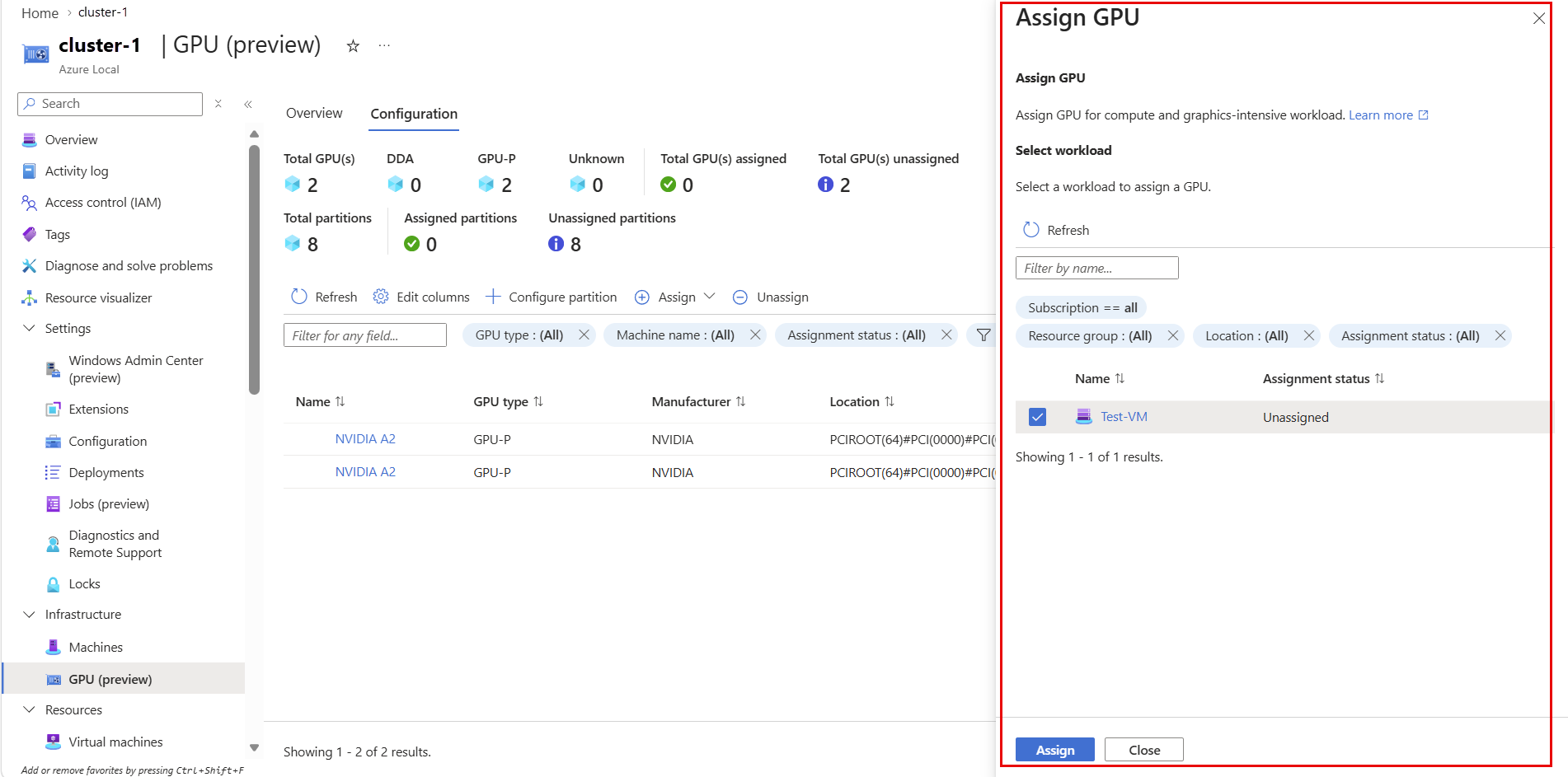
When the assignment pane opens, select an eligible VM.
Unassign a GPU from a VM
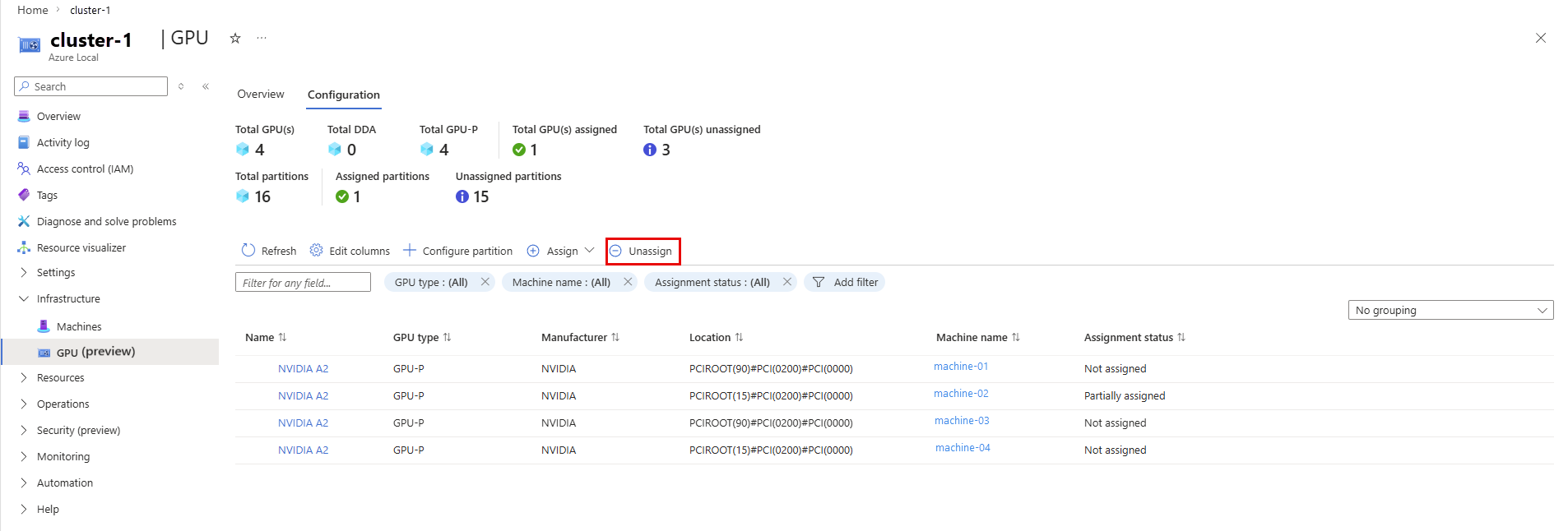
On the Configuration tab, select Unassign to detach a GPU or GPU partition from a VM.
Select the VM from the list of assigned VMs.
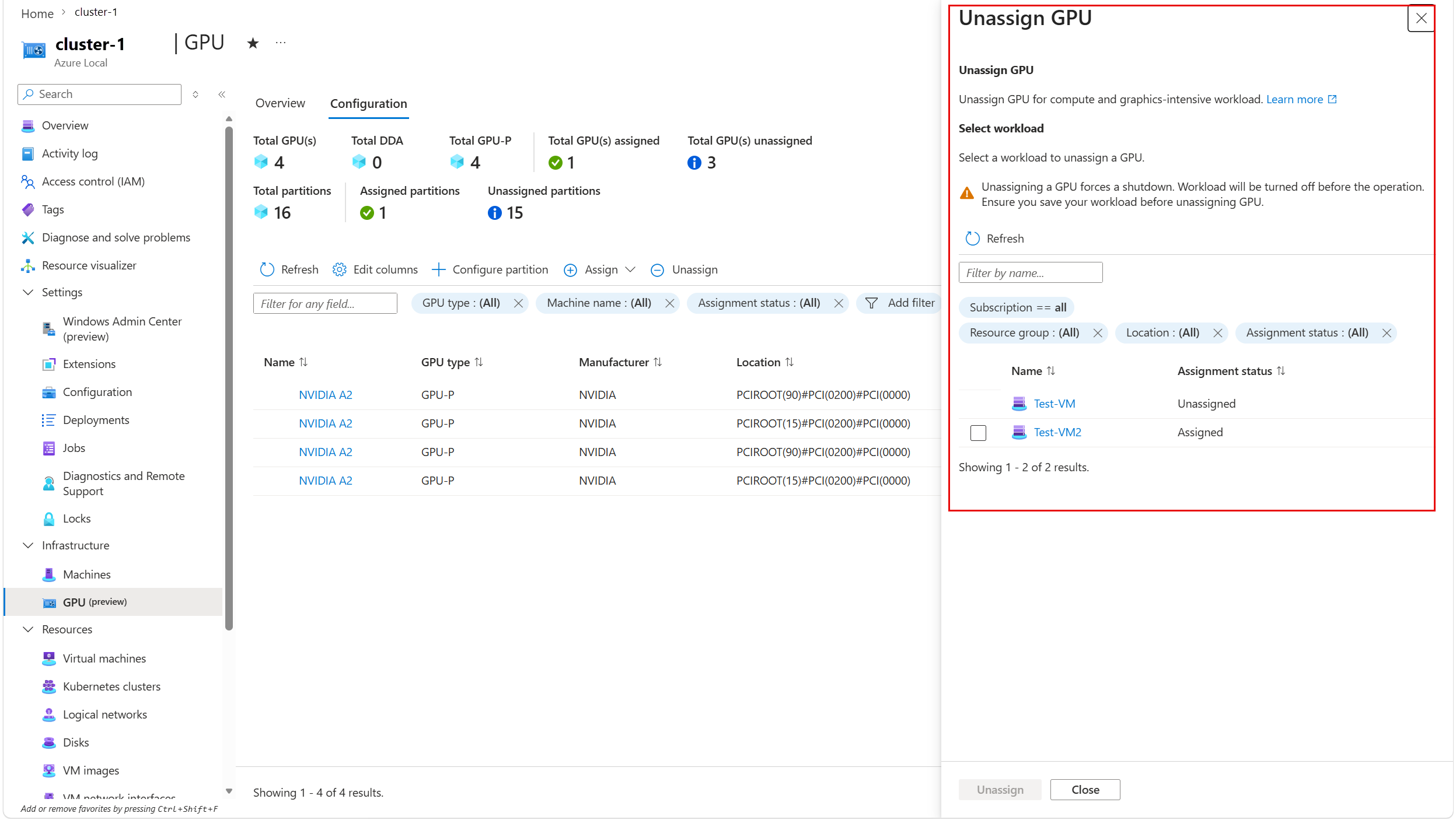
Select Unassign.
Confirm the action.
After the operation finishes, verify that the assignment status updates to Unassigned. Status updates can take up to five minutes to appear.
Configure GPU partitions (GPU-P only)
In GPU-P mode, you configure the partition size at the cluster level, and it applies to all GPUs. The system doesn't support per-GPU partition sizing.
To configure the partition size:
On the Configuration tab, select Configure partition.
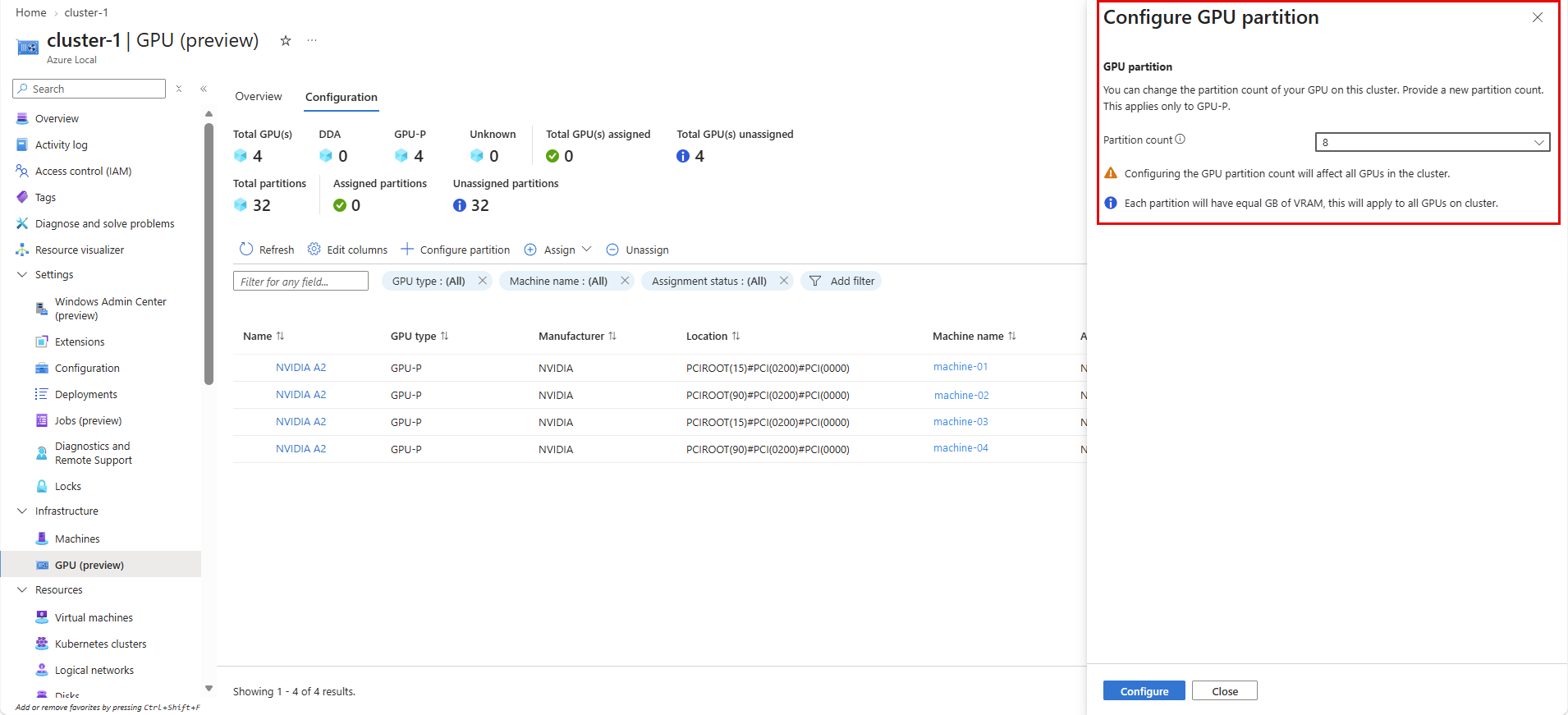
In the Configure GPU partition pane, select the Partition count that applies to all GPU-P devices in the cluster. Changing the partition count affects all GPUs and can interrupt running workloads.
Select Configure, and then confirm the action.
Troubleshooting
This section provides guidance for troubleshooting common issues.
GPU blade is empty
Possible causes
No GPUs are detected on the cluster.
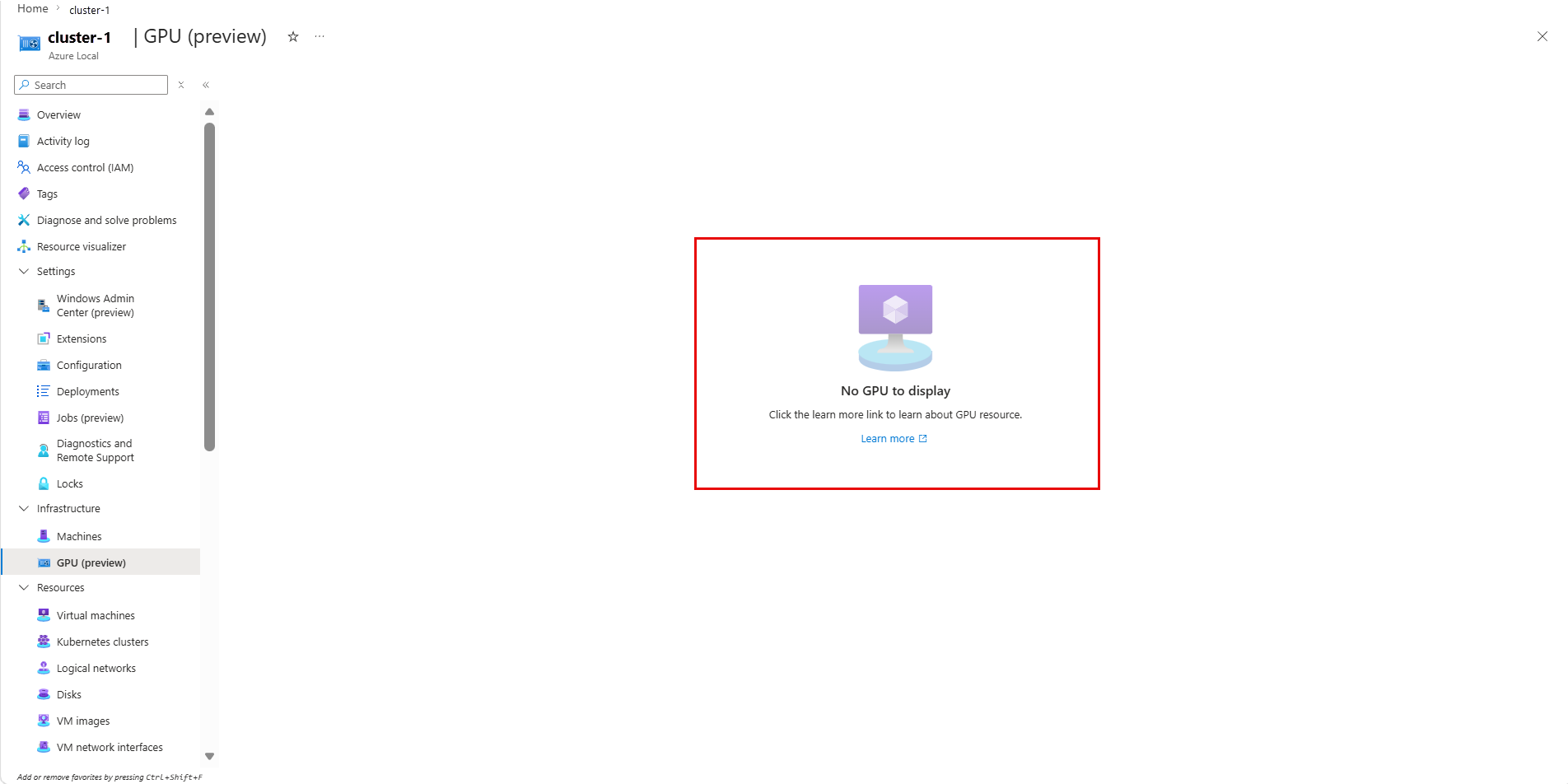
Resolution
Verify that the required GPUs are available and detected in the cluster.
GPUs are listed, but actions aren't available
Possible causes
The GPU prerequisites might be incomplete.
Resolution
Verify that you completed all GPU prerequisites, including installing the required drivers and disabling and dismounting the GPUs. For more information, see Prepare GPUs for Azure Local.
Partition configuration fails
Possible causes
All available GPU partitions are already assigned.
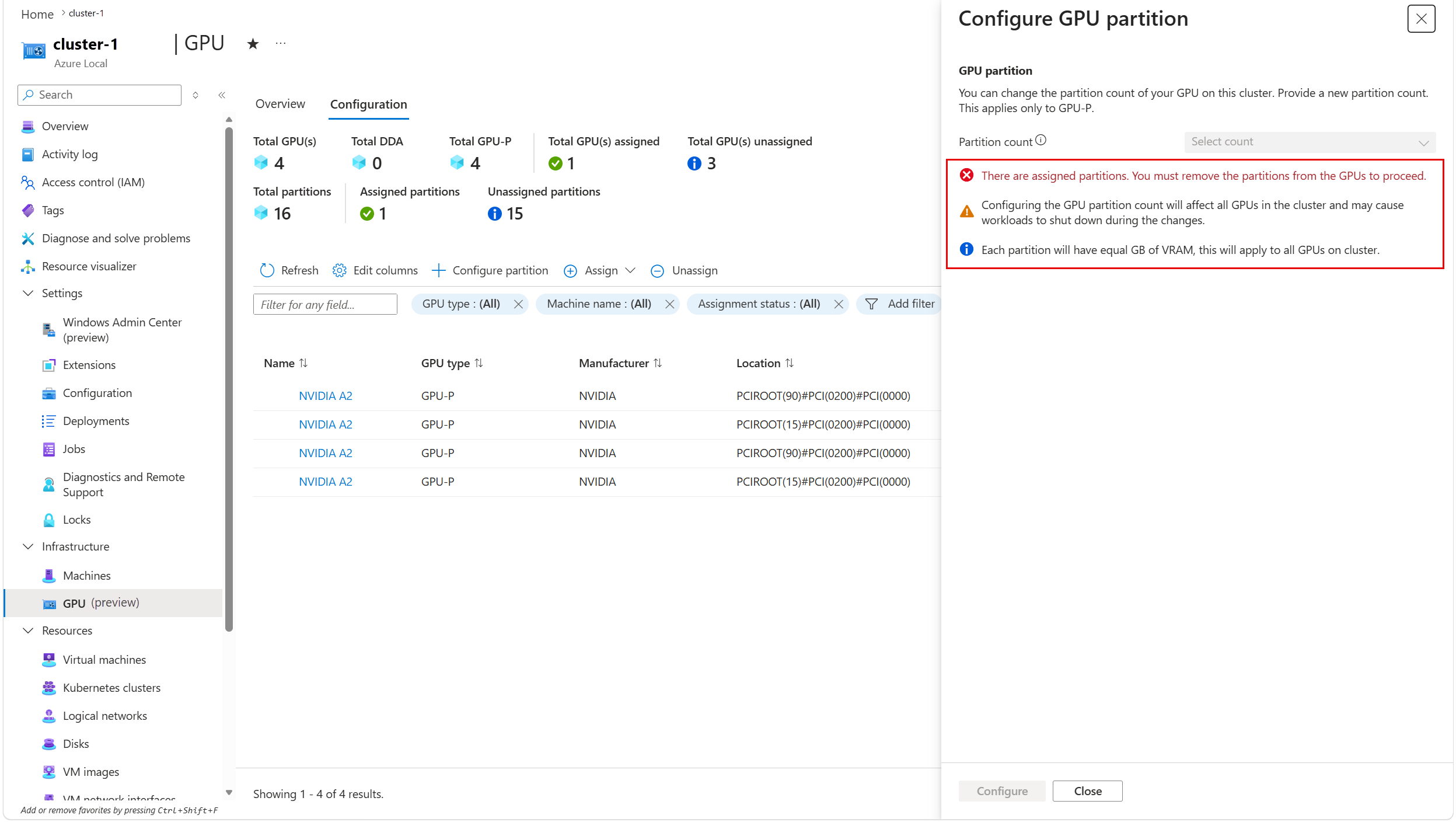
Resolution
Unassign all GPU partitions in the cluster, and then retry the operation. For more information, see Unassign a GPU from a VM.
GPU assignment fails
Possible causes
The GPU assignment can fail when the cluster node is down or the target VM isn't running or responding.
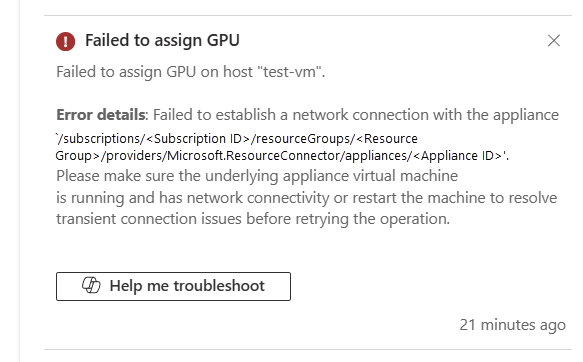
Resolution
- Bring the cluster node back online if it's down.
- Start or recover the target VM and verify that it's running and healthy.
- Retry the GPU assignment operation.