Bilješka
Pristup ovoj stranici zahtijeva provjeru vjerodostojnosti. Možete pokušati da se prijavite ili promijenite direktorije.
Pristup ovoj stranici zahtijeva provjeru vjerodostojnosti. Možete pokušati promijeniti direktorije.
Applies to: Multi-rack deployments of Azure Local 2511 and later
This article describes how to connect to an Azure Local virtual machine (VM) using Secure Shell (SSH) and Remote Desktop Protocol (RDP) over SSH for multi-rack deployments.
- SSH is supported for both Windows and Linux VMs.
- RDP over SSH is supported for Windows VMs only.
About SSH and RDP over SSH
Azure Arc uses the SSH service (sshd) running inside the VM, but you establish connections through Azure Arc rather than directly over the network. You don't need to open any public IP address or inbound SSH ports on the VM for connectivity. For more information, see SSH access to Azure Arc-enabled servers.
The SSH server extension provides access to both Windows and Linux Azure Local VMs.
Prerequisites
Before you begin, make sure that you:
Have access to the Azure Local VM that you want to connect to.
For Windows VMs, install the OpenSSH Server Extension. Linux VMs typically have SSH enabled by default and don't require this extension.
You can install the OpenSSH Server Extension via Azure portal or using Azure CLI. Installing the extension via Azure portal is the recommended method.
Note
Starting with Windows Server 2025, OpenSSH is installed by default.
Install the OpenSSH Server Extension via Azure portal
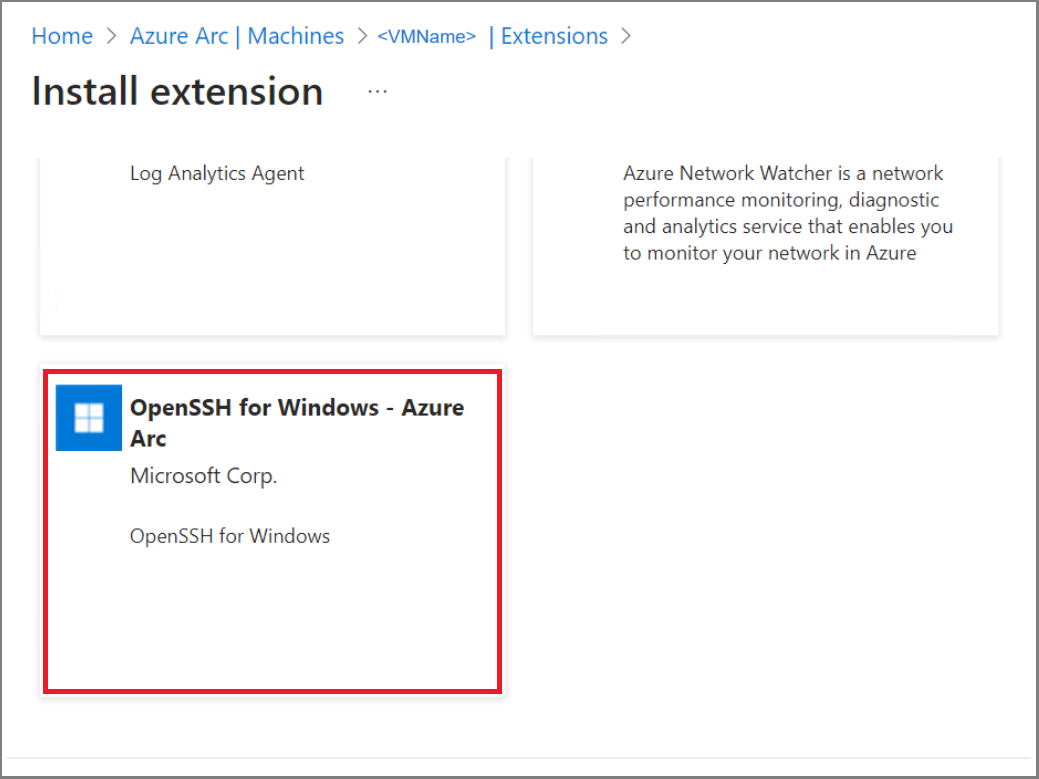
To install the extension via Azure portal, navigate to Extensions and select the OpenSSH for Windows - Azure Arc option.
Install the OpenSSH Server Extension via Azure CLI
Use the following steps to install the OpenSSH Server Extension via Azure CLI:
Run the following commands to ensure that the required Azure CLI Extensions are installed:
az extension add --upgrade --name connectedmachine
az extension add --upgrade --name ssh
Sign in to Azure:
az login --use-device-codeSet appropriate parameters:
$resourceGroup="<your resource group>"
$serverName = "<your server name>"
$localUser = "<your username>" # Use a local admin account for testing
Install the
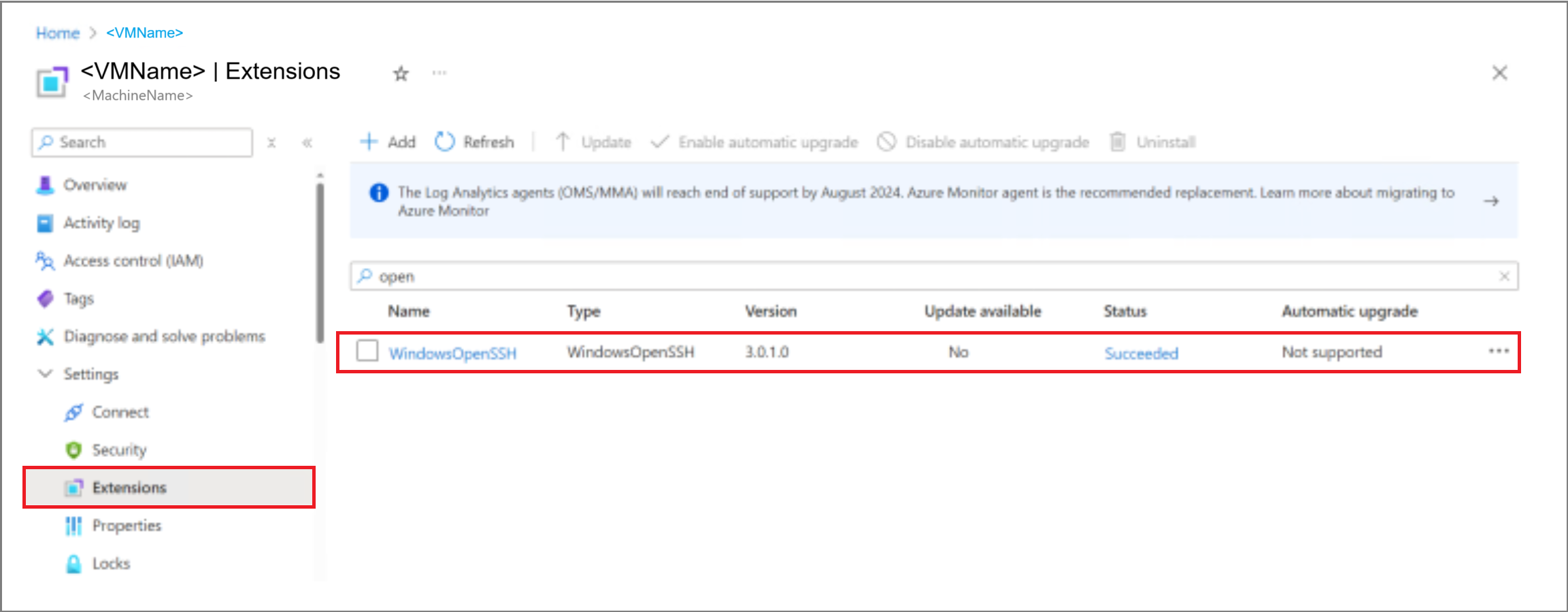
OpenSSHArc Extension:az connectedmachine extension create --name WindowsOpenSSH ` --type WindowsOpenSSH --publisher Microsoft.Azure.OpenSSH ` --type-handler-version 3.0.1.0 --machine-name $serverName ` --resource-group $resourceGroupYou can see the WindowsOpenSSH extension in the Azure portal Extensions list view.
Use SSH to connect to an Azure Local VM
Note
You might be prompted to allow Azure Arc to use port 22 as the local SSH endpoint inside the VM.
Use the following steps to connect to an Azure Local VM. This procedure works for both Windows and Linux VMs.
Run the following command to launch Arc SSH and sign in to the VM:
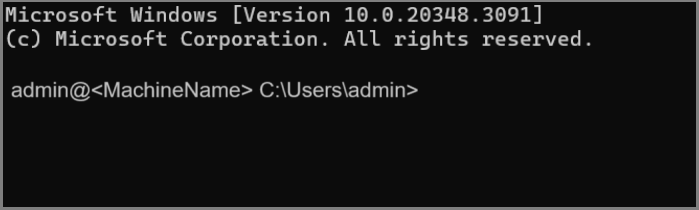
az ssh arc --resource-group $resourceGroup --name $serverName --local-user $localUserYou're now connected to the Azure Local VM over SSH.
Use RDP over SSH to connect to an Azure Local VM
For Windows VMs only, you can use RDP over SSH to connect to an Azure Local VM. Linux VMs don't support RDP over SSH.
Run the following command with the RDP parameter:
az ssh arc --resource-group $resourceGroup --name $serverName --local-user $localUser --rdpSign in to the local server for RDP over SSH.
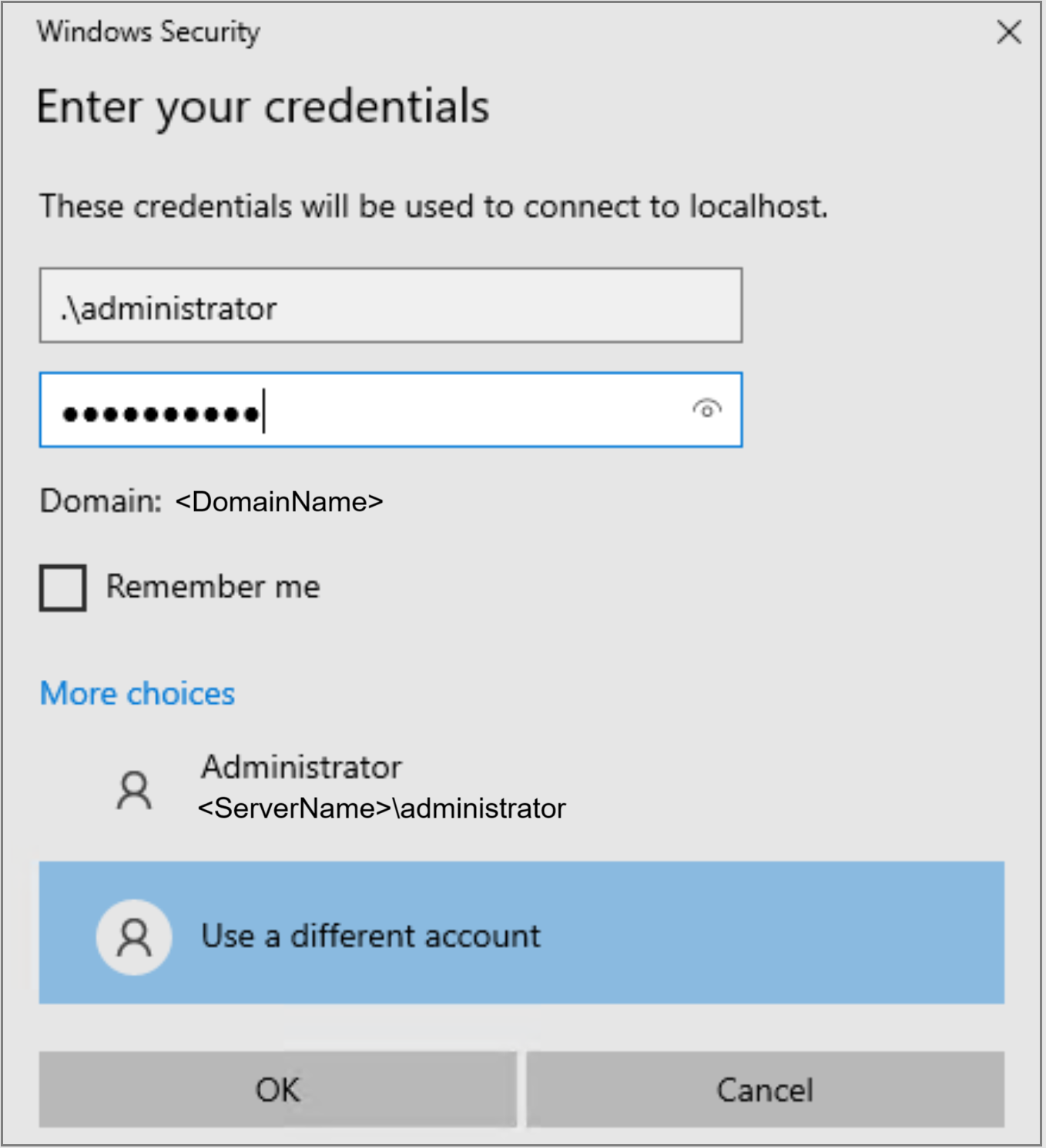
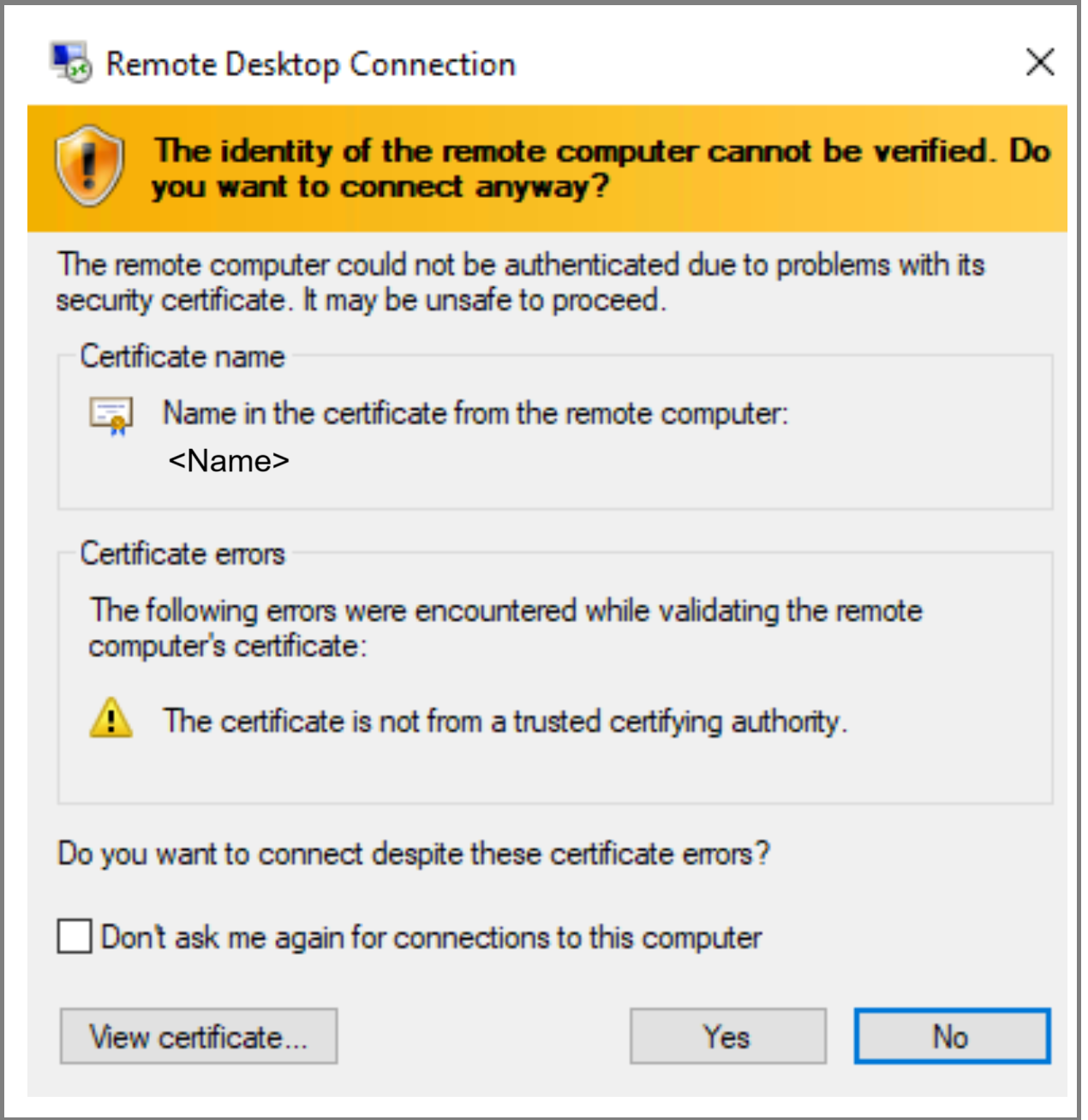
Sign in to authenticate for RDP.
You can see the desktop for the remote desktop connection.
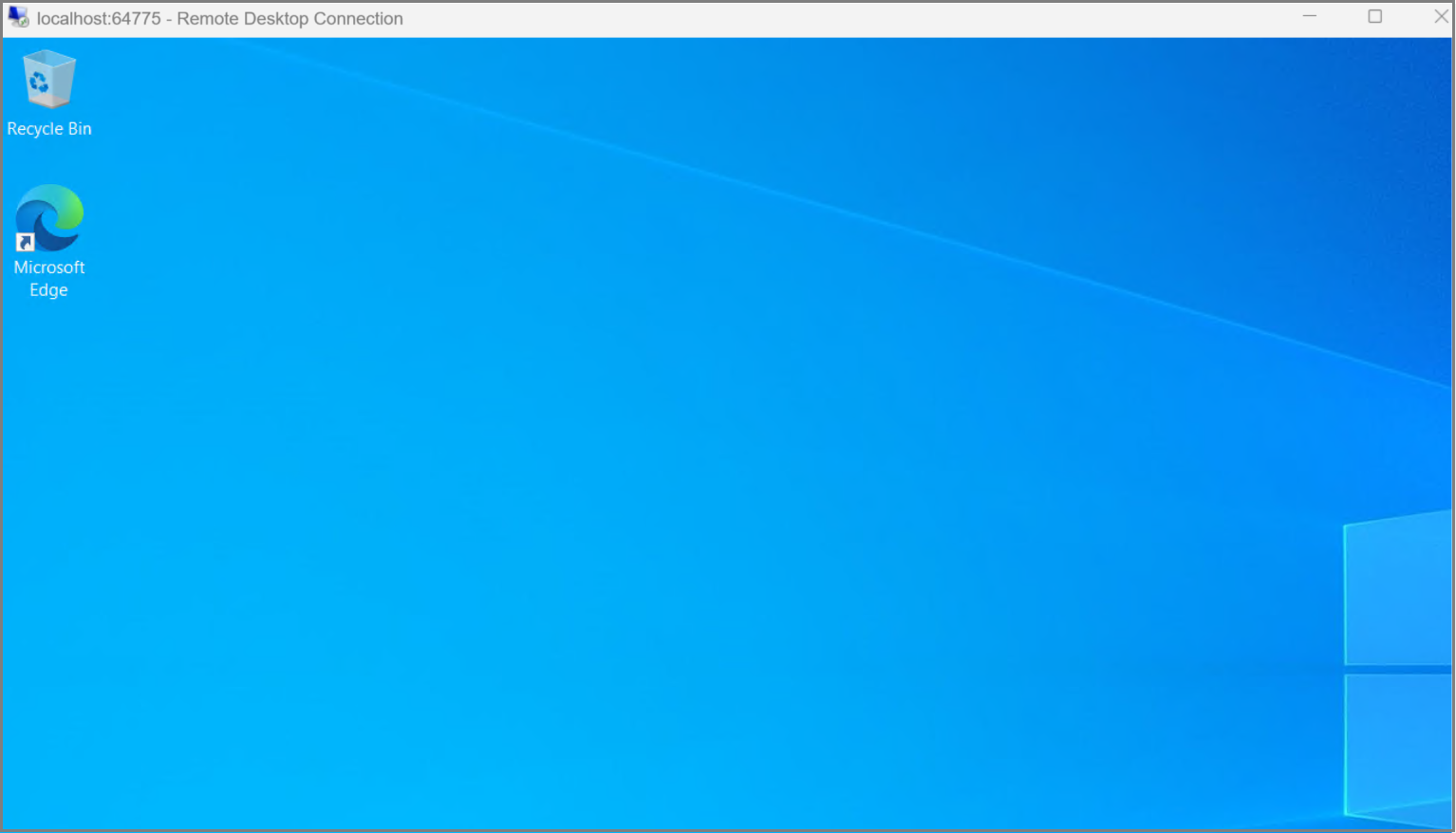
You set up an RDP tunnel over SSH into your Azure Local VM using Azure CLI without any VPN or open ports at your firewall.
