Bilješka
Pristup ovoj stranici zahtijeva provjeru vjerodostojnosti. Možete pokušati da se prijavite ili promijenite direktorije.
Pristup ovoj stranici zahtijeva provjeru vjerodostojnosti. Možete pokušati promijeniti direktorije.
This article describes Configurator App for small form factor deployments of Azure Local.
Configurator App is a Windows application that connects directly to an Azure Local device to collect diagnostics or perform management actions. It's designed to be used only when you don't have access to the Azure control plane and need to take some local action to establish an Azure connection or debug an issue.
Important
This feature is currently in PREVIEW. See the Supplemental Terms of Use for Microsoft Azure Previews for legal terms that apply to Azure features that are in beta, preview, or otherwise not yet released into general availability.
Network access model
The Configurator App must run on a Windows PC that has routable local-network access to the device. Azure doesn't proxy this connection. The PC must be able to resolve the device hostname or reach the device IP address.
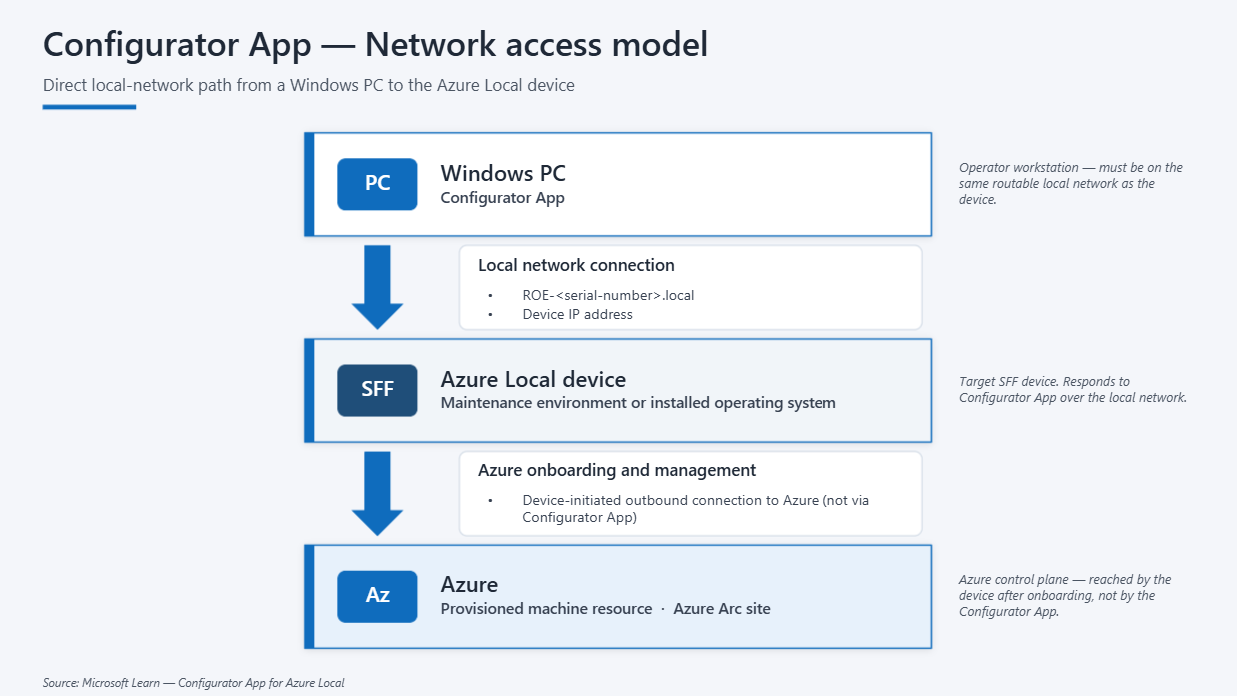
If the operator's PC isn't on the same network segment, or if local firewall rules block access to the device, the Configurator app can't connect even if the provisioned machine resource exists in Azure.
Connection options
Configurator App supports the connection paths exposed by the device during provisioning and troubleshooting.
| Connection option | What it uses | When to use it |
|---|---|---|
| Device host name | The maintenance environment host name, such as ROE-<device-serial-number>.local. This depends on local name resolution for .local addresses. |
Use this when the device and PC are on the same local network and the device host name resolves correctly. |
| Device IP address | Direct local IP connectivity to the device. | Use this when name resolution doesn't work, when the device console shows the IP address, or when you assigned a known static IP address. |
What you can use it for
The following are some of the typical use cases for the Configurator app.
Download ownership vouchers
During zero-touch provisioning, each device produces an ownership voucher. Azure uses this voucher to claim the physical device and create a provisioned machine resource.
The Configurator App can download the ownership voucher from the device after the maintenance environment is installed. This is useful when you want a guided UI instead of copying the voucher from the USB drive or using SSH/SCP.
Check device status
The app can help verify that the device is reachable and that the installation or provisioning process is progressing. This is especially useful when the Azure portal doesn't yet show enough information, or when the device isn't connected to Azure.
Configure local networking
By default, the maintenance environment attempts to connect by using DHCP. Use the Configurator App when the deployment environment requires manual network configuration, such as:
- Static IP address
- Gateway address
- DNS settings
- Other advanced network settings required for the device to reach Azure
This is most common in locked-down edge environments where DHCP isn't available or where the device must use a reserved address.
Note
This is only needed if the provisioning environment itself must be set up with these network settings. Even if the maintenance environment is set up over DHCP, the provisioned machine resource still supports assigning a static IP address from the cloud once the Azure connection is established.
Collect logs and support packages
The Configurator App can create and download support packages from the device. Use this when you need to troubleshoot installation, provisioning, or connectivity issues, or when you need to provide logs for support.
For the step-by-step log collection workflow, see Collect logs.
Credential model
The credential set depends on the current state of the device.
| Device state | Credential set |
|---|---|
| Maintenance environment | Username edgeuser and password Password1. |
| Installed operating system | The username and SSH key configured during target OS setup. |
The same device might require different credentials over time. For example, before provisioning, use the maintenance environment credentials. After the target operating system is installed, use the SSH key and username configured for that operating system.