Bilješka
Pristup ovoj stranici zahtijeva provjeru vjerodostojnosti. Možete pokušati da se prijavite ili promijenite direktorije.
Pristup ovoj stranici zahtijeva provjeru vjerodostojnosti. Možete pokušati promijeniti direktorije.
To access Azure REST APIs such as the Log Analytics API, or to send custom metrics, generate an authorization token based on a client ID and secret. Pass the token in your REST API request. This article shows you how to register a client app and create a client secret to generate a token.
Prerequisites
- To register an application, you need a Microsoft Entra directory role such as Application Developer.
- To assign a role to the app, you need Owner or User Access Administrator permissions on the scope where you assign the role.
Register an app
Create a service principal and register an app by using the Azure portal, Azure CLI, or Azure PowerShell.
To register an app, open the Microsoft Entra ID Overview page in the Azure portal.
Select App registrations from the side bar.
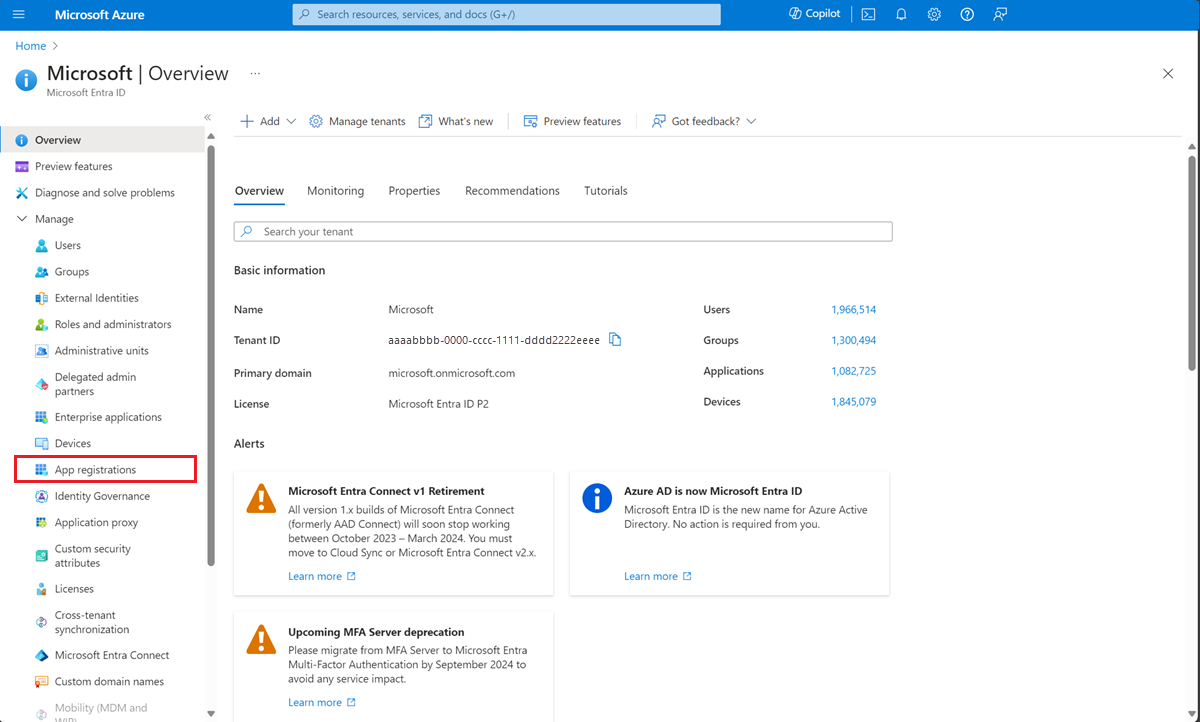
Select New registration
On the Register an application page, enter a Name for the application.
Select Register
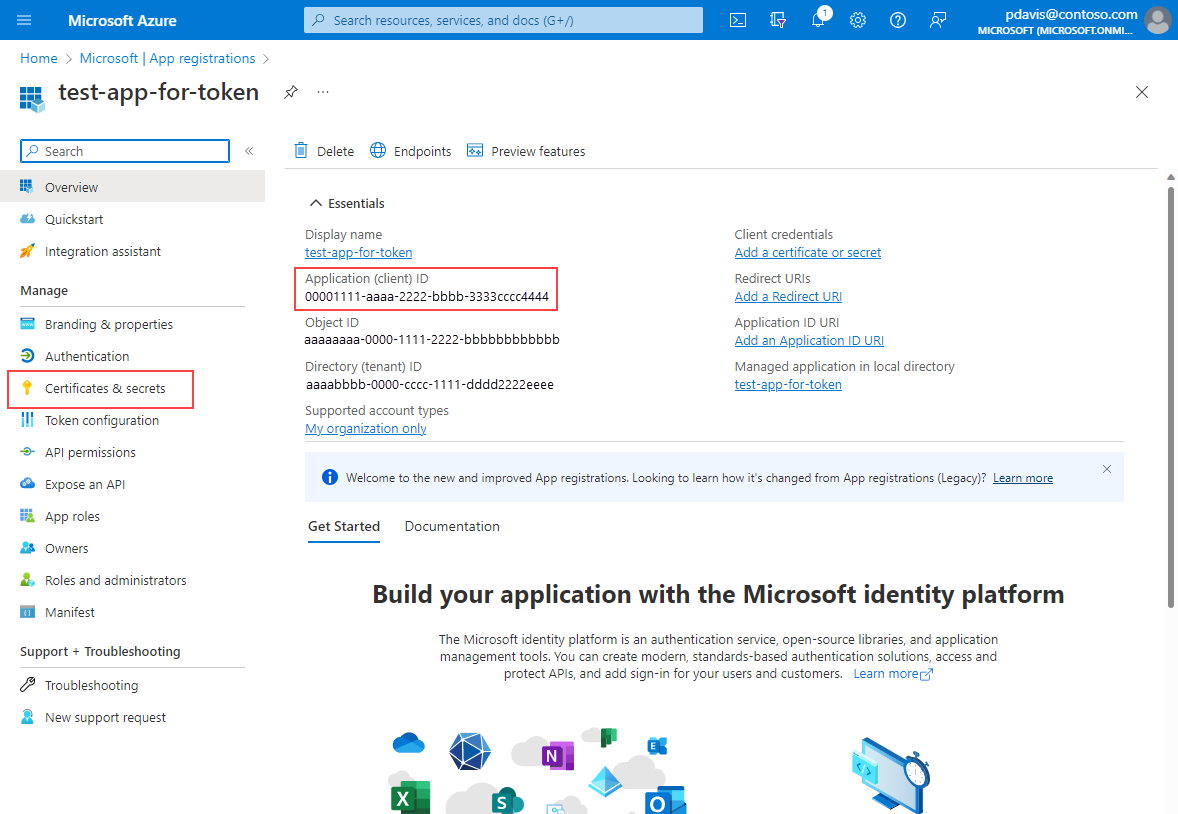
On the app's overview page, select Certificates and Secrets
Note the Application (client) ID. It's used in the HTTP request for a token.
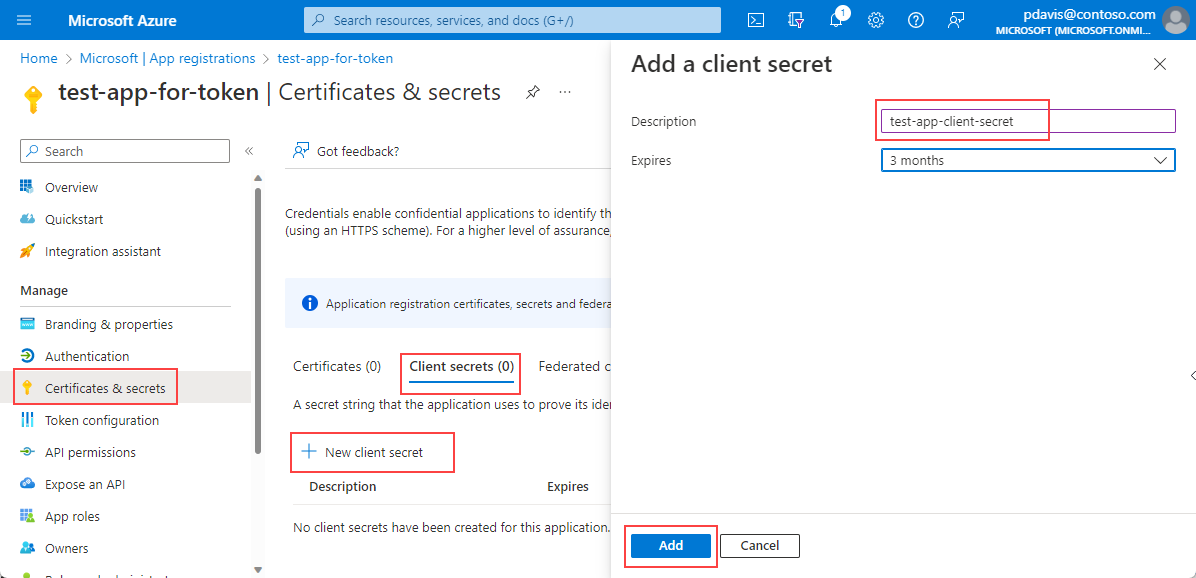
In the Client secrets tab Select New client secret
Enter a Description and select Add
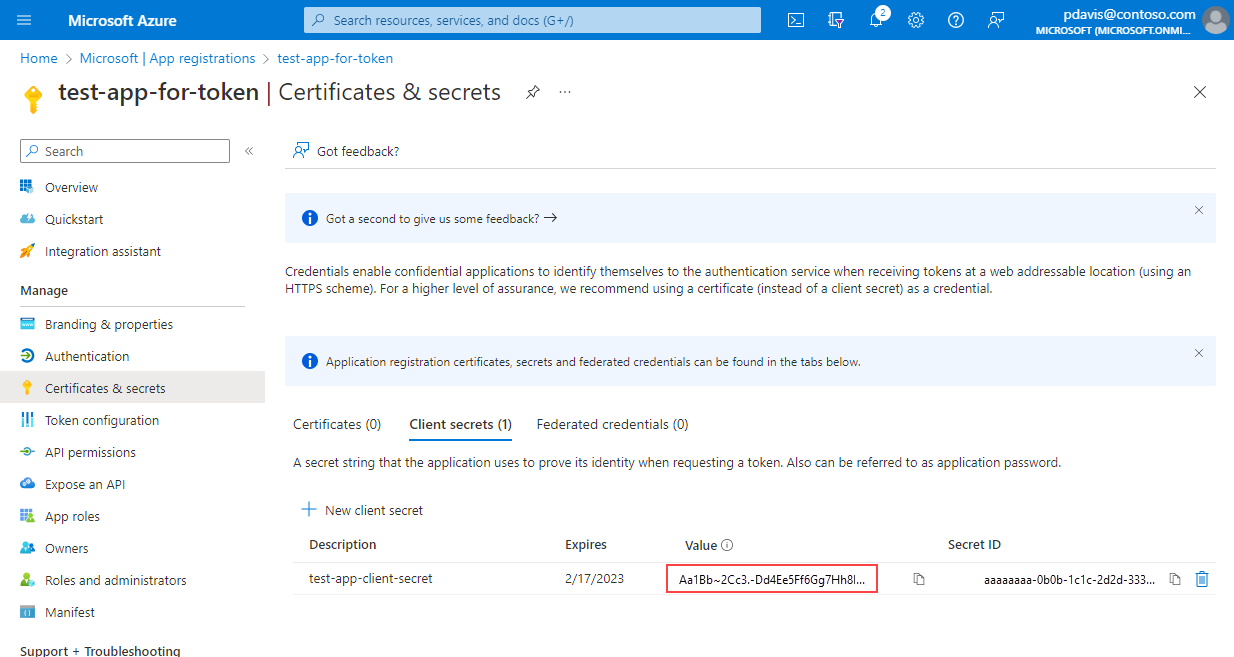
Copy and save the client secret Value.
Note
Client secret values can only be viewed immediately after creation. Be sure to save the secret before leaving the page.
Assign a role to the app for the resources that you want to access with the API:
- In the Azure portal, go to the resource, resource group, or subscription where you want to grant access, and select Access control (IAM).
- Select Add > Add role assignment.
- On the Role tab, select the Reader role, and then select Next.
- On the Members tab, select Assign access to > User, group, or service principal, then select Select members and choose your app.
- Select Review + assign.
Next steps
You registered an app and assigned it a role. Next, use your app, client ID, and client secret to generate a bearer token to access the REST API.
The role you assign depends on the resource type and the API that you use. For example:
- For read access to a Log Analytics workspace, assign the Reader role on the workspace. For more information, see Access the API.
- To send custom metrics for a resource, assign the Monitoring Metrics Publisher role on the resource. For more information, see Send metrics to the Azure Monitor metric database using REST API.
For more information about assigning roles, see Assign Azure roles using the Azure portal.
Note
When using Microsoft Entra authentication, it might take up to 60 minutes for the Azure Application Insights REST API to recognize new role-based access control (RBAC) permissions. While permissions are propagating, REST API calls might fail with error code 403.