Bilješka
Pristup ovoj stranici zahtijeva provjeru vjerodostojnosti. Možete pokušati da se prijavite ili promijenite direktorije.
Pristup ovoj stranici zahtijeva provjeru vjerodostojnosti. Možete pokušati promijeniti direktorije.
A function is a log query in Azure Monitor that can be used in other log queries as though it's a command. You can use functions to provide solutions to different customers and also reuse query logic in your own environment. This article describes how to use functions and how to create your own.
Permissions required
| Action | Permissions required |
|---|---|
| View or use functions | Microsoft.OperationalInsights/workspaces/query/*/read permissions to the Log Analytics workspace, as provided by the Log Analytics Reader built-in role, for example. |
| Create or edit functions | microsoft.operationalinsights/workspaces/savedSearches/write permissions to the Log Analytics workspace, as provided by the Log Analytics Contributor built-in role, for example. |
Types of functions
There are two types of functions in Azure Monitor:
Solution functions: Prebuilt functions are included with Azure Monitor. These functions are available in all Log Analytics workspaces and can't be modified.
Workspace functions: These functions are installed in a particular Log Analytics workspace. They can be modified and controlled by the user.
View functions
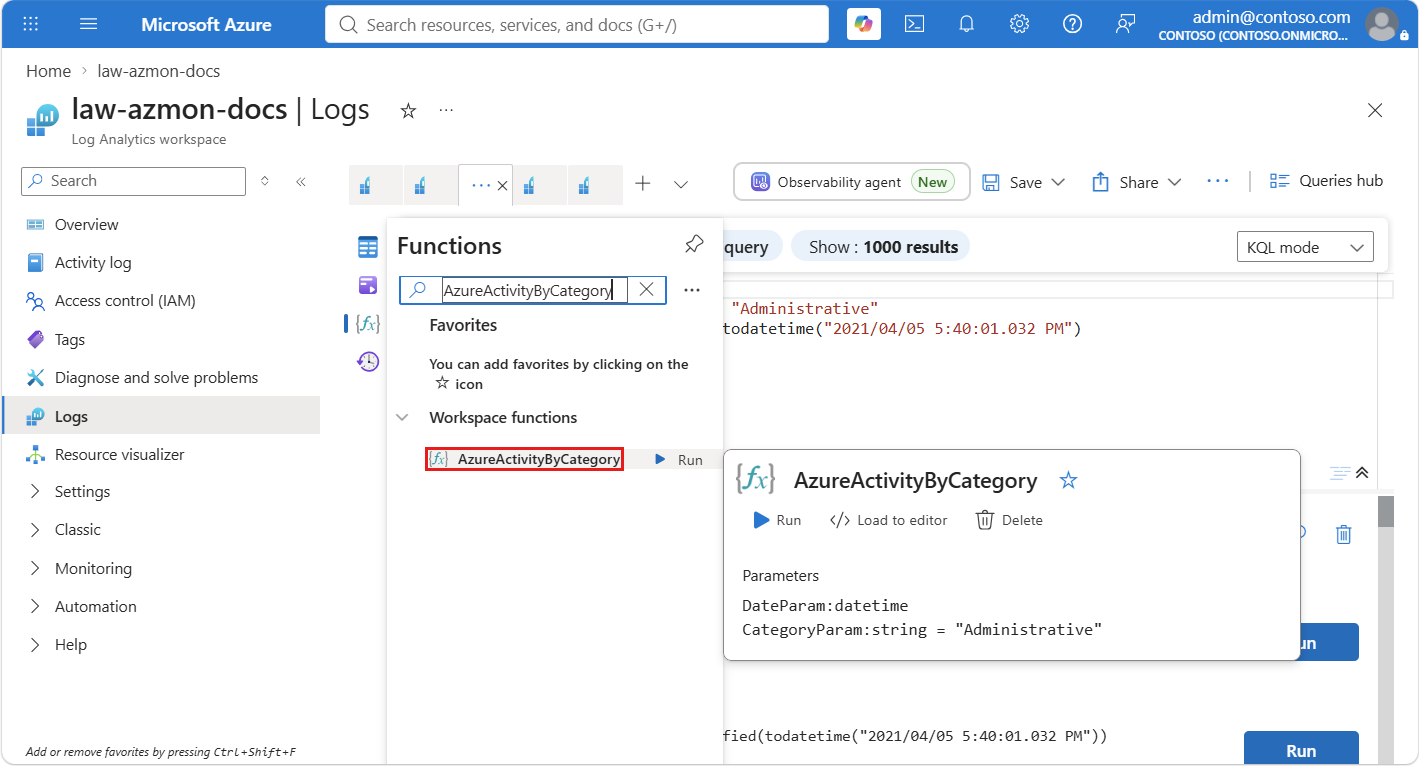
View solution functions and workspace functions in the current workspace by selecting Functions in the left pane of a Log Analytics workspace. Expand a category or enter a string in the Search box to locate a particular function. Hover over a function to view details about it, including a description and parameters.
Use a function
Use a function in a query by typing its name with values for any parameters the same as you would type in a command. The output of the function can either be returned as results or piped to another command.
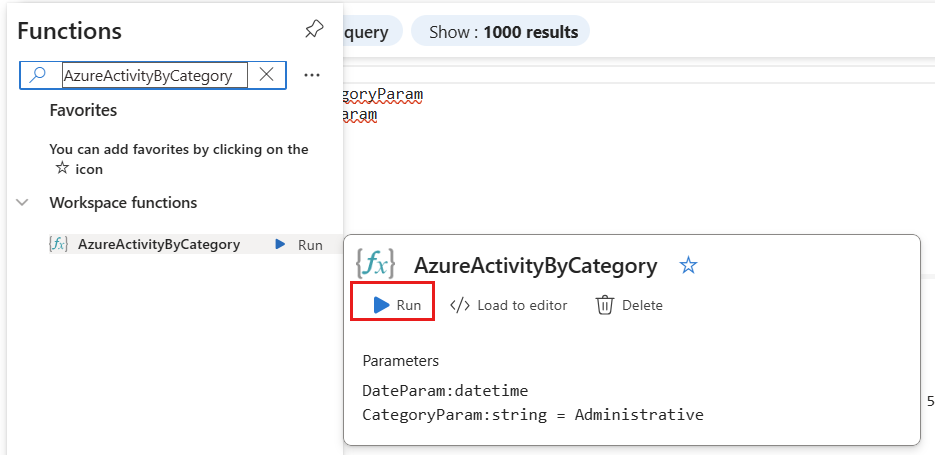
Run a function from the Functions pane by hovering over its name and selecting Run. IntelliSense includes functions in the workspace as you enter a query.
If a query requires parameters, provide them by using the syntax function_name(param1,param2,...).
Create a function
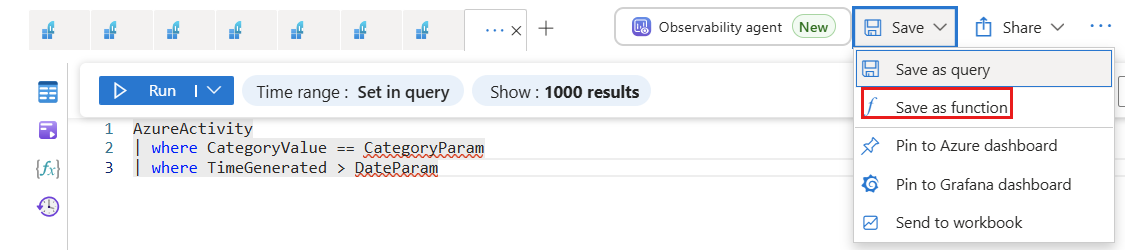
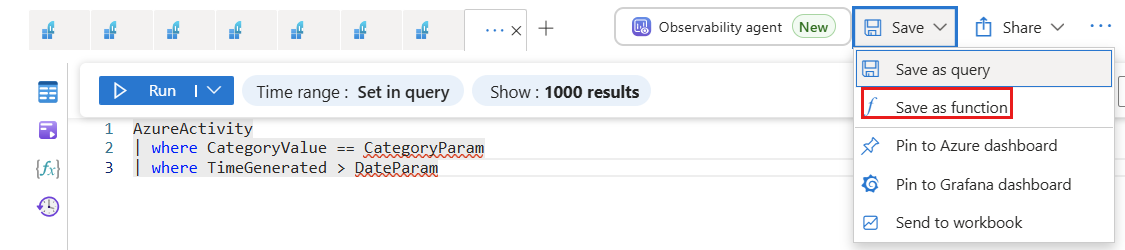
To create a function from the current query in the editor, select Save > Save as function.
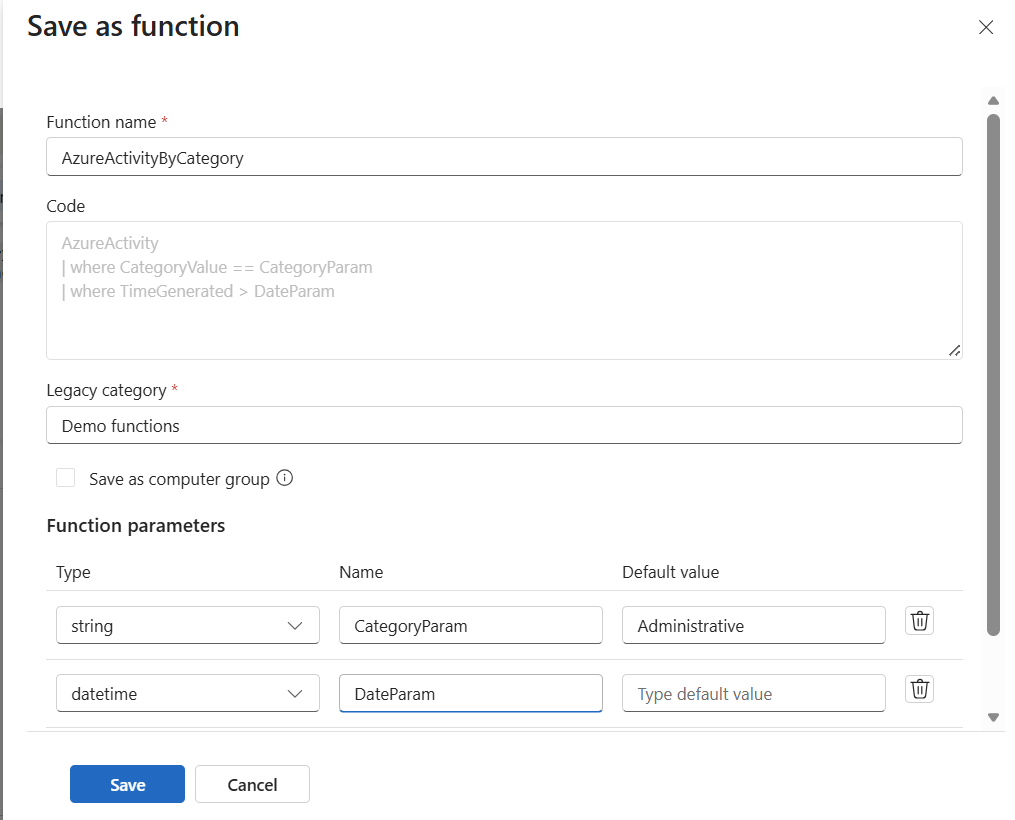
Create a function with Log Analytics in the Azure portal by selecting Save and then providing the information in the following table:
| Setting | Description |
|---|---|
| Function name | Name for the function. The name may not include a space or any special characters. It also may not start with an underscore (_) because this character is reserved for solution functions. |
| Legacy category | User-defined category to help filter and group functions. |
| Save as computer group | Save the query as a computer group. |
| Parameters | Add a parameter for each variable in the function that requires a value when it's used. For more information, see Function parameters. |
Function parameters
You can add parameters to a function so that you can provide values for certain variables when you call it. As a result, the same function can be used in different queries, each providing different values for the parameters. Parameters are defined by the following properties:
| Setting | Description |
|---|---|
| Type | Data type for the value. |
| Name | Name for the parameter. This name must be used in the query to replace with the parameter value. |
| Default value | Value to be used for the parameter if a value isn't provided. |
Parameters are ordered as they're created. Parameters that have no default value are positioned in front of parameters that have a default value.
Work with function code
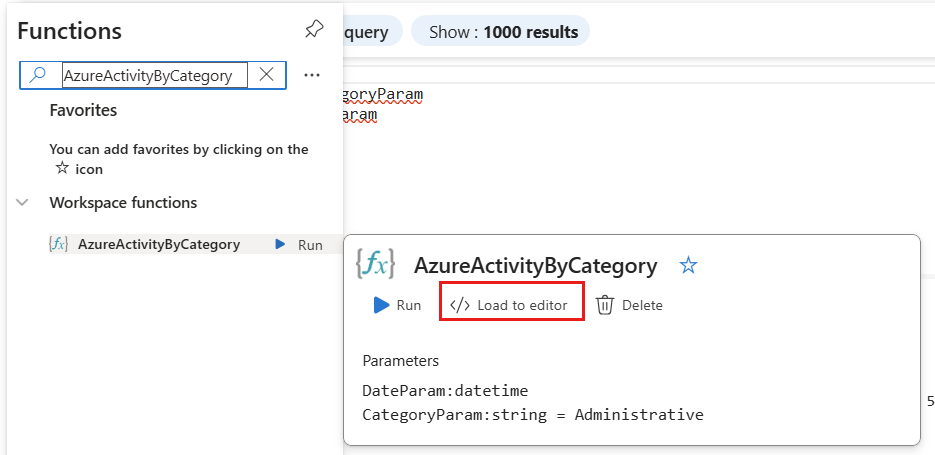
View the code of a function to understand how it works or reuse it in another function. Switch the editor to KQL mode, hover over the function, and select Load to editor.
The function code is added to the current query tab.
Edit a function
To create a modified version of a function, create a new query in KQL mode. Hover over the function name and select Load to editor. Modify the code, and then select Save > Save as function. Provide a unique function name, modify the properties and parameters, and select Save.
Example
The following sample function returns all events in the Azure activity log since a particular date and that match a particular category.
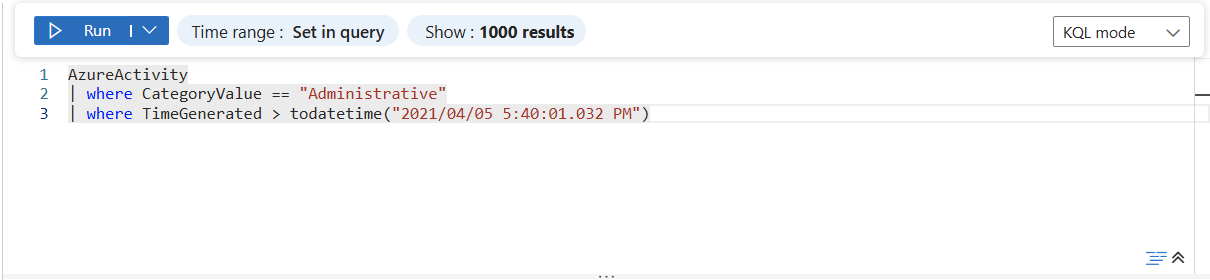
Start with the following query by using hardcoded values to verify that the query works as expected.
AzureActivity
| where CategoryValue == "Administrative"
| where TimeGenerated > todatetime("2021/04/05 5:40:01.032 PM")
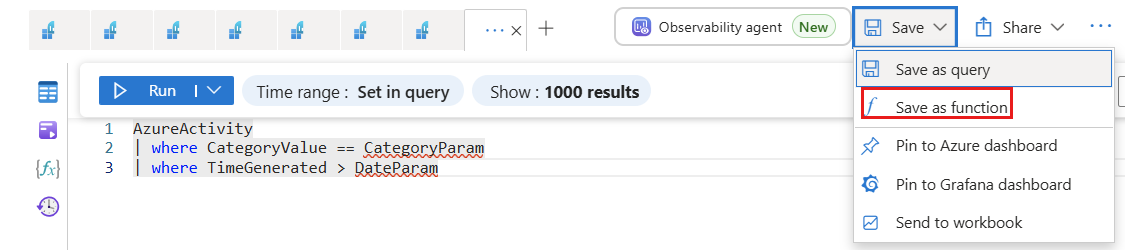
Next, replace the hardcoded values with parameter names. Then save the function by selecting Save > Save as function.
AzureActivity
| where CategoryValue == CategoryParam
| where TimeGenerated > DateParam
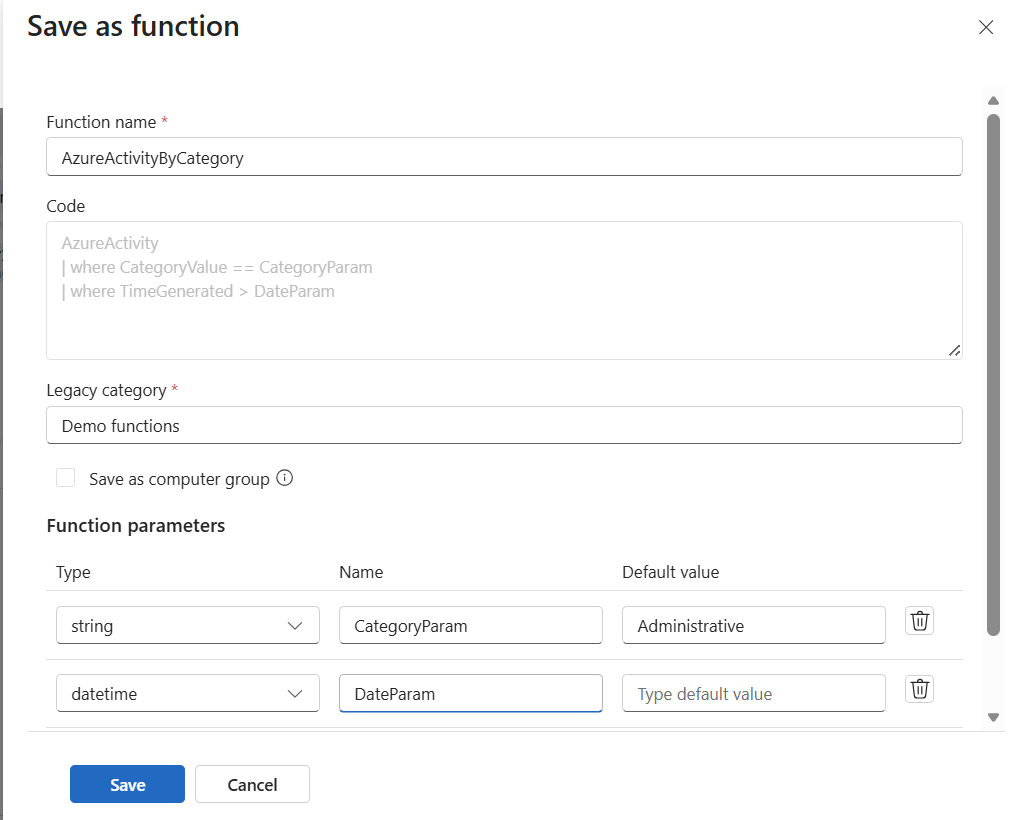
Provide the following values for the function properties:
| Property | Value |
|---|---|
| Function name | AzureActivityByCategory |
| Legacy category | Demo functions |
Define the following parameters before you save the function:
| Type | Name | Default value |
|---|---|---|
| string | CategoryParam | "Administrative" |
| datetime | DateParam |
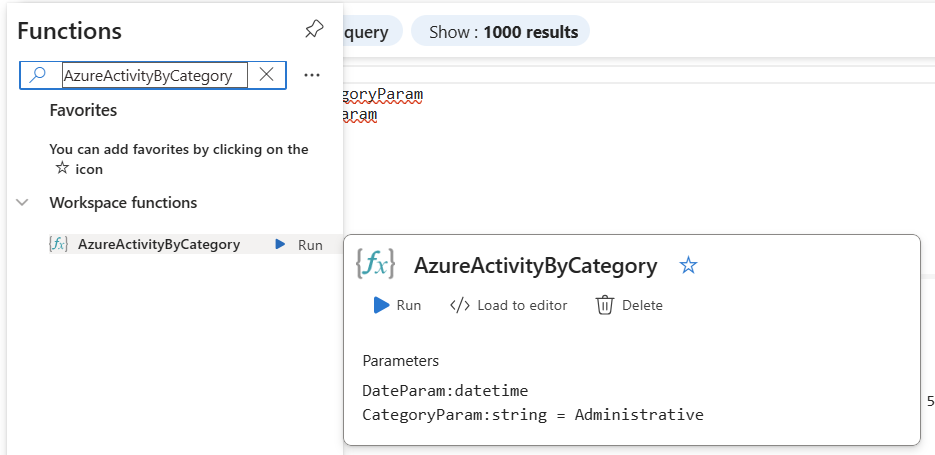
Create a new query and view the new function by hovering over it. Look at the order of the parameters. They must be specified in this order when you use the function.
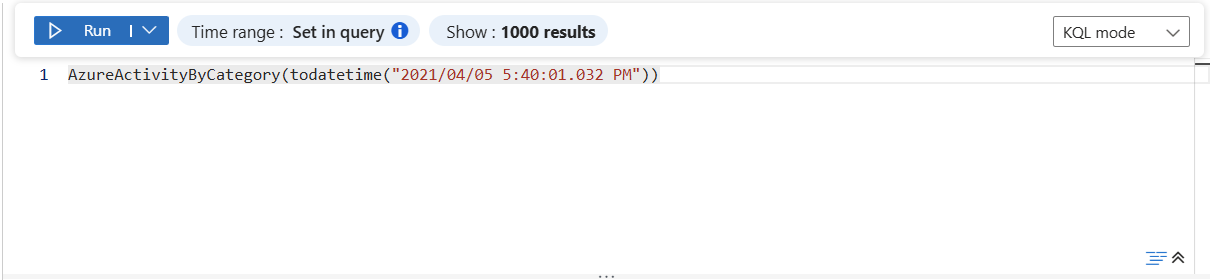
Call the new function from a query and provide values for its required parameters. You don't need to specify a value for CategoryParam because it has a default value.
Next steps
See String operations for more information on how to write Azure Monitor log queries.