Bilješka
Pristup ovoj stranici zahtijeva provjeru vjerodostojnosti. Možete pokušati da se prijavite ili promijenite direktorije.
Pristup ovoj stranici zahtijeva provjeru vjerodostojnosti. Možete pokušati promijeniti direktorije.
This tutorial walks you through configuring a sample transformation in a workspace data collection rule (DCR) by using the Azure portal. Transformations in Azure Monitor filter or modify incoming data before it's sent to its destination. Workspace transformations provide ingestion-time transformations for workflows that don't yet use the Azure Monitor data ingestion pipeline.
Workspace transformations are stored together in a single DCR for the workspace, called the workspace transformation DCR. Each transformation is associated with a particular table, and the transformation applies to all data sent to that table from any workflow that doesn't use a DCR.
Note
This tutorial uses the Azure portal to configure a workspace transformation. For the same tutorial using Azure Resource Manager templates and REST API, see Tutorial: Add transformation in workspace data collection rule to Azure Monitor using resource manager templates.
In this tutorial, you learn how to:
- Configure a workspace transformation for a table in a Log Analytics workspace.
- Write a log query for a workspace transformation.
Prerequisites
To complete this tutorial, you need:
- A Log Analytics workspace where you have at least contributor rights.
- Permissions to create DCR objects in the workspace.
- A table that already has some data.
- The table can't be linked to the workspace transformation DCR.
Workspace transformation overview
In this tutorial, you reduce the storage requirement for the LAQueryLogs table by filtering out certain records. You also remove the contents of a column while parsing the column data to store a piece of data in a custom column. The LAQueryLogs table is created when you enable log query auditing in a workspace. Use this same basic process to create a transformation for any supported table in a Log Analytics workspace.
This tutorial uses the Azure portal, which provides a wizard to walk you through creating an ingestion-time transformation. After you finish the steps, the wizard:
- Updates the table schema with any other columns from the query.
- Creates a workspace transformation DCR (you provide the name) and links it to the workspace if one isn't already linked.
- Creates an ingestion-time transformation and adds it to the DCR.
Enable query audit logs
Enable query auditing for your workspace to create the LAQueryLogs table that you work with in this tutorial. This step isn't required for all ingestion-time transformations. It only generates the sample data used here.
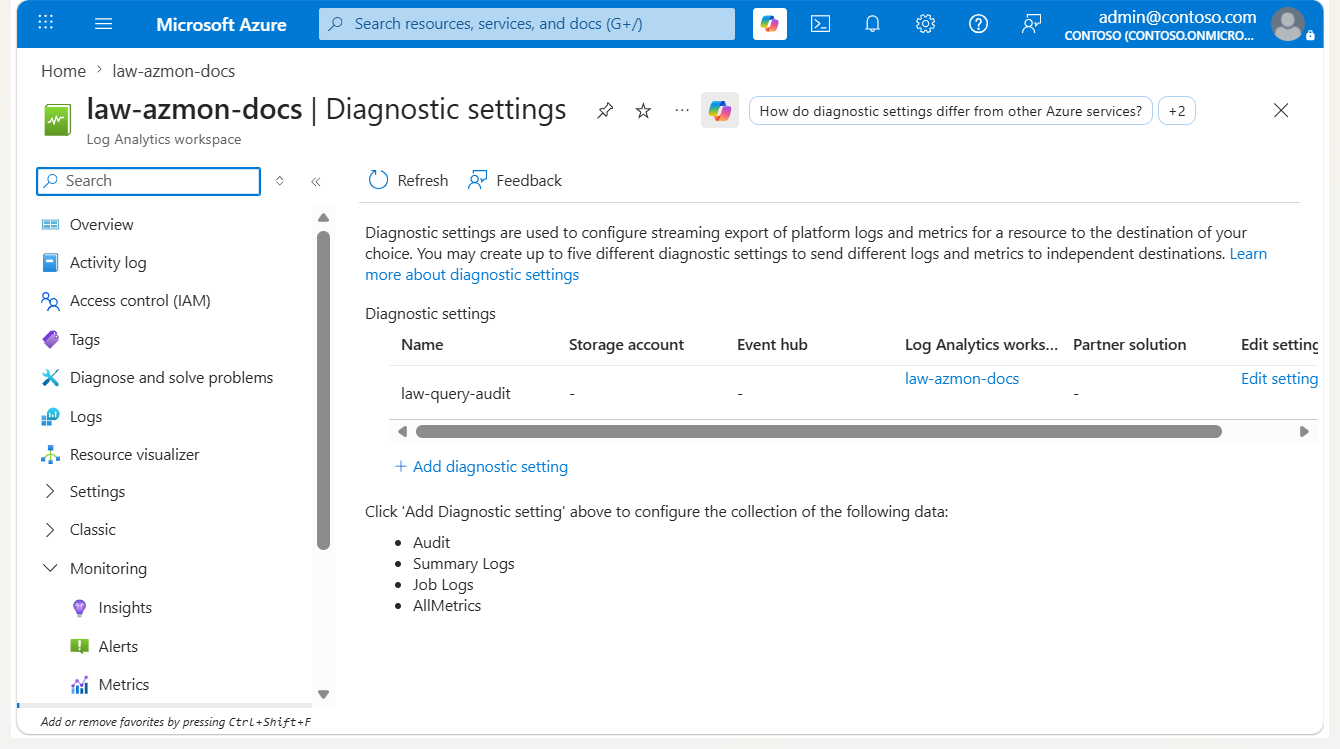
On the Log Analytics workspaces menu in the Azure portal, select Diagnostic settings > Add diagnostic setting.
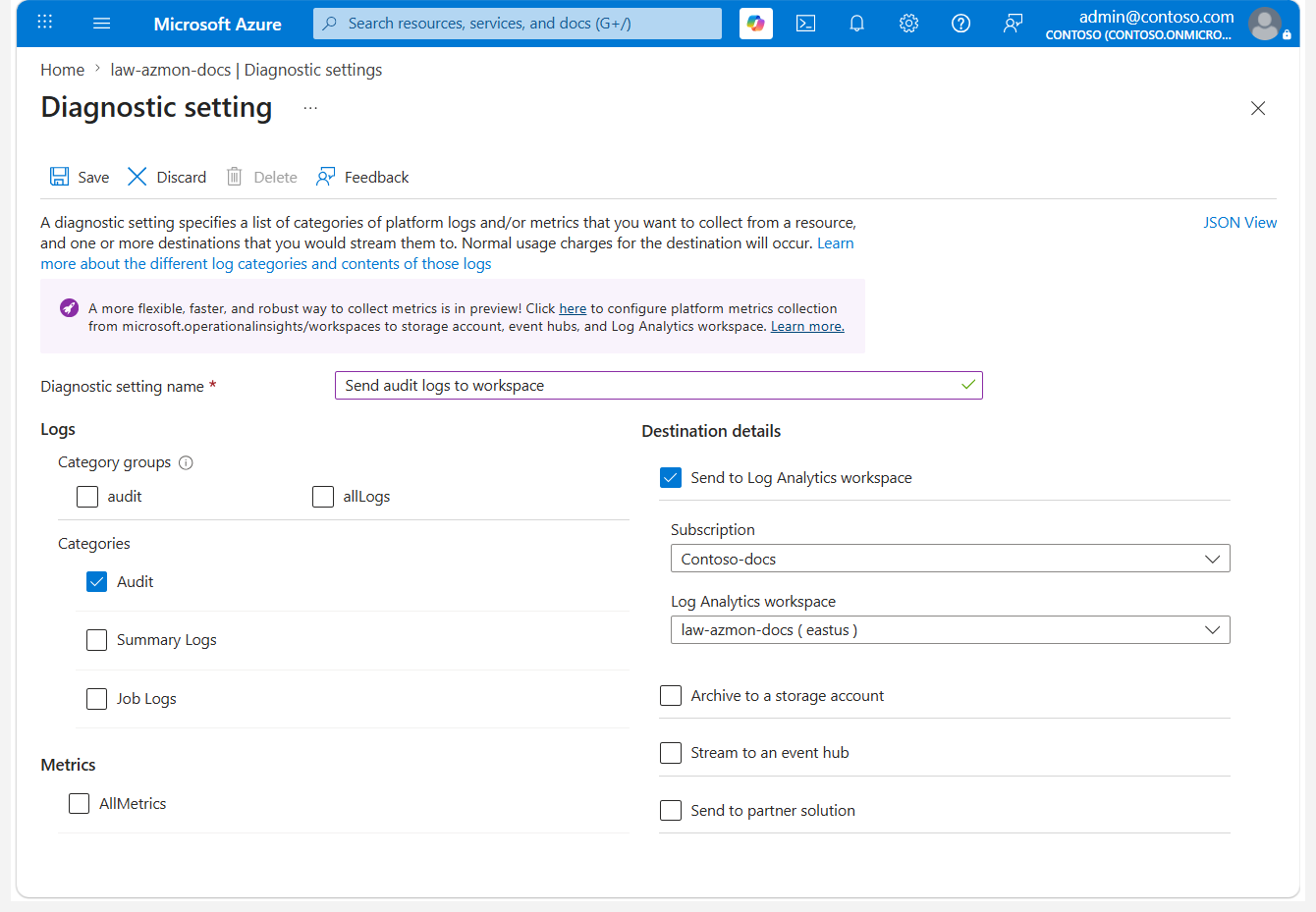
Enter a name for the diagnostic setting. Select the workspace so that the auditing data is stored in the same workspace. Select the Audit category and then select Save to save the diagnostic setting and close the Diagnostic setting page.
Select Logs and then run some queries to populate
LAQueryLogswith some data. These queries don't need to return data to be added to the audit log.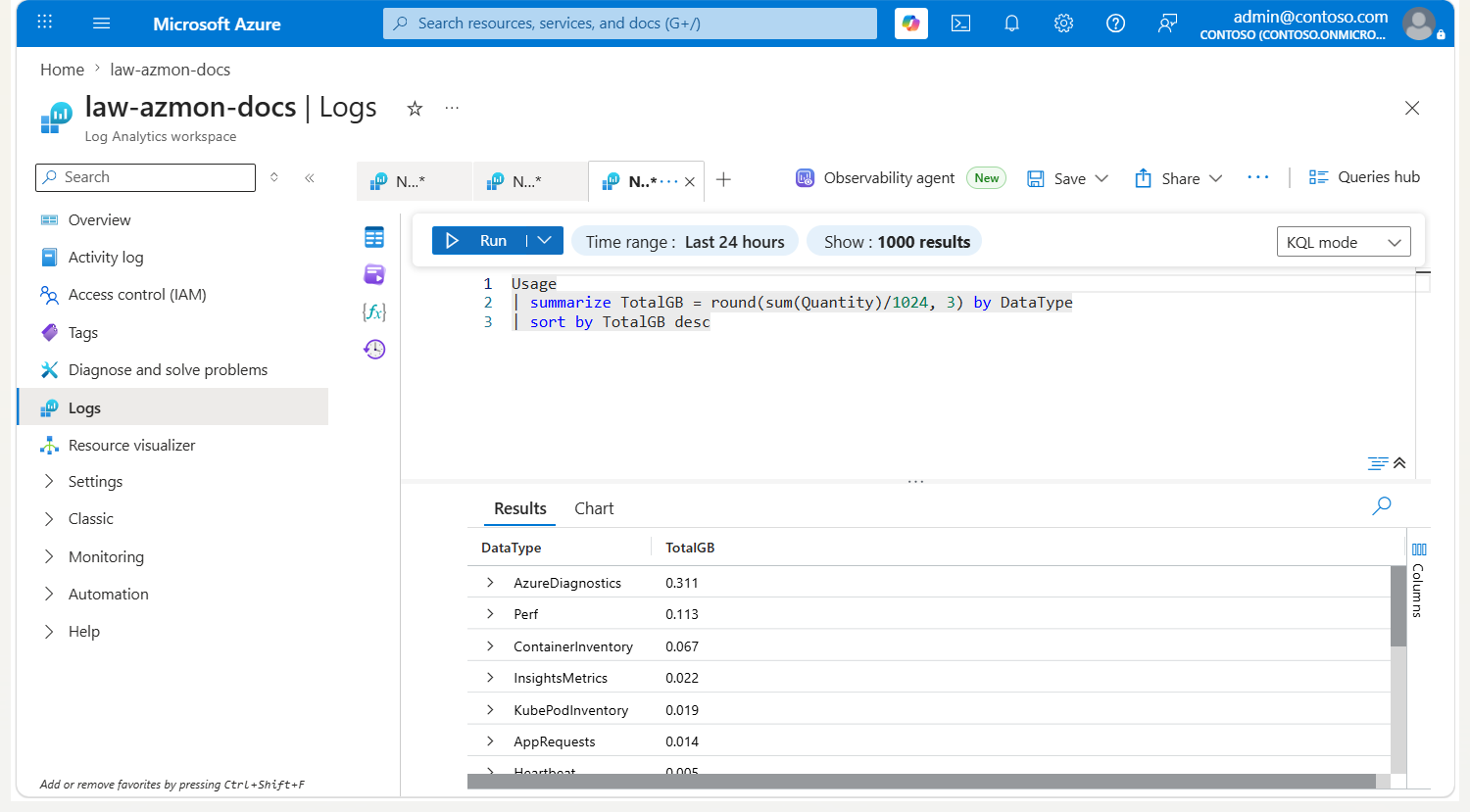
Add a transformation to the table
After you create the table, create the transformation for it.
On the Log Analytics workspaces menu in the Azure portal, select Tables. Locate the
LAQueryLogstable and select Create transformation.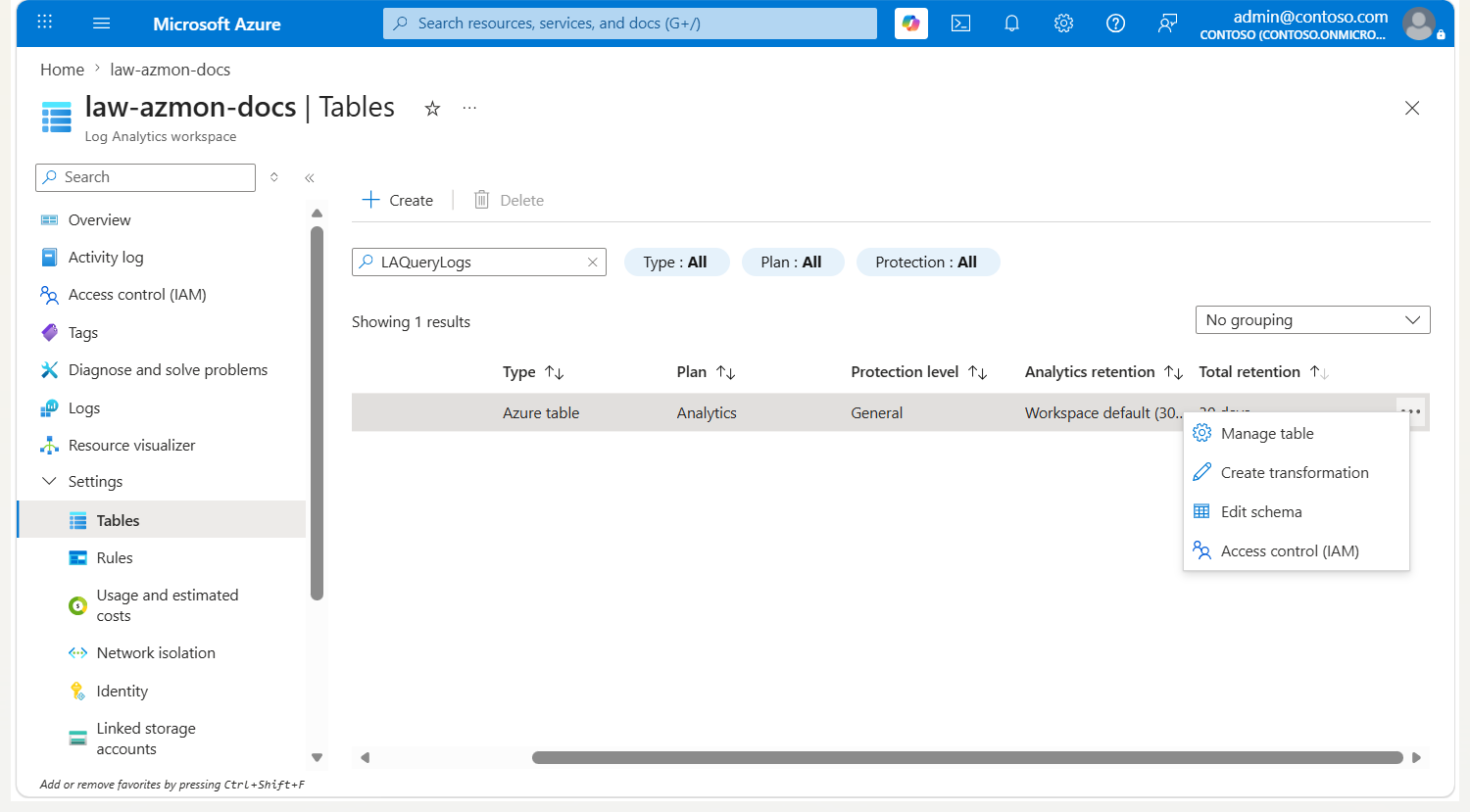
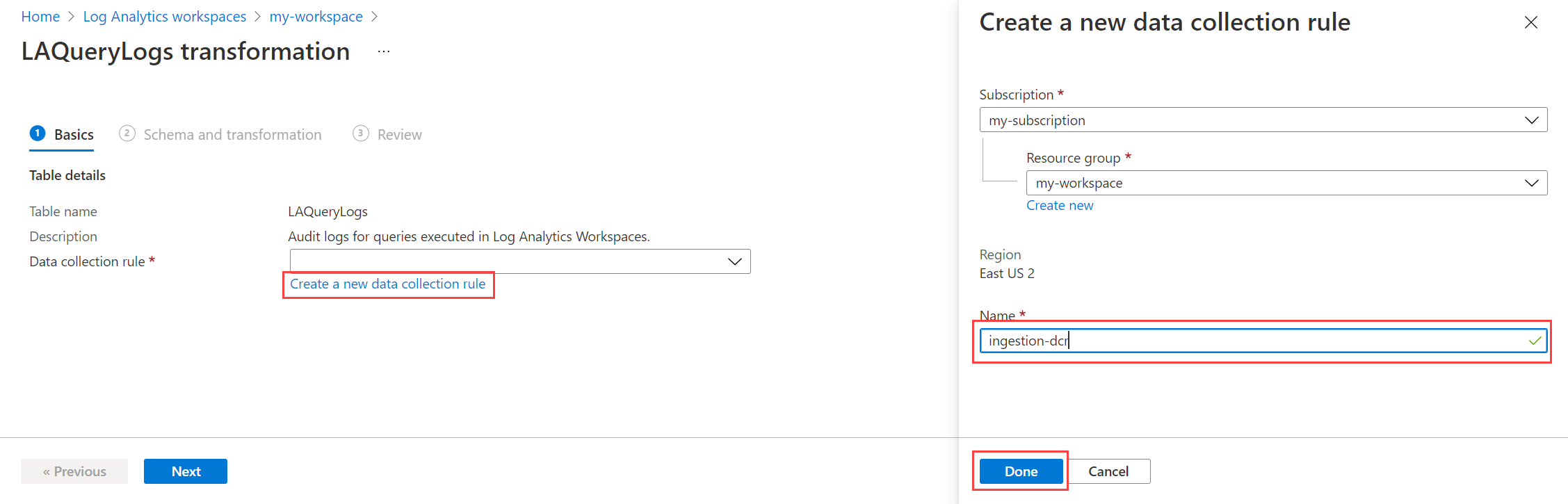
Because this transformation is the first one in the workspace, you must create a workspace transformation DCR. If you create transformations for other tables in the same workspace, store them in this same DCR. Select Create a new data collection rule. The Subscription and Resource group are already populated for the workspace. Enter a name for the DCR and select Done.
Select Next to view sample data from the table. As you define the transformation, the result applies to the sample data. This behavior lets you evaluate the results before you apply the transformation to actual data. Select Transformation editor to define the transformation.
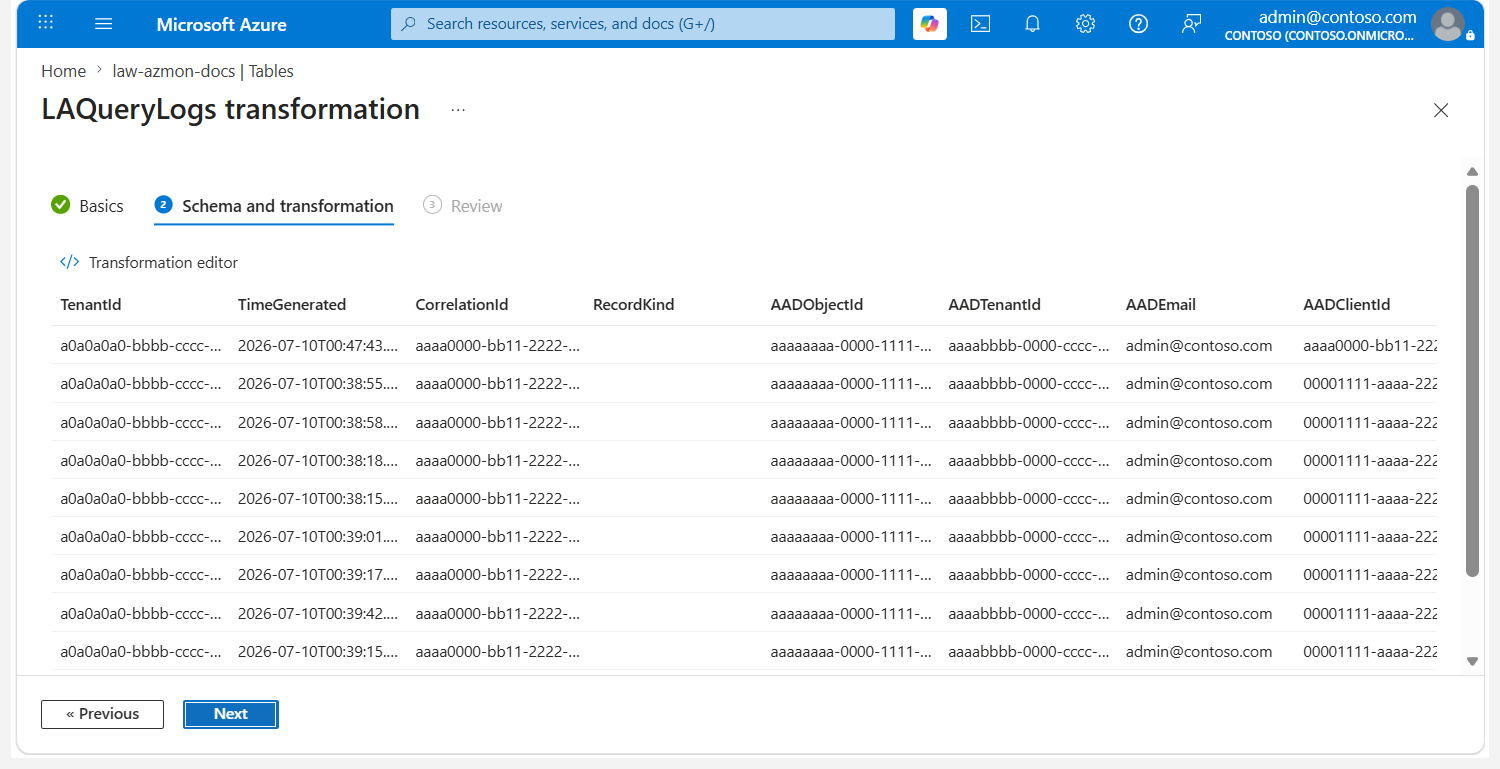
In the transformation editor, review the transformation that's applied to the data before its ingestion into the table. The incoming data is represented by a virtual table named
source, which has the same set of columns as the destination table itself. The transformation initially contains a simple query that returns thesourcetable with no changes.Modify the query to the following example:
source
| where QueryText !contains 'LAQueryLogs'
| extend Context = parse_json(RequestContext)
| extend Workspace_CF = tostring(Context['workspaces'][0])
| project-away RequestContext, Context
The modification makes the following changes:
- It drops rows related to querying the
LAQueryLogstable itself to save space, because these log entries aren't useful. - It adds a column for the name of the workspace that you queried.
- It removes data from the
RequestContextcolumn to save space.
Note
By using the Azure portal, the output of the transformation initiates changes to the table schema if required. The portal adds columns to match the transformation output if they don't already exist. Ensure that your output doesn't contain any columns that you don't want added to the table. If the output doesn't include columns that are already in the table, those columns aren't removed, but data isn't added.
Any custom columns added to a built-in table must end in
_CF. Columns added to a custom table don't need to have this suffix. A custom table has a name that ends in_CL.- It drops rows related to querying the
Copy the query into the transformation editor and select Run to view results from the sample data. Confirm that the new
Workspace_CFcolumn is in the query.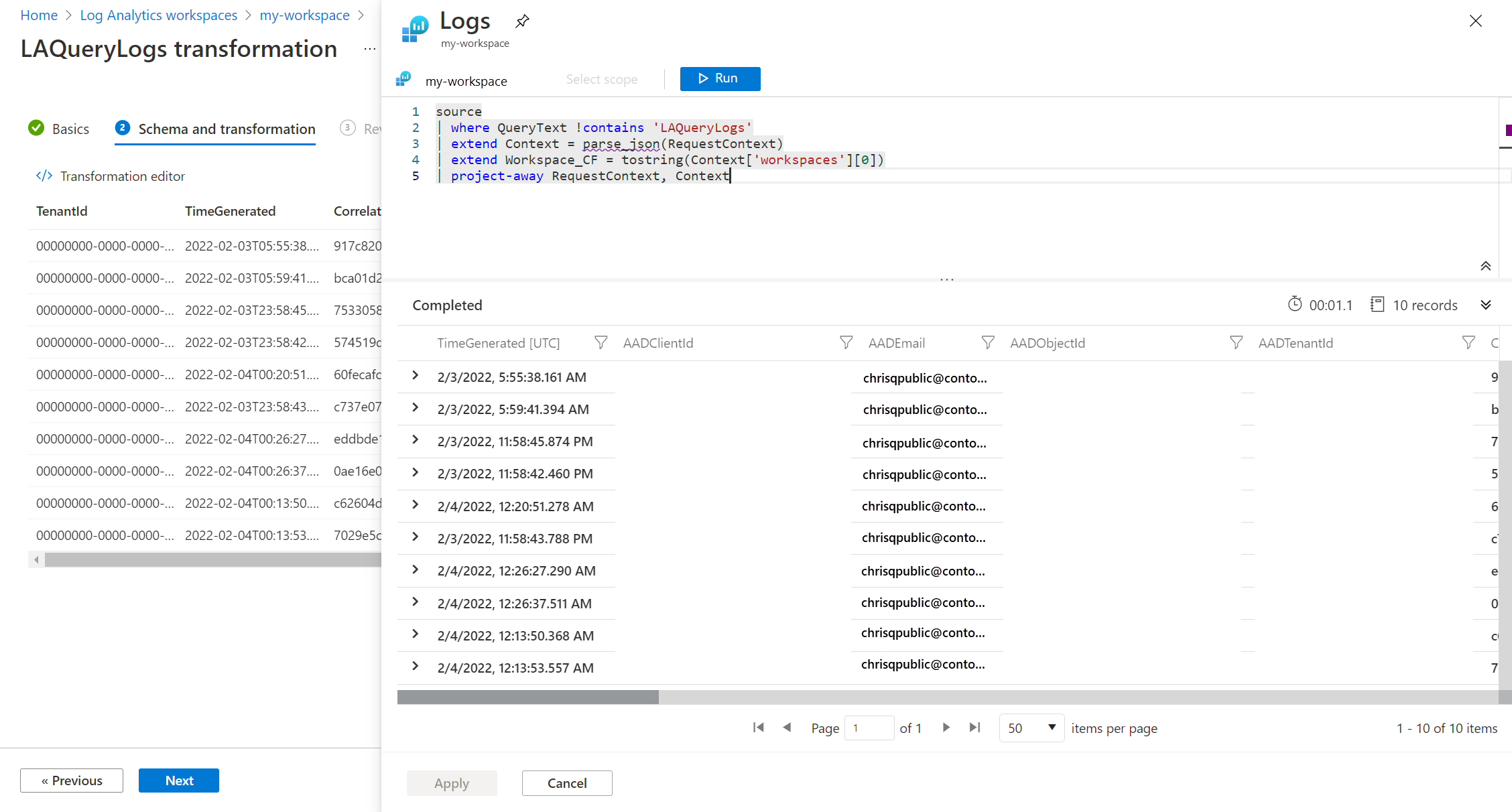
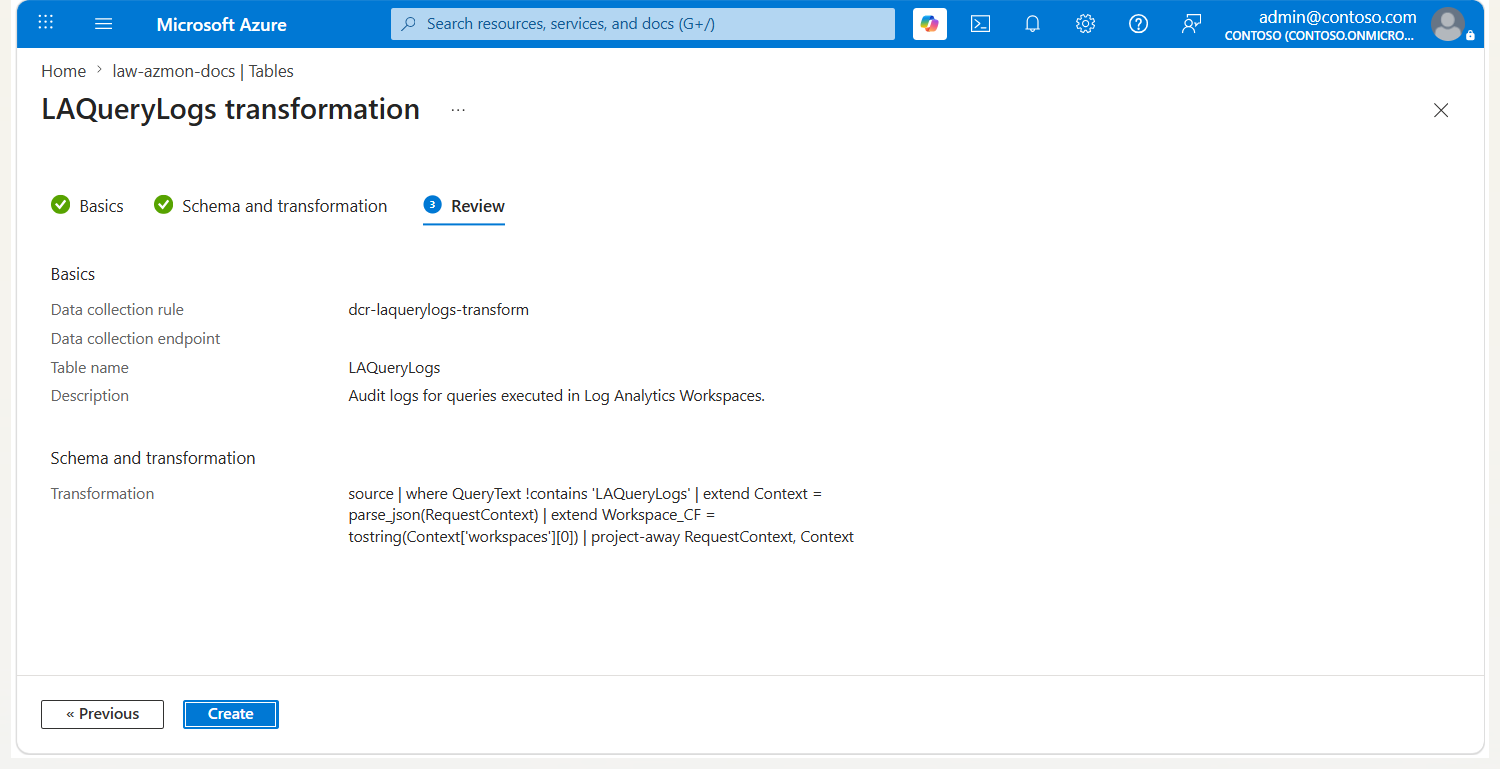
Select Apply to save the transformation and then select Next to review the configuration. Select Create to update the DCR with the new transformation.
Test the transformation
Allow about 30 minutes for the transformation to take effect, then test it by querying the table. Only data sent to the table after the transformation was applied reflects the change.
Select Logs and run a few sample queries, including at least one query that references
LAQueryLogs, to generate new audit records.After about 30 minutes, run the following query to confirm that the transformation filtered out the records that reference
LAQueryLogs:LAQueryLogs | where TimeGenerated > ago(30m) | where QueryText contains 'LAQueryLogs'The query returns no rows, because the transformation drops every incoming record whose
QueryTextcontainsLAQueryLogs.Run the following query to confirm that the new
Workspace_CFcolumn is present and populated:LAQueryLogs | where TimeGenerated > ago(30m) | project TimeGenerated, Workspace_CF, RequestContextThe results include the
Workspace_CFcolumn with the queried workspace name, and theRequestContextcolumn no longer contains data.
Troubleshooting
This section describes different error conditions you might receive and how to correct them.
IntelliSense in Log Analytics not recognizing new columns in the table
The cache that drives IntelliSense might take up to 24 hours to update.
Transformation on a dynamic column isn't working
A known issue currently affects dynamic columns. A temporary workaround is to explicitly parse dynamic column data by using parse_json() prior to performing any operations against them.