Bilješka
Pristup ovoj stranici zahtijeva provjeru vjerodostojnosti. Možete pokušati da se prijavite ili promijenite direktorije.
Pristup ovoj stranici zahtijeva provjeru vjerodostojnosti. Možete pokušati promijeniti direktorije.
Portable VMware Cloud Foundation (VCF), also called VCF bring your own license (BYOL), lets you use a VCF subscription purchased from Broadcom with Azure VMware Solution. You register the subscription separately on each Azure VMware Solution private cloud.
This article explains how to register and manage portable VCF through the Azure portal. For licensing rules, important dates, trial requirements, and core calculations, see Portable VCF licensing reference for Azure VMware Solution.
Prerequisites
Before you begin, make sure that you have:
- An Azure VMware Solution private cloud or the information required to create one.
- An approved host quota for the planned deployment. For instructions, see Request host quota for Azure VMware Solution.
- A 25-character VCF license or subscription key from Broadcom.
- The Broadcom site ID, serial number, and expiration date associated with the VCF subscription.
- The number of BYOL cores deployed or planned for the private cloud. To determine this value, see Calculate VCF cores.
- A Broadcom vDefend Firewall add-on key if you plan to use supported vDefend Firewall features.
Configure portable VCF
Registration is currently available only through the Azure portal. You can configure portable VCF while creating a private cloud or enable it on an existing private cloud.
Configure portable VCF while creating a private cloud
When you create an Azure VMware Solution private cloud in the Azure portal, use the Portable VCF (BYOL) option to provide the VCF license information.
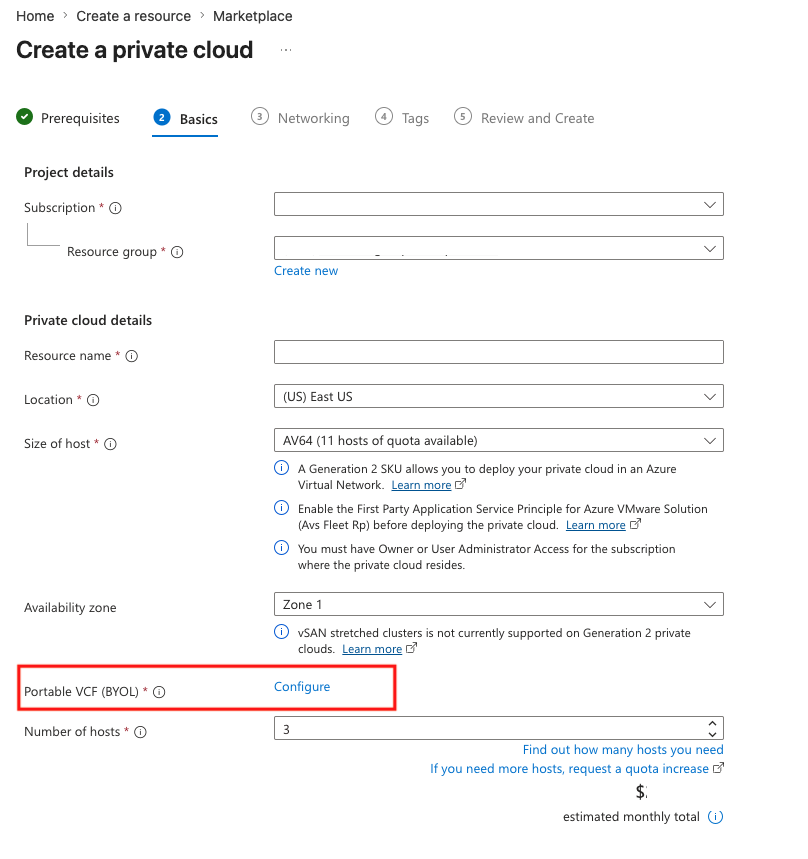
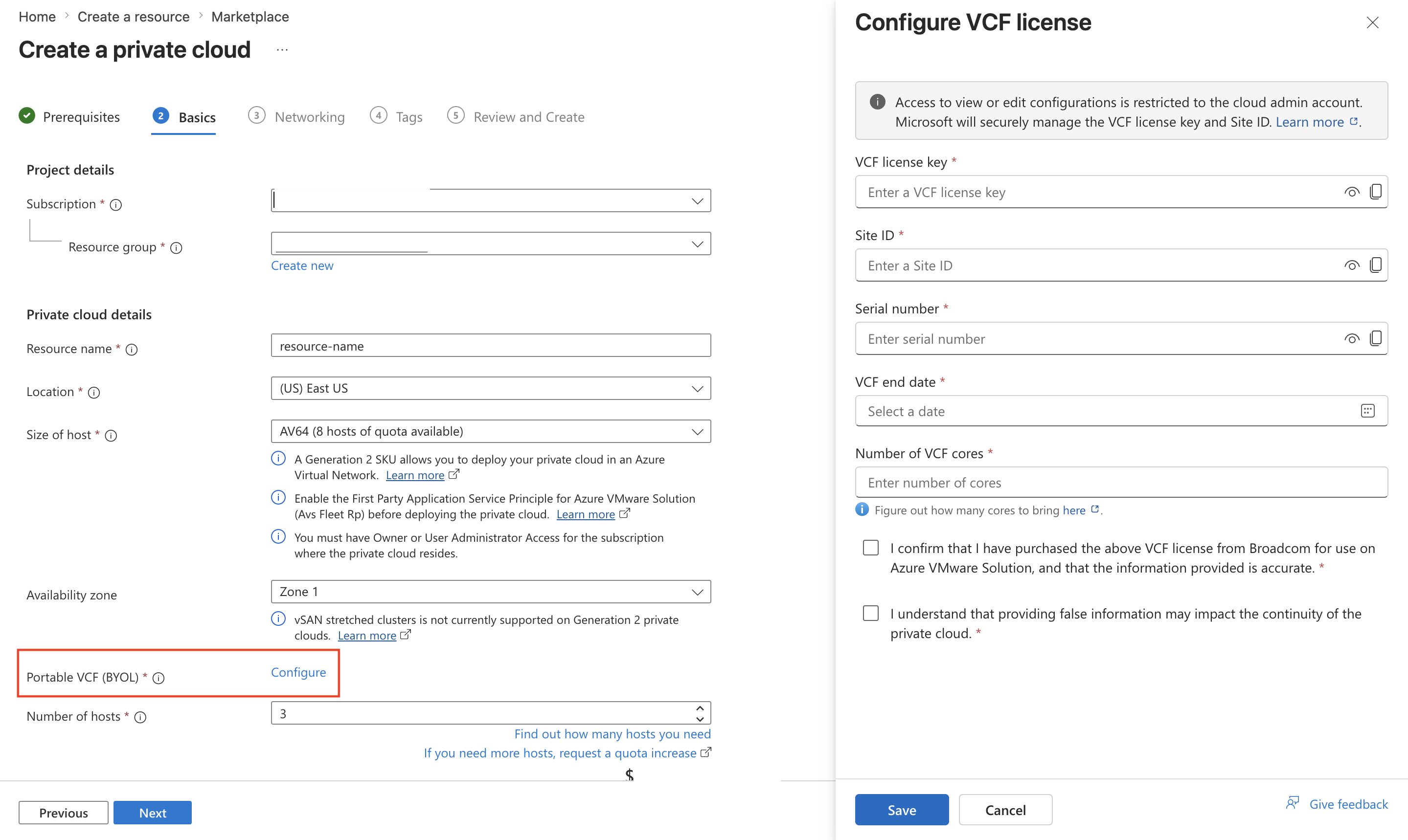
Select Configure, and then provide the following information:
- VCF license/subscription key: The 25-character key from Broadcom.
- Broadcom site ID: The site ID associated with your contract.
- Broadcom serial number: The serial number associated with your VCF subscription. Find it in the Entitlement section of the Broadcom portal.
- License expiration date: The end date of the VCF subscription you purchased from Broadcom.
- Number of cores: The number of BYOL cores deployed on this private cloud. The registered BYOL cores must exactly match the deployed BYOL cores. Don't enter the total cores in your Broadcom entitlement unless all those cores are deployed on this private cloud.
Complete the remaining private cloud settings, and then create the private cloud.
Enable portable VCF on an existing Azure VMware Solution private cloud
You can convert a running private cloud to portable VCF without downtime or workload interruption.
In the Azure portal, open the Azure VMware Solution private cloud.
Under Manage, select Portable VCF (BYOL).
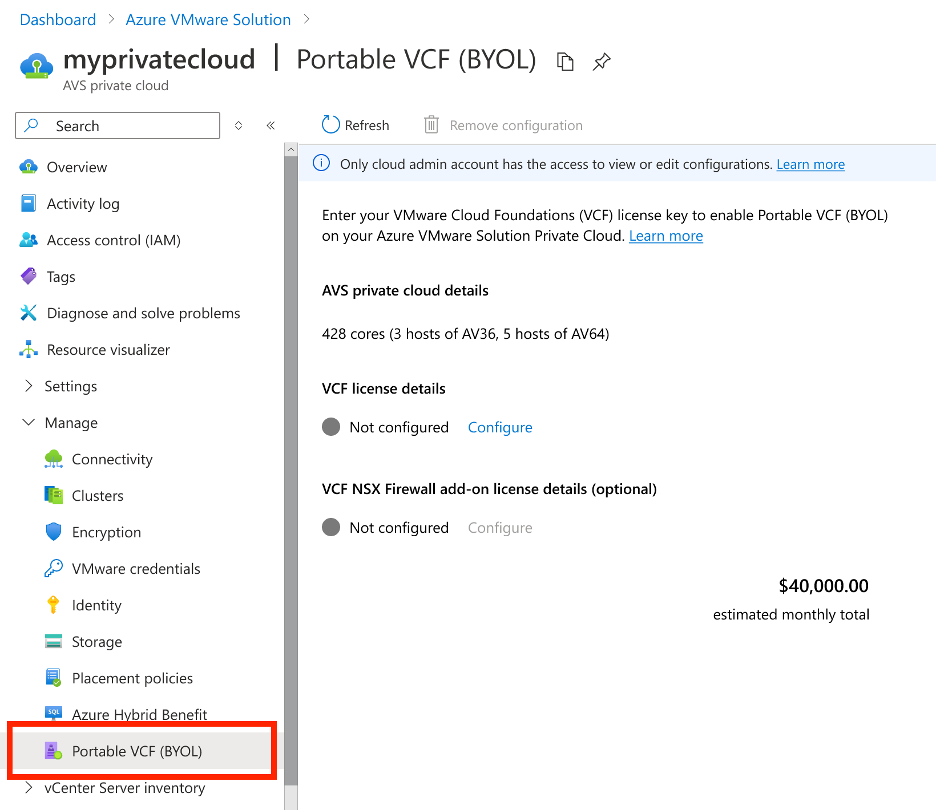
Under VCF license details, select Configure.
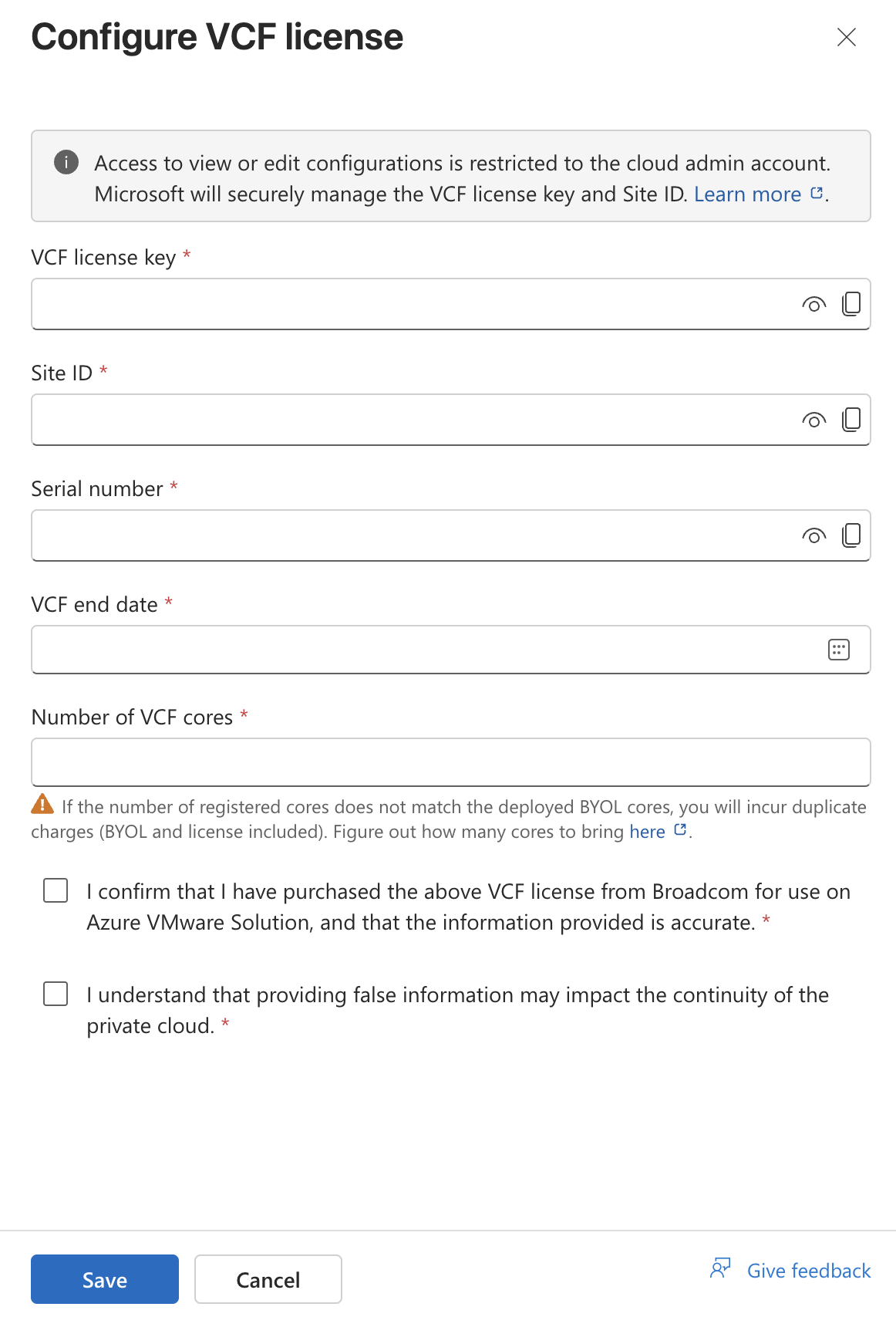
Enter the Broadcom key, site ID, serial number, expiration date, and number of deployed BYOL cores.
Save the details. The existing hosts switch to portable VCF pricing.
Note
To use reserved pricing, purchase an Azure VMware Solution reserved instance with VCF BYOL for the corresponding host type.
Exchange a license-included reservation
If the hosts are covered by a license-included Azure VMware Solution reserved instance, exchange the reservation for a VCF BYOL reservation:
- In the Azure portal, go to Reservations, and then select the license-included Azure VMware Solution reserved instance.
- Select Exchange, and exchange the reservation for the equivalent Azure VMware Solution VCF BYOL reserved instance.
- After the exchange is complete, open Portable VCF (BYOL) on the private cloud.
- Within 60 minutes of the exchange, register the VCF license details by following Enable portable VCF on an existing Azure VMware Solution private cloud.
Register a VMware vDefend Firewall add-on
Register a vDefend Firewall add-on separately from the base VCF subscription. Before you continue, review the vDefend Firewall licensing requirements and core calculations.
- In the Azure portal, open the Azure VMware Solution private cloud.
- Under Manage, select Portable VCF (BYOL).
- Under VMware vDefend firewall add-on, select Configure.
- Enter the Broadcom add-on key and required license details, and then save the configuration.
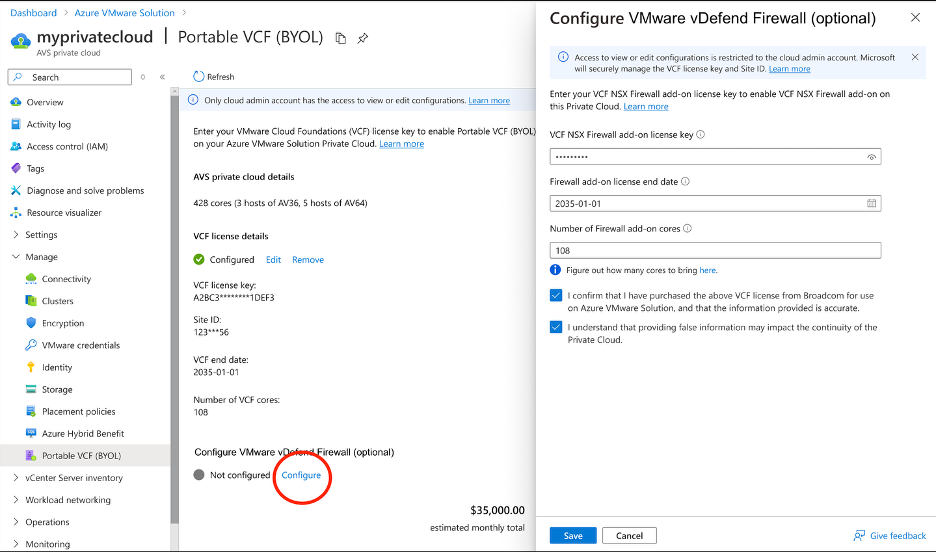
To use vDefend Firewall with Advanced Threat Prevention, also submit a support request that includes the license key. Microsoft must provision the license on the private cloud.
Update a portable VCF configuration
You can update a portable VCF configuration without downtime or workload interruption. Update the configuration when you change a key, add or remove BYOL cores, renew a subscription, or change a firewall add-on.
- In the Azure portal, open the Azure VMware Solution private cloud.
- Under Manage, select Portable VCF (BYOL).
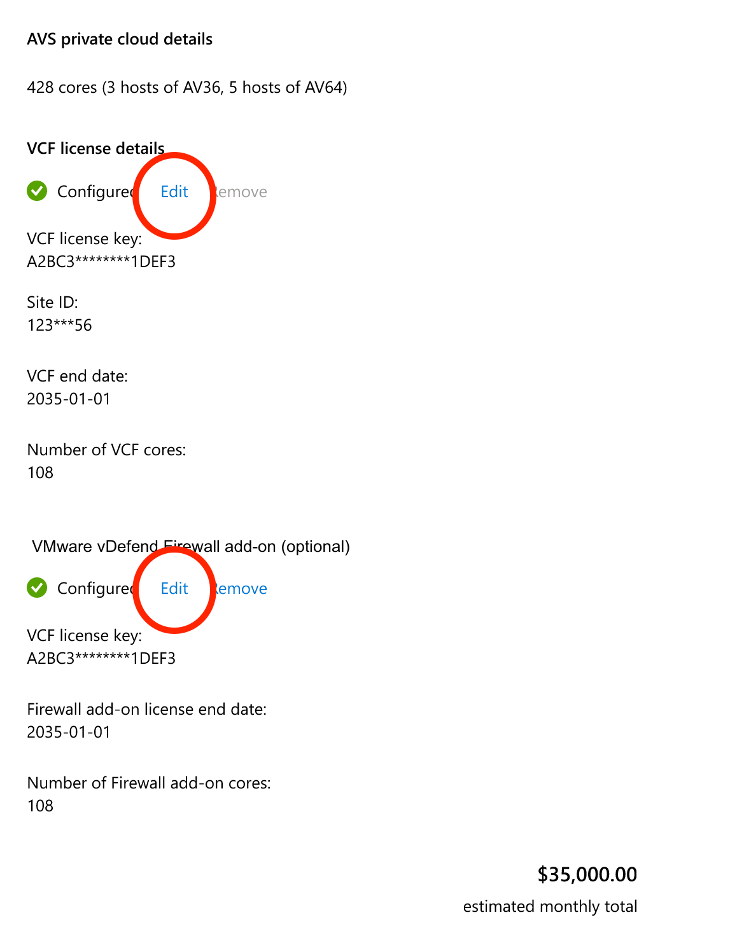
- Select Edit under VCF license details or VMware vDefend firewall add-on.
- Update the license details.
- Save the changes. The updates take effect immediately.
Important
The registered core total across all private clouds must not exceed your Broadcom entitlement. Register a valid Broadcom firewall add-on before you enable or update firewall features.
Remove a portable VCF configuration
You can unregister a VCF subscription or firewall add-on independently from a private cloud.
- In the Azure portal, open the Azure VMware Solution private cloud.
- Under Manage, select Portable VCF (BYOL).
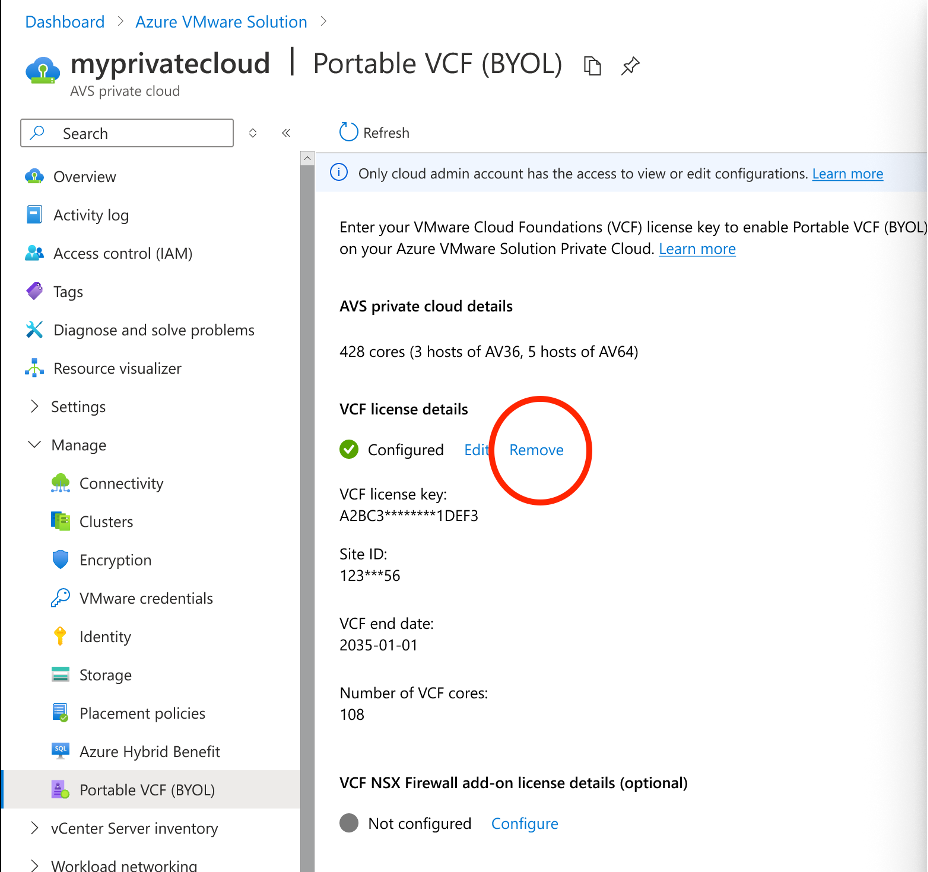
- Select Remove next to the VCF subscription or firewall add-on that you want to unregister.
- Confirm the removal.
Important
Removing the registration doesn't interrupt workloads, but it changes the private cloud from VCF BYOL to Microsoft-managed VCF. Make this change only when the private cloud is covered by an active VCF license-included reserved instance. Otherwise, the private cloud becomes noncompliant and is at risk of suspension.
Contact your Microsoft account team or Microsoft support before removing a registration if you're unsure whether the private cloud is eligible for Microsoft-managed VCF.
Resolve a registration failure
If a registration fails during private cloud creation or management, the Azure portal displays a Failed status. This status typically indicates a service error.
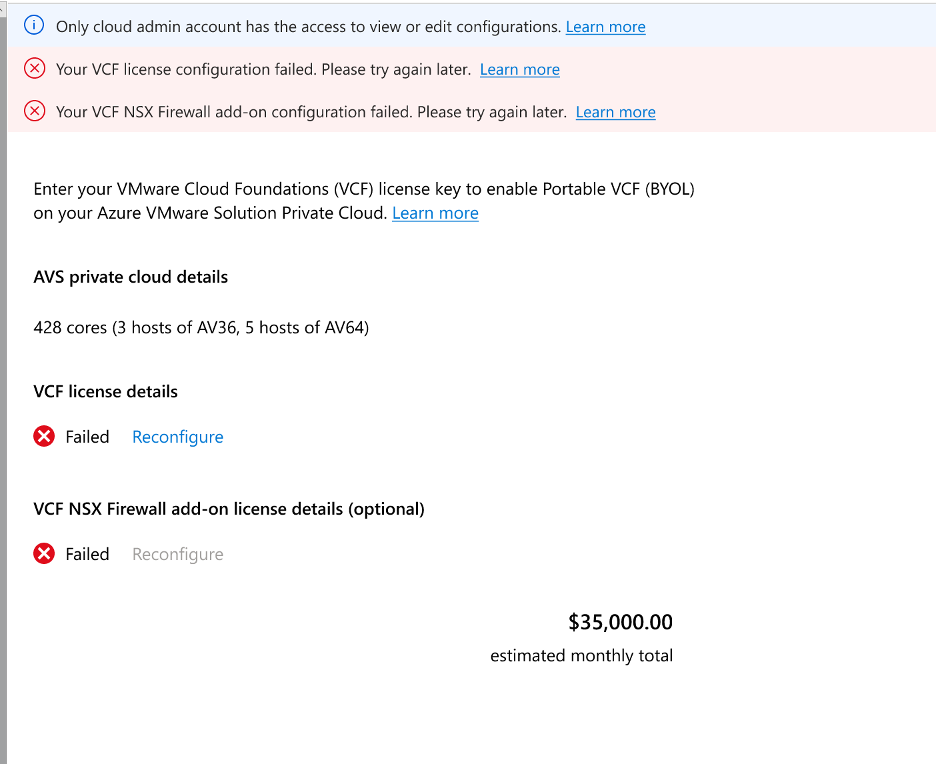
- On the Portable VCF (BYOL) page, select Reconfigure.
- Enter and save the registration details again.
- Return to the Portable VCF (BYOL) page, and confirm that the status is Registered.
If the registration continues to fail, contact Microsoft support.
Next step
To learn about licensing dates, core calculations, security details, and compliance requirements, review the portable VCF licensing reference.