Bilješka
Pristup ovoj stranici zahtijeva provjeru vjerodostojnosti. Možete pokušati da se prijavite ili promijenite direktorije.
Pristup ovoj stranici zahtijeva provjeru vjerodostojnosti. Možete pokušati promijeniti direktorije.
Azure Web PubSub Service supports Microsoft Entra ID for authorizing requests with Microsoft Entra applications.
This article explains how to set up your resource and code to authenticate requests to the resource using a Microsoft Entra application.
Register an application in Microsoft Entra ID
The first step is to Register an application in Microsoft Entra ID:
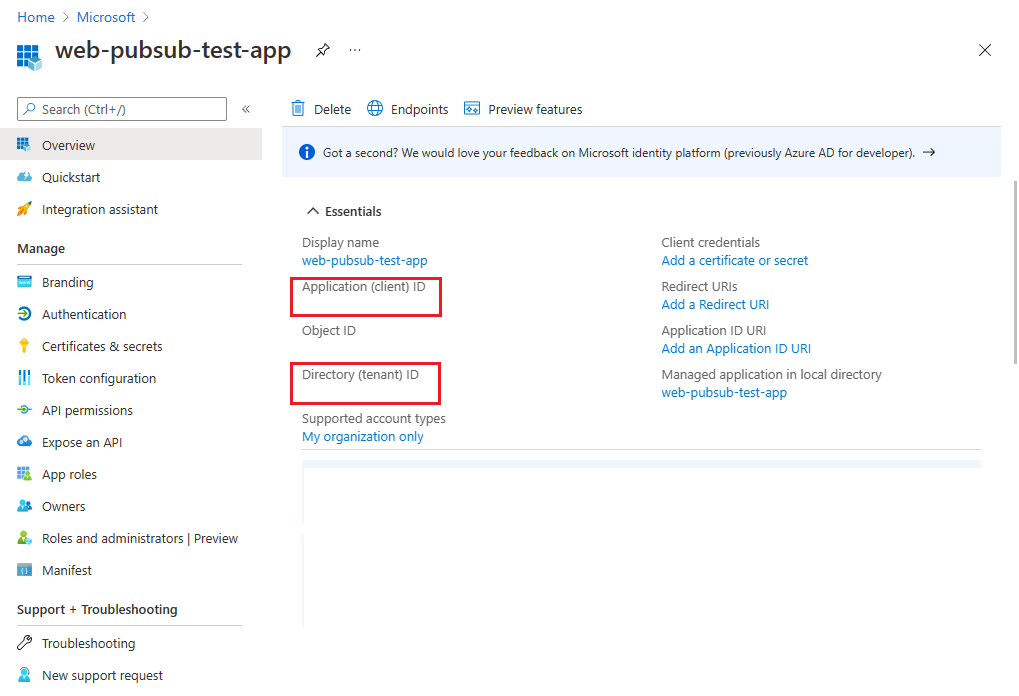
After you register your application, you can find the Application (client) ID and Directory (tenant) ID values on the application's overview page. These GUIDs can be useful in the following steps.
Add credentials
After registering an app, you can add certificates, client secrets (a string), or federated identity credentials as credentials to your confidential client app registration. Credentials allow your application to authenticate as itself, requiring no interaction from a user at runtime, and are used by confidential client applications that access a web API.
Add role assignments in the Azure portal
This section shows how to assign an Azure role to a service principal or managed identity for a Web PubSub resource. For detailed steps, see Assign Azure roles using the Azure portal.
Note
A role can be assigned to any scope, including management group, subscription, resource group, or single resource. To learn more about scope, see Understand scope for Azure RBAC.
In the Azure portal, go to your Web PubSub resource.
Select Access control (IAM) in the sidebar.
Select Add > Add role assignment.
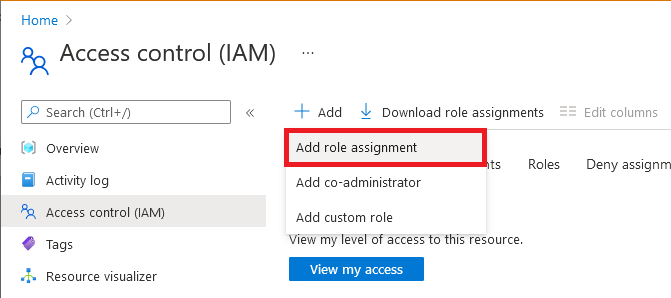
On the Role tab, select a Web PubSub built-in role or custom role that includes the permissions required by your application.
Role Description Use case Web PubSub Service Owner Full access to data-plane APIs, including read/write REST APIs and Auth APIs. Most commonly used for building an upstream server that handles negotiation requests and client events. Web PubSub Service Reader Read-only access to data-plane APIs. Use it when writing a monitoring tool that calls read-only REST APIs. Tip
Follow the principle of least privilege by using a custom role with only the required Web PubSub data-plane permissions. To generate a client access token and use it to connect, the identity requires both
Microsoft.SignalRService/WebPubSub/clientConnection/generateToken/actionandMicrosoft.SignalRService/WebPubSub/clientConnection/write. No narrower built-in role includes both permissions.Select Next.
For Microsoft Entra application.
- In the
Assign accessto row, select User, group, or service principal. - In the
Membersrow, clickselect members, then choose the identity in the pop-up window.
- In the
For managed identity for Azure resources.
- In the
Assign accessto row, select Managed identity. - In the
Membersrow, clickselect members, then choose the application in the pop-up window.
- In the
Select Next.
Review your assignment, then click Review + assign to confirm the role assignment.
Important
Newly added role assignments might take up to 30 minutes to propagate.
To learn more about how to assign and manage Azure roles, see these articles:
- Assign Azure roles using the Azure portal
- Assign Azure roles using the REST API
- Assign Azure roles using Azure PowerShell
- Assign Azure roles using the Azure CLI
- Assign Azure roles using Azure Resource Manager templates
Code samples with Microsoft Entra authorization
To create a WebPubSubServiceClient that uses Microsoft Entra authorization in .NET, Java, JavaScript, or Python, see Use Azure Identity with WebPubSubServiceClient.