Bilješka
Pristup ovoj stranici zahtijeva provjeru vjerodostojnosti. Možete pokušati da se prijavite ili promijenite direktorije.
Pristup ovoj stranici zahtijeva provjeru vjerodostojnosti. Možete pokušati promijeniti direktorije.
This article applies to Microsoft Partner Agreement (MPA) billing accounts. Cloud Solution Provider (CSP) partners use these billing accounts to manage customer billing in the new commerce experience.
In the Azure portal, CSP-authorized partners that meet the following eligibility requirements can request to transfer their customer's enterprise subscriptions, reservations, and savings plans to the MPA that they manage. Check if you have access to a Microsoft Partner Agreement.
The following transfer scenarios are supported:
- Transfer from a Direct Enterprise Agreement (EA) to an Azure plan under an MPA.
- Transfer from an Enterprise Microsoft Customer Agreement (MCA-E) to an Azure plan under an MPA.
The tool doesn't support transfers from an indirect Enterprise Agreement to an Azure plan under the MPA or transfers from Web Direct to an Azure plan under the MPA.
This tool is available only to the following eligible partners:
CSP-authorized direct-bill partners that have earned an Azure Solutions Partner designation or are enrolled in the Azure Expert MSP program.
CSP-authorized distributors that have earned the Frontier Distributor designation.
To obtain access to the tool, eligible partners must engage a Partner Technical Consultant (PTC) through a consultation using their Technical Presales and Deployment (TPD) benefits.
When you send or accept a transfer request, you agree to terms and conditions. For more information, see Transfer terms and conditions.
There are four options to transfer products:
Transfer only subscriptions
Transfer only reservations
Transfer only savings plans
Transfer subscriptions, reservations and savings plans
Note
You can't transfer subscriptions to a Microsoft Entra B2B or Azure B2C tenant.
Note
This tool changes billing ownership. The transfer process doesn't automatically add, remove, or modify user access. Access permissions and existing Azure role-based access control (Azure RBAC) assignments remain intact when a subscription is transferred to CSP. Partners must work with the customer to ensure that they have the permissions required to manage the customer's environment. Without the appropriate permissions, partners might be unable to provide 24x7 managed services, which could affect their eligibility for Partner Earned Credit (PEC).
Prerequisites
Important
When you transfer subscriptions, cost and usage data for your Azure products aren't accessible after the transfer. We recommend that you download your cost and usage data and invoices before you transfer subscriptions. When transferring Subscriptions, Reservations and Savings Plan please review these important prerequisites.
- Establish reseller relationship with the customer.
- Ensure that the customer and partner tenants are within the same authorized region. The authorized region is based on the partner's CSP authorization and must align with the region where the Enterprise Agreement (EA) contract was signed. Transfers aren't supported when these regions don't match. For more information, see CSP Regional Authorization Overview.
- Confirm that the customer has accepted the Microsoft Customer Agreement.
- Set up an Azure plan for the customer. If the customer is purchasing through multiple resellers, you need to set up an Azure plan for each combination of a customer and a reseller.
When there's a currency change during or after an EA enrollment transfer, reservations paid for monthly are canceled for the source enrollment. Cancellation happens at the time of the next monthly payment for an individual reservation. The cancellation is intentional and only affects monthly, not up front, reservation purchases. For more information, see Transfer Azure Enterprise enrollment accounts and subscriptions. For more information about cross-currency transfers, see Transfer Reservations and Savings Plans with currency change
Before you begin, make sure that the people involved in the product transfer have the required permissions.
Required permission for the transfer requester
To request billing ownership, you need the Admin Agent role or a role with higher permissions. To learn more, see Partner Center roles and permissions.
Required permission for the subscription transfer recipient
The subscription product owner (transfer request recipient) must have one of the following permissions:
- For a Microsoft Customer Agreement, the person must have an owner or contributor role for the billing account or for the relevant billing profile or invoice section. For more information, see Billing roles and tasks.
- For an Enterprise Agreement, the person must be an EA administrator.
Required permission for the reservation transfer recipient
The reservation product owner (transfer request recipient) must have one of the following permissions:
- For a Microsoft Customer Agreement, the person must have an owner or contributor role for the billing account or for the relevant billing profile or invoice section. For more information, see Billing roles and tasks.
- For an Enterprise Agreement, the person must be an EA administrator.
Required permission for the savings plan transfer recipient
The savings plan product owner (transfer request recipient) must have one of the following permissions:
- For a Microsoft Customer Agreement, the person must have an owner or contributor role for the billing account or for the relevant billing profile or invoice section. For more information, see Billing roles and tasks.
- For an Enterprise Agreement, the person must be an EA administrator.
Request billing ownership
- Sign in to the Azure portal using CSP Admin Agent credentials in the CSP tenant.
- Search for Cost Management + Billing.

- Select Customers from the left-hand side and then select a customer from the list.
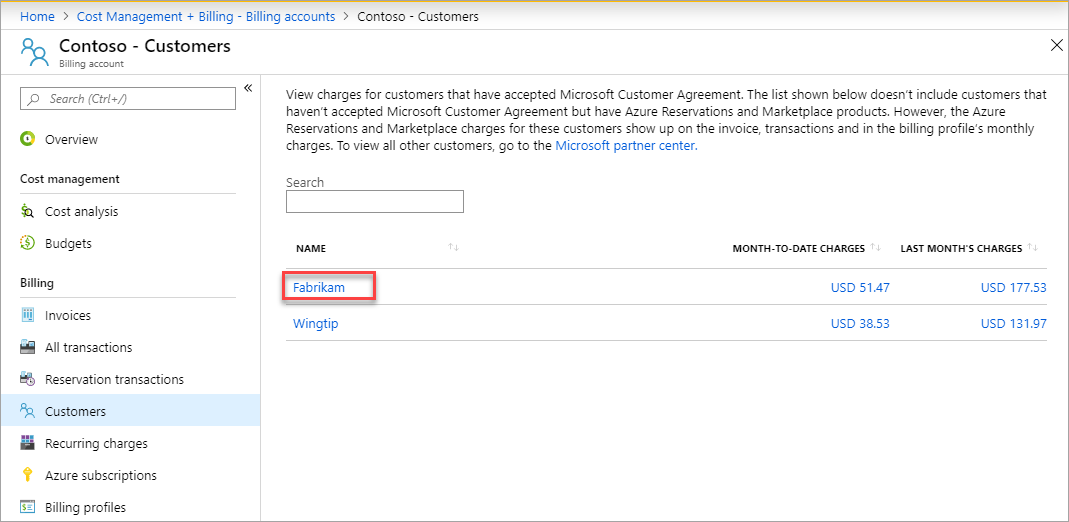 If a customer doesn't appear as an option for transfer, verify that you established the reseller relationship by using the correct CSP tenant, purchased an Azure plan for the customer, and signed in by using an account that has the Admin Agent role or a role with higher permissions. Only users with the Admin Agent role or higher permissions can initiate a transfer request.
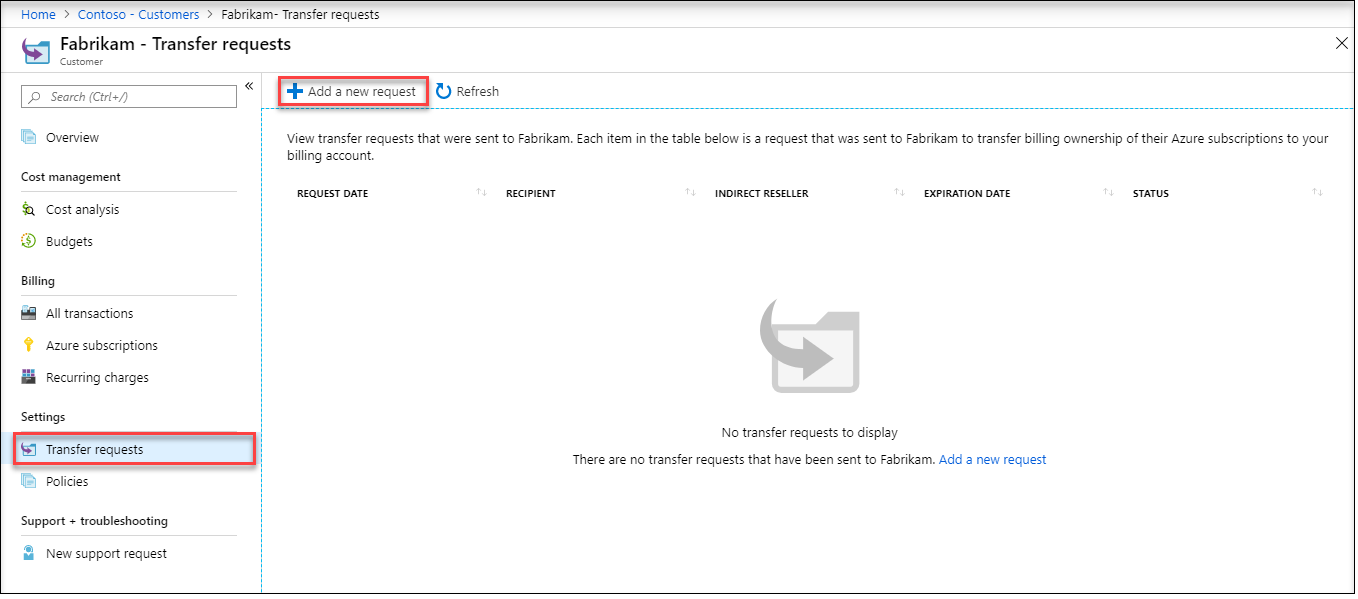
 - Select Transfer requests from the lower-left side and then select Add a new request.
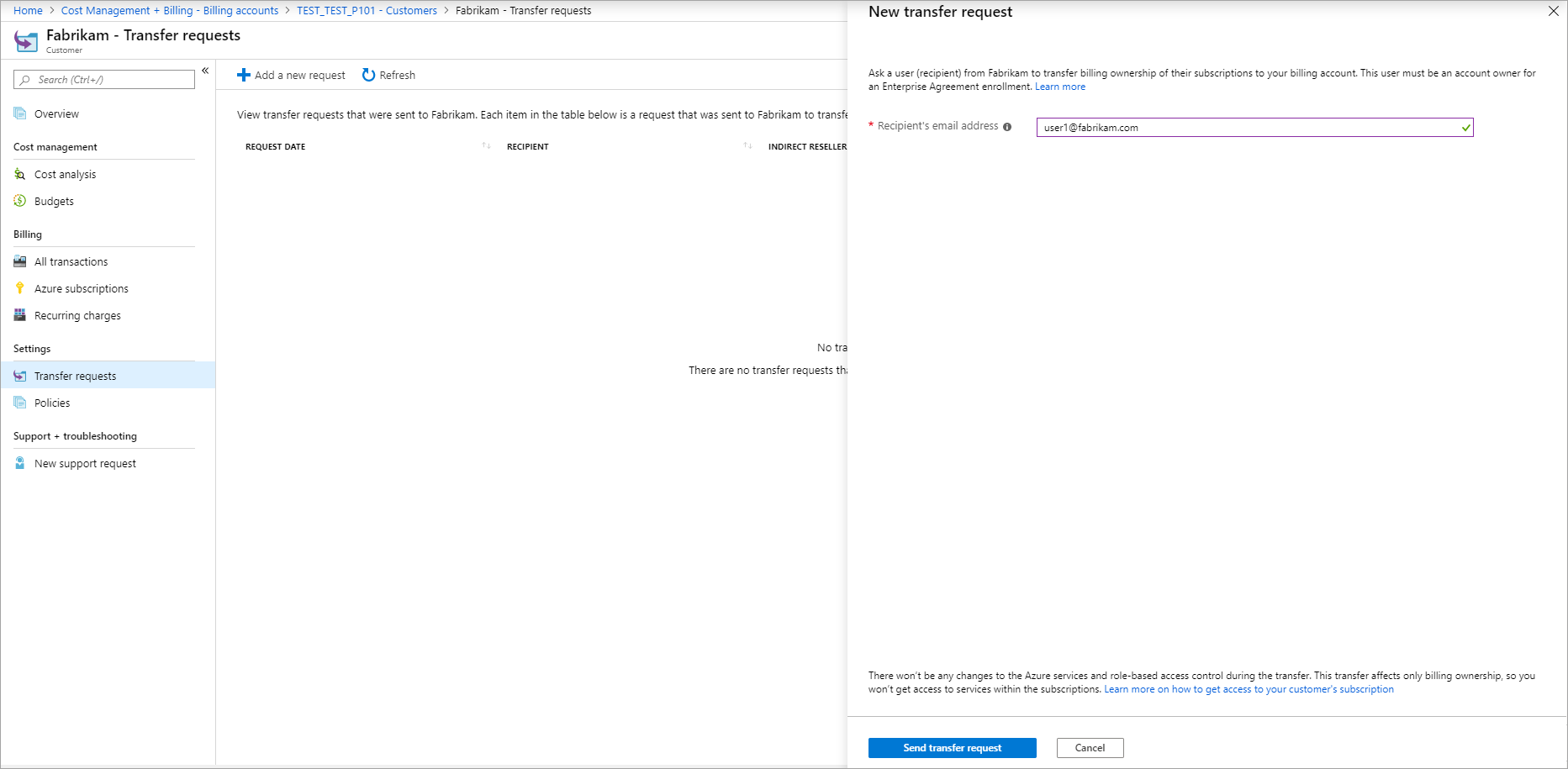
- Enter the email address of the user in the customer organization who will accept the transfer request. Select Send transfer request.
Review and approve transfer request
The recipient of the transfer request uses the following procedure to review and approve the transfer request. They can choose to:
Transfer one or more subscriptions only
Transfer one or more reservations only
Transfer one or more savings plans only
Transfer subscriptions, reservations and savings plans
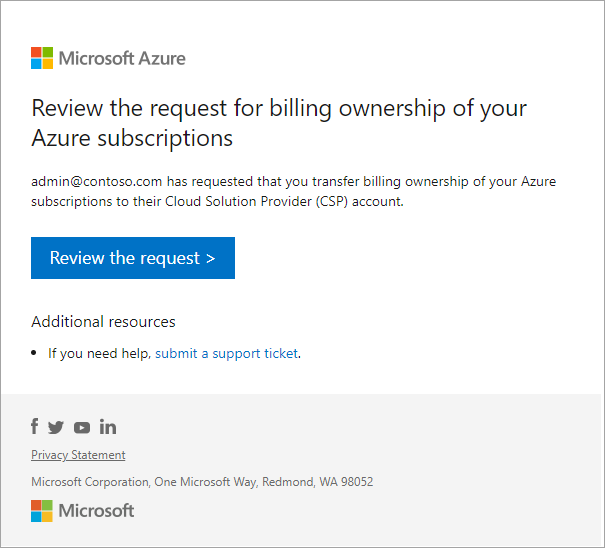
The user gets an email with instructions to review your transfer request. Select Review the request to open it in the Azure portal.
A customer might not see subscriptions available for transfer for either of the following reasons:- The user reviewing the transfer request isn't the billing owner of the subscriptions or isn't in the same tenant as the subscriptions. For Enterprise Agreements, the user must be the Account Owner.
- The transfer approval link is being used by someone other than the user who received the invitation.
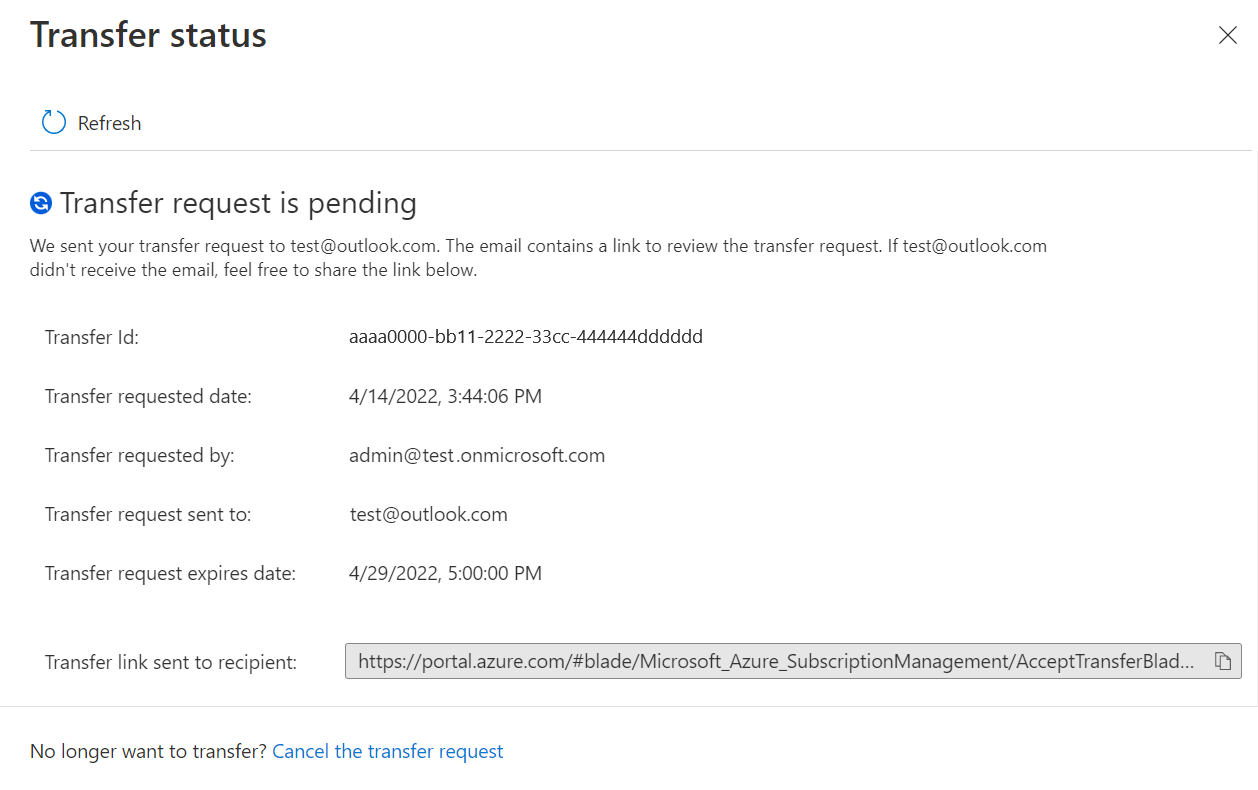
If the transfer recipient’s user account doesn’t have email enabled, the person that created the request can manually give the target recipient a link to accept the transfer request after the request is created. The person that created the request can navigate to Transfer status page, copy it, and then manually give it to the recipient.
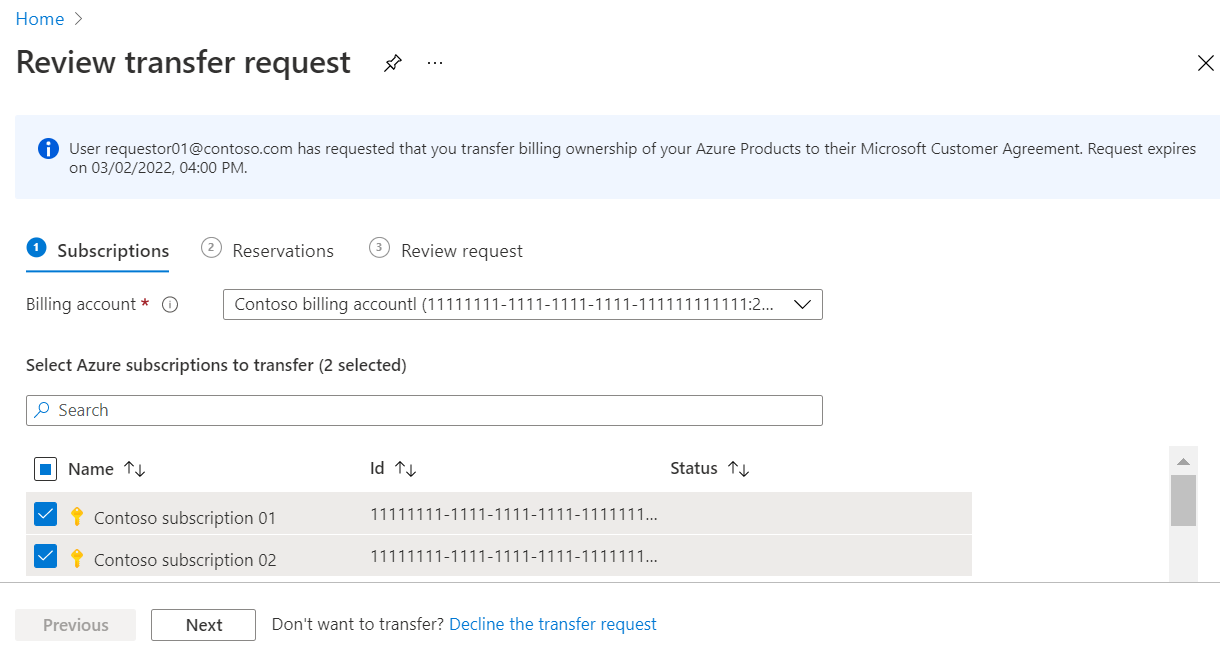
In the Azure portal, the user selects the billing account that they want to transfer Azure products from. Then they select eligible subscriptions on the Subscriptions tab. If the owner doesn’t want to transfer subscriptions and instead wants to transfer reservations only, make sure that no subscriptions are selected.
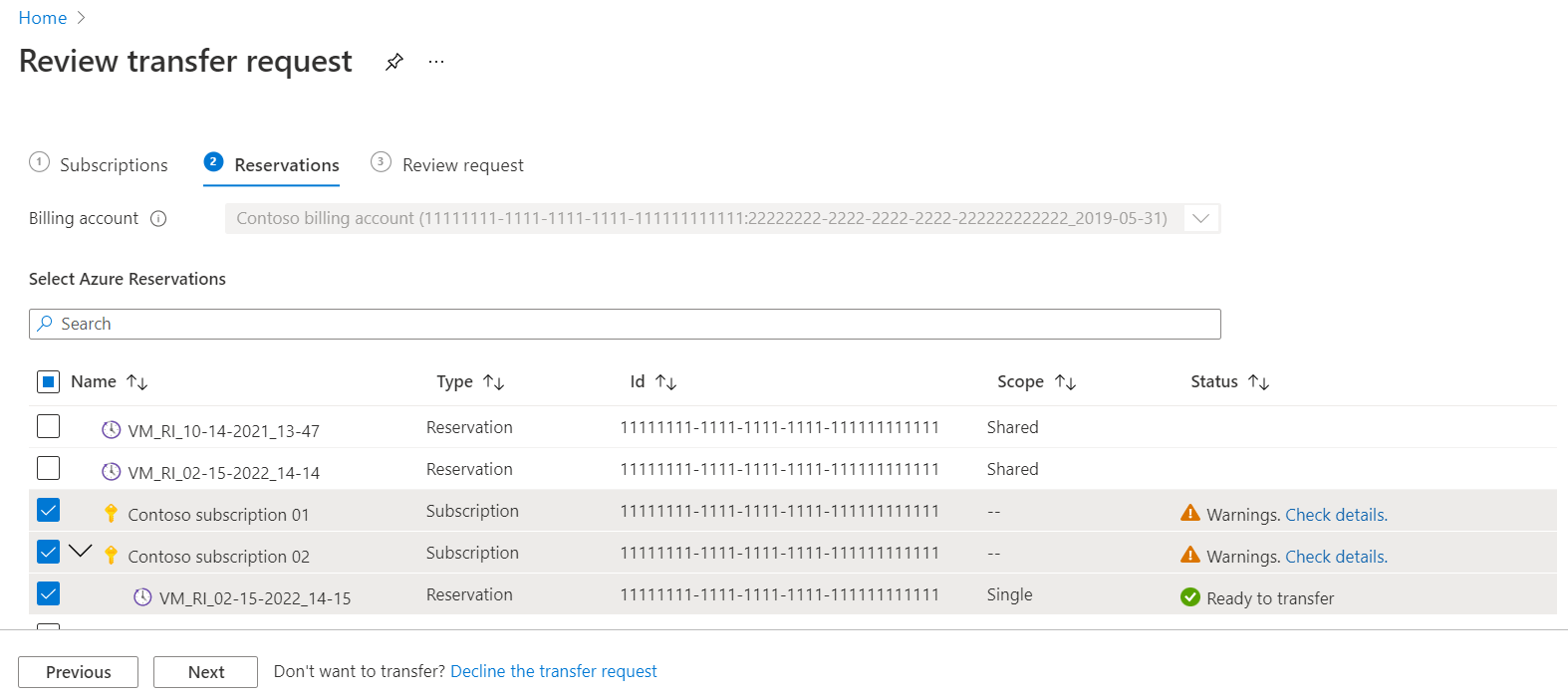
Disabled subscriptions can't be transferred.If there are reservations available to transfer, select the Reservations tab and then select them. If reservations won’t be transferred, make sure that no reservations are selected. If reservations are transferred, they're applied to the scope that’s set in the request. If you want to change the scope of the reservation after it’s transferred, see Change the reservation scope.
If there are savings plans available to transfer, select the Savings plan tab, and then select them. If you don't want to transfer savings plans, make sure that no savings plans are selected.
If savings plans are transferred, they're applied to the scope set in the request. If you want to change the scope of the savings plan after it gets transferred, see Change the savings plan scope.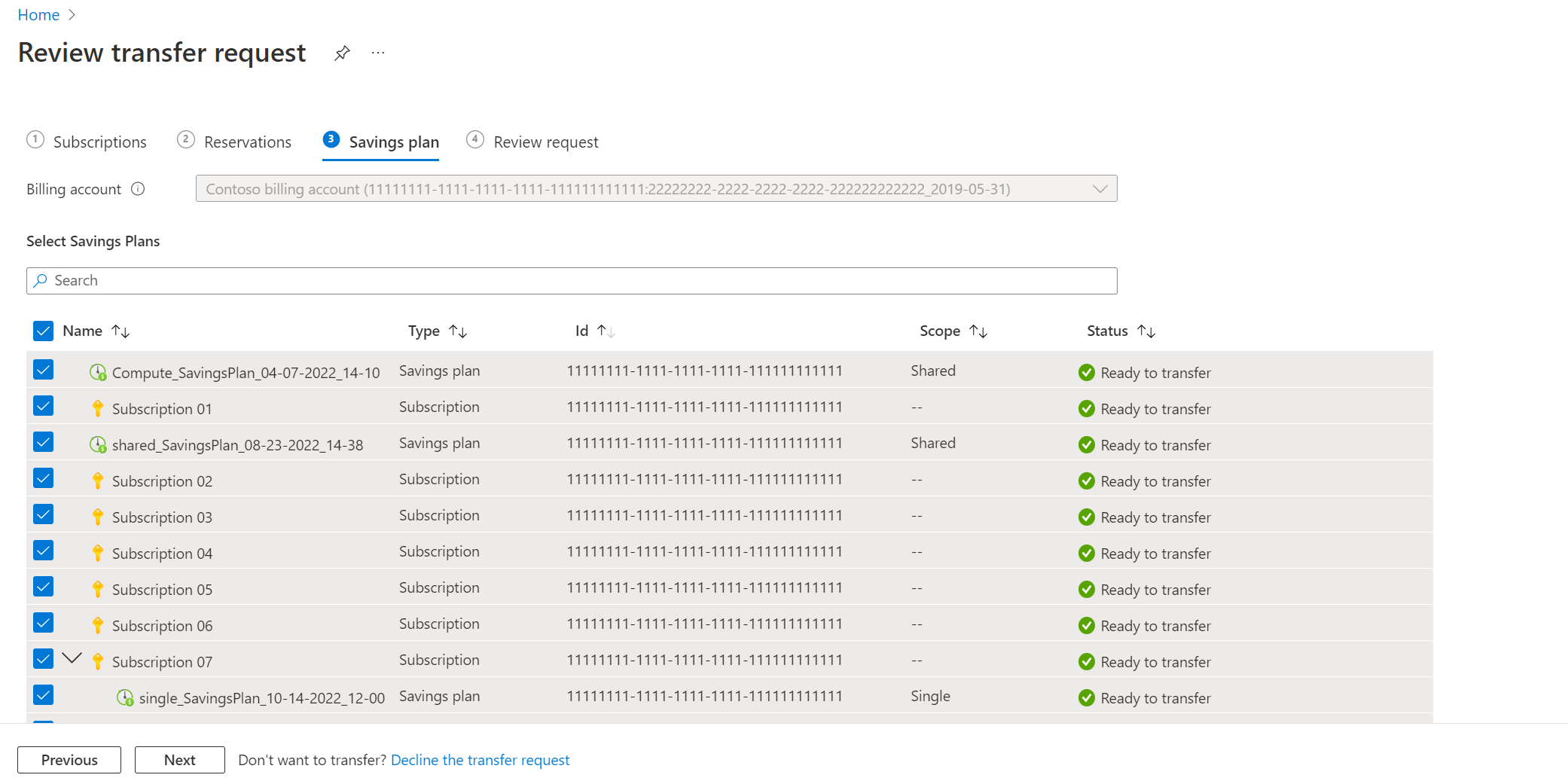
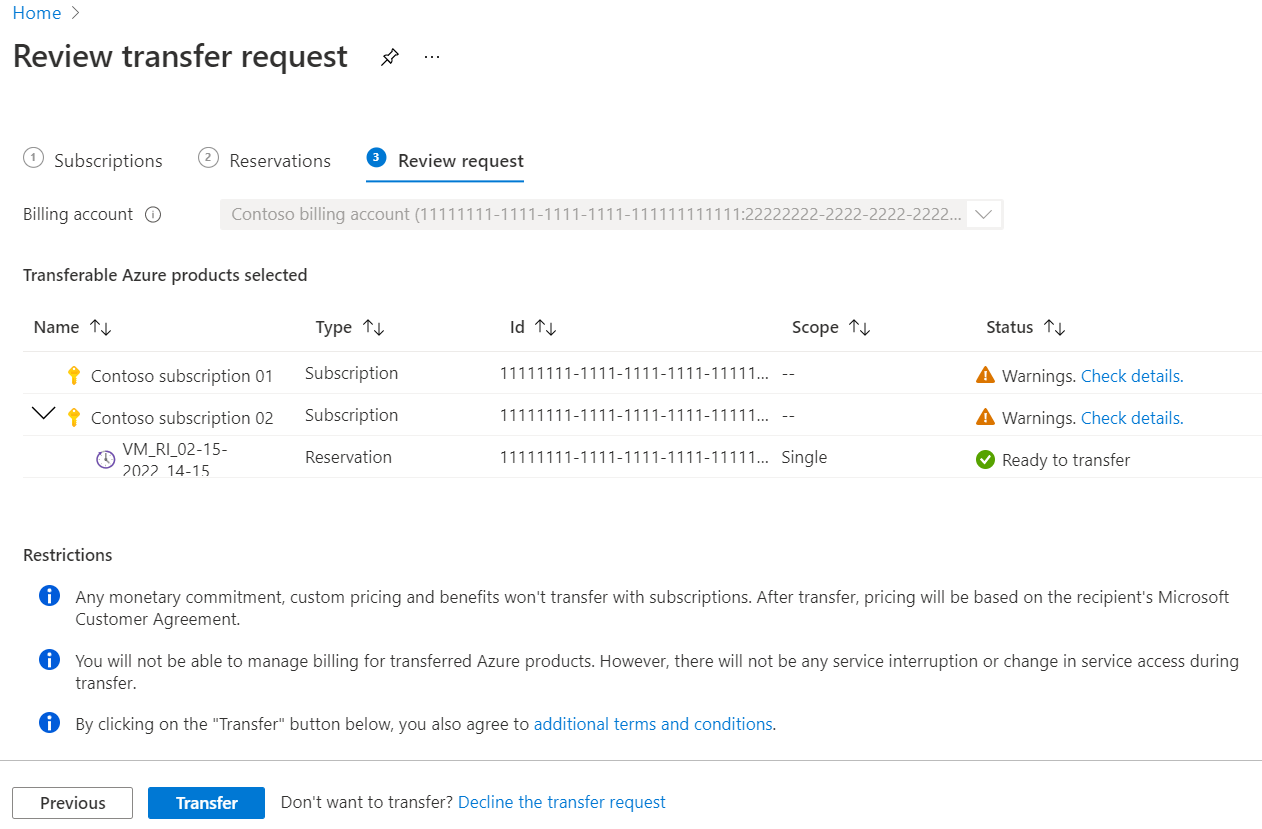
Select the Review request tab and verify the information about the products to transfer. If there are Warnings or Failed status messages, see the following information. When you're ready to continue, select Transfer.
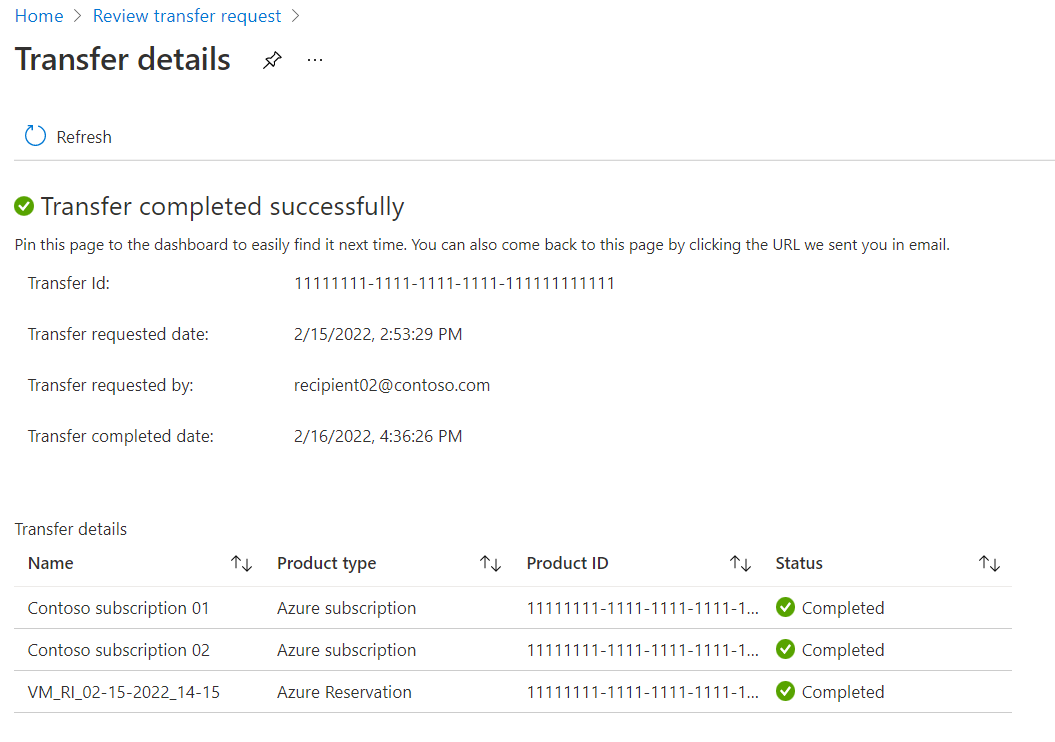
You'll briefly see a
Transfer is in progressmessage. When the transfer is completed successfully, you'll see the Transfer details page with theTransfer completed successfullymessage.
On the Review request tab, the following status messages might be displayed.
- Ready to transfer - Validation for this Azure product has passed and can be transferred.
- Warnings - There's a warning for the selected Azure product. While the product can still be transferred, doing so will have some consequence that the user should be aware of in case they want to take mitigating actions. For example, the Azure subscription being transferred is benefitting from a reservation. After transfer, the subscription will no longer receive that benefit. To maximize savings, ensure that the reservation is associated to another subscription that can use its benefits. Instead, the user can also choose to go back to the selection page and unselect this Azure subscription. Select Check details for more information.
- Failed - The selected Azure product can't be transferred because of an error. User will need to go back to the selection page and unselect this product to transfer the other selected Azure products.
Check the transfer request status
Sign in to the Azure portal.
Search for Cost Management + Billing.
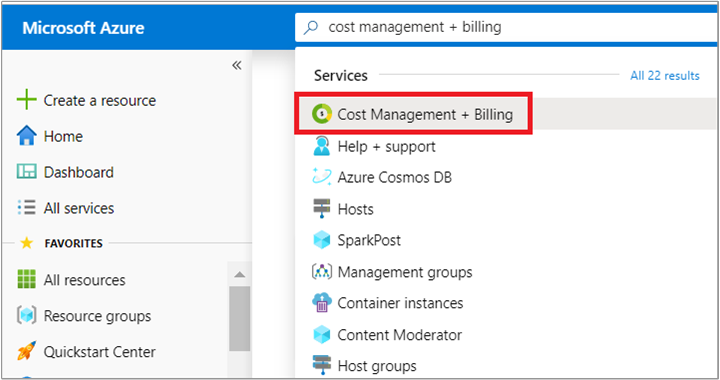
Select Customers from the left-hand side.
Select the customer from the list for which you sent the transfer request.
Select Transfer requests from the lower-left side. The Transfer requests page displays the following information:
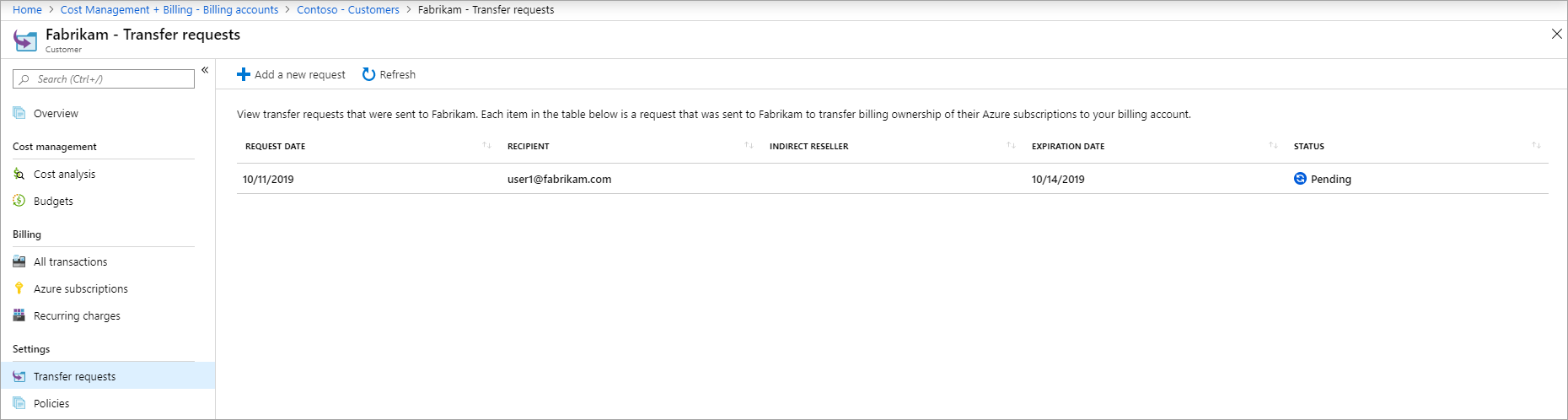
Column Definition Request date The date when the transfer request was sent Recipient The email address of the user that you sent the request to transfer billing ownership Expiration date The date when the request expires Status The status of transfer request The transfer request can have one of the following states:
Status Definition In progress The user hasn't accepted the transfer request Processing The user approved the transfer request. Billing for the products that the user selected is getting transferred to your account Completed The billing for products that the user selected is transferred to your account Finished with errors The request completed but billing for some products that the user selected couldn't be transferred Expired The user didn't accept the request on time and it expired Canceled Someone with access to the transfer request canceled the request Declined The user declined the transfer request Select a transfer request to view details. The transfer details page displays the following information:
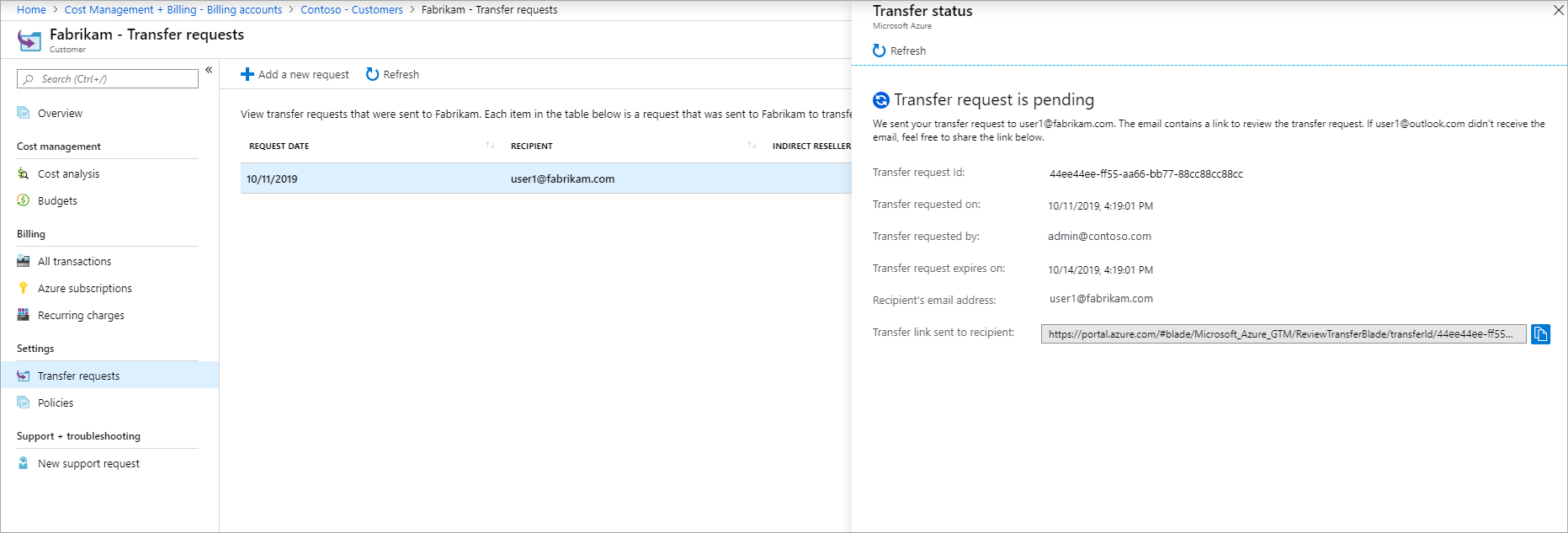
Column Definition Transfer request ID The unique ID for your transfer request. If you submit a support request, share the ID with Azure support to speed up the support request Transfer requested on The date when the transfer request was sent Transfer requested by The email address of the user who sent the transfer request Transfer request expires on The date when the transfer request expires Recipient's email address The email address of the user that you sent the request to transfer billing ownership Transfer link sent to recipient The URL that was sent to the user to review the transfer request
Supported subscription types
You can request billing ownership of the following subscription types.
- Enterprise Dev/Test¹
- Microsoft Enterprise Agreement
- Azure Plan¹ (Microsoft Customer Agreement in Enterprise Motion)
¹ CSP doesn't offer Dev/Test subscription types. You must convert an EA Dev/Test subscription to an EA Enterprise offer by using a support ticket and convert an Azure Plan Dev/Test offer to Azure Plan. After conversion, the subscription is billed at a pay-as-you-go rate and follows standard CSP pricing rules. Discounts offered through the customer's Enterprise Dev/Test offer aren't available to the CSP partner.
Extended terms and expired agreements
Subscriptions in an expired Enterprise Agreement (EA) enrollment remain eligible for transfer if they continue under an extended term. The transfer tool continues to support these subscriptions until the customer moves them to a new enrollment or cancels them.
Additional information
The following section provides additional information about transferring subscriptions.
No service downtime
Azure services in the subscription keep running without any interruption. We only transition the billing relationship for the Azure subscriptions that the user selects to transfer.
Disabled subscriptions
Disabled subscriptions can't be transferred. Subscriptions must be in active state to transfer their billing ownership.
Azure resources transfer
All resources from the subscriptions like VMs, disks, and websites transfer. When transferred, subscription IDs and resource IDs are preserved.
Azure Marketplace products transfer
Azure Marketplace products, which are available for subscriptions that are managed by Cloud Solution Providers (CSPs), are transferred along with their respective subscriptions. Subscriptions that have Azure Marketplace products that aren't enabled for CSPs can't be transferred. While software as a service (SaaS) products are a type of Azure Marketplace product, they don't move with the Azure subscription. You must transfer SaaS products separately. For more information, see Software as a Service (SaaS) transfer. For the criteria that determine whether a Marketplace product can transfer, see Transfer eligibility.
Access to Azure services
Access for existing users, groups, or service principals that was assigned using Azure role-based access control (Azure RBAC role) isn't affected during the transition. The partner won’t get any new Azure RBAC role access to the subscriptions.
The partners should work with the customer to get access to subscriptions. The partners need to get either Admin on Behalf Of - AOBO or Azure Lighthouse access open support tickets.
Azure Hybrid Benefit
The transfer process preserves license type properties that you configured on virtual machines, and the properties continue to apply after the subscription transitions to CSP.
Power BI connectivity
The Cost Management connector for Power BI supports Enterprise Agreements, direct Microsoft Customer Agreements and Microsoft Partner Agreements on Billing Account and Billing Profile scopes. For more information about Cost Management connector support, see Create visuals and reports with the Cost Management connector in Power BI Desktop. After you transfer a subscription from one of the agreements to a Microsoft Partner Agreement, your Power BI reports stop working.
As an alternative, you can always use Exports in Cost Management to save the consumption and usage information and then use it in Power BI. For more information, see Create and manage exported data.
Azure support plan
Azure support doesn't transfer with the subscriptions. If the user transfers all Azure subscriptions, ask them to cancel their support plan. After the transfer, CSP partner is responsible for the support. The customer should work with CSP partner for any support request.
Charges for transferred subscription
Any charges after the time of transfer appear on the new account's invoice. Charges before the time of transfer appear on the previous account's invoice.
The original billing owner of the subscriptions is responsible for any charges that were reported up to the time that the transfer completes. Your invoice section is responsible for charges reported from the time of transfer onwards. There may be some charges that happened before the transfer but were reported afterward. The charges appear on your invoice section.
Cancel a transfer request
You can cancel the transfer request until the request is approved or declined. To cancel the transfer request, go to the transfer details page and select cancel from the bottom of the page.
Software as a Service (SaaS) transfer
SaaS products are sold as SaaS subscriptions that are associated with, and billed through, an Azure subscription. A SaaS subscription doesn't move with its associated Azure subscription when billing ownership transfers, so you transfer it separately. Ask the user to contact Azure support to transfer billing ownership of SaaS subscriptions. For more information, see Create an Azure support request.
Along with billing ownership, the user can also transfer resource ownership. Resource ownership lets you do management operations like deleting and viewing the details of the product. The user must be a resource owner on the SaaS product to transfer resource ownership. For the criteria that determine whether a SaaS product can transfer, see Transfer eligibility.
Additional approval for certain customers
Some of the customer transition requests may require an additional review process with Microsoft because of the nature of the current enterprise enrollment structure of the customer. The partner will be notified of such requirements when trying to send an invitation to customers. Partners are requested to work with their Partner Development Manager and Customer’s account team to complete this review process.
Azure subscription directory
The Microsoft Entra directory (tenant) of the Azure subscriptions that are transferred must be the same Microsoft Entra directory of the customer that you selected while establishing the CSP relationship. If the directories don't match, either establish a new CSP reseller relationship with the customer by selecting the directory of the Azure subscriptions, or move the subscriptions to the directory associated with the existing CSP relationship. For more information, see Associate an existing subscription to your Microsoft Entra directory.
If the subscriptions that the customer wants to transfer are in two or more tenants, the transition must happen multiple times. Establish reseller relationships with all tenants and send a separate invitation for each tenant. After the transitions are complete, each tenant appears as a separate customer in Partner Center because CSP identifies each tenant as a customer.
To avoid multiple transitions, the customer can first move all subscriptions that they want to transfer to CSP into one tenant. For more information, see Associate or add an Azure subscription to your Microsoft Entra tenant.
EA subscription in the non-organization directory
The EA subscriptions from non-organization directories can be transferred as long as the directory has a reseller relationship with the CSP. If the directory doesn’t have a reseller relationship, you need to make sure to have the organization user in the directory as a billing admin who can accept the partner relationship. The domain name portion of the username must either be the initial default domain name [domain name].onmicrosoft.com or a verified, non-federated custom domain name such as contoso.com.
To add a new user to the directory, see Quickstart: Add new users to Microsoft Entra ID to add the new user to the directory.
Check access to a Microsoft Partner Agreement
Check the agreement type to determine whether you have access to a billing account for a Microsoft Partner Agreement.
Sign in to the Azure portal.
Search on Cost Management + Billing.

If you have access to just one billing scope, select Properties from the left-hand side. You have access to a billing account for a Microsoft Partner Agreement if the billing account type is Microsoft Partner Agreement.
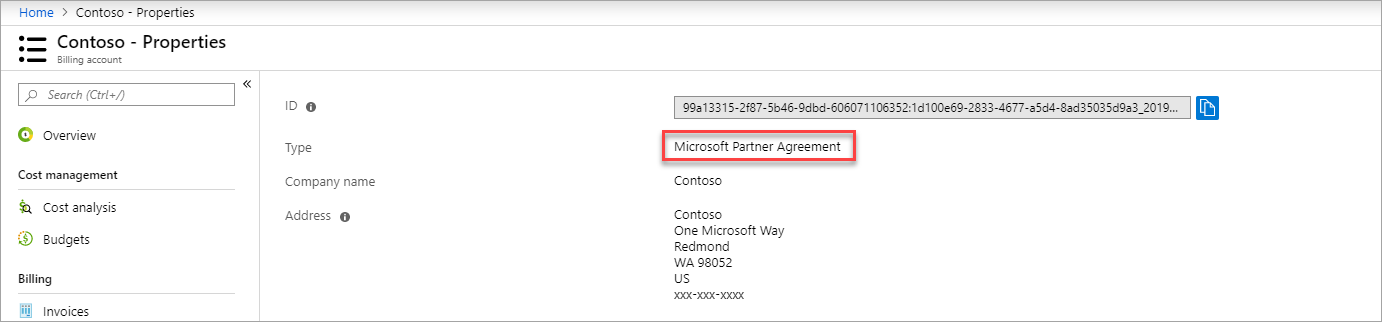
If you have access to multiple billing scopes, check the type in the billing account column. You have access to a billing account for a Microsoft Partner Agreement if the billing account type for any of the scopes is Microsoft Partner Agreement.

Need help? Contact support
If you need help, contact support to get your issue resolved quickly.
Next steps
- The billing ownership of the Azure products is transferred to you. Keep track of the charges for these products in the Azure portal.
- Work with the customer to get access to the transferred Azure products. Assign Azure roles using the Azure portal.