Bilješka
Pristup ovoj stranici zahtijeva provjeru vjerodostojnosti. Možete pokušati da se prijavite ili promijenite direktorije.
Pristup ovoj stranici zahtijeva provjeru vjerodostojnosti. Možete pokušati promijeniti direktorije.
Use a private endpoint in Azure Private Link with Microsoft Security Private Link. This private endpoint configuration connects workloads in your private network to Microsoft Defender for Cloud over Azure Private Link.
Note
Microsoft Security Private Link isn't supported in sovereign cloud regions, such as Azure Government and Azure operated by 21Vianet.
Prerequisites
Before you begin, make sure that:
Defender for Cloud is enabled on your Azure subscription. If you don't have an Azure subscription, create an Azure free account.
A virtual network and subnet where your workloads are deployed. If you need to create these networking resources first, see Create a virtual network and subnet. The private endpoint is created in this subnet.
You reviewed the required Security Private Link roles and permissions.
Create a private endpoint using a Security Private Link resource (Azure portal)
You can create a private endpoint while creating a Security Private Link resource in the Azure portal.
If you already have a Security Private Link resource, skip this procedure and follow the "Create a private endpoint for an existing Security Private Link resource (Azure portal)" section later on this page, which walks you through creating a private endpoint separately and connecting it to your existing resource.
To create a private endpoint while creating a Security Private Link resource:
Sign in to the Azure portal.
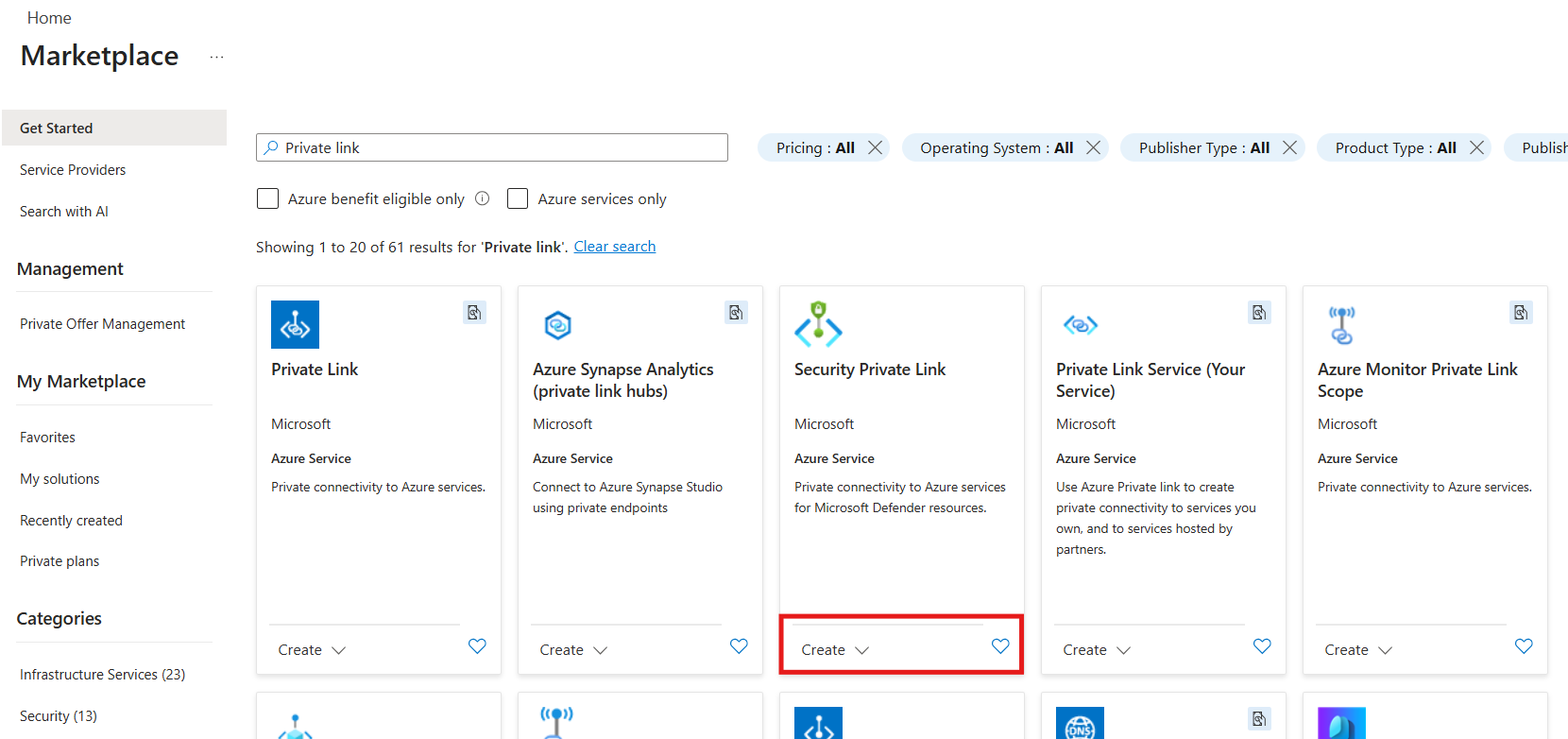
Select Create a resource.
Search for Security Private Link.
Under Security Private Link select Create.
Select a subscription and an existing resource group, or create a new one.
If needed, select a resource group location.
Enter a name.
Select Next: Networking.
Note
Microsoft Security Private Link currently supports the containers sub-resource, which is used by the Defender for Containers plan.
Select Create a private endpoint.
Enter a name and a location.
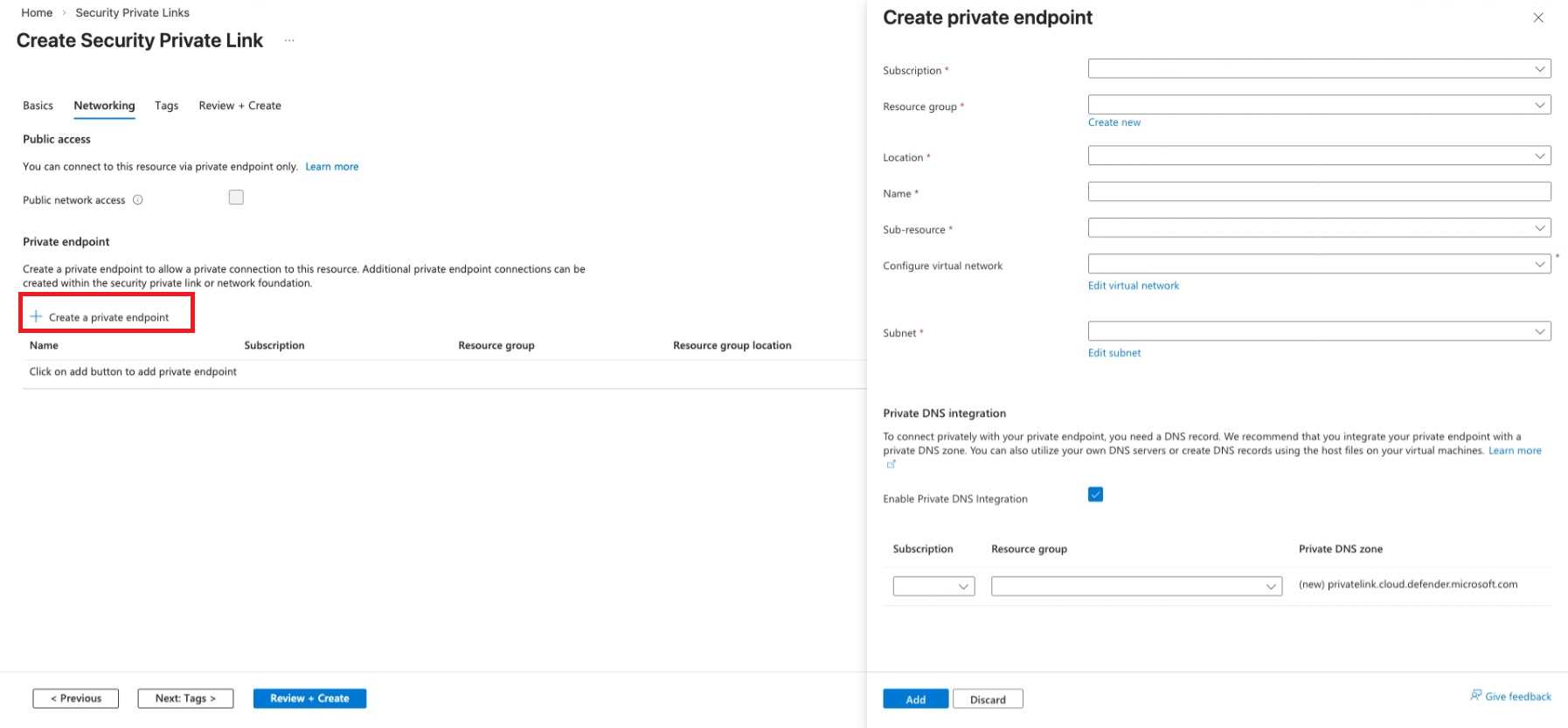
Select containers as the target sub-resource.
Select the virtual network and subnet.
Enable Private DNS integration to create a private DNS zone automatically.
Select Add.
Select Next: Tags and add any required tags.
Select Review + create
Select Create.
Create a private endpoint for an existing Security Private Link resource (Azure portal)
If you already have a Security Private Link resource, you can create a private endpoint separately and connect it to that resource.
To create a private endpoint for an existing Security Private Link resource:
Sign in to the Azure portal.
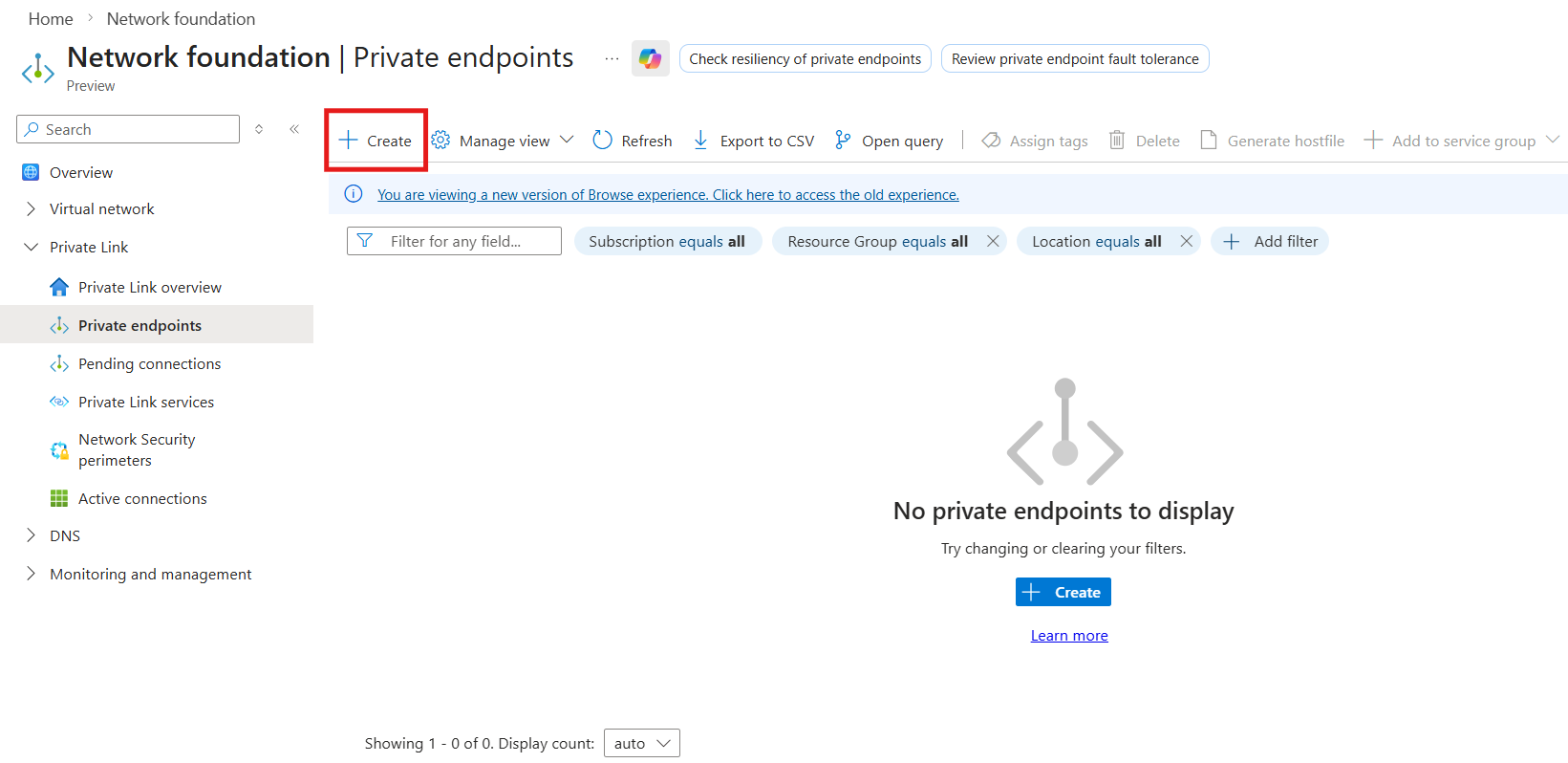
Navigate to Network foundation > Private Link > Private endpoints.
Select Create.
Select a subscription and an existing resource group, or create a new one.
Enter a name and network interface name.
Select a region.
Select Next: Resource.
Note
Microsoft Security Private Link currently supports the containers sub-resource, which is used by the Defender for Containers plan.
Select Connect to an Azure resource in my directory.
Select a subscription.
Select Microsoft.Security/privateLinks as the resource type.
Select the Security Private Link resource for Defender for Cloud.
Select containers as the target sub-resource.
Select Next: Virtual Network.
Select the virtual network and the subnet.
Leave the private IP address allocation set to Dynamic.
Select Next: DNS.
Enable Integrate with private DNS zone and verify that the private DNS zone is populated automatically.
Select Next: Tags.
Add any required tags.
Select Review + create.
Select Create.
Approve the private endpoint connection
When the private endpoint is created, a connection request is sent to the Security Private Link resource.
If the requester is an Owner, the connection is approved automatically.
Otherwise, an Owner must approve the request from Private endpoint connections in the Azure portal.
Validate the private endpoint connection
To validate private endpoint DNS resolution:
From a workload connected to the virtual network, run the following command to verify that the Microsoft Defender for Cloud API hostname resolves to a private IP address through DNS:
nslookup api.cloud.defender.microsoft.com
The FQDN should resolve to a private IP address under privatelink.cloud.defender.microsoft.com.