Bilješka
Pristup ovoj stranici zahtijeva provjeru vjerodostojnosti. Možete pokušati da se prijavite ili promijenite direktorije.
Pristup ovoj stranici zahtijeva provjeru vjerodostojnosti. Možete pokušati promijeniti direktorije.
Azure Event Grid system topics represent events that Azure services, such as Azure Storage and Azure Event Hubs, publish. Before you can subscribe to and react to those events, you need a system topic that represents the source. This article shows you how to create, view, and delete system topics by using the Azure portal.
You can create a system topic explicitly on the Event Grid System Topics page, or Event Grid can create one for you automatically when you create an event subscription on an Azure resource. This article focuses on creating and managing system topics explicitly.
Prerequisites
- An Azure account with an active subscription. Create an account for free.
- An Azure resource that supports system topics, such as an Azure Storage account or an Azure Event Hubs namespace. For the list of supported sources, see Azure services that support system topics.
Create an Event Grid system topic
You can create a system topic explicitly on the Event Grid System Topics page. Event Grid can also create a system topic for you automatically when you use the Events page of an Azure resource to create an event subscription. In that case, Event Grid creates the system topic for the resource and then creates the subscription for that system topic. For those steps, see Quickstart: Route Blob storage events to a web endpoint with the Azure portal.
To create a system topic explicitly, follow these steps:
Sign in to the Azure portal.
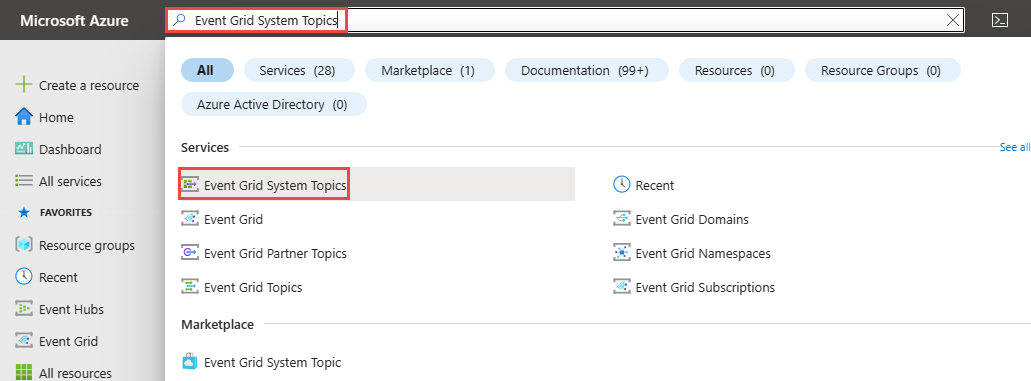
In the search box at the top, enter Event Grid System Topics, and then select Event Grid System Topics in the results.
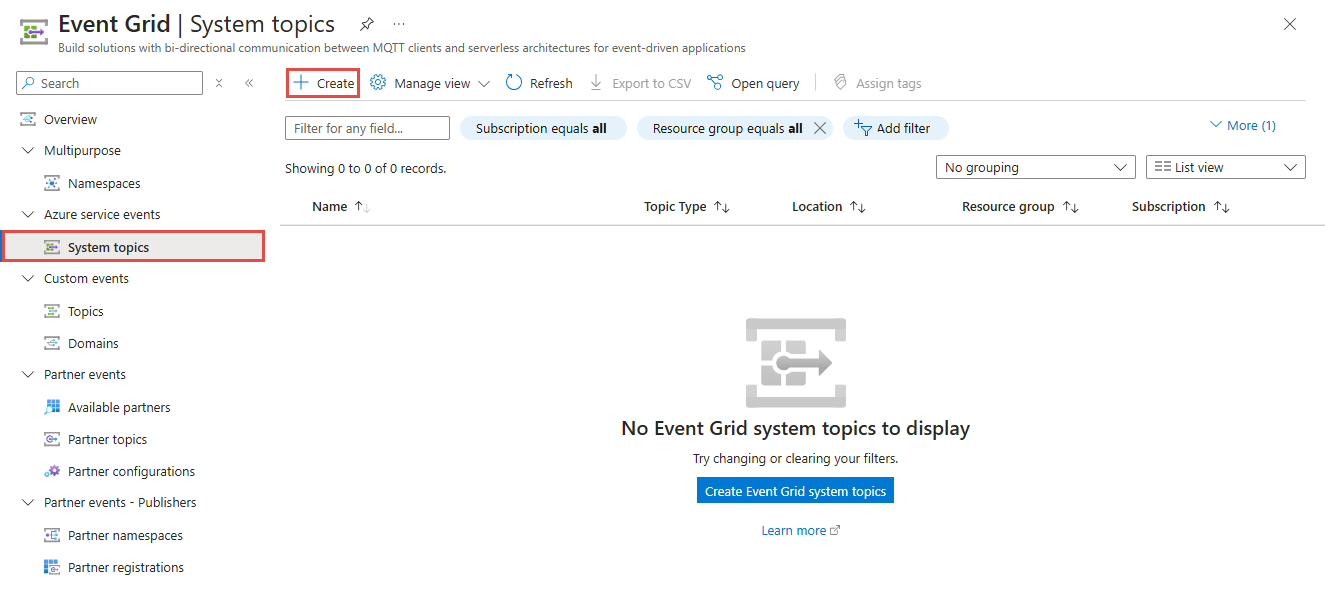
On the Event Grid System Topics page, select + Create on the toolbar.
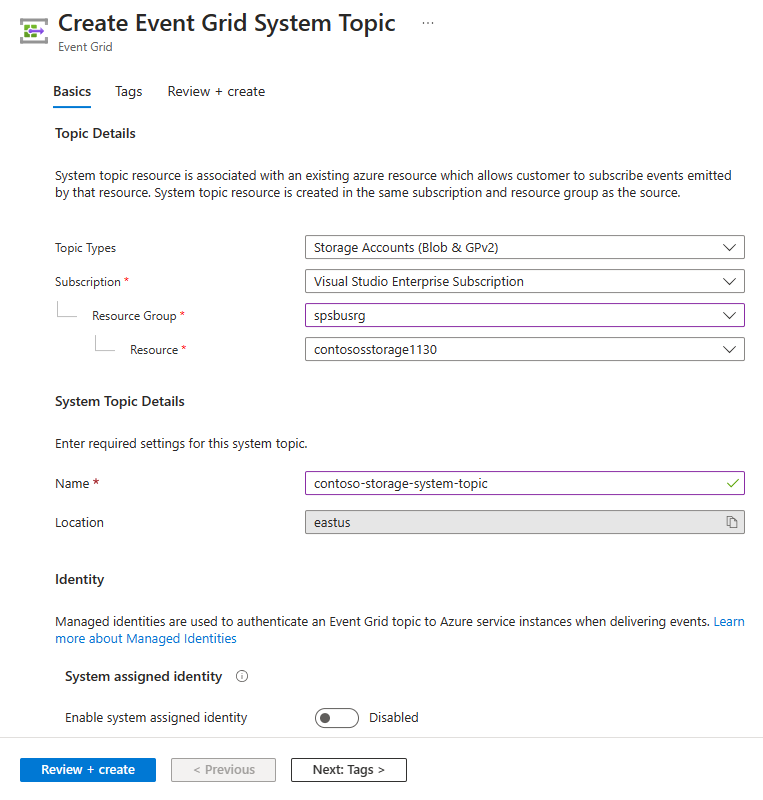
On the Create Event Grid System Topic page, select values for the following settings:
For Topic Types, select the resource type. The following example uses the Storage Accounts option.
For Subscription, select the Azure subscription that has your storage account.
For Resource group, select the resource group that has the storage account.
For Resource, select the storage account.
For Name, enter a name for the system topic.
Note
You can use this system topic name to search metrics and diagnostic logs.
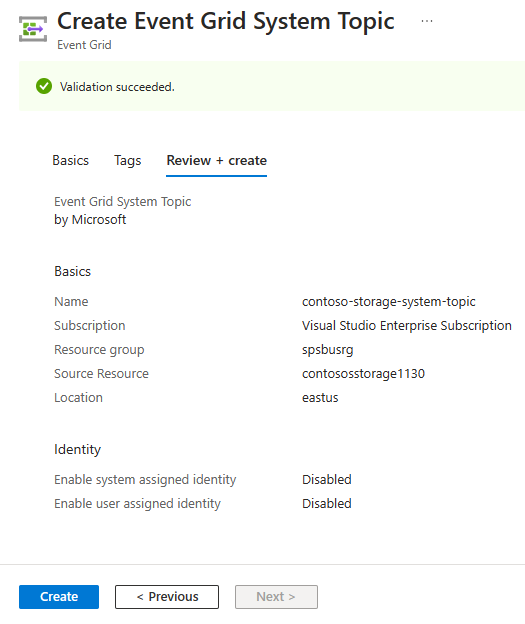
Select Review + create.
On the Review + create tab, review the settings, and then select Create.
After the deployment succeeds, select Go to resource to open the Event Grid System Topic page for the system topic that you created.
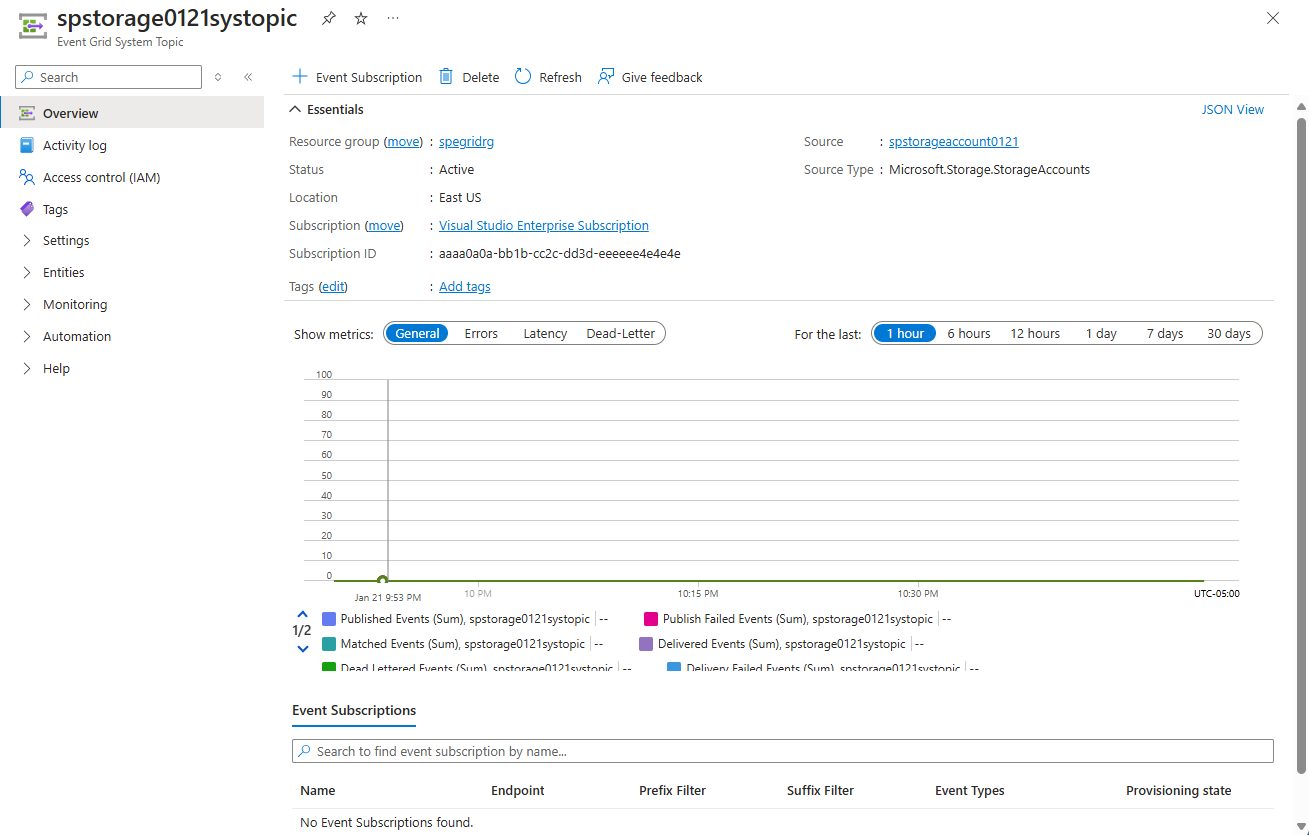
View all Event Grid system topics
To view all existing Event Grid system topics, follow these steps:
Sign in to the Azure portal.
In the search box at the top, enter Event Grid System Topics, and then select Event Grid System Topics in the results.
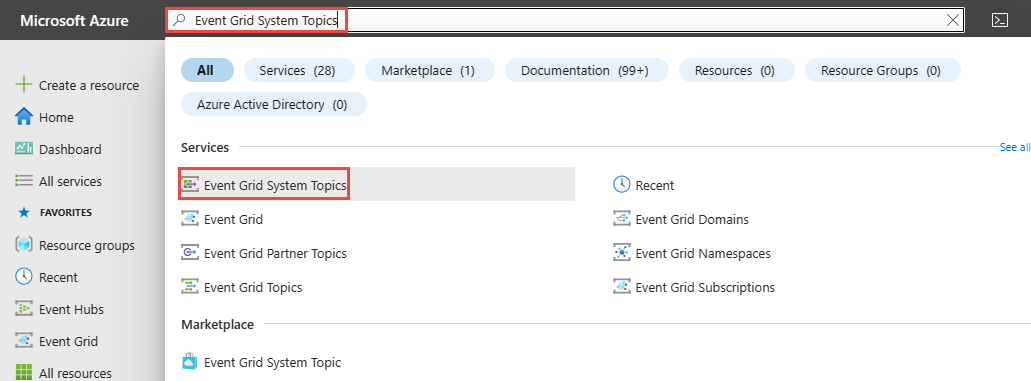
On the Event Grid System Topics page, review the list of system topics.
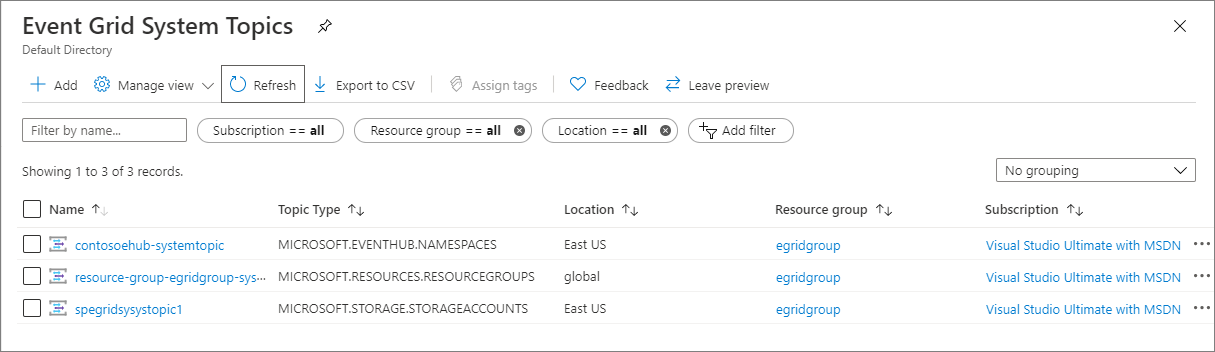
Select a system topic in the list to see its details.
The Event Grid System Topic page shows details such as:
- Source: The name of the resource on which the system topic was created.
- Source type: The type of the resource, for example,
Microsoft.Storage.StorageAccounts,Microsoft.EventHub.Namespaces, orMicrosoft.Resources.ResourceGroups. - Any event subscriptions created for the system topic.
From this page, you can do the following operations:
- Create an event subscription. Select + Event Subscription on the toolbar.
- Delete an event subscription. Select Delete on the toolbar.
- Add tags for the system topic. Select Tags on the left menu, and then specify tag names and values.
Delete an Event Grid system topic
To delete a system topic and all its event subscriptions, follow these steps:
Follow the steps in the View all Event Grid system topics section to view all system topics. Select the system topic that you want to delete from the list.
On Event Grid System Topic, select Delete on the toolbar.
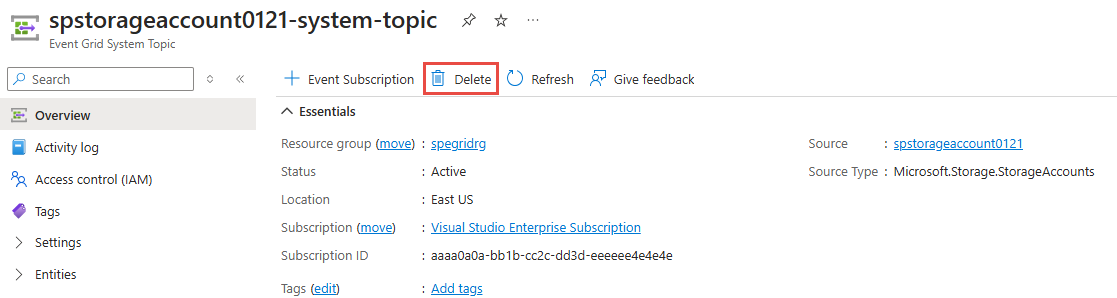
On the confirmation page, select OK to confirm the deletion. Event Grid deletes the system topic and all the event subscriptions for that system topic.