Bilješka
Pristup ovoj stranici zahtijeva provjeru vjerodostojnosti. Možete pokušati da se prijavite ili promijenite direktorije.
Pristup ovoj stranici zahtijeva provjeru vjerodostojnosti. Možete pokušati promijeniti direktorije.
Azure Event Grid can receive MQTT messages from your IoT clients and route them to other Azure services for processing. This tutorial shows you how to route MQTT messages received by an Azure Event Grid namespace to an Azure function by using an Event Grid custom topic. Routing messages to a function lets you run custom code, such as transforming or filtering telemetry, each time a message arrives, without managing any servers.
In this tutorial, you:
- Create an Azure function that uses an Event Grid trigger.
- Create an Event Grid custom topic.
- Add a subscription that sends events to the function.
- Create an Event Grid namespace with clients, topic spaces, and permission bindings.
- Enable a managed identity for the namespace.
- Configure routing from the namespace to the custom topic.
- Send test MQTT messages and verify that the function receives them.
Prerequisites
- An Azure account with an active subscription. If you don't have one, create an account for free before you begin.
- The MQTTX app to publish and subscribe to test MQTT messages.
Create an Azure function by using an Event Grid trigger
Important
Create all resources in this tutorial in the same region.
Follow the instructions in Create an Azure function using Visual Studio Code, but use the Azure Event Grid Trigger instead of the HTTP Trigger.
You should see code similar to the following example:
using System;
using Azure.Messaging;
using Microsoft.Azure.Functions.Worker;
using Microsoft.Extensions.Logging;

namespace Company.Function
{
    public class MyEventGridTriggerFunc
    {
        private readonly ILogger<MyEventGridTriggerFunc> _logger;

        public MyEventGridTriggerFunc(ILogger<MyEventGridTriggerFunc> logger)
        {
            _logger = logger;
        }

        [Function(nameof(MyEventGridTriggerFunc))]
        public void Run([EventGridTrigger] CloudEvent cloudEvent)
        {
            _logger.LogInformation("Event type: {type}, Event subject: {subject}", cloudEvent.Type, cloudEvent.Subject);
        }
    }
}
You use this Azure function as an event handler for a topic's subscription later in this tutorial.
Note
This tutorial was tested with an Azure function that uses .NET 8.0 (isolated) runtime stack.
Create an Event Grid topic (custom topic)
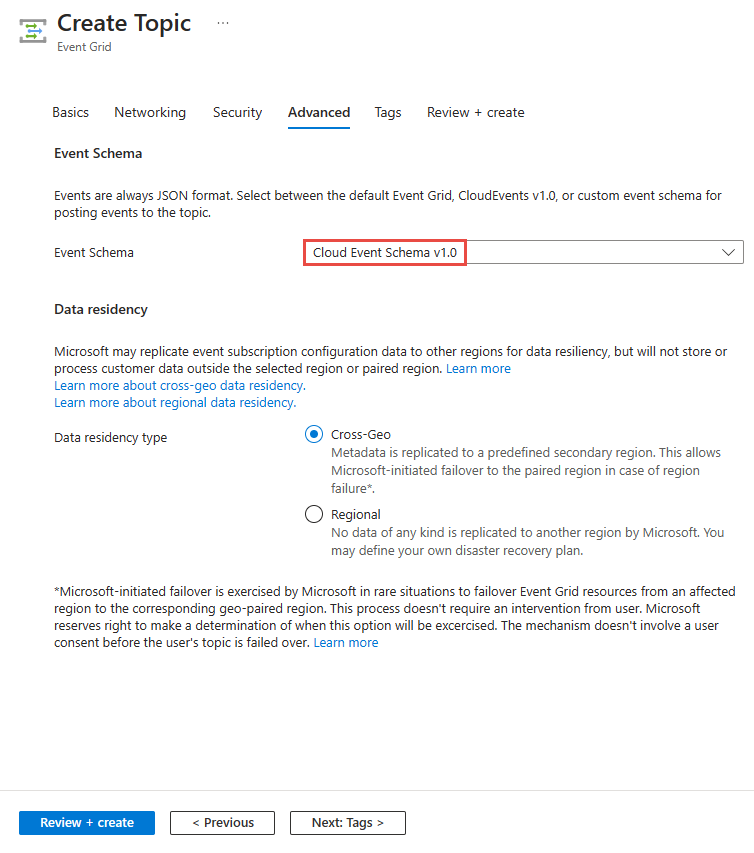
Create an Event Grid topic. See Create a custom topic using the Azure portal. When you create the Event Grid topic, on the Advanced tab, for Event Schema, select Cloud Event Schema v1.0.
Note
Use Cloud Event Schema v1.0 everywhere in this tutorial.
Add a subscription to the topic by using the function
In this step, create a subscription to the Event Grid topic by using the Azure function you created earlier.
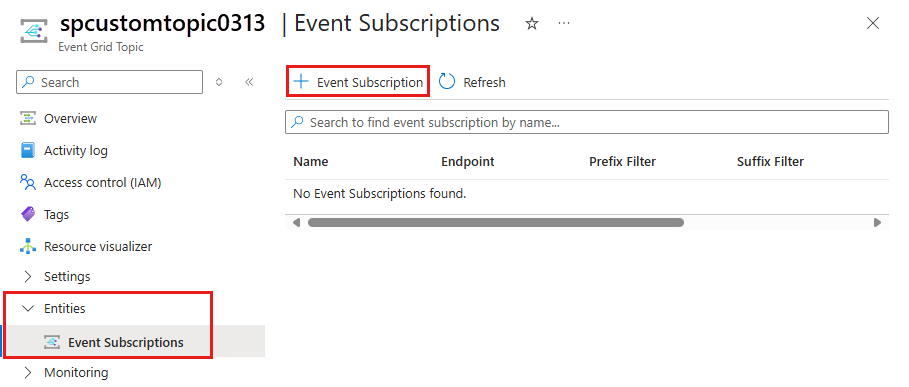
On the Event Grid Topic page, select Subscriptions.
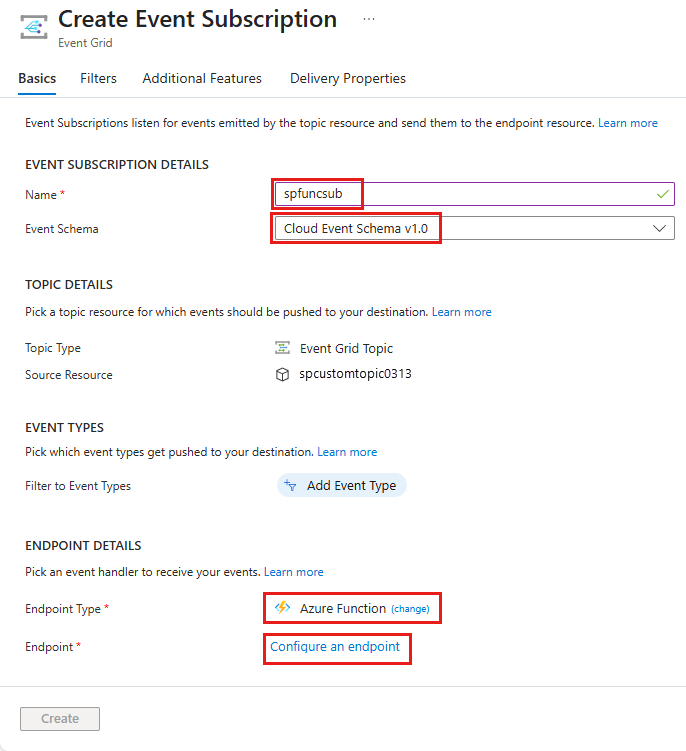
On the Create Event Subscription page, complete these steps:
Enter a Name for the event subscription.
For Event Schema, select Cloud Event Schema v1.0.
For Endpoint Type, select Azure Function.
Select Configure an endpoint.
On the Select Azure function page, complete these steps:
For Subscription, select your Azure subscription.
For Resource group, select the resource group that has your Azure function.
For Function app, select the function app that contains the function.
For Slot, select Production.
For Function, select your Azure function.
Select Confirm Selection.
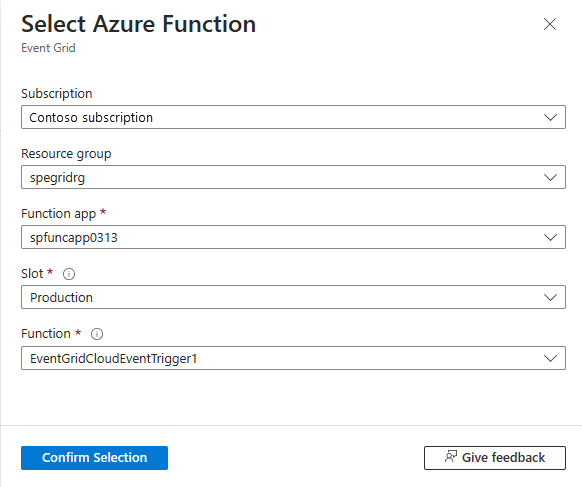
On the Create Event Subscription page, select Create.
On the Event Subscriptions page, you should see the subscription you created.
Create namespace, clients, topic spaces, and permission bindings
Follow the instructions in Quickstart: Publish and subscribe to MQTT messages using an Event Grid namespace with Azure portal to:
- Create an Event Grid namespace.
- Create two clients.
- Create a topic space.
- Create publisher and subscriber permission bindings.
- Test by using the MQTTX app to confirm that clients can send and receive messages.
Enable managed identity for the namespace
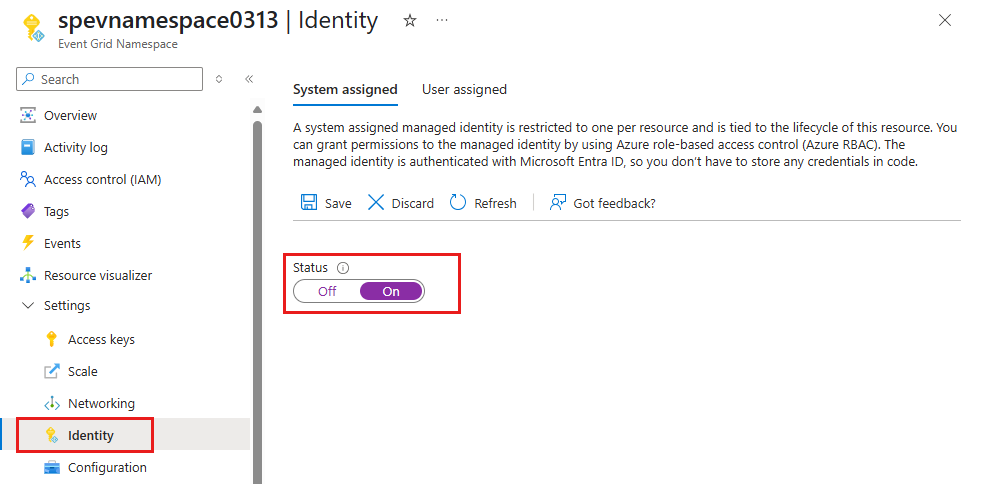
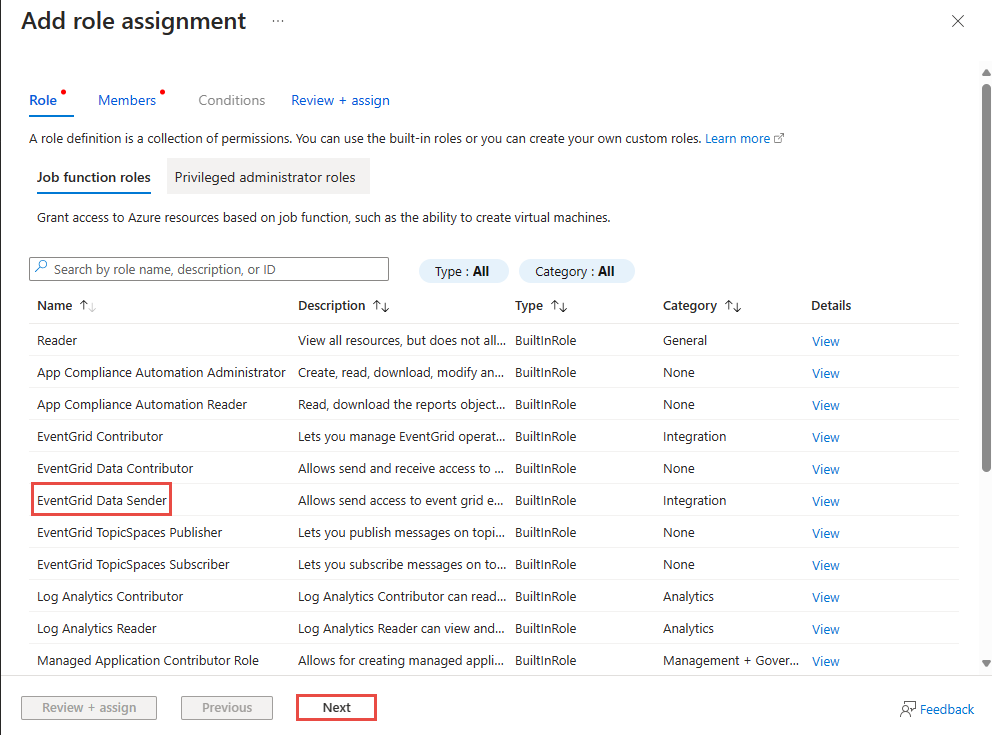
In this section, you enable system-assigned managed identity for the Event Grid namespace, and then grant the identity the send permission to the Event Grid custom topic so that it can route messages to the custom topic. You grant this permission by adding the managed identity to the Event Grid Data Sender role on the custom topic.
On the Event Grid Namespace page, select Identity. Select On and then Save.
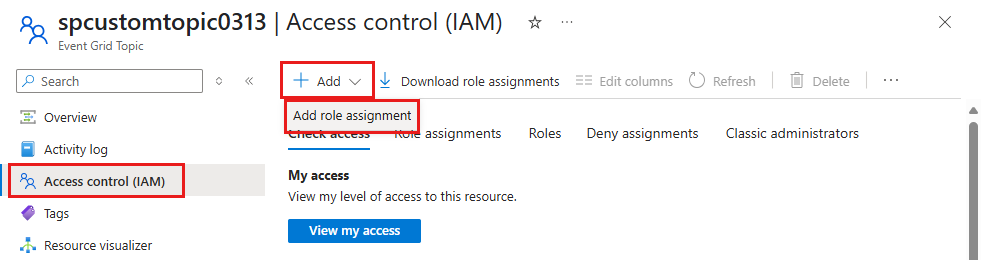
Go to the Event Grid Topic for your Event Grid custom topic.
Select Access control on the left navigation bar.
On the Access control page, select Add, and then select Add role assignment.
On the Role page of the Add role assignment wizard, select Event Grid Data Sender role, and select Next.
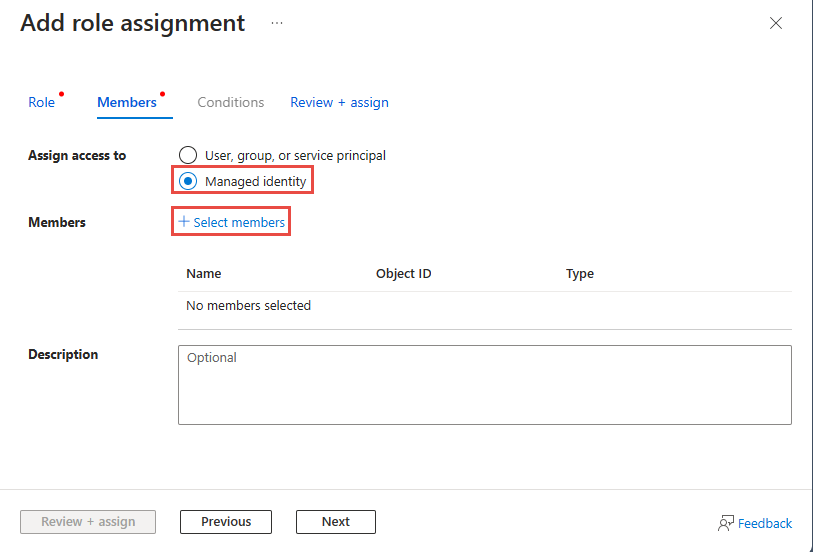
On Add role assignment, on the Members page, select Managed identity, and then choose Select members.
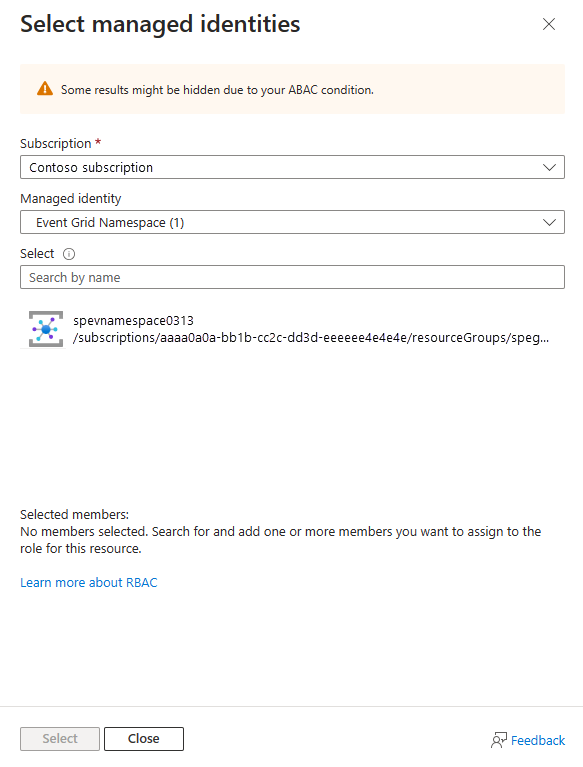
On the Select managed identities page, do these steps:
Select your Azure subscription.
For Managed identity, select Event Grid Namespace.
Select the managed identity that has the same name as the Event Grid namespace.
Choose Select.
On the Add role assignment page, select Next.
On the Review + assign page, review settings, and then select Review + assign.
Configure routing messages to Azure function via custom topic
In this section, configure routing for the Event Grid namespace so that it routes the messages it receives to the custom topic you created.
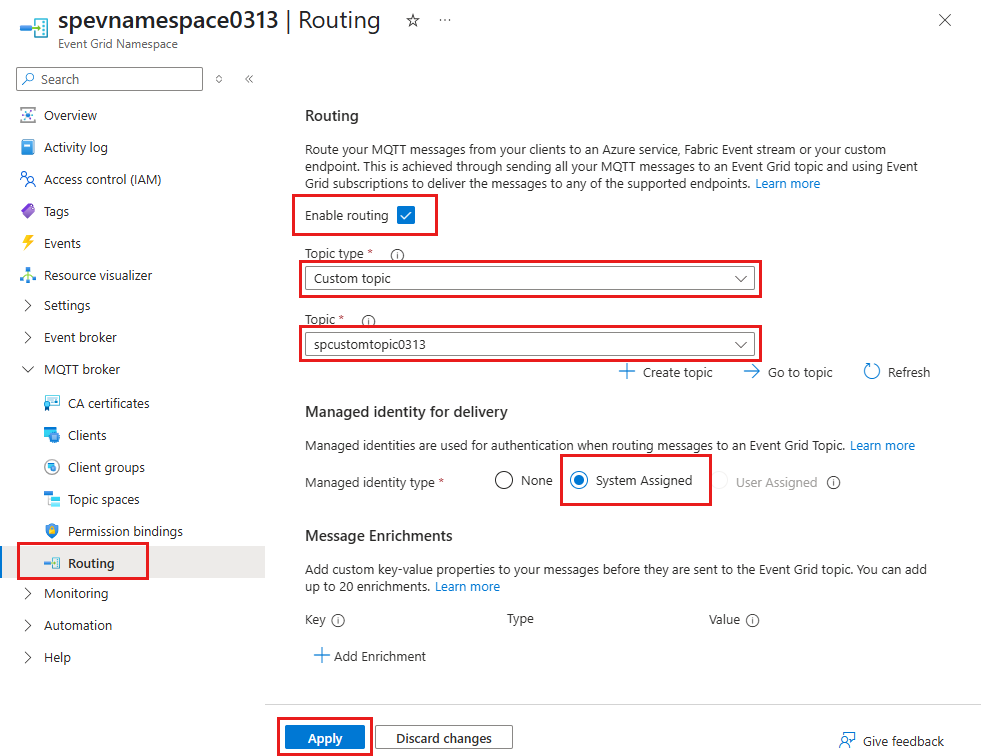
On the Event Grid Namespace page, select Routing.
On the Routing page, select Enable routing.
For Topic type, select Custom topic.
For Topic, select the custom topic you created for this tutorial.
For Managed identity for delivery, select System Assigned.
Select Apply.
Send test MQTT messages by using MQTTX
Send test MQTT messages to the namespace and confirm that the function receives them. Follow the instructions in Publish and subscribe using MQTTX app to send a few test messages to the Event Grid namespace.
When you send messages, they flow through the system in this order:
- MQTTX sends messages to the topic space of the Event Grid namespace.
- Event Grid routes the messages to the custom topic that you configured.
- Event Grid forwards the messages to the event subscription, which is the Azure function.
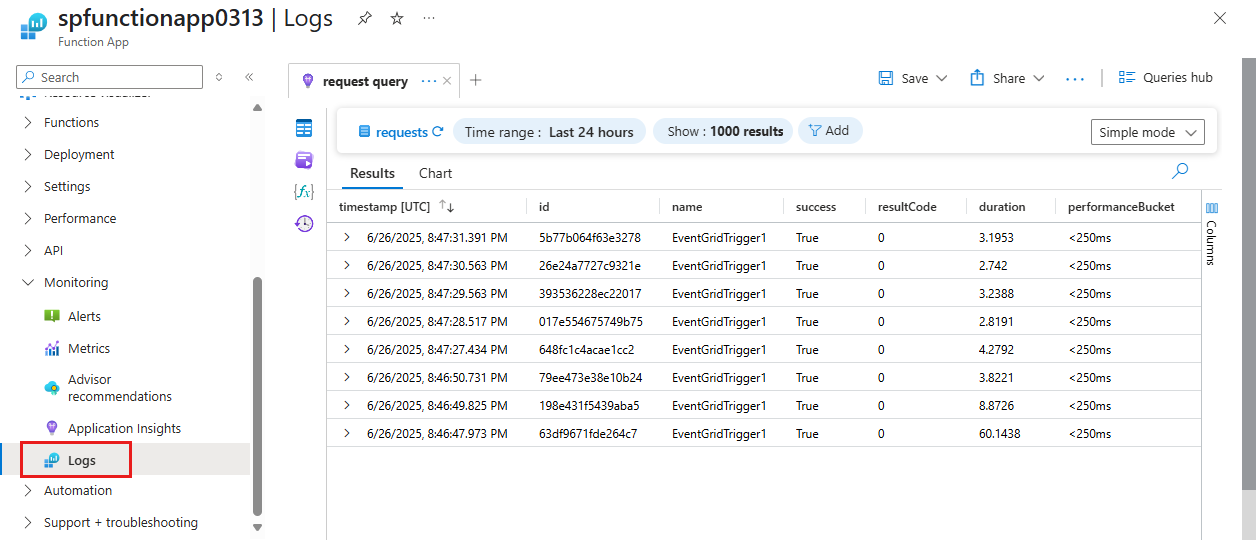
To confirm delivery, use the logging feature to verify that the function receives the event.