Bilješka
Pristup ovoj stranici zahtijeva provjeru vjerodostojnosti. Možete pokušati da se prijavite ili promijenite direktorije.
Pristup ovoj stranici zahtijeva provjeru vjerodostojnosti. Možete pokušati promijeniti direktorije.
The connector for OPC UA can resolve nodes that have dynamic identifiers, periodically publish complete dataset snapshots, and select the fields to include in event notifications. Use these features when the default asset configuration doesn't meet the needs of your OPC UA server or downstream applications.
This article shows you how to:
- Resolve dynamic OPC UA nodes by using a start instance and relative browse paths.
- Configure key frames to help consumers recover the current state of a dataset.
- Select and rename fields in OPC UA event notifications.
Prerequisites
- An instance of Azure IoT Operations deployed in a Kubernetes cluster. For more information, see Deploy Azure IoT Operations.
The Azure CLI installed on your development machine. Check Available Azure CLI extensions for the minimum required version to use the azure-iot-ops extension. Use
az --versionto check your version andaz upgradeto update if necessary. For more information, see Install the Azure CLI.The Azure IoT Operations extension for the Azure CLI. Use the following command to add the extension or update it to the latest version:
az extension add --upgrade --name azure-iot-ops
- Your Azure IoT Operations instance has the connector for OPC UA enabled.
- You have a device inbound endpoint and an asset configured for your OPC UA server. To create these resources, see Configure the connector for OPC UA.
- To configure browse paths, you know the starting node and relative browse path for each target node on your OPC UA server.
Choose an advanced data-collection feature
Each feature changes a different part of data collection or message delivery:
| Requirement | Feature | Configuration location | Consideration |
|---|---|---|---|
| Resolve nodes whose identifiers can change | Relative browse paths | Start instance on a dataset or event, and Data source on each data point or event | Numeric namespace indexes in browse paths can change on the server. |
| Help consumers recover a complete dataset state | Key frames | Key frame count on each dataset | More frequent key frames improve recovery time but increase message size and bandwidth use. |
| Control the fields in event notifications | Event filters | Event filter on each event | A filter replaces the server's default field selection for the event. |
You can use these features independently or together on the same asset.
Resolve dynamic nodes by using browse paths
Typically, the Data source field for an OPC UA data point or event contains a fixed node ID. This approach works when the node ID remains stable across server restarts and deployments. Some OPC UA servers create node IDs at runtime or on demand, so the IDs can change and can't be persisted reliably in an asset configuration.
For dynamic nodes, configure a starting node and a relative browse path. At runtime, the connector calls the OPC UA TranslateBrowsePathToNodeId service to resolve the browse path from the starting node to a concrete node ID.
The configuration has two parts:
- Start instance identifies the starting node. Configure it in the dataset workflow for data points or in the event workflow for event notifications.
- Data source contains the relative browse path from the start instance to the target node. Configure it on each data point or event that uses dynamic resolution.
If you don't configure Start instance, the connector treats each Data source value as a fixed node ID.
Configure a start instance and browse paths
Choose a stable OPC UA node to use as the start instance.
The start instance can use any valid OPC UA node ID format. For example:
i=2555nsu=http://microsoft.com/Opc/OpcPlc/;s=FastUInt1nsu=http://microsoft.com/Opc/OpcPlc/Boiler;i=5ns=10;s=System.Pump1ns=1;b=M/RbKBsRVkePCePcx24oRA==
In the operations experience, open the asset that contains the dynamic nodes.
Configure the start instance:
- For data points, edit the dataset and enter the node ID in Start instance.
- For an event, edit the event and enter the node ID in Start instance.
For each data point or event that you want the connector to resolve dynamically, enter its relative browse path in Data source. For example:
/1:SYSTEM/1:PUMP/1:P1/2:Block&.Output/3:Truck.0:NodeVersion<!HasChild>Truck<1:ConnectedTo>1:Boiler/
Save the asset configuration.
For the relative browse path syntax, see OPC UA Part 4, section A.2.
Important
Relative browse paths must use numeric OPC UA namespace indexes. Namespace names in string format aren't supported. Namespace indexes can change on the server. If they change, update the browse paths in the asset configuration.
Configure key frames for state recovery
By default, a message includes only data points whose values changed since the previous message. A key frame includes the values of all data points in the dataset, whether or not the values changed.
If a consumer misses messages because of a restart, reconnection, or network problem, it can't reliably reconstruct the current dataset state until it receives all the data point values. Periodic key frames reduce this recovery time, but larger and more frequent messages increase bandwidth use.
Configure Key frame count when you add or edit a dataset. The value controls the number of publishing cycles between key frames:
| Value | Behavior |
|---|---|
-1 |
Use the connector default behavior. |
0 |
Disable key frames. |
1 |
Make every frame a key frame. |
Greater than 1 |
Emit a key frame every specified number of frames. |
The approximate interval between key frames is:
Key frame interval = Key frame count * Publishing interval
For example:
| Key frame count | Publishing interval | Approximate result |
|---|---|---|
0 |
1,000 ms | No key frames |
1 |
1,000 ms | A key frame every second |
10 |
500 ms | A key frame every five seconds |
10 |
5,000 ms | A key frame every 50 seconds |
Choose a value based on the recovery requirements of your consumers:
- Use a smaller value, such as
5to10, when consumers must recover quickly after reconnecting. - Use a larger value, such as
30to60, when lower bandwidth use is more important than recovery time. - Use
0only when consumers don't require periodic complete snapshots.
Operations experience
When you add or edit a dataset in the operations experience, enter the value in Key frame count on the Create dataset or Edit dataset page.
Azure CLI
Use the --key-frame-count parameter when you add or replace an OPC UA dataset. For example, the following command sets the key frame count to 5:
az iot ops ns asset opcua dataset add \
  --asset thermostat \
  --instance {your instance name} \
  --resource-group {your resource group name} \
  --name telemetry \
  --key-frame-count 5 \
  --replace
Bicep
In Bicep, set keyFrameCount in the dataset's stringified datasetConfiguration property:
datasets: [
  {
    name: 'telemetry'
    datasetConfiguration: string({
      keyFrameCount: 5
    })
  }
]
Changing the dataset publishing interval also changes the effective key-frame interval. A configuration update can require resource reconciliation or a connector pod restart.
For more information about the message behavior, see OPC UA Part 14, PubSub.
Select and rename event fields
By default, an OPC UA server sends a selection of standard fields in each event notification. The server determines the exact selection for each event type. For example:
{
  "EventId": "OkaXYhfr20yUoj1QBbzcIg==",
  "EventType": "i=2130",
  "SourceNode": "i=2253",
  "SourceName": "WestTank",
  "Time": "2025-10-10T15:09:13.3946878Z",
  "ReceiveTime": "2025-10-10T15:09:13.3946881Z",
  "Message": "Raising Events",
  "Severity": 500
}
Use an event filter to include extra fields, exclude fields, or rename fields in the event notification. Each select clause has these properties:
| Property | Required | Description |
|---|---|---|
| Browse path | Yes | Identifies the source field to include in the event notification. |
| Type definition ID | No | Specifies the OPC UA type definition of the source field. |
| Field ID | No | Specifies the output field name. If you omit this value, the connector uses the original field name. |
The following filter selects four fields and renames EventId and SourceName:
| Browse path | Type definition ID | Field ID |
|---|---|---|
EventId |
ns=0;i=2041 |
myEventId |
EventType |
ns=0;i=2041 |
EventType |
SourceName |
Not set | mySourceName |
Severity |
Not set | Severity |
Configure an event filter
Operations experience
In the operations experience, open the asset and edit the event that you want to filter.
In Event filter, add a row for each field to include in the event notification.
Configure the browse path, type definition ID, and field ID for each row.
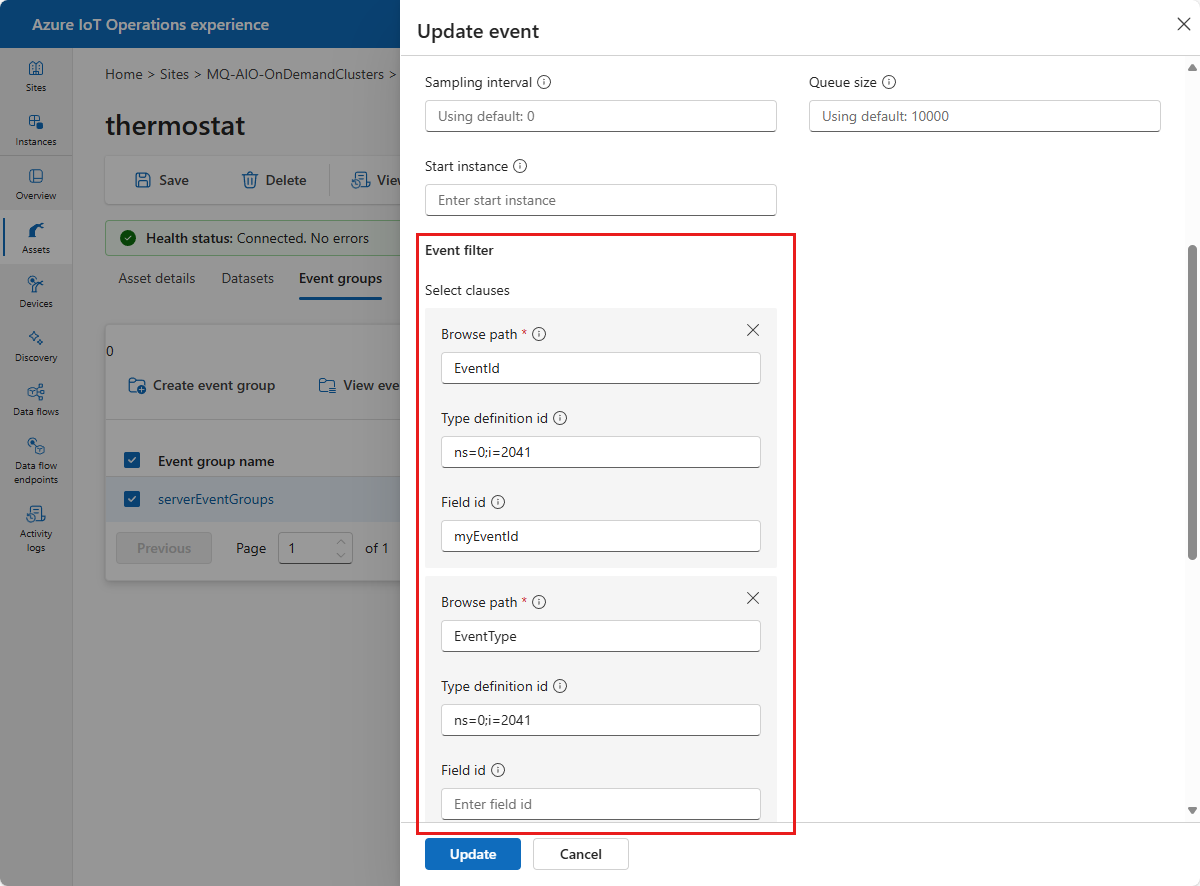
Save the asset configuration.
Azure CLI
Use az iot ops ns asset opcua event add with --replace true to update an existing event. Add one --filter-clause parameter for each field to include:
az iot ops ns asset opcua event add \
  --asset thermostat \
  --instance {your instance name} \
  --resource-group {your resource group name} \
  --event-group alerts \
  --name serverObjectNotifier \
  --data-source "ns=0;i=2253" \
  --replace true \
  --filter-type "ns=0;i=2041" \
  --filter-clause path="EventId" type="ns=0;i=2041" field="myEventId" \
  --filter-clause path="EventType" type="ns=0;i=2041" field="EventType" \
  --filter-clause path="SourceName" field="mySourceName" \
  --filter-clause path="Severity" field="Severity"
Bicep
In Bicep, add an eventFilter object to the stringified JSON in the event's eventConfiguration property:
eventGroups: [
  {
    name: 'alerts'
    eventGroupConfiguration: '{"publishingInterval":1000,"queueSize":10}'
    events: [
      {
        name: 'serverObjectNotifier'
        dataSource: 'ns=0;i=2253'
        eventConfiguration: '{"eventFilter":{"selectClauses":[{"browsePath":"EventId","typeDefinitionId":"ns=0;i=2041","fieldId":"myEventId"},{"browsePath":"EventType","typeDefinitionId":"ns=0;i=2041","fieldId":"EventType"},{"browsePath":"SourceName","typeDefinitionId":"","fieldId":"mySourceName"},{"browsePath":"Severity","typeDefinitionId":"","fieldId":"Severity"}]}}'
        destinations: [
          {
            target: 'Mqtt'
            configuration: {
              topic: 'azure-iot-operations/events/test-thermostat-bicep'
              qos: 'Qos1'
              retain: 'Never'
              ttl: 3600
            }
          }
        ]
      }
    ]
  }
]
The connector forwards only the selected fields. The example filter produces the following message:
{
  "myEventId": "OkaXYhfr20yUoj1QBbzcIg==",
  "EventType": "i=2130",
  "mySourceName": "WestTank",
  "Severity": 500
}
To create an event before you add a filter, see Add events and event groups.