Bilješka
Pristup ovoj stranici zahtijeva provjeru vjerodostojnosti. Možete pokušati da se prijavite ili promijenite direktorije.
Pristup ovoj stranici zahtijeva provjeru vjerodostojnosti. Možete pokušati promijeniti direktorije.
Asset discovery enables Azure IoT Operations to automatically detect the assets connected to an OPC UA server and register them in Azure Device Registry, so you don't have to define each asset manually. In industrial environments that expose many assets, this capability saves time and avoids the configuration errors of setting up assets manually.
This article shows you how to enable asset discovery when you add a device, review and import the discovered assets, and configure the discovery mode that suits your OPC UA server.
For an explanation of the discovery modes and how they behave, see OPC UA asset discovery modes.
Important
Type-based discovery is in preview. See the Supplemental Terms of Use for Microsoft Azure Previews for legal terms that apply to Azure features that are in beta, preview, or otherwise not yet released into general availability.
Prerequisites
The Azure CLI examples in this article use environment variables so that you can set each value once and then copy and paste the commands as-is. If you're using the Azure IoT Operations Codespaces environment from the quickstart, these variables are already set for you and you can skip this step. Otherwise, set the following environment variables in your shell before you run the commands.
The following scripts set the most commonly used environment variables:
| Environment variable | Description |
|---|---|
SUBSCRIPTION_ID |
The ID of the subscription that contains your Azure IoT Operations instance. |
RESOURCE_GROUP |
The name of the resource group that contains your Azure IoT Operations instance. |
AIO_INSTANCE_NAME |
The name of your Azure IoT Operations instance. To list your instances, run az iot ops list -o table. |
CLUSTER_NAME |
The name of the Azure Arc-enabled Kubernetes cluster that hosts your instance. |
LOCATION |
The Azure region to use for new resources, for example eastus. |
SUBSCRIPTION_ID=<subscription-id>
RESOURCE_GROUP=<resource-group-name>
AIO_INSTANCE_NAME=<instance-name>
CLUSTER_NAME=<cluster-name>
LOCATION=<region>
You only need to set the variables that this article uses. This article might use additional environment variables for resource names that you choose. The article explains how to set them where they're introduced.
A deployed instance of Azure IoT Operations with resource sync rules enabled. To enable resource sync rules run the following command on your Azure IoT Operations instance. This command also sets the required permissions on the custom location:
az iot ops enable-rsync -n $AIO_INSTANCE_NAME -g $RESOURCE_GROUP
To sign in to the operations experience web UI, you need a Microsoft Entra ID account with at least contributor permissions for the resource group that contains your Kubernetes - Azure Arc instance. You can't sign in with a Microsoft account (MSA). For more information, see Troubleshoot access to the operations experience web UI.
Create a device with discovery enabled
To create a device with an OPC UA endpoint that has discovery enabled:
Go to your Azure IoT Operations instance in the operations experience.
Add a new device and add an OPC UA endpoint.
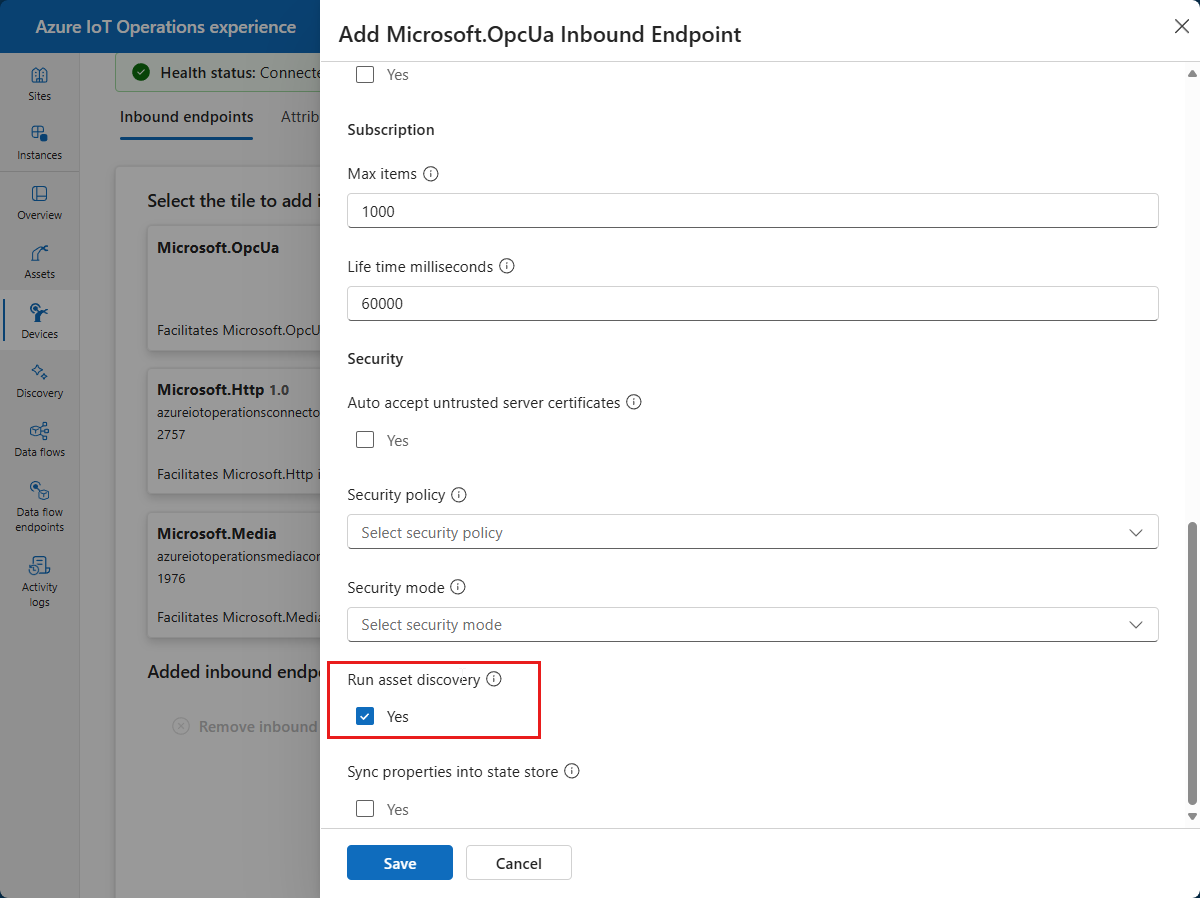
Select the Run asset discovery option for the endpoint:
Finish creating the device.
By default, the endpoint uses DI-based discovery. To use a different mode, follow the steps in Configure segmented discovery or use the assetTypes property for type-based discovery (preview).
Review the discovered assets
Azure IoT Operations uses the device to connect to the OPC UA server and scan for assets. To view the discovered assets:
Go to the Discovery page for your instance in the operations experience and then go to the Discovered assets tab:
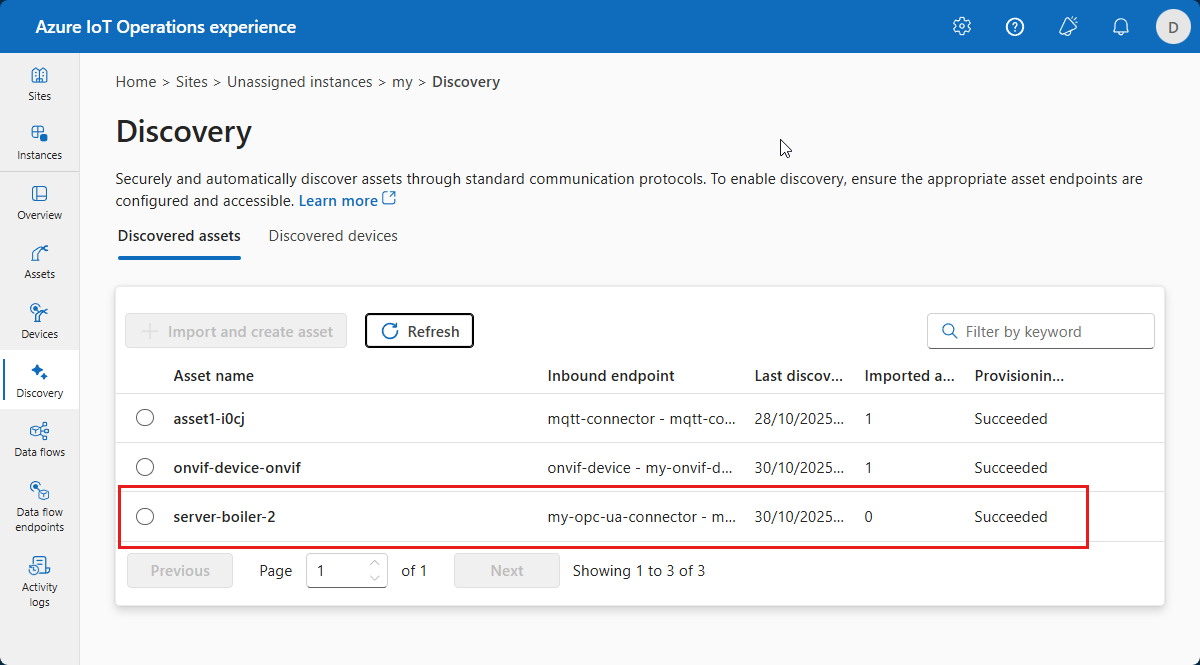
Filter the list by device name or keyword. The list shows the discovered assets and their status.
Import an asset from a discovered asset
From the list of discovered assets, you can import an asset into your Azure IoT Operations instance. To import an asset:
Select the asset you want to import from the list of discovered assets, and then select + Import and create asset.
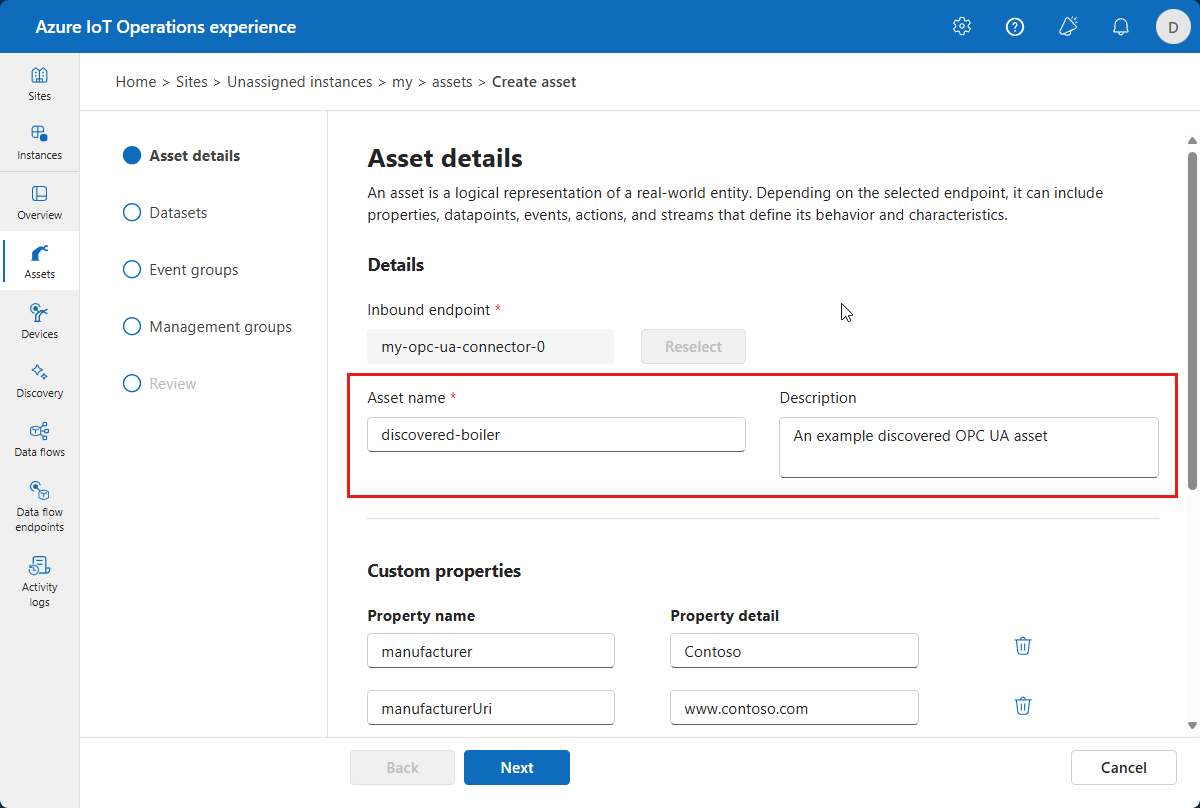
The operations experience opens the Asset details page for the asset, where you can review the asset details and make any changes. Enter a name and description for the discovered asset:
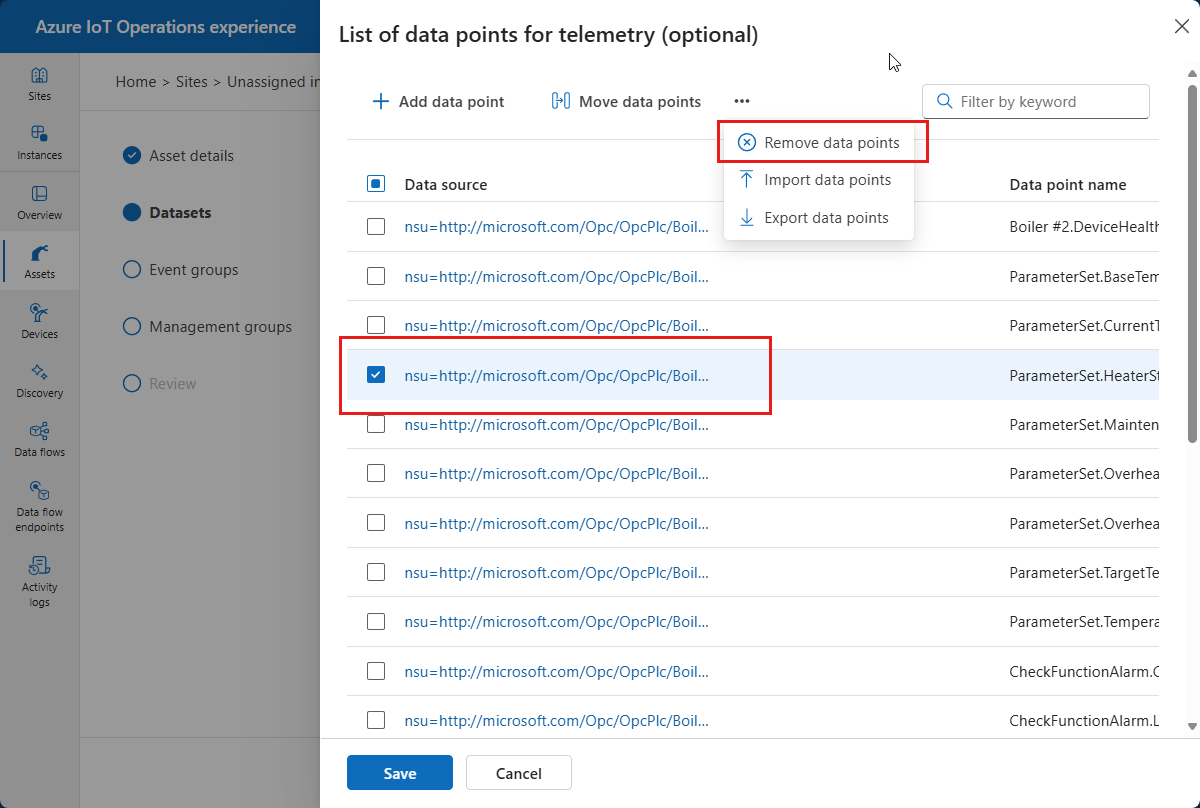
Step through the rest of the Create asset pages and select the imported data points and events that you want to use:
The operations experience creates the imported asset in your Azure IoT Operations instance. You can view the asset in the Assets page of the operations experience:
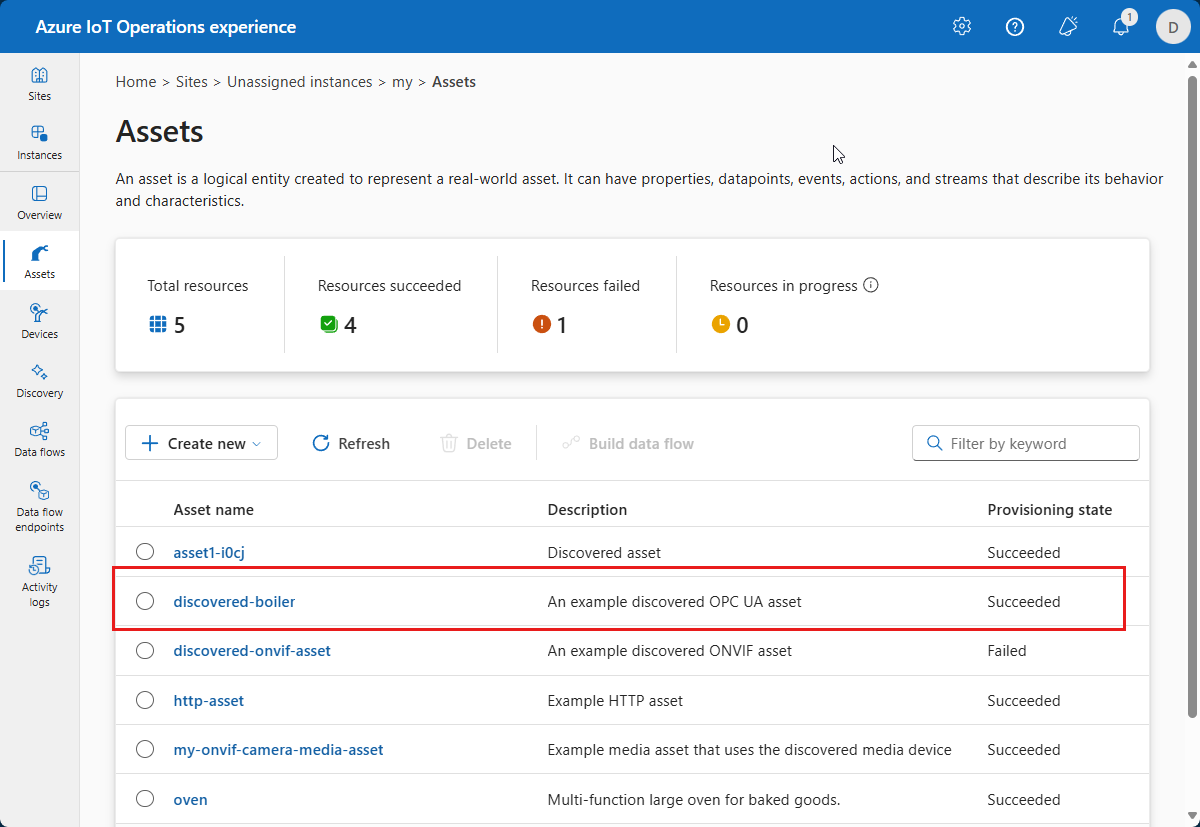
To learn more about managing asset configurations, see Manage asset configurations.
Review the discovered assets in your cluster (optional)
To review the discovered assets in your cluster, use the kubectl command line tool:
kubectl get discoveredassets.namespaces -n azure-iot-operations
To view the details of a discovered asset, use the following command:
kubectl describe discoveredasset.namespaces <name> -n azure-iot-operations
Tip
The previous commands assume that you installed your Azure IoT Operations instance in the default azure-iot-operations namespace. If you installed it in a different namespace, replace azure-iot-operations with the name of your namespace.
You can also review the discovered assets in your cluster by using the Azure portal. The portal hides discovered asset and device resources by default, but if you select Show hidden types in Manage view, you can view the discovered asset and device resources in your resource group.
Use the imported asset in your data flows
After you import a discovered asset, you can use it in your data flows. Imported asset definitions behave the same as manually entered asset definitions. To learn more, see Create and manage data flows.
Configure segmented discovery
Use segmented discovery when the OPC UA server exposes a flat list of Variable nodes without DI companion specification types. For details on how segmented discovery chunks nodes and which nodes it includes, see Segmented discovery.
Add the segmentedDiscovery property to the endpoint's additionalConfiguration in your configuration Bicep file:
inbound: {
  'opcua-connector-0': {
    endpointType: 'Microsoft.OpcUa'
    address: 'opc.tcp://my-opcua-server:50000'
    additionalConfiguration: string({
      runAssetDiscovery: true
      segmentedDiscovery: true
    })
  }
}
| Property | Type | Default | Description |
|---|---|---|---|
runAssetDiscovery |
boolean | false |
Enables the periodic asset discovery loop. |
segmentedDiscovery |
boolean | false |
Selects segmented discovery mode instead of DI-based discovery. |
Set both properties to true to enable segmented discovery.
Configure start-node discovery
Use start-node discovery to limit browsing to a subtree of the OPC UA address space. For the two supported formats and error behavior, see Start-node discovery.
Add the discoveryStartNode property to the endpoint's additionalConfiguration.
| Property | Type | Default | Description |
|---|---|---|---|
runAssetDiscovery |
boolean | false |
Enables the periodic asset discovery loop. |
discoveryStartNode |
string | none | The node to start browsing from. Accepts an ExpandedNodeId or a browse path. |
To specify the start node by using an ExpandedNodeId, add the following to the endpoint's additionalConfiguration:
inbound: {
  'opcua-connector-0': {
    endpointType: 'Microsoft.OpcUa'
    address: 'opc.tcp://my-opcua-server:50000'
    additionalConfiguration: string({
      runAssetDiscovery: true
      discoveryStartNode: 'nsu=http://microsoft.com/Opc/OpcPlc/Boiler;i=5'
    })
  }
}
To specify the start node by using a browse path, add the following to the endpoint's additionalConfiguration:
inbound: {
  'opcua-connector-0': {
    endpointType: 'Microsoft.OpcUa'
    address: 'opc.tcp://my-opcua-server:50000'
    additionalConfiguration: string({
      runAssetDiscovery: true
      discoveryStartNode: '/4:Boiler/4:BoilerStatus'
    })
  }
}
Warning
Namespace indexes might change when the server restarts. Use the browse path format only when you're certain the indexes are stable.
Combine start-node discovery with a discovery mode
Start-node discovery works with any of the three discovery modes: DI-based discovery (default), type-based discovery (preview), and segmented discovery.
To browse from a start node and detect assets by using the default DI-based discovery, add the following code to the endpoint's additionalConfiguration:
inbound: {
  'opcua-connector-0': {
    endpointType: 'Microsoft.OpcUa'
    address: 'opc.tcp://my-opcua-server:50000'
    additionalConfiguration: string({
      runAssetDiscovery: true
      discoveryStartNode: 'nsu=http://example.com/UA;s=ProductionLine1'
    })
  }
}
To browse from a start node and detect assets by using type-based discovery, add the following code to the endpoint's additionalConfiguration:
inbound: {
  'opcua-connector-0': {
    endpointType: 'Microsoft.OpcUa'
    address: 'opc.tcp://my-opcua-server:50000'
    additionalConfiguration: string({
      runAssetDiscovery: true
      discoveryStartNode: 'nsu=http://example.com/UA;s=ProductionLine1'
      assetTypes: [
        'nsu=http://opcfoundation.org/UA/MachineTool/;i=16'
      ]
    })
  }
}
To browse from a start node and detect assets by using segmented discovery, add the following code to the endpoint's additionalConfiguration:
inbound: {
  'opcua-connector-0': {
    endpointType: 'Microsoft.OpcUa'
    address: 'opc.tcp://my-opcua-server:50000'
    additionalConfiguration: string({
      runAssetDiscovery: true
      discoveryStartNode: 'nsu=http://example.com/UA;s=ProductionLine1'
      segmentedDiscovery: true
    })
  }
}
Configure periodic discovery
By default, asset discovery runs only once when you apply the endpoint configuration. To repeat discovery on a schedule, set assetDiscoveryInterval to the interval in minutes. For how the two properties interact and the behavior of the discovery timer, see Periodic discovery.
| Property | Type | Default | Description |
|---|---|---|---|
runAssetDiscovery |
boolean | false |
Enables the periodic asset discovery loop. |
assetDiscoveryInterval |
integer | 0 | The interval in minutes between discovery runs. Omit to run discovery only once. |
To run asset discovery only once, add the following code to the endpoint's additionalConfiguration:
inbound: {
  'opcua-connector-0': {
    endpointType: 'Microsoft.OpcUa'
    address: 'opc.tcp://my-opcua-server:50000'
    additionalConfiguration: string({
      runAssetDiscovery: true
    })
  }
}
To run asset discovery every 30 minutes, add the following code to the endpoint's additionalConfiguration:
inbound: {
  'opcua-connector-0': {
    endpointType: 'Microsoft.OpcUa'
    address: 'opc.tcp://my-opcua-server:50000'
    additionalConfiguration: string({
      runAssetDiscovery: true
      assetDiscoveryInterval: 30
    })
  }
}
Trigger segmented discovery by using MQTT RPC
To trigger a segmented discovery run on demand, send a discoverSegmentedAssets action over MQTT RPC to the connector for OPC UA endpoint-operations service.
Publish the request to the following topic, where {aioNamespace} is the Kubernetes namespace where Azure IoT Operations is installed, {deviceName} is the name of the device resource, and {endpointName} is the name of the OPC UA endpoint on that device:
Topic: {aioNamespace}/endpoint-operations/{deviceName}/{endpointName}/discoverSegmentedAssets
Payload:
{}
To scope the discovery to a subtree, include a discoveryStartNode in the payload:
{
  "discoveryStartNode": "nsu=http://example.com/UA;s=ProductionLine1"
}
Response:
{
  "opc_discovered_asset_names": [
    "opcua-endpoint-0",
    "opcua-endpoint-1"
  ]
}