Bilješka
Pristup ovoj stranici zahtijeva provjeru vjerodostojnosti. Možete pokušati da se prijavite ili promijenite direktorije.
Pristup ovoj stranici zahtijeva provjeru vjerodostojnosti. Možete pokušati promijeniti direktorije.
This article describes how to add private connectivity to an existing Azure IoT Operations deployment. Follow the sections in order:
| Step | Section | What it does |
|---|---|---|
| 1 | Set up Arc Gateway | Create the Arc Gateway resource and retrieve the custom locations OID |
| 2 | Allow the operations experience to access your resources | Allow-list the operations experience IP address in each resource firewall before you restrict access |
| 3 | Create private endpoints and DNS zones | Create private endpoints and DNS zones for Azure Storage, Azure Key Vault, and Azure Event Grid |
| 4 | Update Azure Arc connectivity | Update the existing Arc connection with Arc gateway. Choose between Arc gateway only or Arc gateway + explicit proxy |
| 5 | Configure data flow destinations with private endpoints | Route data flow traffic to cloud destinations like Event Grid through Azure Private Link |
These scenarios apply to environments with a single Arc-enabled Kubernetes cluster. There's no Purdue-style network segmentation, no proxy chaining across layers, and no Envoy deployment. If you have a layered network topology, see Tutorial: Deploy Azure IoT Operations in a layered network with private connectivity instead.
Prerequisites
- An existing Azure IoT Operations deployment on an Arc-connected Kubernetes cluster. The cluster must be healthy with all Azure IoT Operations pods running.
- An Azure subscription with sufficient permissions to create private endpoints, private DNS zones, and role assignments (typically Owner or Contributor + User Access Administrator).
- Azure CLI and kubectl installed on your admin or jump machine.
- An Azure VNet with network connectivity from your cluster. If your cluster runs on Azure VMs within the same VNet or a peered VNet, this connectivity is already in place.
- (Optional) An Azure Event Grid namespace with MQTT enabled. Needed only if you route data flow traffic to Event Grid in Configure data flow destinations with private endpoints.
- (Optional) An Azure Firewall with explicit proxy enabled in your VNet, reachable from your cluster. Required only if you follow the Arc Gateway + Explicit Proxy tab for fully private connectivity with no public internet exposure.
The Azure CLI examples in this article use environment variables so that you can set each value once and then copy and paste the commands as-is. If you're using the Azure IoT Operations Codespaces environment from the quickstart, these variables are already set for you and you can skip this step. Otherwise, set the following environment variables in your shell before you run the commands.
The following scripts set the most commonly used environment variables:
| Environment variable | Description |
|---|---|
SUBSCRIPTION_ID |
The ID of the subscription that contains your Azure IoT Operations instance. |
RESOURCE_GROUP |
The name of the resource group that contains your Azure IoT Operations instance. |
AIO_INSTANCE_NAME |
The name of your Azure IoT Operations instance. To list your instances, run az iot ops list -o table. |
CLUSTER_NAME |
The name of the Azure Arc-enabled Kubernetes cluster that hosts your instance. |
LOCATION |
The Azure region to use for new resources, for example eastus. |
SUBSCRIPTION_ID=<subscription-id>
RESOURCE_GROUP=<resource-group-name>
AIO_INSTANCE_NAME=<instance-name>
CLUSTER_NAME=<cluster-name>
LOCATION=<region>
You only need to set the variables that this article uses. This article might use additional environment variables for resource names that you choose. The article explains how to set them where they're introduced.
This article also uses environment variables for the network and Azure resources that you choose, including VNET_RESOURCE_GROUP, VNET_NAME, SUBNET_NAME, STORAGE_ACCOUNT_NAME, KEY_VAULT_NAME, EVENT_GRID_NAMESPACE, ARC_GATEWAY_RESOURCE_ID, CUSTOM_LOCATIONS_OID, FIREWALL_POLICY_NAME, CLUSTER_SUBNET_CIDRS, FIREWALL_PRIVATE_IP, PROXY_PORT, TOPIC_SPACE_NAME, AIO_IDENTITY_PRINCIPAL_ID, DATAFLOW_NAME, CONFIG_FILE, and CLUSTER_HOST_IP. Set each one before you run the related commands.
Set up Arc Gateway
Azure Arc Gateway consolidates the ~200+ Azure endpoints that Arc agents and extensions require into a single gateway URL. This significantly simplifies your firewall allow list, instead of allowing 200+ individual FQDNs, you allow approximately 9.
Step 1: Create an Arc Gateway resource
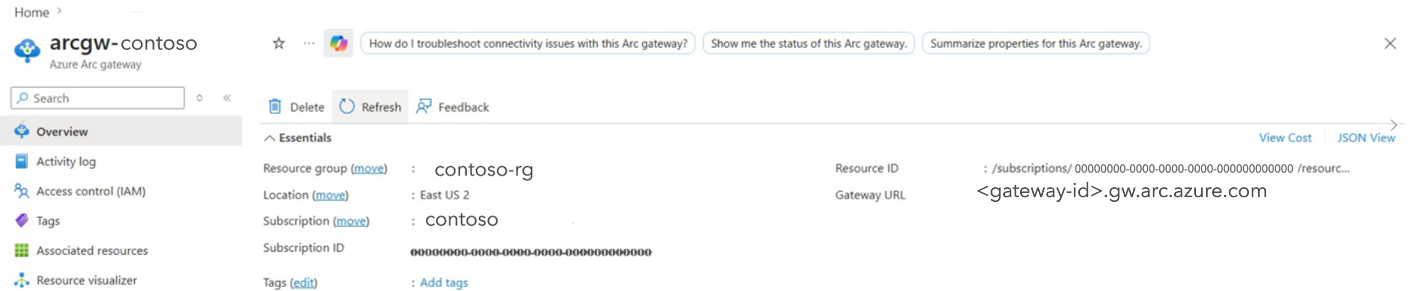
If you don't already have an Arc Gateway resource, create one. You need the gateway resource ID when you connect the cluster in the next section. For creation steps, see Create the Arc Gateway resource.
Note
You can have up to five Arc Gateway resources per subscription.
For the list of FQDNs that you must allow through your firewall when using Arc Gateway, see Allowed endpoints with Arc Gateway.
Step 2: Retrieve the custom locations Object ID
The --custom-locations-oid parameter you use when connecting the cluster requires the Object ID (OID) of the Azure Arc Custom Locations service principal.
To find it:
- Go to Microsoft Entra ID in the Azure portal.
- Select Enterprise applications.
- Search for Azure Arc Kubernetes Custom Locations.
- Open the application, go to Properties, and copy the Object ID.
Allow the operations experience to access your resources
Before you restrict access to your resources with private endpoints, allow the Azure IoT Operations operations experience web UI to reach Azure Key Vault, Azure Storage, and Schema Registry. The operations experience accesses these resources on your behalf:
- Azure Key Vault to manage secrets.
- Azure Storage and Schema Registry to read and write message schemas in the storage account that backs your schema registry.
When you configure these resources to use a private endpoint and firewall, the operations experience can no longer reach them over the public internet. This configuration causes errors when you manage secrets or schemas in the web UI. To keep the operations experience working, set each resource's firewall to Public access: Selected networks and IP addresses and add the operations experience IP addresses to the resource's firewall allow list.
The operations experience IP addresses are allocated by region:
| Operations experience region | IP address |
|---|---|
| East US | 48.211.120.64 |
| North Europe | 72.145.25.40 |
| West Central US | 128.24.193.24 |
| West Europe | 72.145.132.248 |
| West US 3 | 57.154.126.80 |
Note
An operations experience request typically comes from the same region as your instance, but it can come from any region. Allow all of the listed IP addresses for each resource that the operations experience uses.
Note
A Network Security Perimeter or a centrally enforced tenant network policy can override a resource's firewall settings. If your organization applies either control, add the same Data Orchestrator Engine IP exceptions (the operations experience IP addresses in the preceding table) to that policy. Otherwise, access can remain blocked even when the resource firewall allow list is correct.
Configure the firewall allow list for each resource before you create its private endpoint. The following examples add all of the operations experience IP addresses.
Azure Key Vault
- In the Azure portal, go to your key vault and select Networking.
- On the Firewalls and virtual networks tab, select Selected networks so that public access is set to Selected networks and IP addresses.
- Under Firewall, add all of the operations experience IP addresses from the preceding table.
- Select Apply to save your changes.
Azure Storage and Schema Registry
The schema registry is backed by an Azure Storage account. Apply the firewall configuration to that storage account so the operations experience can read and write schemas. Keep the trusted Azure services bypass enabled so the schema registry can continue to reach storage.
- In the Azure portal, go to the storage account that backs your schema registry and select Networking.
- Under Public network access, for Public network access scope, select Enabled from selected networks.
- Under IPv4 Addresses, add all of the operations experience IP addresses from the preceding table.
- Under Exceptions, make sure Allow Azure services on the trusted services list to access this storage account is selected.
- Select Save.
Verify the operations experience can access your resources
After you enable the firewall restrictions, confirm that the operations experience can still reach the required resources:
- Go to the operations experience web UI and open your Azure IoT Operations instance.
- Select Secrets and confirm that the operations experience loads the secrets stored in Azure Key Vault without a firewall or authorization error.
- Select Schemas and confirm that the operations experience loads existing schemas and that you can create a schema. Success confirms access to the schema registry storage account.
If any page returns an access or firewall error, verify that you added all of the operations experience IP addresses to the resource's firewall allow list and that public access is set to Selected networks and IP addresses. For diagnostics when Secrets or Schemas returns an access or firewall error, see The operations experience can't load or manage secrets or schemas after enabling private endpoints.
Create private endpoints and DNS zones
Azure IoT Operations uses a storage account (schema registry) and Key Vault (secret sync) at runtime. Create private endpoints and DNS zones for these resources so all traffic routes privately. Once you link the private DNS zones to your VNet, your cluster automatically resolves these services to their private IPs.
Step 1: Create private endpoints
Create private endpoints for the storage account, Key Vault, and Event Grid so all traffic to these services routes privately.
Azure Blob Storage
az network private-endpoint create \
  --name pe-storage-blob \
  --resource-group $RESOURCE_GROUP \
  --location $LOCATION \
  --subnet "/subscriptions/$SUBSCRIPTION_ID/resourceGroups/$VNET_RESOURCE_GROUP/providers/Microsoft.Network/virtualNetworks/$VNET_NAME/subnets/$SUBNET_NAME" \
  --private-connection-resource-id "/subscriptions/$SUBSCRIPTION_ID/resourceGroups/$RESOURCE_GROUP/providers/Microsoft.Storage/storageAccounts/$STORAGE_ACCOUNT_NAME" \
  --group-id blob \
  --connection-name pe-conn-storage-blob
Azure Key Vault
az network private-endpoint create \
  --name pe-keyvault \
  --resource-group $RESOURCE_GROUP \
  --location $LOCATION \
  --subnet "/subscriptions/$SUBSCRIPTION_ID/resourceGroups/$VNET_RESOURCE_GROUP/providers/Microsoft.Network/virtualNetworks/$VNET_NAME/subnets/$SUBNET_NAME" \
  --private-connection-resource-id "/subscriptions/$SUBSCRIPTION_ID/resourceGroups/$RESOURCE_GROUP/providers/Microsoft.KeyVault/vaults/$KEY_VAULT_NAME" \
  --group-id vault \
  --connection-name pe-conn-keyvault
Note
You create the Event Grid private endpoint in this step so it's ready for Configure data flow destinations with private endpoints, which routes data flow traffic to Event Grid over Private Link.
Event Grid namespace
az network private-endpoint create \
  --name pe-eventgrid \
  --resource-group $RESOURCE_GROUP \
  --location $LOCATION \
  --subnet "/subscriptions/$SUBSCRIPTION_ID/resourceGroups/$VNET_RESOURCE_GROUP/providers/Microsoft.Network/virtualNetworks/$VNET_NAME/subnets/$SUBNET_NAME" \
  --private-connection-resource-id "/subscriptions/$SUBSCRIPTION_ID/resourceGroups/$RESOURCE_GROUP/providers/Microsoft.EventGrid/namespaces/$EVENT_GRID_NAMESPACE" \
  --group-id topicspace \
  --connection-name pe-conn-eventgrid
Step 2: Configure Private DNS Zones
Create Private DNS Zones so Azure service FQDNs resolve to Private Endpoint IPs. Link each zone to your VNet and create DNS zone groups so the Private Endpoint A records are registered automatically.
Azure Blob Storage
az network private-dns zone create \
  --resource-group $RESOURCE_GROUP \
  --name privatelink.blob.core.windows.net

az network private-dns link vnet create \
  --resource-group $RESOURCE_GROUP \
  --zone-name privatelink.blob.core.windows.net \
  --name storage-dns-link \
  --virtual-network "/subscriptions/$SUBSCRIPTION_ID/resourceGroups/$VNET_RESOURCE_GROUP/providers/Microsoft.Network/virtualNetworks/$VNET_NAME" \
  --registration-enabled false

az network private-endpoint dns-zone-group create \
  --resource-group $RESOURCE_GROUP \
  --endpoint-name pe-storage-blob \
  --name storage-zone-group \
  --private-dns-zone "/subscriptions/$SUBSCRIPTION_ID/resourceGroups/$RESOURCE_GROUP/providers/Microsoft.Network/privateDnsZones/privatelink.blob.core.windows.net" \
  --zone-name blob
Azure Key Vault
az network private-dns zone create \
  --resource-group $RESOURCE_GROUP \
  --name privatelink.vaultcore.azure.net

az network private-dns link vnet create \
  --resource-group $RESOURCE_GROUP \
  --zone-name privatelink.vaultcore.azure.net \
  --name keyvault-dns-link \
  --virtual-network "/subscriptions/$SUBSCRIPTION_ID/resourceGroups/$VNET_RESOURCE_GROUP/providers/Microsoft.Network/virtualNetworks/$VNET_NAME" \
  --registration-enabled false

az network private-endpoint dns-zone-group create \
  --resource-group $RESOURCE_GROUP \
  --endpoint-name pe-keyvault \
  --name keyvault-zone-group \
  --private-dns-zone "/subscriptions/$SUBSCRIPTION_ID/resourceGroups/$RESOURCE_GROUP/providers/Microsoft.Network/privateDnsZones/privatelink.vaultcore.azure.net" \
  --zone-name vault
Event Grid
az network private-dns zone create \
  --resource-group $RESOURCE_GROUP \
  --name privatelink.ts.eventgrid.azure.net

az network private-dns link vnet create \
  --resource-group $RESOURCE_GROUP \
  --zone-name privatelink.ts.eventgrid.azure.net \
  --name eventgrid-dns-link \
  --virtual-network "/subscriptions/$SUBSCRIPTION_ID/resourceGroups/$VNET_RESOURCE_GROUP/providers/Microsoft.Network/virtualNetworks/$VNET_NAME" \
  --registration-enabled false

az network private-endpoint dns-zone-group create \
  --resource-group $RESOURCE_GROUP \
  --endpoint-name pe-eventgrid \
  --name eventgrid-zone-group \
  --private-dns-zone "/subscriptions/$SUBSCRIPTION_ID/resourceGroups/$RESOURCE_GROUP/providers/Microsoft.Network/privateDnsZones/privatelink.ts.eventgrid.azure.net" \
  --zone-name eventgrid
For the full list of private DNS zone names, see Azure Private DNS Zone values.
Update Arc connectivity
With private endpoints and DNS in place, update your existing Arc connection to use Arc gateway. Choose the tab that matches your connectivity approach:
- Arc Gateway only — The cluster connects through Arc Gateway with a simplified firewall allow list (~9 FQDNs), but outbound traffic still uses public internet paths.
- Arc Gateway + Explicit Proxy — All outbound traffic routes through Azure Firewall Explicit Proxy over your private network with no public internet exposure.
Both tabs build on Set up Arc Gateway. Complete that section first to create the Arc Gateway resource and retrieve the custom locations OID.
Step 1: Update the Arc connection with Arc gateway
Update your existing Arc connection to associate it with the Arc gateway:
az connectedk8s update \
  --name $CLUSTER_NAME \
  --resource-group $RESOURCE_GROUP \
  --gateway-resource-id $ARC_GATEWAY_RESOURCE_ID
Tip
For new clusters not yet Arc-enabled: If your cluster isn't connected to Azure Arc yet, use az connectedk8s connect instead:
az connectedk8s connect \
  --name $CLUSTER_NAME \
  --resource-group $RESOURCE_GROUP \
  --location $LOCATION \
  --custom-locations-oid $CUSTOM_LOCATIONS_OID \
  --enable-oidc-issuer \
  --enable-workload-identity \
  --disable-auto-upgrade \
  --gateway-resource-id $ARC_GATEWAY_RESOURCE_ID
Step 2: Verify connectivity
Confirm the Arc agents and Arc Proxy pod are running:
kubectl get pods -n azure-arcVerify DNS resolves to private IPs:
nslookup $STORAGE_ACCOUNT_NAME.blob.core.windows.net
nslookup $KEY_VAULT_NAME.vault.azure.net
nslookup $EVENT_GRID_NAMESPACE.ts.eventgrid.azure.net
Each result should return an IP in your private address range (for example,
10.x.x.x), not a public IP.Verify the cluster appears as Connected in the Azure portal under Azure Arc > Kubernetes clusters.
If any FQDN resolves to a public IP, see DNS resolves to a public IP instead of a private IP.
Configure data flow destinations with private endpoints
Azure IoT Operations data flows send telemetry to cloud destinations like Azure Event Grid, Azure Event Hubs, Azure Data Explorer, Data Lake Storage Gen2, and Microsoft Fabric OneLake. By default, data flows connect to these services over their public endpoints. To keep traffic private, create private endpoints for each destination and ensure DNS resolves to the private IPs.
Note
If you created an Event Grid private endpoint and DNS zone in Create private endpoints and DNS zones, Event Grid is already configured for private access. Skip ahead to Step 2: Assign RBAC for Event Grid for that destination.
The following table shows supported data flow destinations and the private DNS zone, group ID, and port for each:
| Destination | Private DNS Zone | Group ID | Port |
|---|---|---|---|
| Azure Event Grid (MQTT) | privatelink.ts.eventgrid.azure.net |
topicspace |
8883 |
| Azure Event Hubs | privatelink.servicebus.windows.net |
namespace |
9093 (Kafka) |
| Azure Data Explorer | privatelink.<region>.kusto.windows.net |
cluster |
443 |
| Data Lake Storage Gen2 | privatelink.blob.core.windows.net or privatelink.dfs.core.windows.net |
blob or dfs |
443 |
| Microsoft Fabric OneLake | privatelink.dfs.fabric.microsoft.com |
onelake |
443 |
Note
- Event Hubs uses Kafka protocol port
9093(not the standard AMQP port5671) because Azure IoT Operations data flow connects to Event Hubs via Kafka. - Data Lake Storage Gen2 supports two group IDs: use
blobfor flat namespace access anddfsfor hierarchical namespace (HNS-enabled) accounts. Choose the one that matches your storage account configuration.
The steps in the following section use Azure Event Grid as the example. The same pattern applies to every destination, substitute the values from the preceding table.
Step 1: Create an Event Grid namespace
If you don't already have one, create an Event Grid namespace with MQTT (topic spaces) enabled:
az eventgrid namespace create \
  --name $EVENT_GRID_NAMESPACE \
  --resource-group $RESOURCE_GROUP \
  --location $LOCATION \
  --topic-spaces-configuration state=Enabled \
  --sku name=Standard capacity=1
Then create a topic space. For testing, you can use the wildcard # as the topic template:
az eventgrid namespace topic-space create \
  --name $TOPIC_SPACE_NAME \
  --resource-group $RESOURCE_GROUP \
  --namespace-name $EVENT_GRID_NAMESPACE \
  --topic-templates "#"
Note
In the Event Grid namespace, set Maximum client sessions per authentication name to 3 or more so data flow can scale up. See Event Grid MQTT multi-session support.
Step 2: Assign RBAC for Event Grid
Grant the Azure IoT Operations managed identity the Event Grid role that matches your data flow direction:
- One-way (source → Event Grid): Assign
EventGrid TopicSpaces Publisher. - One-way (Event Grid → destination): Assign
EventGrid TopicSpaces Subscriber. - Bidirectional bridge: Assign both
EventGrid TopicSpaces PublisherandEventGrid TopicSpaces Subscriber.
For a typical data flow that publishes telemetry to Event Grid:
az role assignment create \
  --assignee $AIO_IDENTITY_PRINCIPAL_ID \
  --role "EventGrid TopicSpaces Publisher" \
  --scope "/subscriptions/$SUBSCRIPTION_ID/resourceGroups/$RESOURCE_GROUP/providers/Microsoft.EventGrid/namespaces/$EVENT_GRID_NAMESPACE"
Note
If you create a bidirectional MQTT bridge (both source and destination use Event Grid), you need both Publisher and Subscriber roles. See Tutorial: Configure MQTT bridge between Azure IoT Operations and Event Grid for an example.
Important
Assign RBAC to the correct identity. The data flow endpoint's authentication method determines which identity you must grant the Event Grid role to:
System-assigned managed identity (default): Assign the role to the Azure IoT Operations Arc extension's service principal. To find it, go to the Azure portal → your Arc-enabled cluster → Extensions → azure-iot-operations → Properties, and copy the Principal ID. Or use the CLI:
az rest --method get \
  --url "https://management.azure.com/subscriptions/$SUBSCRIPTION_ID/resourceGroups/$RESOURCE_GROUP/providers/Microsoft.Kubernetes/connectedClusters/$CLUSTER_NAME/extensions/azure-iot-operations?api-version=2024-11-01-preview" \
  --query "identity.principalId" -o tsv
User-assigned managed identity: Assign the role to that identity's principal ID.
If you assign the role to the wrong identity (for example, a user-assigned managed identity used for SecretSync instead of the Azure IoT Operations extension's system-assigned managed identity), the dataflow receives a NotAuthorized error after CONNACK and enters a reconnect loop.
Step 3: Disable public access on the Event Grid namespace
You already created the Event Grid private endpoint and DNS zone in Create private endpoints and DNS zones. Now, disable public access:
az eventgrid namespace update \
  --name $EVENT_GRID_NAMESPACE \
  --resource-group $RESOURCE_GROUP \
  --public-network-access Disabled
Verify that public access is disabled:
az eventgrid namespace show --name $EVENT_GRID_NAMESPACE --resource-group $RESOURCE_GROUP --query "publicNetworkAccess"
Step 4: Verify DNS resolves to a private IP
From your cluster node (or a VM in the same VNet), confirm the FQDN resolves to the private endpoint IP:
nslookup $EVENT_GRID_NAMESPACE.$LOCATION-1.ts.eventgrid.azure.net
The result should return an IP in your private address range (for example, 10.x.x.x), not a public IP. If it returns a public IP, check your private DNS zone linkage.
Step 5: Create the data flow endpoint for Event Grid
Create an Event Grid MQTT data flow endpoint. This action creates an endpoint that uses system-assigned managed identity authentication. The host uses the Event Grid namespace's MQTT hostname on port 8883. No special configuration is needed for Private Link - the data flow resolves the FQDN through DNS, which returns the private endpoint IP if your DNS zones are configured correctly.
- Go to the Azure IoT Operations experience.
- Create an Event Grid MQTT data flow endpoint with the host set to
<namespace>.<region>-1.ts.eventgrid.azure.net.
For more information, see Configure MQTT data flow endpoints for Event Grid.
Step 6: Create a data flow to test
Create a data flow that routes MQTT broker messages to the Event Grid destination.
- Go to the Azure IoT Operations experience.
- Select Dataflows > Create dataflow.
- Set the source to the default MQTT broker endpoint.
- Set the destination to the
eventgrid-private-endpointyou created. - Set the destination topic to a topic that matches your topic space template.
- Apply the data flow.
Step 7: Validate telemetry arrives at Event Grid
Publish a test message to the MQTT broker by using any MQTT client. For example, use mosquitto_pub:
mosquitto_pub -h $CLUSTER_HOST_IP -p 1883 -t "test/eventgrid" -m '{"temperature": 25.5}'
Note
This example uses port 1883 (non-TLS) for quick validation. If your MQTT broker listener is configured with TLS, use port 8883 and supply the appropriate --cafile, --cert, and --key arguments. For production, always use TLS-enabled listeners.
Then check the data flow is working:
Go to your Event Grid namespace in the Azure portal.
Check Metrics for incoming MQTT messages.
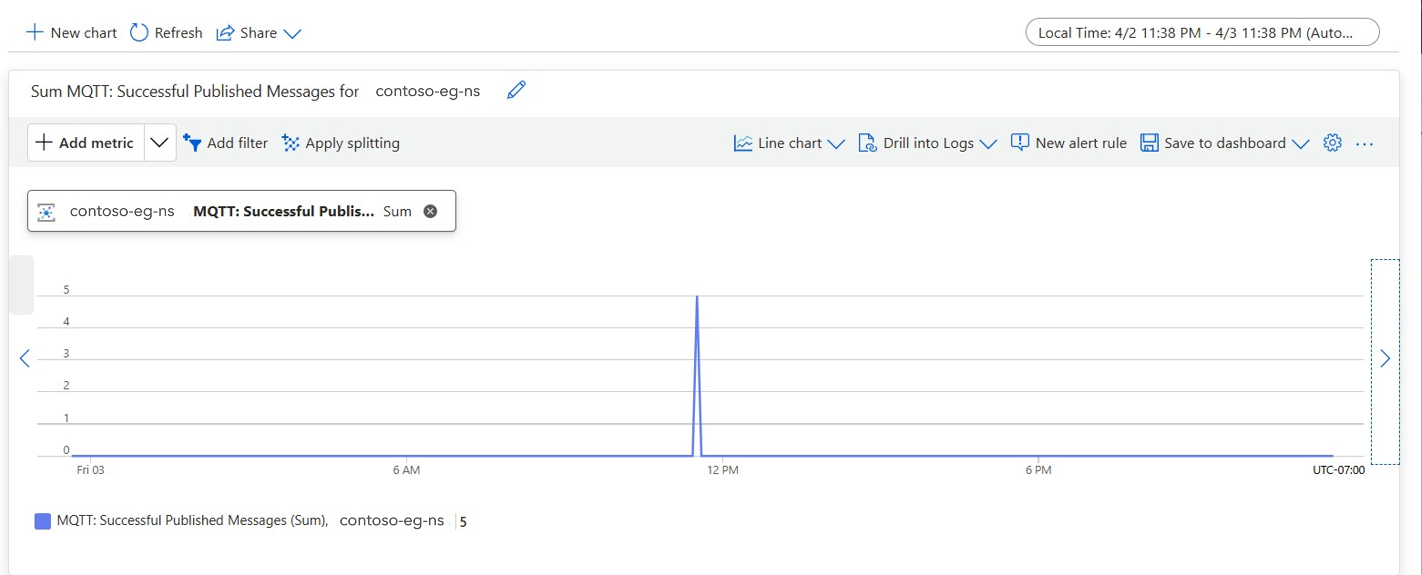
Verify the data flow pod logs show successful message delivery:
kubectl logs -n azure-iot-operations -l app=dataflow --tail=50
If messages are flowing, the data flow is successfully routing through the private endpoint with managed identity auth. If messages don't arrive, see Data flow messages don't arrive at Event Grid.
After disabling public access on any Azure resource, verify Azure IoT Operations is still healthy. See Verify Azure IoT Operations health after lockdown.
Known limitations
- Platform validation: The private connectivity patterns described here are based on validated K3s on Ubuntu Server 24.04 scenarios. Other Kubernetes distributions or operating systems aren't independently validated.
- Schema registry RBAC: Use the
--skip-raflag during schema registry creation if you don't have owner-level permissions. Keep the trusted Azure services bypass (AzureServices) enabled in addition to the operations experience IP allow list so schema registry can access storage. - TLS inspection: Arc Gateway doesn't support TLS termination or inspection. If your firewall performs TLS inspection, you must exclude the Arc Gateway endpoint from inspection. See Arc Gateway and TLS inspection.
- Arc Gateway limits: You can have up to five Arc Gateway resources per subscription.
- Explicit Proxy: Only Azure Firewall Explicit Proxy is validated. Third-party proxies (for example, Palo Alto) or transparent proxies aren't supported in validated scenarios. Azure IoT Operations doesn't support proxy servers that require a trusted certificate.
Related content
- Simplify network configuration requirements with Azure Arc Gateway
- Access Azure services over Azure Firewall Explicit Proxy
- Configure a data flow endpoint
- Schema Registry
- Tutorial: Deploy Azure IoT Operations in a layered network with private connectivity
- Azure IoT Operations networking
- Deploy Azure IoT Operations
- Azure Private DNS Zone values
- Troubleshoot private connectivity for Azure IoT Operations