Bilješka
Pristup ovoj stranici zahtijeva provjeru vjerodostojnosti. Možete pokušati da se prijavite ili promijenite direktorije.
Pristup ovoj stranici zahtijeva provjeru vjerodostojnosti. Možete pokušati promijeniti direktorije.
Notebook and terminal sessions run on your compute instance and keep your current working state. When you reopen a notebook or reconnect to a terminal session, you can resume the previous state, including command history, execution history, and defined variables.
Keeping too many sessions open can slow down the performance of your compute. If your notebook cells feel slower to type in, or terminal commands take longer to run, close the sessions you no longer need.
Use the session management panel in Azure Machine Learning studio to review your active sessions and keep only the ones you need right now. To open the panel, select Manage active sessions in the compute toolbar from either a notebook tab or a terminal tab.
Note
We recommend keeping only the sessions you actively need. A lower session count often improves responsiveness, especially on shared or resource-constrained compute instances.
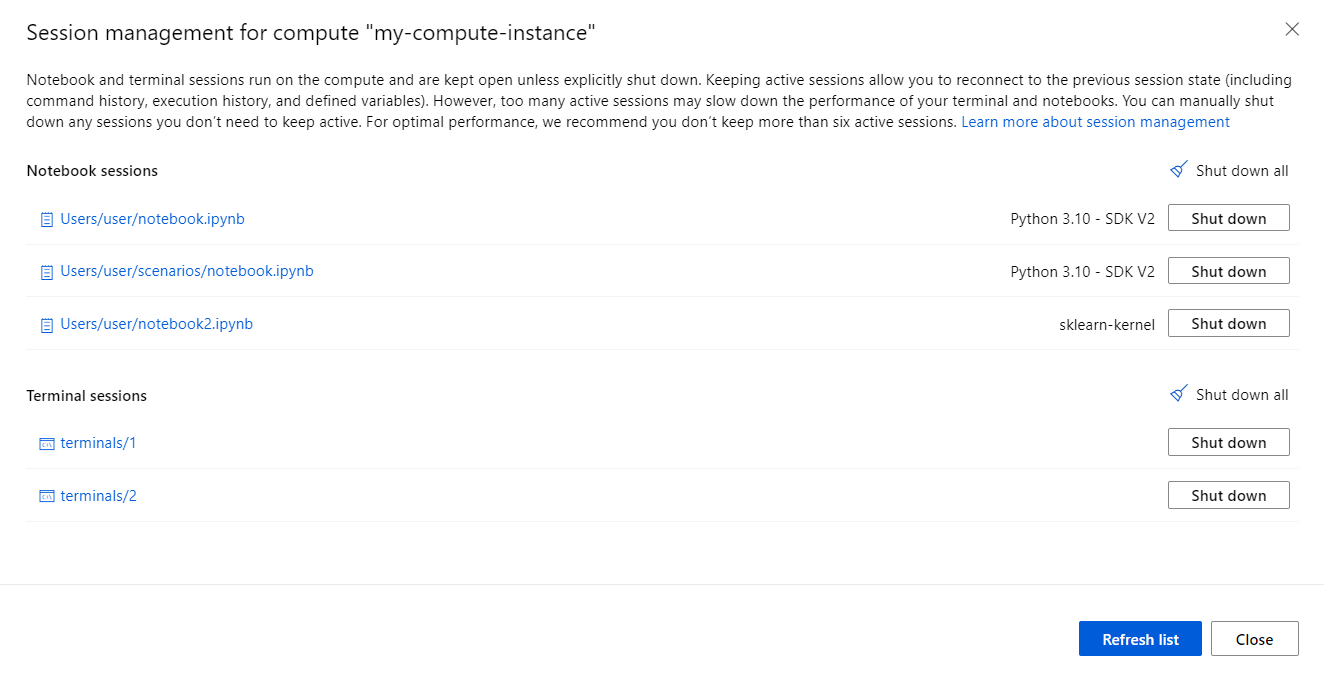
Manage active sessions
- Open the session management panel from the notebook or terminal toolbar.
- Review the list of active notebook and terminal sessions.
- Reopen a session if you want to resume its previous state.
- Shut down any sessions you no longer need.
This workflow helps keep your compute responsive while preserving the sessions you still want to return to later.
Notebook sessions
In the session management pane, select a notebook name to reopen it and resume its previous state. Notebook sessions remain active after you close the notebook tab in Azure Machine Learning studio, so reopening a notebook restores the previously defined variables and execution state.
This behavior is useful when you want to continue work in the same notebook without restarting the kernel. If you no longer need a notebook session, close it from the session management pane to free resources on your compute.
The following image shows the session count indicator for active notebook sessions.

Terminal sessions
In the session management pane, select a terminal link to reopen a terminal tab connected to that previous session. Terminal sessions typically end when you close the terminal tab. If you leave Azure Machine Learning studio without closing a terminal tab, the session might remain active until the session ends or is cleaned up.
To optimize compute performance, shut down any terminal sessions you no longer need by using the session management pane. The following image shows the session count indicator for active terminal sessions.
