Bilješka
Pristup ovoj stranici zahtijeva provjeru vjerodostojnosti. Možete pokušati da se prijavite ili promijenite direktorije.
Pristup ovoj stranici zahtijeva provjeru vjerodostojnosti. Možete pokušati promijeniti direktorije.
Learn where to find technical information about Azure Managed Grafana, get answers to your questions, or open a support ticket.
Find help without opening a support ticket
Before creating a support ticket, check out the following resources for answers and information.
- Technical documentation for Azure Managed Grafana: Find how-to guides, tutorials, and the Azure Managed Grafana troubleshooting guide.
- Microsoft Q&A: Browse existing questions and answers, or ask a question about Azure Managed Grafana.
- Microsoft Technical Community: Collaborate, share, and learn with IT professionals and customers, and browse Grafana-related content.
Open a support ticket
If you're unable to find answers using the above self-help resources, open an online support ticket.
How to open a support ticket for Azure Managed Grafana in the Azure portal
Open your Azure Managed Grafana workspace.
In the left menu, under Help, select Support + Troubleshooting.
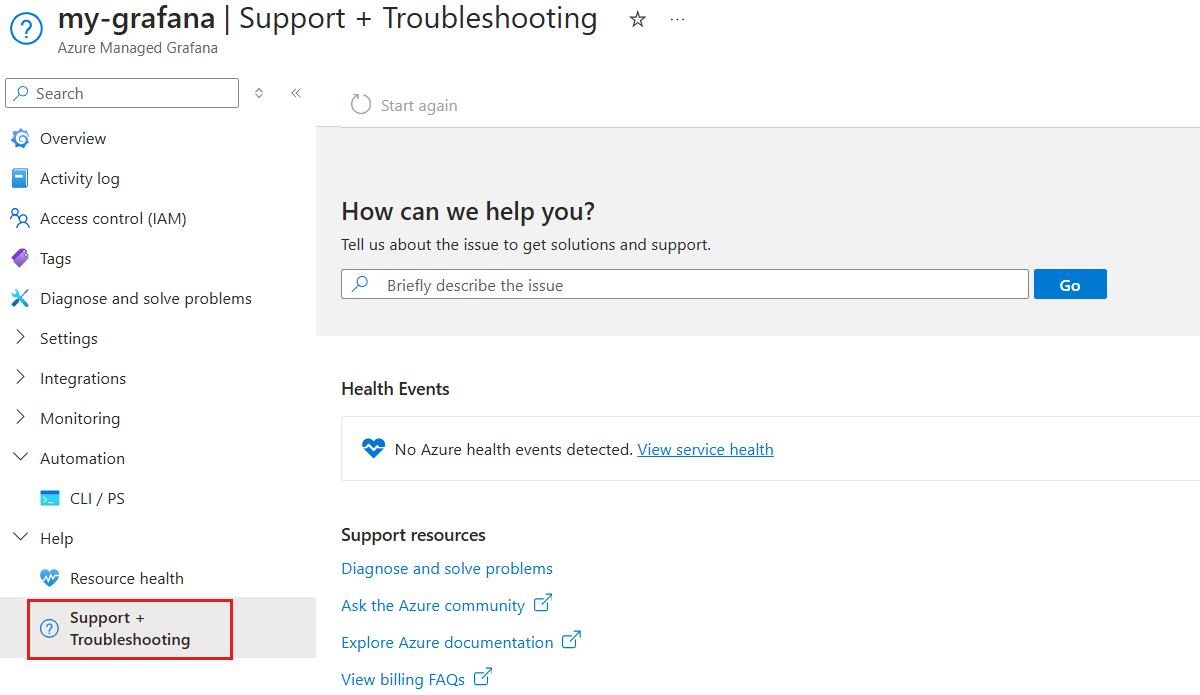
Briefly describe your issue in the search bar and select Go.
Provide additional details about the issue by selecting the appropriate options and then select Next.
Review the answers and resources provided. If your problem persists, create a support request by selecting Contact support and then Create a support request.
Follow the prompts to share more information as requested and select Next.
- For Issue type, select Technical.
- For Subscription, select your Azure subscription.
- For Service, select Azure Managed Grafana.
- For Resource, select your resource.
- For Problem type, select a type of issue and then a subtype.
- Select Next.
In the 2. Recommended solution tab, read the recommended solution. If it doesn't resolve your problem, select the back arrow or close the solution with X, and then select Next.
In the 3. Additional details tab, fill out the required details. For example:
- Share the time and date when the problem occurred.
- Add more details to describe the problem.
- Optionally, add a screenshot or another file under File upload.
- Under Advanced diagnostic information, select Yes (Recommended) to allow Microsoft support to access your Azure resources for faster problem resolution.
- Select a Severity, and your preferred contact method.
- Select your preferred Support language.
- Enter your contact information.
Select Next.
Under 4. Review + create, check that the summary of your support ticket is accurate. Select Create to submit the support ticket, or select Previous to make corrections.