Bilješka
Pristup ovoj stranici zahtijeva provjeru vjerodostojnosti. Možete pokušati da se prijavite ili promijenite direktorije.
Pristup ovoj stranici zahtijeva provjeru vjerodostojnosti. Možete pokušati promijeniti direktorije.
Azure managed disk snapshots provide point-in-time backups of disks that can be used as backup during software upgrades, disaster recovery, or to create new environments. When creating snapshots from Azure managed disks, Azure automatically copies the data from the disk to the snapshot in the background.
Premium SSD, Standard SSD, and Standard HDD snapshots are instant access by default. Immediately upon creation, you can use these snapshots to restore new disks, download underlying data, and copy to other Azure regions.
When you create an Ultra Disk or Premium SSD v2 snapshot, Azure copies data from the source disk to the snapshot in the background. These snapshots aren't instant access by default, so you must wait for the background data copy to complete before you can use them. To use snapshots of these disk types immediately, enable instant access when you create the snapshot.
Snapshots of Premium SSD, Standard SSD, and Standard HDDs
Premium SSD, Standard SSD, and Standard HDD snapshots are instant access by default. As soon as you create snapshots, you can immediately use these snapshots to create new disks of any supported disk types, generate SAS URIs to download data, or copy snapshots to other Azure regions for regional disaster recovery. After snapshot creation, Azure automatically initiates a background data copy from the source disk to snapshot.
Disks created from snapshots of Premium SSD, Standard SSD, and Standard HDD can be immediately attached to running virtual machines. During disk creation, Azure automatically initiates a background data copy to hydrate the disk from snapshot data. During this process, the disk might experience temporary performance degradation until the background data copy completes. To reduce the performance impact, you can create a full snapshot on Premium Storage and restore the disk from that snapshot.
Snapshots of Ultra Disk and Premium SSD v2
When you create a snapshot of an Ultra Disk or Premium SSD v2 disk, Azure copies data from the source disk to the snapshot in the background. These snapshots aren't instant access by default, so you must wait for the background data copy to complete before you can use the snapshot. To create disks from snapshots of these disks types before the background data copy completes, configure instant access by specifying a value for the InstantAccessDurationMins parameter when you create the snapshot. Disks created from instant access snapshots are rapidly hydrated with minimal performance impact and can be attached to a running VM immediately.
After the time specified in InstantAccessDurationMins elapses, the snapshot automatically leaves the InstantAccess state. If the background data copy is still in progress, you must wait for it to complete to use the snapshot. Monitor the snapshot's state through the SnapshotAccessState property.
Until the background data copy finishes, snapshots in the InstantAccess state depend on the availability of the source disk and don't provide protection against disk failures. You can monitor a snapshot's background data copy progress by checking the SnapshotAccessState property.
Limitations
- Only Ultra Disks and Premium SSD v2 disks can be created from instant access snapshots of Ultra Disks and Premium SSD v2 disks
InstantAccessDurationMinsmust be between 60 and 300 minutes- Instant access snapshots count toward the Ultra Disk and Premium SSD v2 limit of three in-progress snapshots per disk.
- You can create up to 15 disks concurrently from all instant access snapshots of an individual disk
- You can't use an instant access snapshot to create an Ultra Disk or a Premium SSD v2 larger than the snapshot's size
- If an Ultra Disk or Premium SSD v2 disk is being hydrated from a snapshot, you can't create an instant access snapshot of that disk.
- Check the
CompletionPercentproperty of the disk, if it's below 100 then it's currently being hydrated
- Check the
- Instant access snapshots of Ultra Disk or Premium SSD v2 can't be copied across regions and the underlying data can't be downloaded until the background data copy completes
- Check the
CompletionPercentproperty on the snapshot, when it reaches 100 then it can be copied across regions and the underlying data can be downloaded
- Check the
- You can't update the encryption property of a disk created from an instant access snapshot during disk hydration. You also can't update the encryption settings for Ultra Disk and Premium SSD v2 disks that currently have active instant access snapshots.
- Attaching Ultra Disk and Premium SSD v2 disks across fault domains (by using either a VM in an availability set or a Virtual Machine Scale Set) triggers the background data copy and prevents you from creating an instant access snapshot during the background data copy.
- You can't attach Ultra Disk and Premium SSD v2 disks that have active instant access snapshots across fault domains.
- To create an instant access snapshot from an Ultra Disk, you must create the snapshot from a newly provisioned Ultra Disk.
- The greatest read latency improvements for disks created from instant access snapshots are currently available in Germany West Central, East Asia, Southeast Asia, Central India, and Sweden Central.
Regional availability
Instant access snapshots are currently supported in all public regions.
Billing for Ultra Disk and Premium SSD v2 instant access snapshots
Instant access snapshots use a usage-based billing model with two components: a storage charge and a one-time restore fee.
- Storage charge: You are billed only for the additional storage consumed by an instant access snapshot during its active lifetime. When a snapshot is first created, it starts at zero additional cost, as it references the source disk as its base. As data on the source disk changes or is deleted over time, the snapshot preserves the original point-in-time state, and its used size grows accordingly. This means you pay only for incremental changes of instant access snapshot, not for a full copy of the disk.
- Restore charge: Each time you restore a disk from an instant access snapshot, a one-time restore operation fee is applied. This fee is calculated based on the provisioned size of the disk at the time of restore, providing predictable billing for restore operations.
For more information, see Managed Disks pricing.
Create an instant access snapshot
Instant access snapshots of Ultra Disk and Premium SSD v2 disks aren't a separate snapshot resource class to manage. They're incremental snapshots that temporarily enter the InstantAccess state for the specified duration. When this duration expires, snapshots automatically leave the InstantAccess state.
To create instant access snapshots of Ultra Disk and Premium SSD v2 disks, use the same snapshot API and commands, but add a parameter that specifies how long the snapshot stays in the InstantAccess state. After the specified duration expires, the snapshot leaves the InstantAccess state. You can monitor the snapshot by checking its access state.
Before you begin, identify the subscription, resource group, source disk, location, and snapshot name. The source disk must be an Ultra Disk or Premium SSD v2 disk. Set the instant access duration from 60 through 300 minutes. The following examples use 300 minutes.
In the Azure portal, you can't specify a duration, so snapshots created through the portal remain instant access snapshots for 300 minutes (5 hours).
Use az snapshot create with --incremental true and the --ia-duration parameter to create an instant access snapshot.
# Declare variables

subscriptionId="yourSubscriptionId"
diskName="yourDiskName"
resourceGroupName="yourResourceGroupName"
snapshotName="desiredInstantAccessSnapshotName"

# Set Subscription Id

az account set --subscription $subscriptionId

# Get the disk you need to create an instant access snapshot

yourDiskID=$(az disk show -n $diskName -g $resourceGroupName --query "id" --output tsv)

# Create an instant access snapshot

az snapshot create -g $resourceGroupName -n $snapshotName --source $yourDiskID --incremental true --location eastus  --sku Standard_ZRS --ia-duration 300

Check snapshot access state
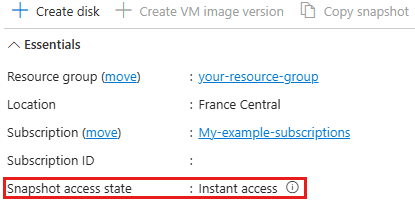
You can monitor an Azure managed disk snapshot by using the SnapshotAccessState property of the snapshot resource. This property indicates the snapshot's current access state and its readiness for operations.
| State | Description | Applies to |
|---|---|---|
| Pending | This snapshot can't be used to create a new disk, download data, or copy to another region. | Incremental snapshots of Ultra Disk and Premium SSD v2 disks during background data copy; snapshots being copied across regions. |
| Available | This snapshot can be used to create a new disk (with a performance impact), download data, or copy to another region. | Premium SSD, Standard SSD, and Standard HDD snapshots; incremental snapshots of Ultra Disk and Premium SSD v2 disks after the background data copy completes; snapshots copied within the same region using shallow copy. |
| InstantAccess | This snapshot can be used to create a rapidly hydrated disk with minimal performance impact, but the underlying data can't be downloaded and it can't be copied to another region. | Instant access snapshots of Ultra Disk and Premium SSD v2 disks when the instant access duration hasn't lapsed and the background data copy is ongoing. |
| AvailableWithInstantAccess | This snapshot can be used to create a rapidly hydrated disk with minimal performance impact, the underlying data can be downloaded, and it can be copied to another region. | Instant access snapshots of Ultra Disk and Premium SSD v2 disks when the instant access duration hasn't lapsed and the background data copy completes. |
snapshotName="DesiredInstantAccessSnapshotTestName"
resourceGroupName="yourResourceGroupName"

snapshotId=$(az snapshot show --name $snapshotName --resource-group $resourceGroupName --query [id] -o tsv)

az resource show --ids $snapshotId --query "properties.snapshotAccessState" --output tsv

az resource show --ids $snapshotId --query "properties.creationData.instantAccessDurationMinutes" --output tsv