Bilješka
Pristup ovoj stranici zahtijeva provjeru vjerodostojnosti. Možete pokušati da se prijavite ili promijenite direktorije.
Pristup ovoj stranici zahtijeva provjeru vjerodostojnosti. Možete pokušati promijeniti direktorije.
This article explains how to use Microsoft Sentinel functions, saved queries, and custom rules in advanced hunting in the Microsoft Defender portal.
Use functions
To use a Microsoft Sentinel function, go to the Functions tab and scroll until you find the function that you want. Double-click the function name to insert the function in the query editor.
You can also select the vertical ellipses (  ) to the right of the function and select Insert to query to insert the function into a query in the query editor.
Other options include:
- View details – Opens the function side pane containing its details.
- Load function code – Opens a new tab containing the function code.
For editable functions, more options are available when you select the vertical ellipses:
- Edit details – Opens the function side pane to allow you to edit details about the function (except folder names for Sentinel functions).
Warning
Deleting a function is permanent and can't be undone.
- Delete – Deletes the function.
Use adx() operator for Azure Data Explorer queries
The adx() operator lets you run cross-service queries against tables stored in Azure Data Explorer from advanced hunting. Use the adx() operator to include external Azure Data Explorer data in your hunting queries. For more information, see What is Azure Data Explorer?
Previously, the adx() operator was only available in log analytics in Microsoft Sentinel. Now, users can use the operator in advanced hunting in the unified Microsoft Defender portal without needing to manually open a Microsoft Sentinel window.
In the query editor, enter the adx() query to reference a table in an Azure Data Explorer cluster and database. Use the following format:
adx('<Cluster URI>/<Database Name>').<Table Name>
For example, to get the first 10 rows of data from the StormEvents table stored in a certain URI:

Note
- The
adx()operator isn't supported for custom detections. - Cross-query between Defender and Microsoft Sentinel tables using
adx()isn't supported in GCC environments. - The
adx()operator isn't supported with granular delegated admin privileges (GDAP). Use Microsoft Entra B2B authentication instead.
Use arg() operator for Azure Resource Graph queries
Azure Resource Graph is a service that lets you query and explore your deployed Azure resources, such as subscriptions, virtual machines, CPU, and storage, across multiple subscriptions. The arg() operator brings Azure Resource Graph queries into advanced hunting so you can combine resource data with Microsoft Sentinel tables (Defender tables aren't supported).
Previously, the arg() operator was only available in the Logs feature in Microsoft Sentinel. In the Microsoft Defender portal, the arg() operator works to combine Azure Resource Graph queries with Microsoft Sentinel tables. By using the arg() operator, you can make cross-service queries in advanced hunting without manually opening a Microsoft Sentinel window.
For more information, see Query data in Azure Resource Graph by using arg().
In the query editor, enter arg(""). followed by the Azure Resource Graph table name.
For example:

You can also, for instance, filter a query that searches over Microsoft Sentinel data based on the results of an Azure Resource Graph query:
arg("").Resources
| where type=="microsoft.compute/virtualmachines" | extend name = tolower(name)
| join (
BehaviorAnalytics
| where isnotempty(SourceDevice) and InvestigationPriority > 2 | extend SourceDevice = tolower(SourceDevice)
) on $left.name == $right.SourceDevice
Note
- The
arg()operator isn't supported for analytics rules. - The
arg()operator only works with Microsoft Sentinel tables. If your query includes Defender tables that haven't been exported to Log analytics, it will fail. To use thearg()operator in a query that references Defender tables, ensure that those tables are exported to your Log analytics workspace and contain data.
Use workspace() operator for cross-workspace queries
When your advanced hunting query needs data from a Log Analytics workspace other than the one connected to your current environment, you can run a cross-workspace query. Use the workspace() operator to query data from a specific Log Analytics workspace in the same or a different resource group or subscription. This operator lets you include log data from other workspaces in your advanced hunting queries.
For more information, see Query across resources with Azure Monitor.
In the query editor, use the workspace() operator to reference a table in a specific Log Analytics workspace. Enter the query in the following format:
workspace('<Workspace ID or Azure Resource ID>').<Table Name>
For example, the following query retrieves the first 10 rows of the SigninLogs table from another workspace to validate cross-workspace access:
workspace('00000000-0000-0000-0000-000000000000').SigninLogs
| take 10
Note
- The
workspace()operator isn't supported for custom detections. - The
workspace()operator only works with Microsoft Sentinel tables. If your query includes Defender tables that haven't been exported to Log analytics, it will fail. To use theworkspace()operator in a query that references Defender tables, ensure that those tables are exported to your Log analytics workspace and contain data.
Create custom functions
For more information about creating custom functions in the Defender portal, see Custom functions in the advanced hunting schema.
Use saved queries
To use a saved query from Microsoft Sentinel, go to the Queries tab and scroll until you find the query that you want. Double-click the query name to load the query in the query editor. For more options, select the vertical ellipses ( ) to the right of the query. From the query options menu, you can perform the following actions:
Run query – Loads the query in the query editor and runs it automatically.
Open in query editor – Loads the query in the query editor.
View details – Opens the query details side pane where you can inspect the query, run the query, or open the query in the editor.
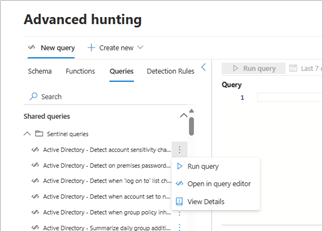
For editable queries, more options are available:
- Edit details – Opens the query details side pane with the option to edit the details like description (if applicable) and the query itself. You can't edit the folder names (location) of Microsoft Sentinel queries.
Warning
Deleting a saved query permanently removes it and can't be undone.
- Delete – Deletes the query.
- Rename – Allows you to modify the query name.
Create custom analytics and detection rules
To help discover threats and anomalous behaviors in your environment, you can create customized detection rules. There are two kinds:
- Analytics rules - to generate detections from rules that query data that is ingested through Microsoft Sentinel
- Custom detection rules - to generate detections from rules that query data from Defender or from both Microsoft Sentinel and Defender
Create analytics rules
For analytics rules that apply to data ingested through the connected Microsoft Sentinel workspace, select Manage rules > Create analytics rule.
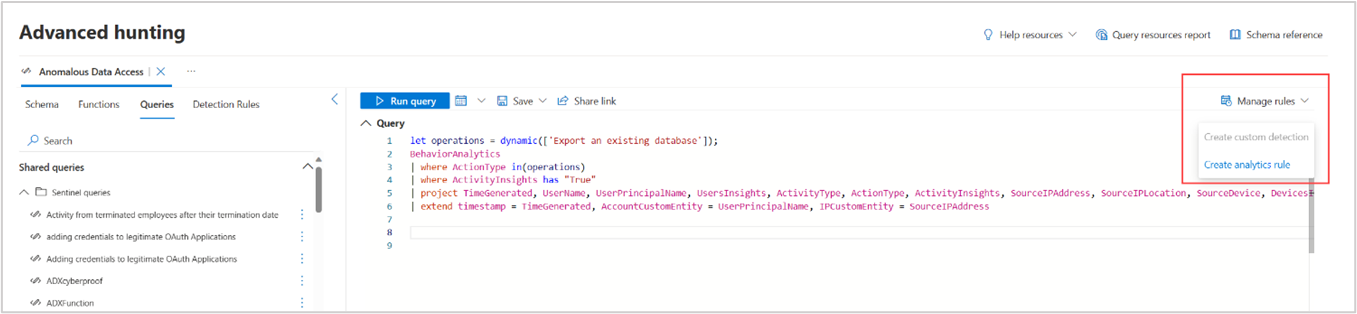
The Analytics rule wizard appears. Fill up the required details as described in Analytics rule wizard—General tab.
Create custom detection rules
You can create custom detection rules that query data from both Microsoft Sentinel and Defender tables. Select Manage rules > Create custom detection. Read Create custom detection rules for more information.
In both custom detection and analytics rule creation, you can only query data ingested as analytics logs (that is, not as basic logs or auxiliary logs. See log management plans to check the different tiers) otherwise custom detection or analytics rule creation won't proceed.
If your Defender data is ingested into Microsoft Sentinel, you have the option to choose between Create custom detection and Create analytics rule.
Note
If a Defender table isn't set up to stream to log analytics in Microsoft Sentinel but is recognized as a standard table in Microsoft Sentinel, an analytics rule can be created successfully but the rule won't run correctly since no data is available in Microsoft Sentinel. For these cases, use the custom detection rule wizard instead.
Manage custom analytics and detection rules
You can view all your user-defined rules, including both custom detection rules and analytics rules, in the Detection rules page. For more information, see Manage custom detections.
For multworkspace organizations that onboard multiple workspaces to Microsoft Defender, you can now view the Workspace ID column and filter by workspace.