Bilješka
Pristup ovoj stranici zahtijeva provjeru vjerodostojnosti. Možete pokušati da se prijavite ili promijenite direktorije.
Pristup ovoj stranici zahtijeva provjeru vjerodostojnosti. Možete pokušati promijeniti direktorije.
Important
Some information relates to prereleased product which may be substantially modified before it's commercially released. Microsoft makes no warranties, express or implied, with respect to the information provided here.
This article explains how to view and work with query results in guided mode for advanced hunting, including exporting results, reviewing runtime and resource usage information, and customizing which columns appear.
In hunting using guided mode, the results of the query appear in the Results tab.
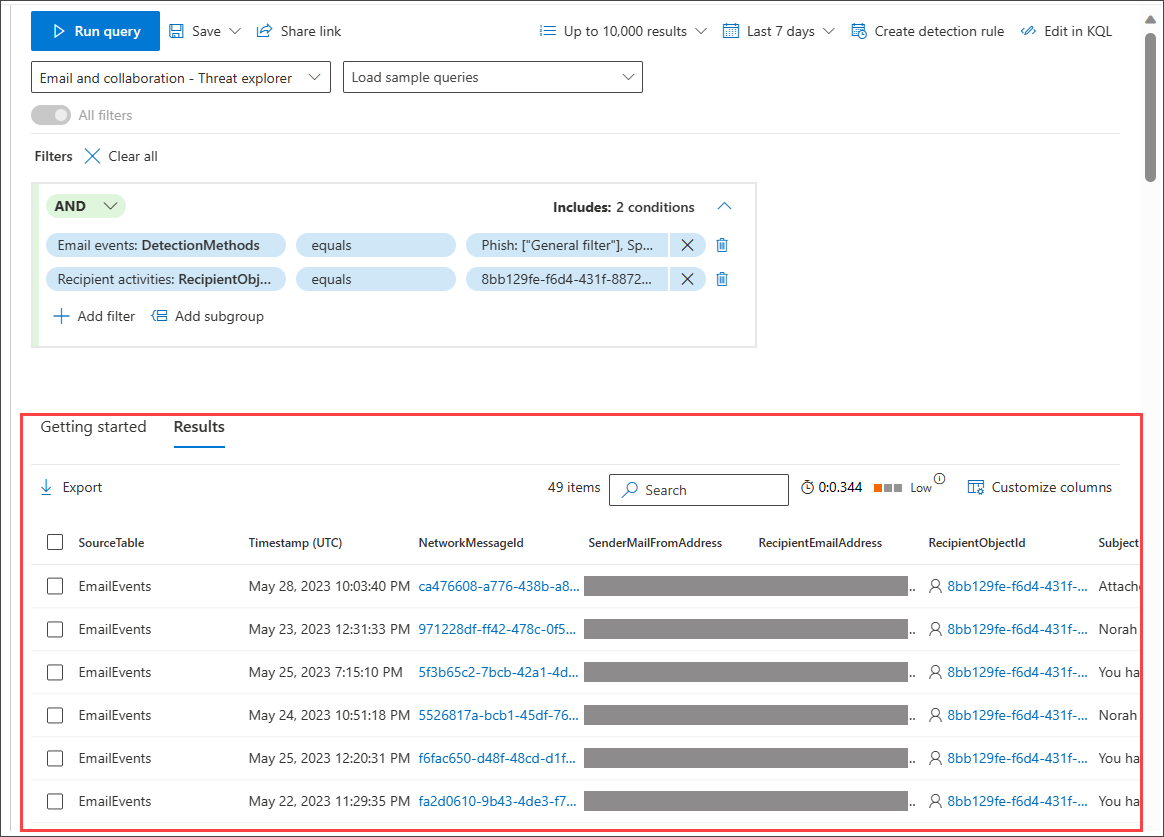
You can work on the results further by exporting them to a CSV file. Selecting Export downloads the CSV file for your use.
You can view other information in the Results view:
- Number of records in the results list (beside the Search button)
- Duration of the query run time
- Resource usage of the query
View more columns
A few standard columns are included in the results for easy viewing.
To view more columns:
Select Customize columns in the upper right-hand portion of the results view.
In the Customize columns pane, select the columns to include in the results view and clear the columns to hide.
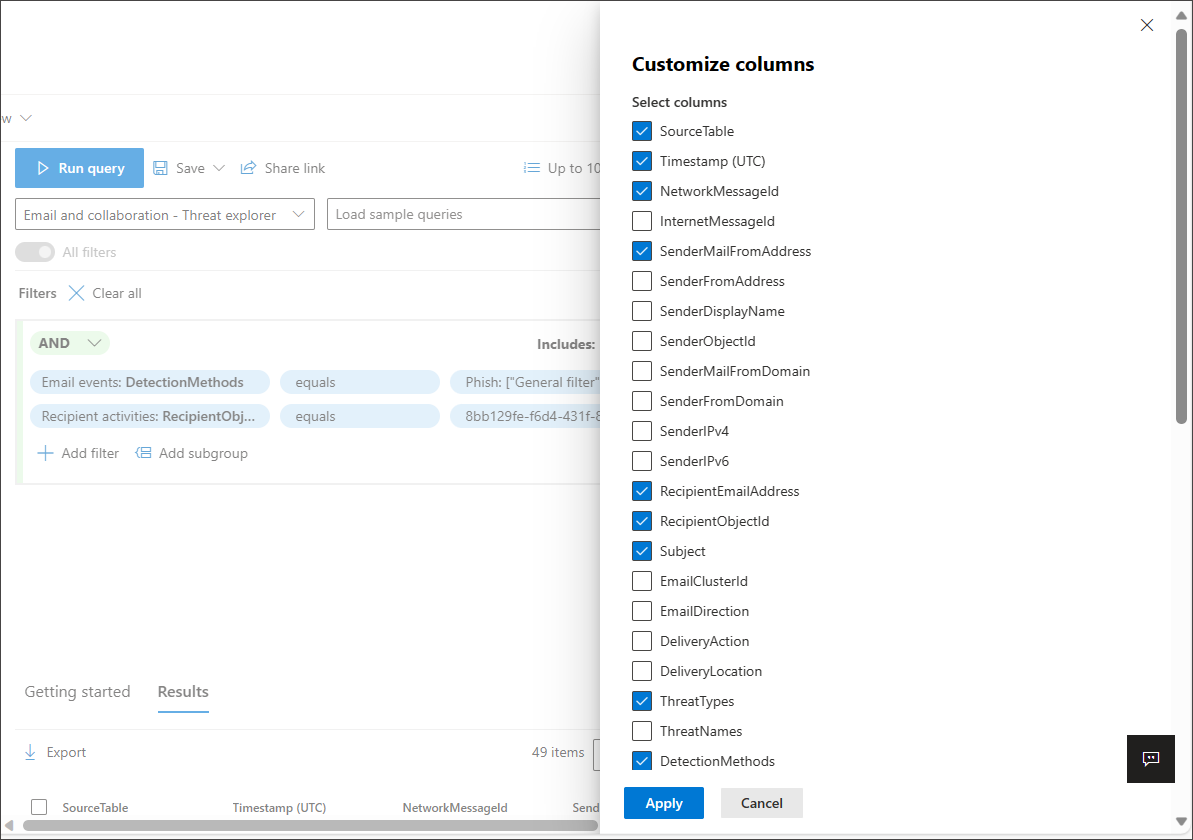
Select Apply to view results with the added columns. Use the scroll bars if necessary.
Related content
- Advanced hunting quotas and usage parameters
- Switch to advanced mode
- Refine your query in guided mode
Tip
Do you want to learn more? Engage with the Microsoft Security community in our Tech Community: Microsoft Defender XDR Tech Community.