Bilješka
Pristup ovoj stranici zahtijeva provjeru vjerodostojnosti. Možete pokušati da se prijavite ili promijenite direktorije.
Pristup ovoj stranici zahtijeva provjeru vjerodostojnosti. Možete pokušati promijeniti direktorije.
This article's troubleshooting guidance is for the Global Secure Access mobile client, using the health check utility in Microsoft Defender.
The Global Secure Access mobile client health check utility helps you understand if a device can communicate with the Global Secure Access service and tunnel traffic. The health check has a single view for device compliance, local network configuration, and policy service readiness signals. When required conditions are met, the health check utility reports a healthy state and traffic forwarding functions as expected.
Run the health check
Review the Global Secure Access client health check on a mobile client.
- On the device, navigate to Microsoft Defender.
- Select Global Secure Access.
- Select Troubleshooting.
- Select Advanced Diagnostics.
- Select Health check.
In the healthy state in health check, green check marks appear under Device Checks and network-as-as-service (Naas) Policy.
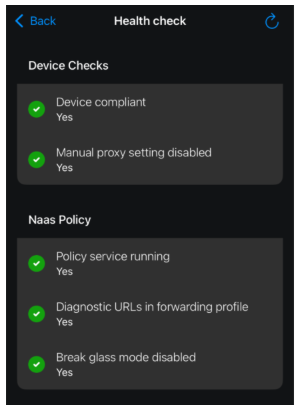
When the X symbol appears, the state is unhealthy and troubleshooting is recommended. After you complete a fix for a failed result, refresh the health check utility to view updated results. To learn about specific remediation scenarios, use the information in the following sections.
Note
If attempts fail to fix the results, contact Microsoft Support.
Device compliant
Your organization might use Microsoft Intune to define device compliance policies, and Microsoft Entra Conditional Access policies to enforce the requirement to use Global Secure Access applications. Therefore, the device fails this test if it doesn't meet compliance criteria.
To remediate device compliant errors:
- Go to Settings.
- Select General.
- Select VPN & Device Management.
- Confirm the user is signed into the correct work account on the device.
- Update the device operating system (OS) to the current version.
- On the device, review failed compliance rules, for instance OS version, passcode, and jailbreak detection.
Enrolled devices
In the Microsoft Intune admin center, confirm the following criteria:
Device enrollment: Enroll the device in Intune
Device compliance: If not, open the Company portal app and resolve compliance issues.
Note
After changes are made, it can take up to 30 minutes for the status to update.
When health check tests indicate a healthy state, reattempt to connect to the resource.
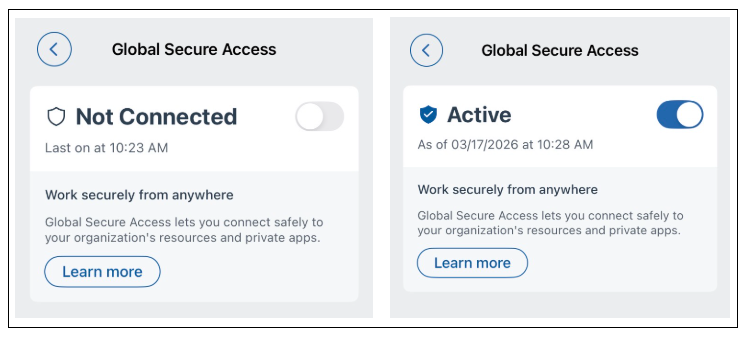
After remediation, restart the Global Secure Access client: Toggle it Off and On in Microsoft Defender.
Restart the device.
Bring-your-own-device scenarios
Use the following checklist for bring-your-own-device (BYOD).
Ensure the Microsoft Authenticator, or Company Portal apps, are installed on the client device. Device enrollment isn't required.
In Microsoft Defender:
Confirm the user signed in to the corporate account.
Navigate to Global Secure Access.
Confirm that Global Secure Access is Enabled.
Navigate to Global Secure Access, then select Services.
Confirm required traffic profiles are connected.
Note
After remediation, restart the Global Secure Access client: Toggle it Off and On in Microsoft Defender.
You can learn to monitor results of your Intune device-compliance policies.
Private DNS setting disabled
Private DNS isn't currently supported for Android.
- Go to the Microsoft Entra admin center.
- Navigate to Global Secure Access.
- Under Applications, select Quick Access.
- In the Private DNS tab, ensure Private DNS is not selected.
Manual proxy setting disabled
Manual proxy interferes with Global Secure Access traffic routing. For instance, The Manual proxy setting disabled label in the health check is red, or set to No. Or you might be unable to access resources. To clear this health check error, disable the manual proxy setting.
On the device, go to Settings, select Wi-Fi.
Next to the active network, select the info icon (i).
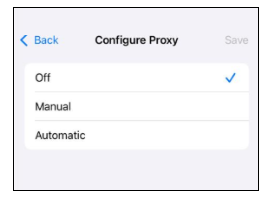
Scroll down to HTTP Proxy, and select Configure Proxy.
Select Off. Select Automatic if required by the environment for proxy autoconfiguration (PAC).
Note
Avoid static or manual proxy settings when using the Global Secure Access client. After making changes, disconnect the device from Wi-Fi and reconnect Wi-Fi. Restart the device.
On Apple Platform Deployment, you can learn more about VPN Proxy device management settings for Apple devices.
NaaS policy: running policy service
If the Global Secure Access policy service isn't running or didn't initialize on the device, the health check fails. To troubleshoot this error:
- On the client device, in Microsoft Defender, navigate to Global Secure Access.
- Confirm the service is Enabled.
- Confirm the user is signed in to the work or school account.
To ensure the VPN is disabled:
- On the device, go to Settings.
- Select General.
- Select VPN & Device Management.
- Confirm the VPN is set to Not Connected.
- Navigate to Settings.
- Select Battery.
- Ensure Lower Power Mode is disabled.
- To confirm no background app restrictions, go to Settings.
- Select General.
- Select Background App Refresh.
- Confirm cellular data is turned on.
Note
After remediation, restart the Global Secure Access client: Toggle it Off and On in Microsoft Defender. Restart the device.
Diagnostic URLs in forwarding profile
The following test checks that the configuration contains a URL to probe service health, for channels activated in the forwarding profile.
Break-glass mode disabled
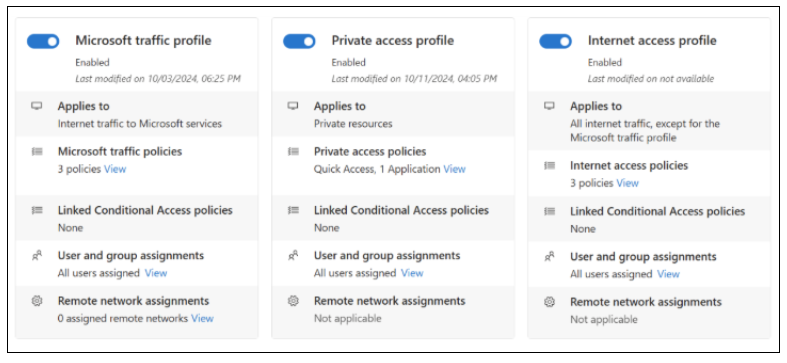
Break-glass mode prevents the Global Secure Access client from tunneling network traffic to the Global Secure Access cloud service. In this mode, traffic profiles in the Global Secure Access portal are unchecked, and the Global Secure Access client isn't expected to tunnel any traffic.
Enable the client to acquire traffic and tunnel traffic to the Global Secure Access service.
Sign in to the Microsoft Entra admin center as a Global Secure Access Administrator.
Browse to Global Secure Access
Select Connect.
Select Traffic forwarding.
Enable at least one traffic profile.
In about an hour, Global Secure Access receives the updated forwarding profile.
Note
In addition to health check status indicators, a generic Something went wrong error can appear for device registration problems. To resolve, update the device to the latest OS version. Then, navigate to Microsoft Defender, then Global Secure Access. Toggle the Global Secure Access client Off then On.
Next steps
- Go to Global Secure Access documentation to learn about getting started, remote networks, access, monitoring, and more
- Learn to set up and deploy the Global Secure Access client app on iOS and iPadOS devices
- You can troubleshoot the Global Secure Access mobile client for Android and iOS using the advanced diagnostics utility