Bilješka
Pristup ovoj stranici zahtijeva provjeru vjerodostojnosti. Možete pokušati da se prijavite ili promijenite direktorije.
Pristup ovoj stranici zahtijeva provjeru vjerodostojnosti. Možete pokušati promijeniti direktorije.
In cloud-based organizations, you should test new Exchange mail flow rules (also known as transport rules) before you turn them on. If a rule doesn't do exactly what you want or interacts with other rules in unexpected ways, you can avoid any unintended consequences.
Important
Wait at least 30 minutes after creating a rule before you test it. If you test immediately after you create the rule, you might get inconsistent behavior.
Step 1: Configure a rule in test mode
You can evaluate the conditions for a rule without taking any actions that affect mail flow by choosing a test mode. Or you can look at the message trace for messages that might match the rule. There are two test modes:
Test without Policy Tips: Use this mode together with a Generate incident report and send it to action to receive an email message each time an email message matches the rule.
Test with Policy Tips: Use this mode together with a Notify the sender with a Policy Tip action to provide the sender with a policy tip each time an email message matches the rule.
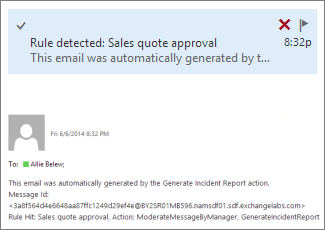
Here's what you see when a rule is matched if you include the incident report action:
In the Exchange admin center (EAC) at https://admin.exchange.microsoft.com, go to Mail flow > Rules. Or, to go directly to the Rules page, use https://admin.exchange.microsoft.com/#/transportrules.
On the Rules page, do one of the following steps:
- Create a mail flow rule:
- On the Set rule conditions page, add either of the following actions to the rule (in addition to the regular actions):
- Generate incident report and send it to and specify the recipients and the message properties to include.
- Notify the sender with a Policy Tip and specify the block/override options.
- On the Set rule settings page in the Rule mode section, select Test with Policy Tips or Test without policy tips based on the action you added to the rule in the previous step.
- On the Set rule conditions page, add either of the following actions to the rule (in addition to the regular actions):
- Modify an existing mail flow rule:
- On the Conditions tab of the rule details flyout, add either of the following actions to the rule:
- Generate incident report and send it to and specify the recipients and the message properties to include.
- Notify the sender with a Policy Tip and specify the block/override options.
- On the Settings tab of the rule details flyout in the Rule mode section, select Test with Policy Tips or Test without policy tips based on the action you added to the rule in the previous step.
- On the Conditions tab of the rule details flyout, add either of the following actions to the rule:
- Create a mail flow rule:
Step 2: Evaluate whether your rule does what you intend
Be sure to evaluate the following types of messages as appropriate:
- Messages that you expect to match the rule.
- Messages that you don't expect to match the rule.
- Messages sent to and from people in your organization.
- Messages sent to and from people outside your organization.
- Replies to messages that match the rule.
- Messages that might cause interactions between multiple rules.
Tips for sending test messages
One way to test is to sign in as both the sender and recipient of a test message.
If you don't have access to multiple accounts in your organization, you can test in a trial account or create a few temporary users in your organization.
Use InPrivate browsing in Microsoft Edge and the equivalent in other web browsers to sign in to multiple accounts on the same computer. Or, use a different computer or device, or web browser for each user.
Look at the message trace
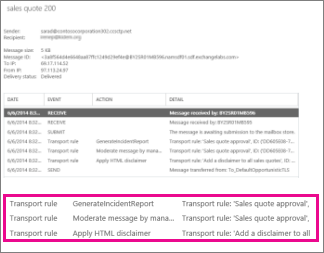
The message trace includes an entry for each rule that is matched for the message, and an entry for each action the rule takes. Message trace is useful for tracking what happens to test messages, and also for tracking what happens to real messages going through your organization.
In the EAC at https://admin.exchange.microsoft.com, go to Mail flow > Message trace. Or, to go directly to the Message trace page, use https://admin.exchange.microsoft.com/#/messagetrace.
On the Message trace page, find the messages that you want to trace by using criteria such as the sender and the date sent. For help with specifying criteria, see Run a Message Trace and View Results.
After locating the message you want to trace, double-click it to view details about the message.
Look in the Event column for Transport rule. The Action column shows the specific action taken.
Step 3: When you're done testing, set the rule to enforce
In the EAC at https://admin.exchange.microsoft.com, go to Mail flow > Rules. Or, to go directly to the Rules page, use https://admin.exchange.microsoft.com/#/transportrules.
Modify an existing mail flow rule:
On the Conditions tab of the rule details flyout, remove either of the following actions that you previously added to the rule:
- Generate incident report and send it to.
- Notify the sender with a Policy Tip.
On the Settings tab of the rule details flyout in the Rule mode section, select Enforce.
When you're finished in the rule details flyout, select Save.
Tip
To avoid surprises, inform users about new rules that might affect them.
Troubleshooting suggestions
Here are some common problems and resolutions:
Everything looks right, but the rule isn't working
Occasionally, it takes longer than 15 minutes for a new mail flow to be available. Wait a few hours, and then test again. Also check to see if another rule might be interfering. Try changing this rule to priority 0 by moving it to the top of the list.
Disclaimer is added to original message and all replies, instead of just the original message
To avoid this situation, add an exception to the disclaimer rule to look for a unique phrase in the disclaimer.
My rule has two conditions, and I want the action to happen when either of the conditions is met, but it only is matched when both conditions are met
You need to create two rules, one for each condition. You can easily copy the rule by selecting Copy and then remove one condition from the original and the other condition from the copy.
I'm working with distribution groups, and "The sender" > "is this person" (SentTo) doesn't seem to be working
SentTo matches messages where a recipient is a mailbox, mail-enabled user, or contact. It doesn't work with distribution groups. Instead, use The sender > is a member of this group (SentToMemberOf).
Other testing options
The Exchange transport rule report shows the number of times a rule is matched. In order to be included in the report, a rule must have the Severity level set to any value other than Not specified. In cloud-based email organizations, you can check the number of times each rule is matched by using a rules report. In order to be included in the reports, a rule must have the Audit this rule with severity level check box selected. These reports help you spot trends in rule usage and identify rules that aren't matched.
Note
While most data is in the report within 24 hours, some data might take as long as five days to appear.