Bilješka
Pristup ovoj stranici zahtijeva provjeru vjerodostojnosti. Možete pokušati da se prijavite ili promijenite direktorije.
Pristup ovoj stranici zahtijeva provjeru vjerodostojnosti. Možete pokušati promijeniti direktorije.
Note
The dynamic expression editor for data destinations is currently in preview.
The dynamic expression editor helps you build values in supported data destination fields by combining text with values that resolve when the dataflow runs. For example, you can include the UTC refresh date in a file name, use a parameter for a table name, or include a workspace-specific value.
The editor is enabled by default. When you use it for the first time, a teaching callout explains how to open the dynamic value menu.
Available values
The values available in the editor depend on the dataflow and workspace configuration.
| Category | Description |
|---|---|
| Dynamic values | UTC date and time values for the dataflow run. Date uses yyyyMMdd, Time uses HHmmss, and Date/Time uses yyyyMMddHHmmss. For example, a Date/Time value can resolve to 20201230232459 for December 30, 2020 at 23:24:59 UTC. |
| Parameters | Parameters you define in the dataflow. Select Manage parameters in the menu to create or edit parameters. |
| Workspace variables | Built-in workspace values, such as currentWorkspaceId, and values from Fabric Variable Library items available to the dataflow. |
Create a dynamic table or file name
In the Power Query editor, add a data destination to a query.
Place the cursor in a destination field that supports dynamic expressions, such as Table name or File name.
Enter any text that should remain the same each time the dataflow runs.
Press
/to open the dynamic value menu.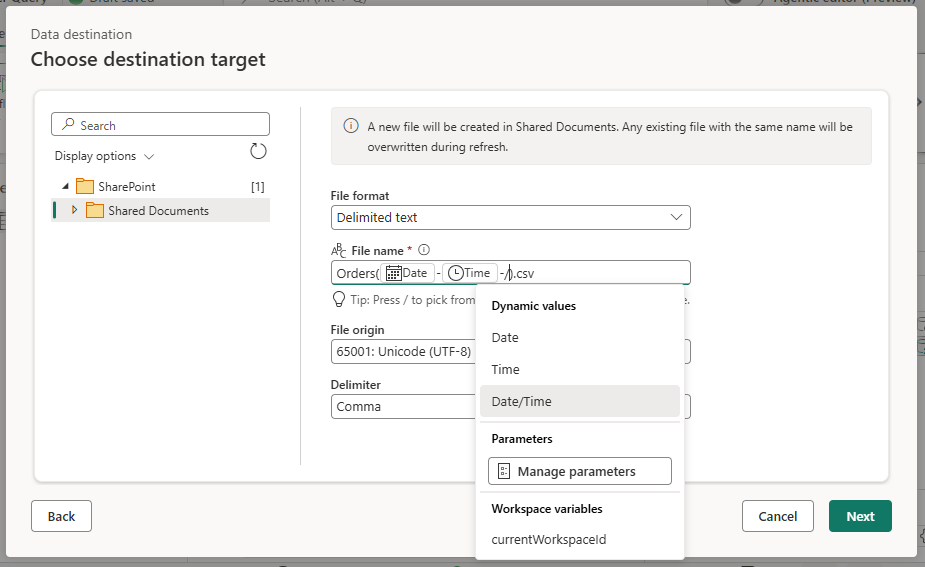
Select a dynamic value, parameter, or workspace variable. You can also start typing after
/to filter the menu.Continue entering text and values until the expression is complete. For a file destination, include the file extension as text.
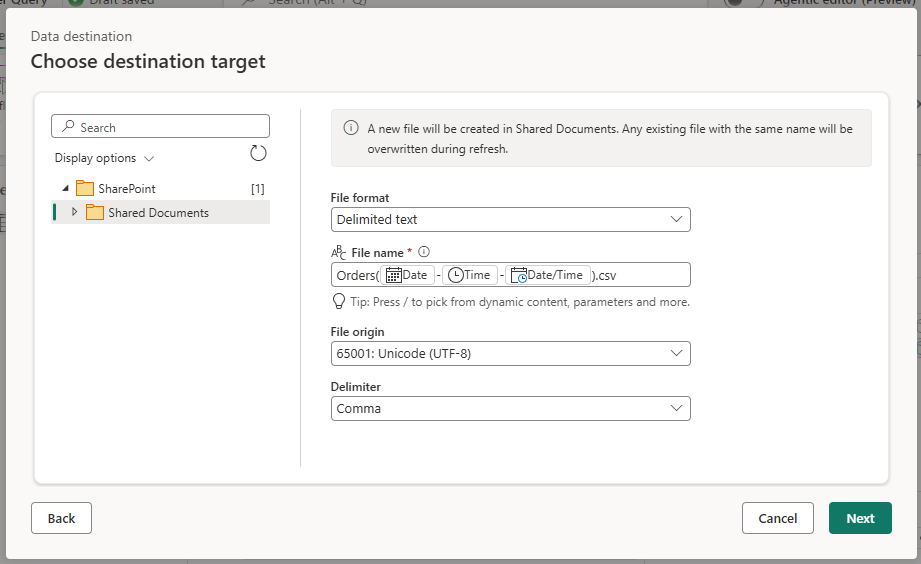
Finish configuring the data destination, and then publish the dataflow.
At run time, Dataflow Gen2 resolves each token and combines the values with the text in the expression. Normal destination behavior still applies to the resulting name. For example, a file destination can overwrite a file when the resolved file name matches an existing file.
Edit an expression
You can edit text and insert more values anywhere in the expression.
- To open the menu without using the mouse, press
/. Use the arrow keys to move through the menu, and then press Enter to insert the selected value. - To close the menu without selecting a value, press Esc. The
/and any text you entered after it remain in the field as text. - To remove an inserted value, place the cursor next to its token and press Backspace or Delete.
Example expressions
| Scenario | Expression |
|---|---|
| Add the run date and time to a file name | Orders-<Date>-<Time>.csv |
| Use a dataflow parameter as a table name prefix | <Environment>_Sales |
| Include the current workspace in a name | Sales_<currentWorkspaceId> |
In the editor, the values shown in angle brackets in these examples appear as tokens. You don't type the angle brackets.
Important
The resolved table or file name must follow the naming rules of the selected destination. If a dynamic value introduces unsupported characters or creates an invalid name, destination validation or the dataflow run can fail.
Turn the dynamic expression editor off or on
The dynamic expression editor is enabled by default. Your preference is stored in a browser cookie and isn't saved in the Fabric service. As a result, the setting doesn't carry across browsers or devices and can return to its default if you clear your browser cookies. To change it:
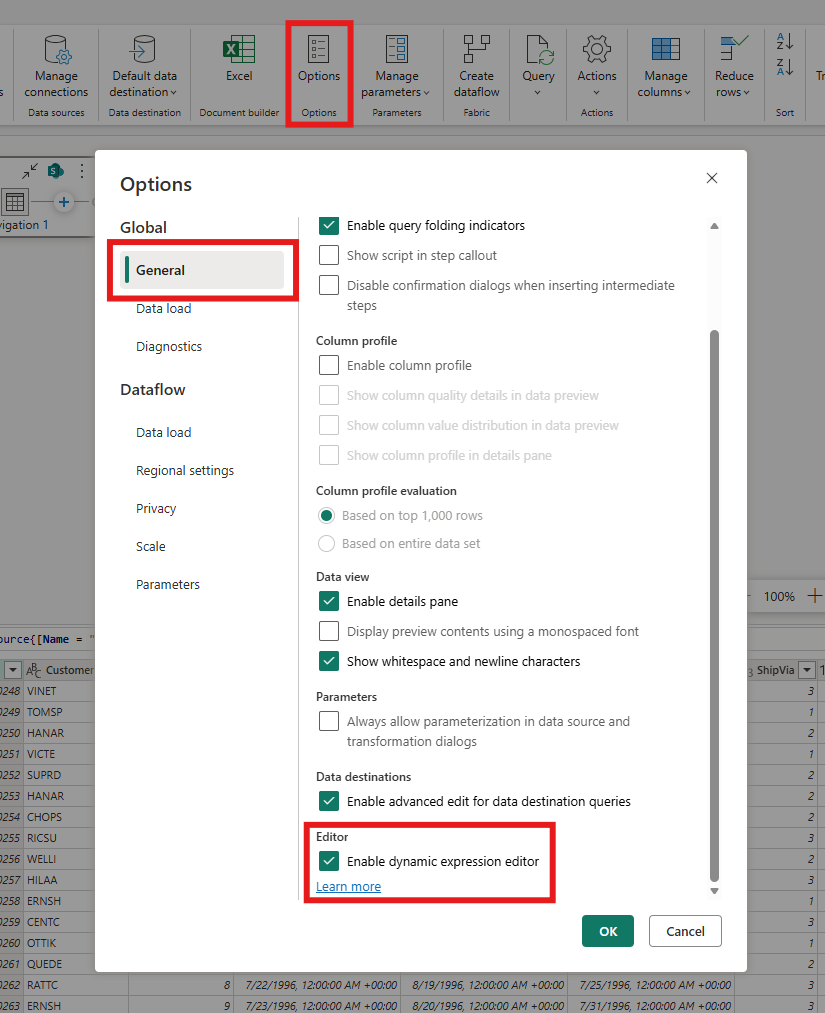
- In the Power Query editor, select Options from the Home tab.
- In the Options dialog, select Global > General.
- Scroll to the Data destinations section.
- Under Editor, clear Enable dynamic expression editor to turn the editor off. Select the checkbox to turn it back on.
- Select OK.
Turning the editor off doesn't remove dynamic expressions that are already configured.
Considerations and limitations
- Availability depends on the selected data destination and field.
- The editor combines text and available values. It isn't a general-purpose Power Query M expression editor.
- A referenced parameter or workspace variable must be available when the dataflow runs.
- Changing a parameter, workspace variable, date, or time value can cause the resolved destination name to change between runs.
- To parameterize destination settings that aren't supported by this editor, see Advanced edit for data destination queries.