Bilješka
Pristup ovoj stranici zahtijeva provjeru vjerodostojnosti. Možete pokušati da se prijavite ili promijenite direktorije.
Pristup ovoj stranici zahtijeva provjeru vjerodostojnosti. Možete pokušati promijeniti direktorije.
A Fabric workspace identity is an automatically managed service principal that can be associated with a Fabric workspace. Fabric workspaces with a workspace identity can securely read or write to firewall-enabled Azure Data Lake Storage Gen2 accounts through OneLake shortcuts and pipelines. For more information, see Workspace identity.
In Microsoft Fabric, workspace identity authentication works with OneLake shortcuts, pipelines, semantic models, and Dataflows Gen2 (CI/CD). This example article shows you how to use workspace identity to connect to Azure Data Lake Storage Gen2 in Fabric Data Factory.
Supported data sources
The workspace identity authentication type currently supports these data sources:
- Access database
- Azure Analysis Services
- Azure Blob Storage
- Azure Cosmos DB for NoSQL
- Azure Data Explorer
- Azure Data Lake Storage Gen2
- Azure SQL Database
- Azure Synapse Analytics
- Azure Table Storage
- Dataverse
- Dynamics 365
- Dynamics AX
- Dynamics CRM
- SharePoint folder
- SharePoint Online List
- SharePoint Online File
- SQL Server database
- Web
Prerequisites
You must be a workspace admin to be able to create and manage a workspace identity. The workspace you're creating the identity for can't be My Workspace.
Grant the identity permissions to access your data source.
The identity that runs a pipeline using workspace identity authentication must have an admin, member, or contributor role in the workspace. Fabric checks this permission at run time and issues the workspace identity token only to an identity that holds one of these roles. This requirement applies both to the user who runs the pipeline on demand and to the service principal that runs it on a schedule or through the API. If a scheduled run fails but a manual run of the same pipeline succeeds, verify the workspace role of the scheduled identity.
Connect to your data using workspace identity
Go to Fabric.
Create a new Data Factory item (such as Dataflow Gen2, pipeline, or copy job), or edit an existing one where you want to add a data source or destination.
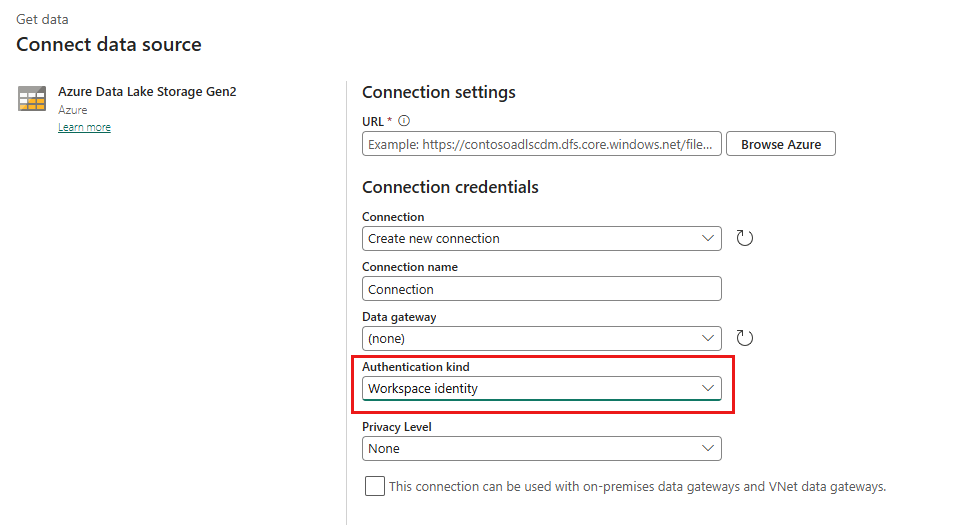
Select the source or destination connection that you want to authenticate by using workspace identity. In this example, you connect to an Azure Data Lake Storage Gen2 account.
Enter the connection details, and then select Create new connection.
Change Authentication kind to Workspace identity.
Select Next in the connection settings to authenticate to the data source or destination.
