Bilješka
Pristup ovoj stranici zahtijeva provjeru vjerodostojnosti. Možete pokušati da se prijavite ili promijenite direktorije.
Pristup ovoj stranici zahtijeva provjeru vjerodostojnosti. Možete pokušati promijeniti direktorije.
In ontology (preview), resource links let you associate resources with an entity type. Currently, the only type of resource that's supported are Power BI reports.
Important
This feature is in preview.
Linking reports provides essential provenance, context, and discoverability for insights tied to a business concept. By linking reports directly to an entity type, you can:
- Quickly access relevant analytics without searching across workspaces
- Maintain consistent context between data, ontology, and reporting
Prerequisites
Before adding resource links, make sure you have the following prerequisites:
- A Fabric workspace with a Microsoft Fabric-enabled capacity.
- Ontology item (preview) enabled on your tenant.
- An ontology (preview) item with entity types defined.
- A Power BI report containing insights relevant to an entity type, and permission to view the report. (If you don't have view permission for a report, you can still add it as a link, but it will appear as Report unavailable when viewed in the list.)
Add a resource link
To add a link to an existing Power BI report on an entity type, follow these steps.
In the Home contextual canvas, select the entity type in the Explorer pane. Select View Entity Type details from the ribbon.
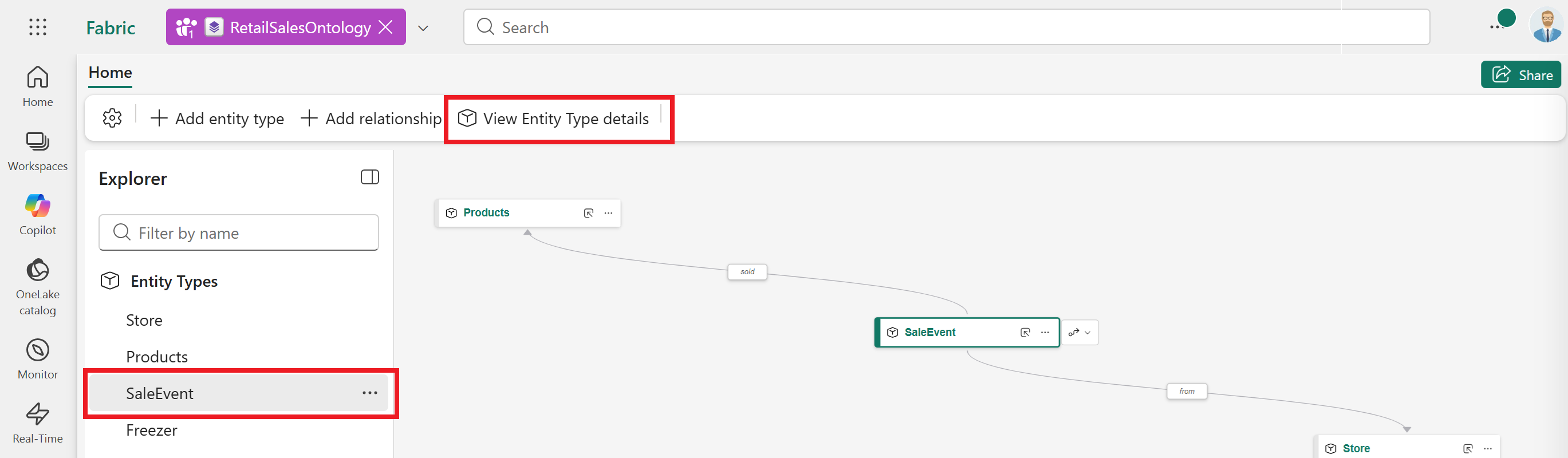
The entity type details view opens to the Configure tab.
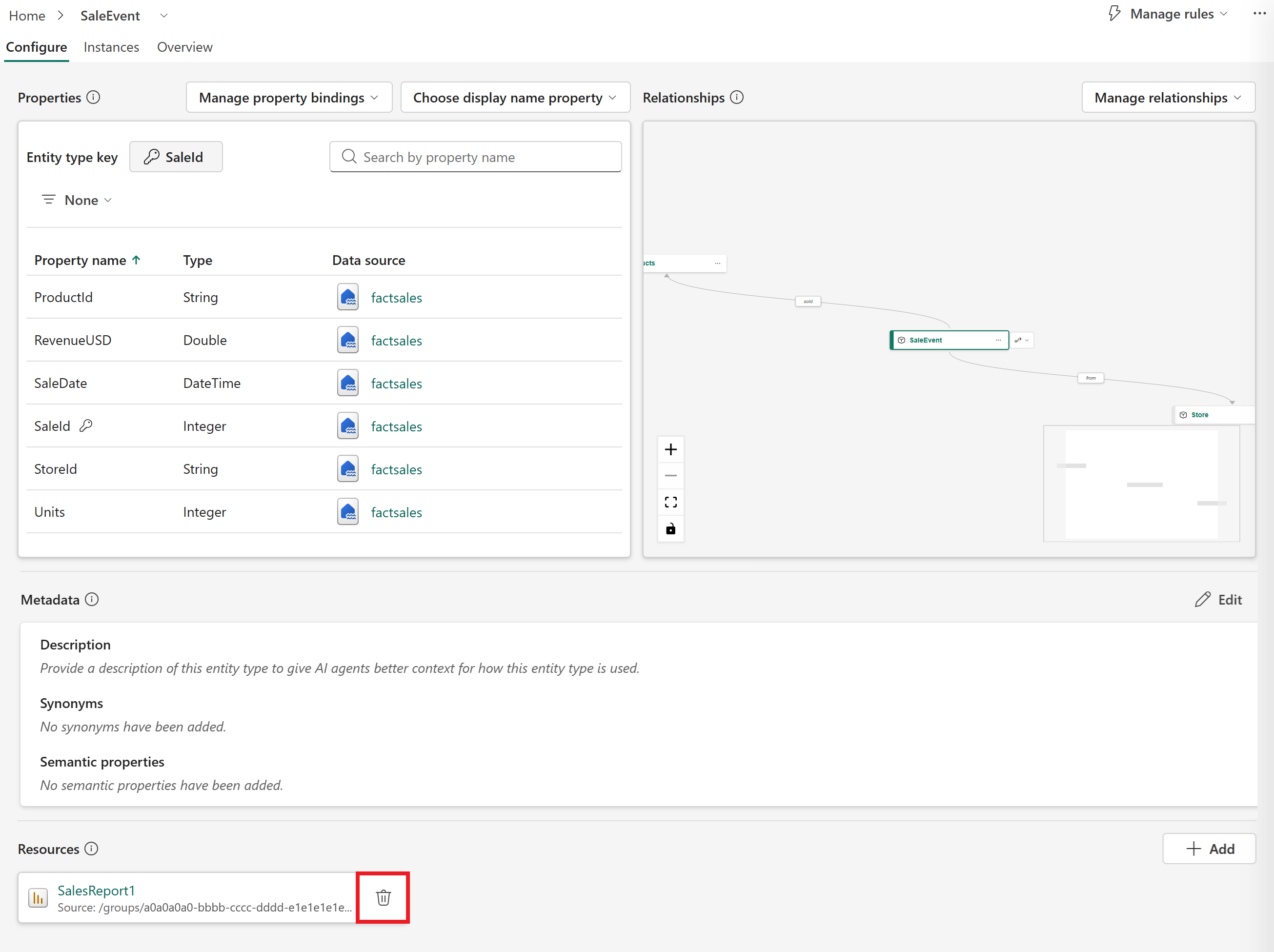
The Resources section displays any linked resources. Select Add to add a new resource link.
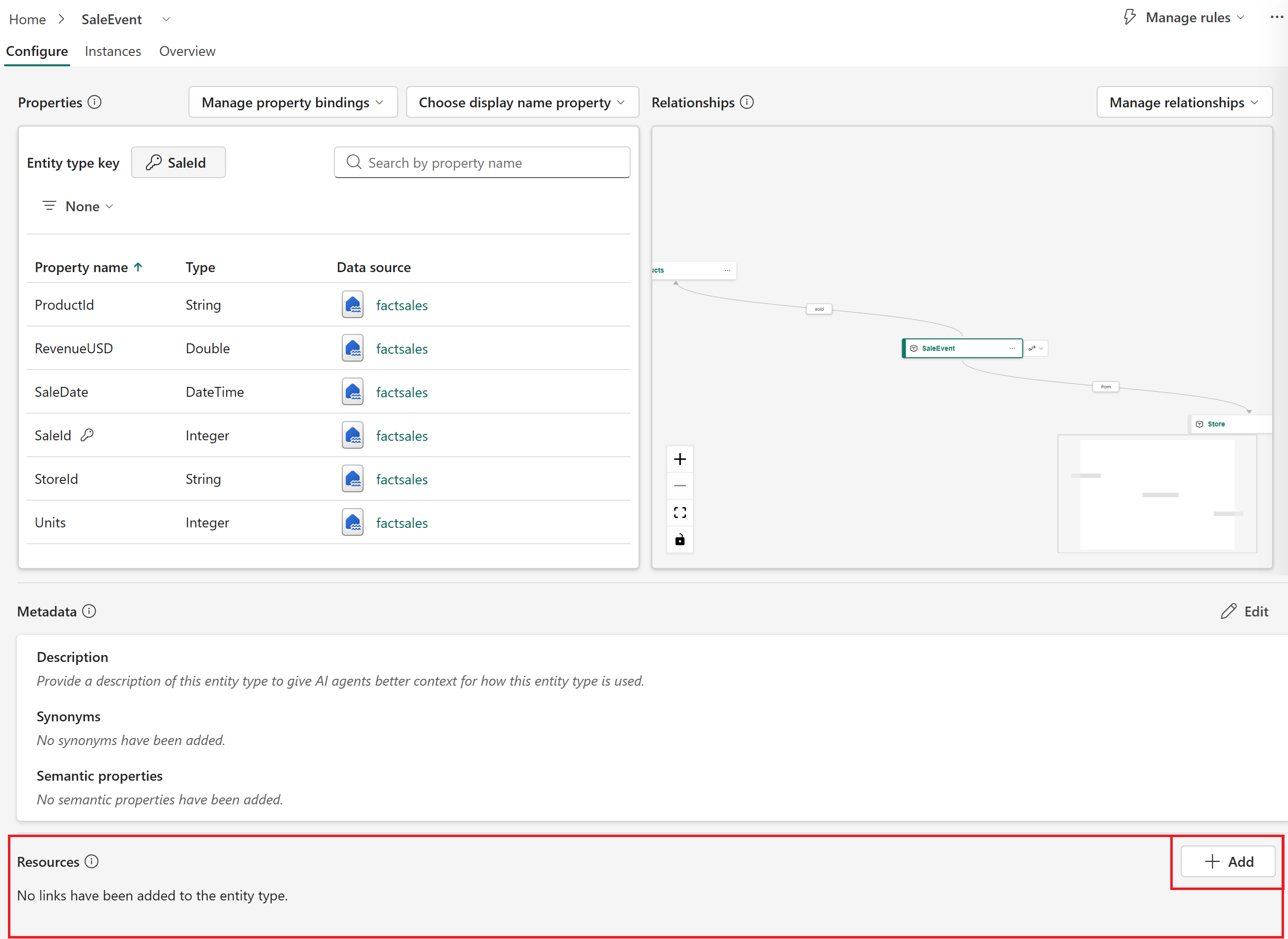
Fabric opens your OneLake catalog of resources. Choose the Power BI report you want to link to the entity type, and select Add.
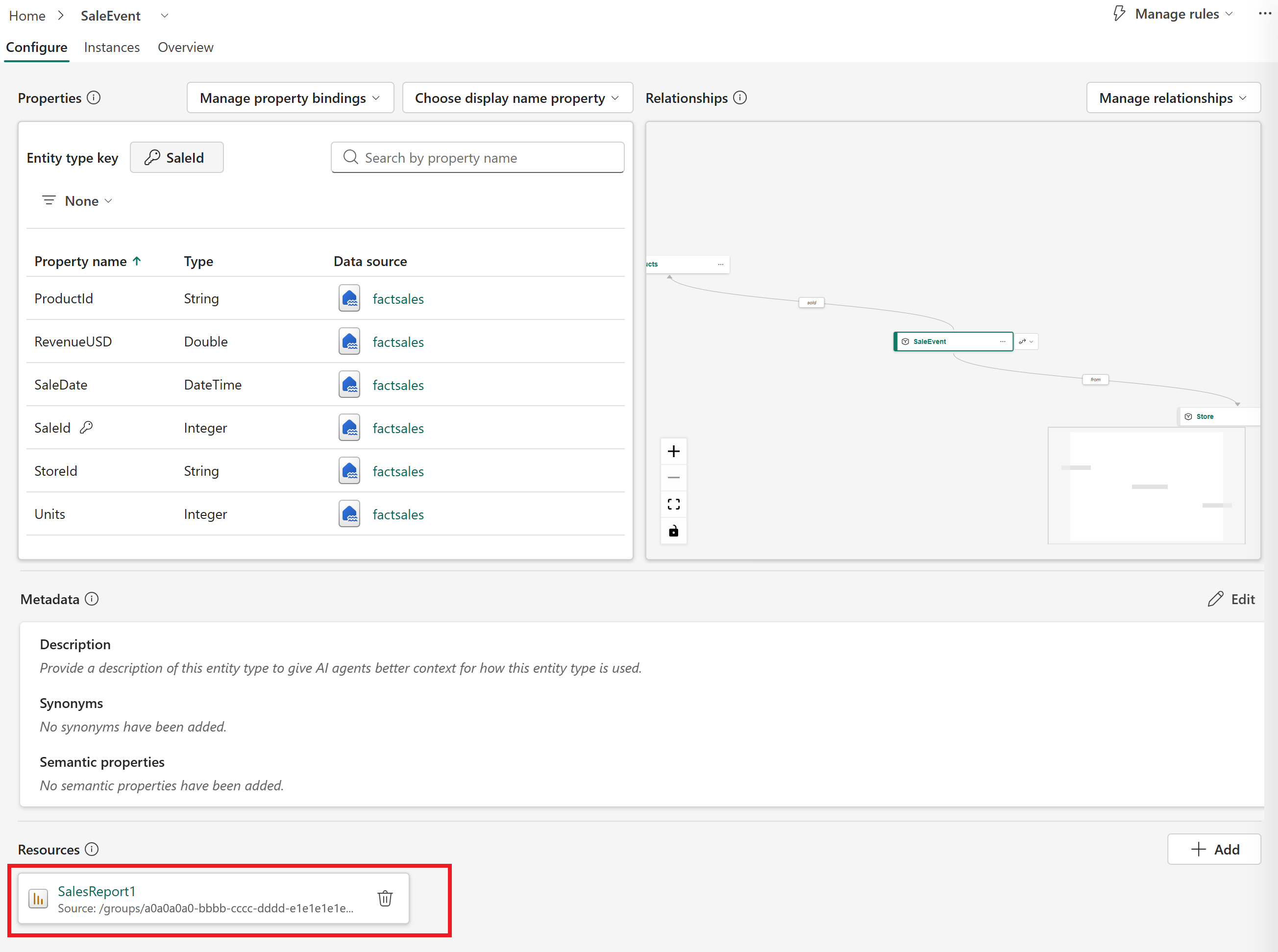
Verify that the report appears in the Resources section.
View resource links
You can view resources linked to an entity type from the following locations.
Configure tab
The list of resources linked to an entity type is visible in the Configure tab of the entity type details, in the Resources section.
Overview tab
Linked resources can be displayed in a tile on the Overview tab of the entity type details. An entity type can only have one Resource links tile at a time.
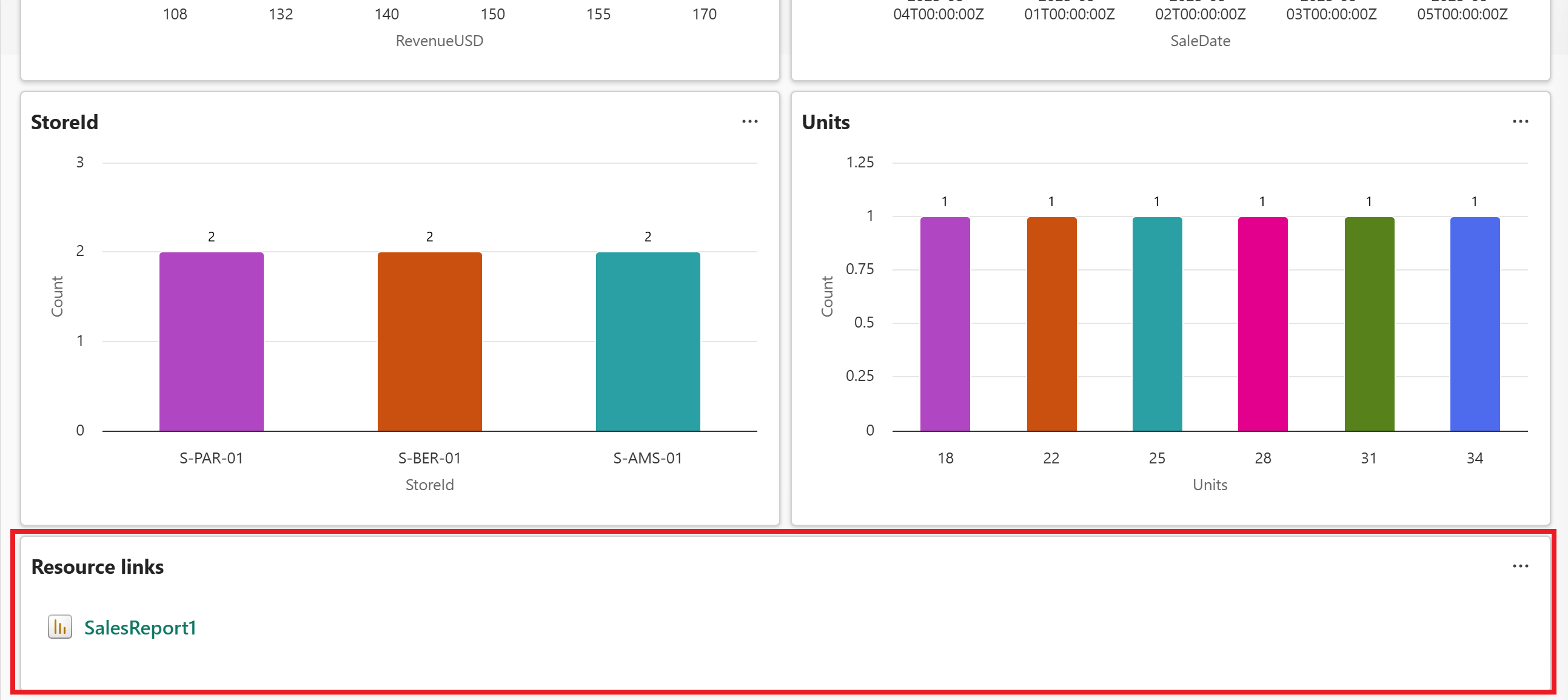
You can open the resources directly from the tile by selecting their names. Reports open inside Fabric in a new tab.
Manage the Resource links tile
If there's no Resource links tile present in the entity type overview, you can add it manually.
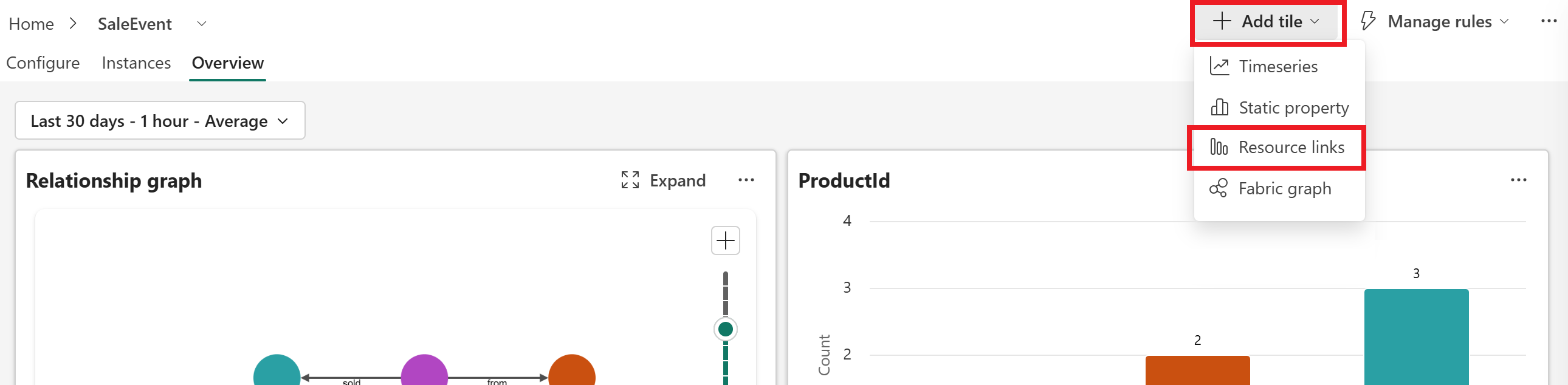
In the entity type overview, select Add tile > Resource links.
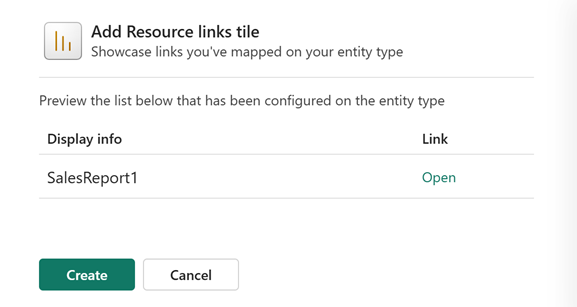
Preview the links that will be visible on the tile and select Create.
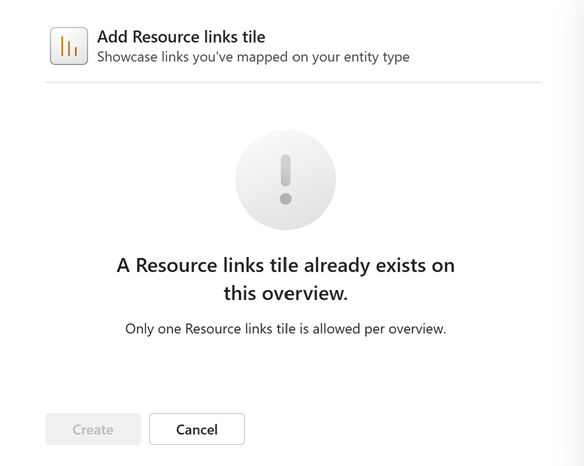
You might also see these messages on the tile creation step:
If a tile already exists, you see this message: A Resource links tile already exists on this overview.
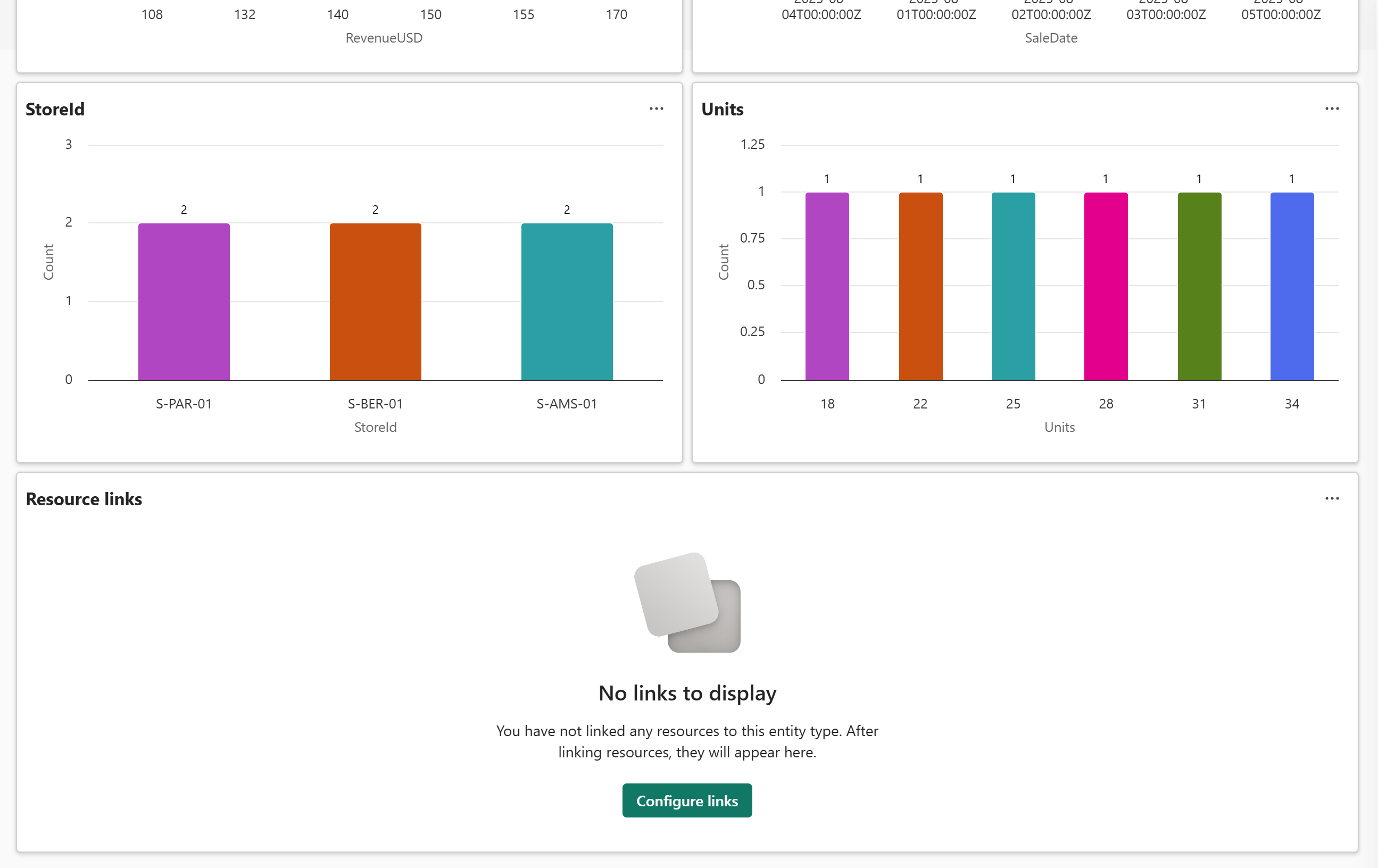
If there are no linked resources on the entity type, you see this message: No links to display, with a link to the entity type configuration.
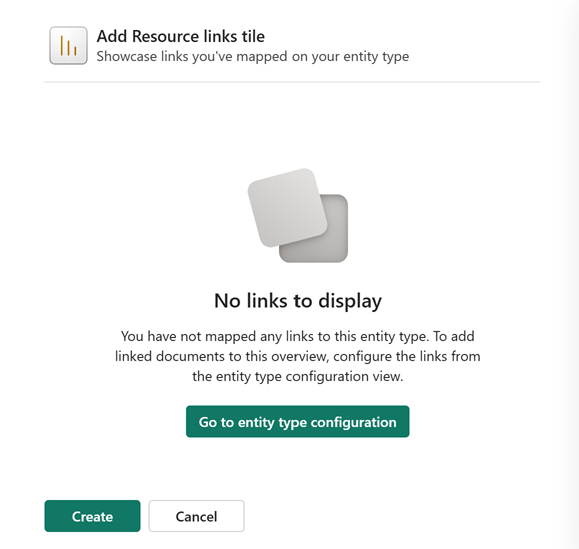
If you add the tile anyway, the tile stays empty in the overview.
Delete a resource link
Note
Deleting a resource link in ontology does not delete the report from the Power BI workspace.
To remove a linked resource from an entity type:
Start in the Configure tab of the entity type details.
In the Resources section, select the trash icon next to the link you want to delete.
Select Delete when prompted to confirm the deletion.
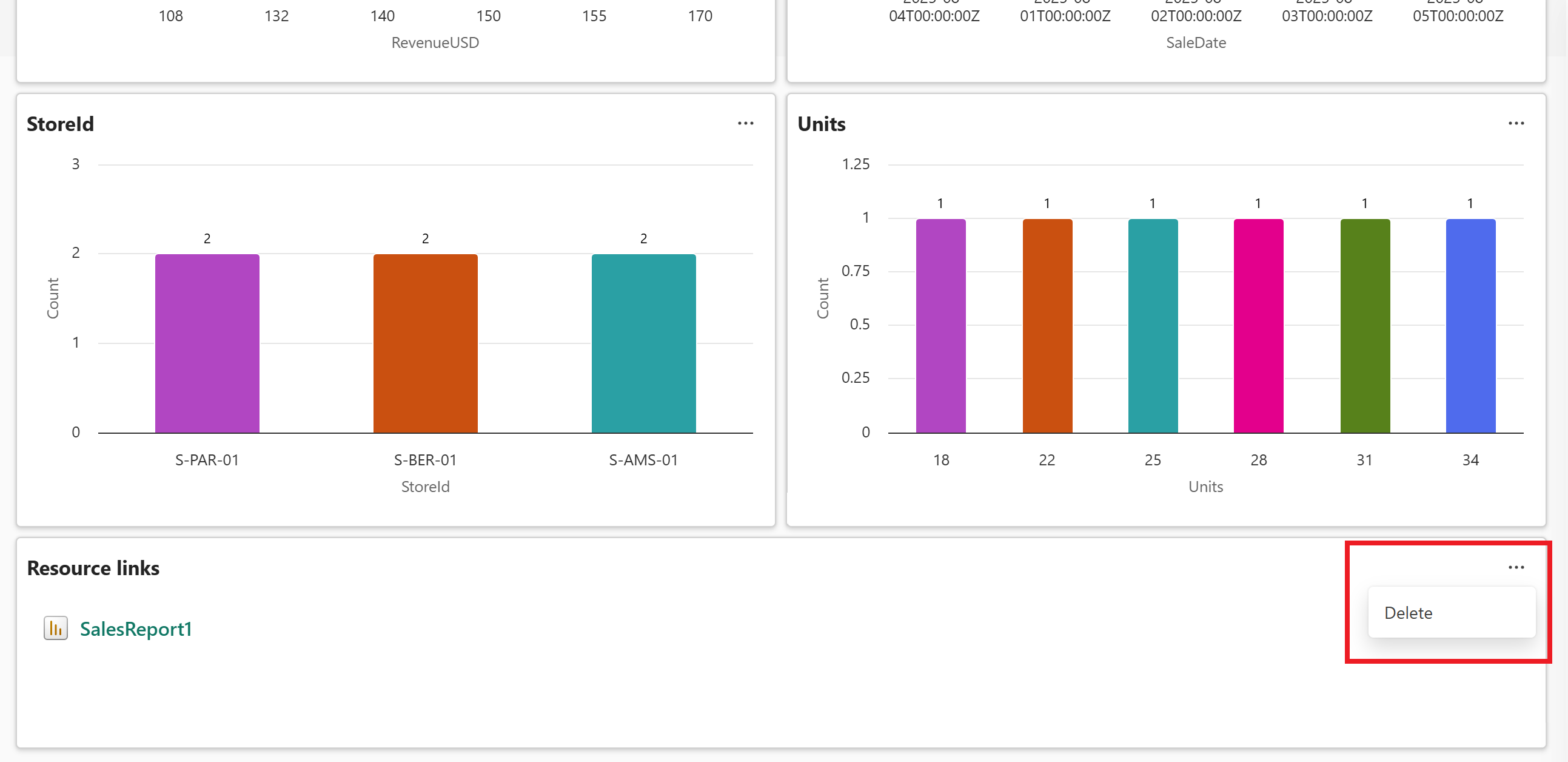
To remove linked resources from the Overview tab, remove the entire Resource links tile. (You can't keep the tile while deleting individual links from it.)
Expand the ... options on the Resource links tile and select Delete.
Select Delete to confirm the deletion when prompted.
