Bilješka
Pristup ovoj stranici zahtijeva provjeru vjerodostojnosti. Možete pokušati da se prijavite ili promijenite direktorije.
Pristup ovoj stranici zahtijeva provjeru vjerodostojnosti. Možete pokušati promijeniti direktorije.
A bridge provides a unified workspace for integrating data sources such as planning sheets, PowerTable sheets, or file-based sources. Use the bridge editor to transform and prepare data for planning. Bridges support data consolidation, real-time planning, and collaboration.
Create a bridge
Consolidate planning sheets across dimensions with varying granularities using bridges.
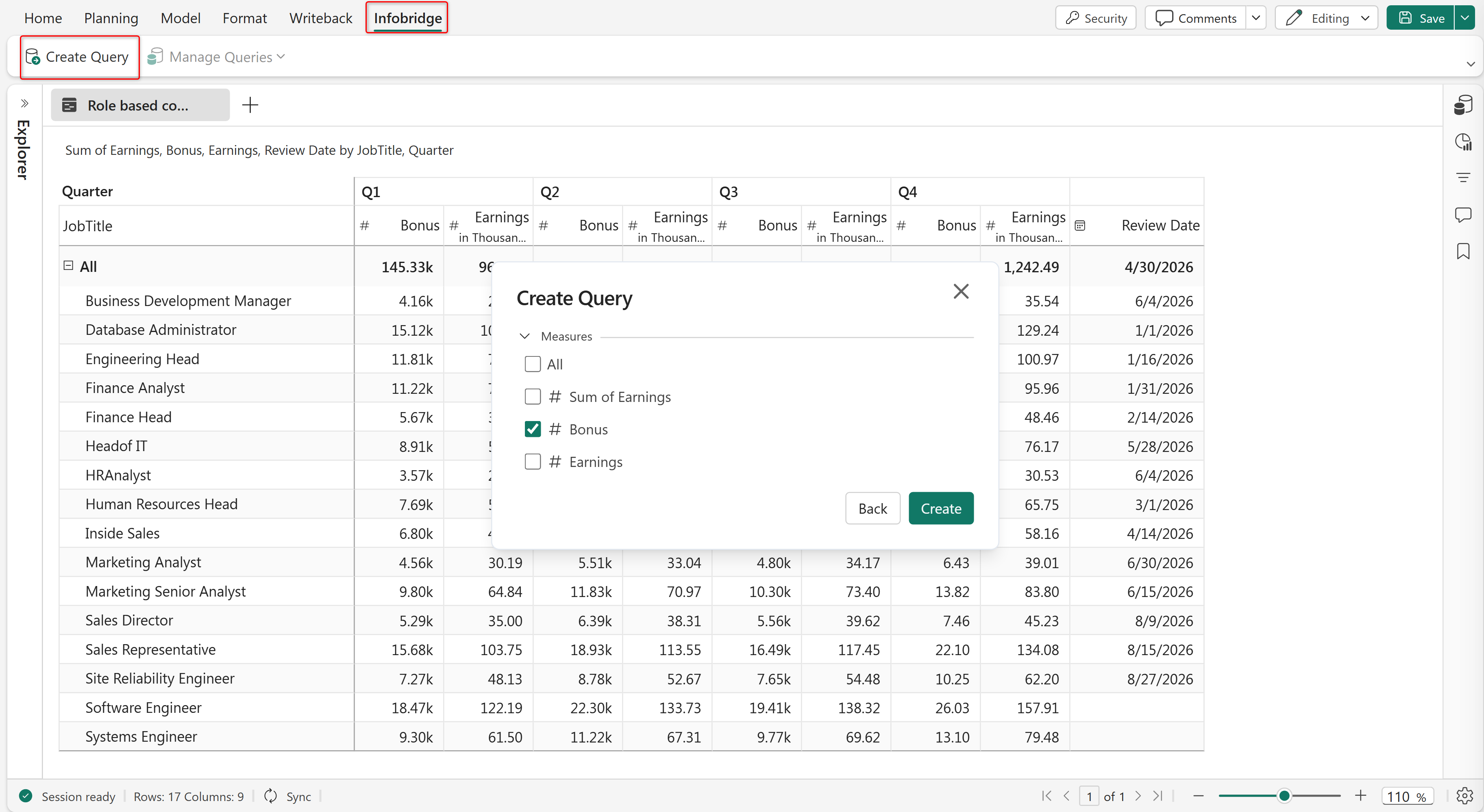
To create a bridge, in the Infobridge ribbon, select Create Query.
Select the measures to consolidate in the bridge, then select Create.
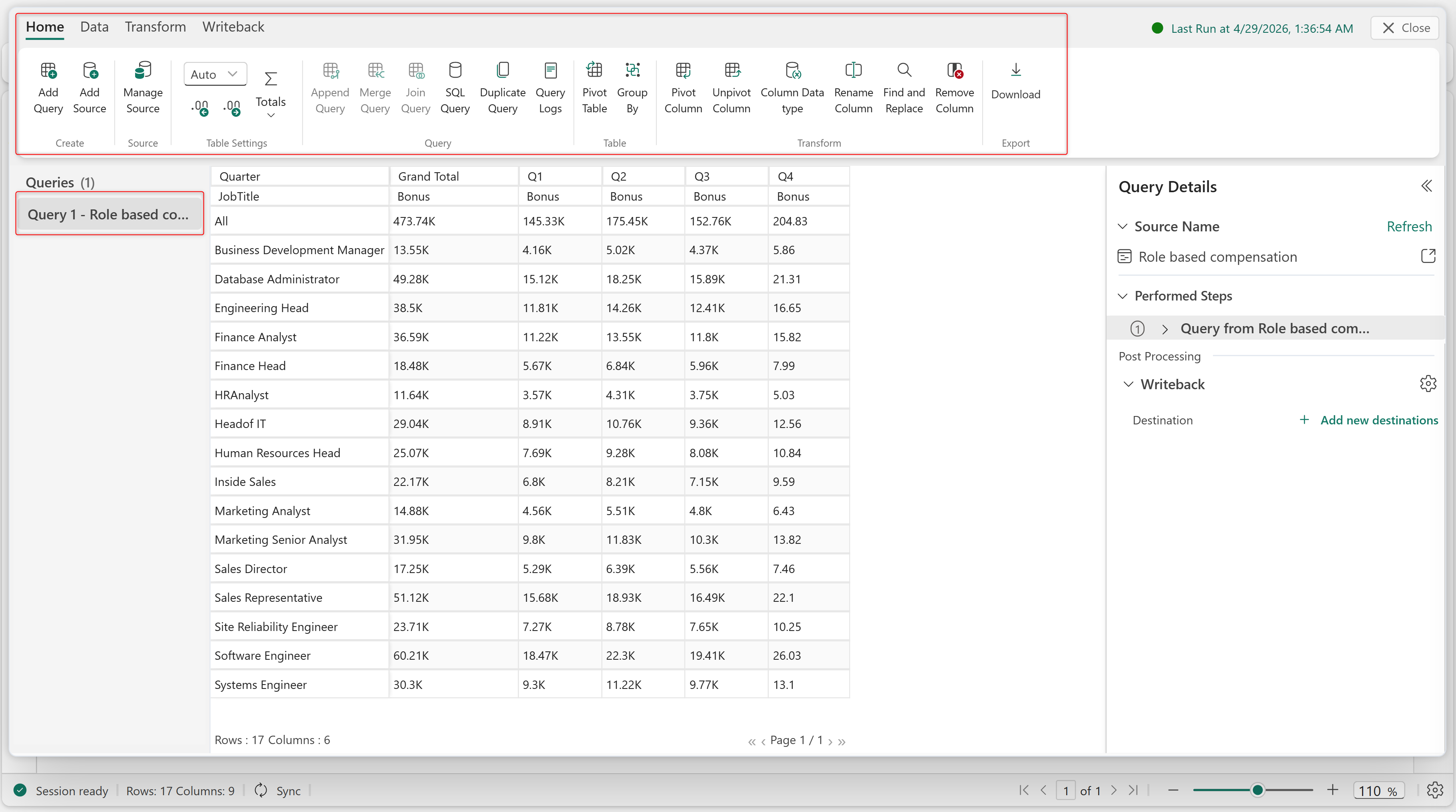
Creating a query automatically opens Infobridge, where you can join, append, merge, pivot, and transform data. Select Close to return to the planning sheet.
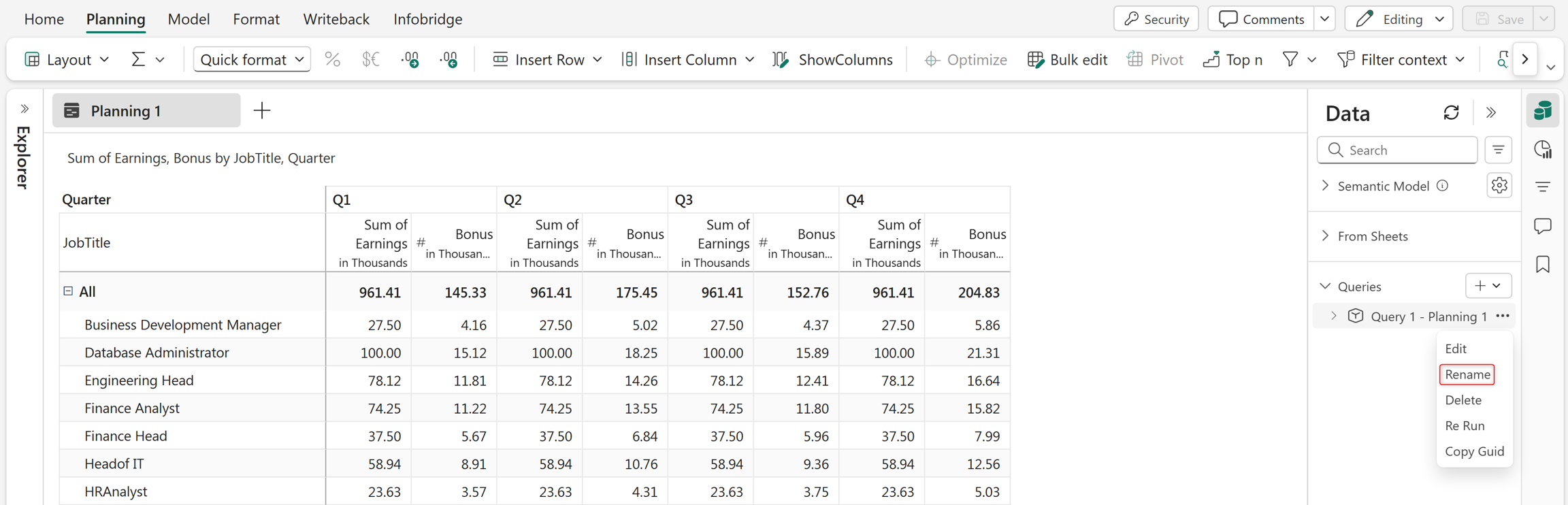
To access the bridge from a planning sheet, from the Data pane, expand Queries. Select More options (…) > Edit to open Infobridge. You can also delete or rename the query.
Repeat the same process to add measures from other planning sheets to the bridge.
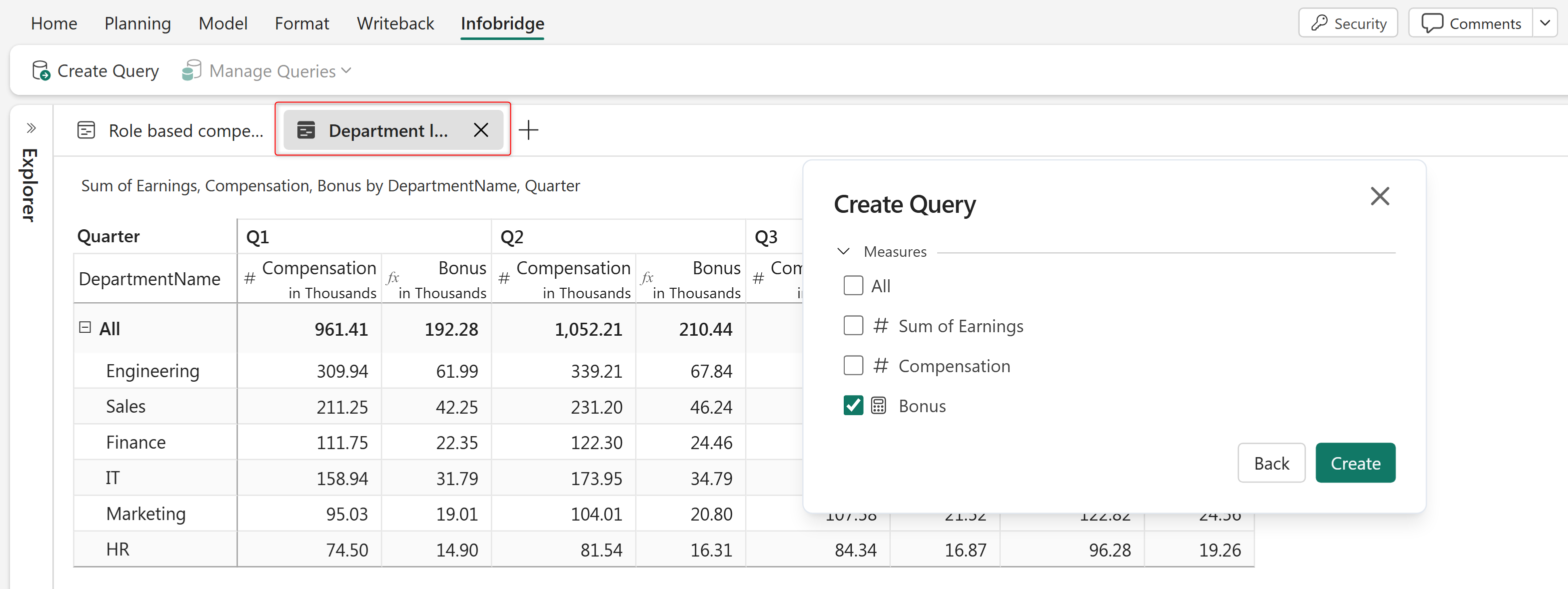
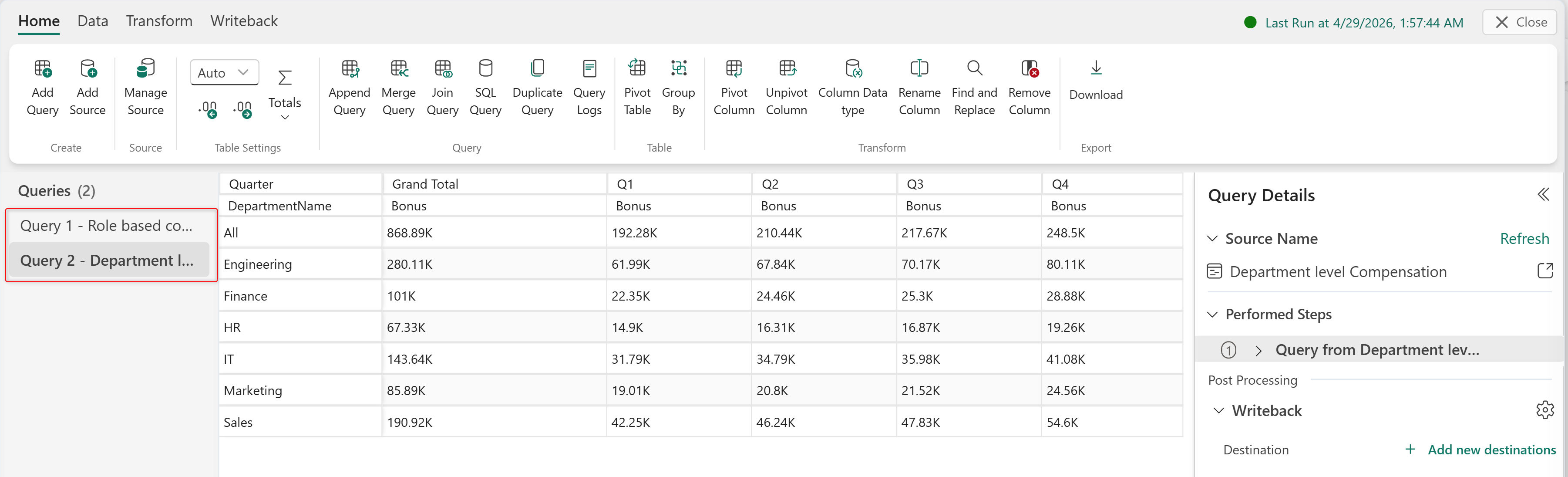
This example consolidates the bonus component across roles and departments in the bridge.
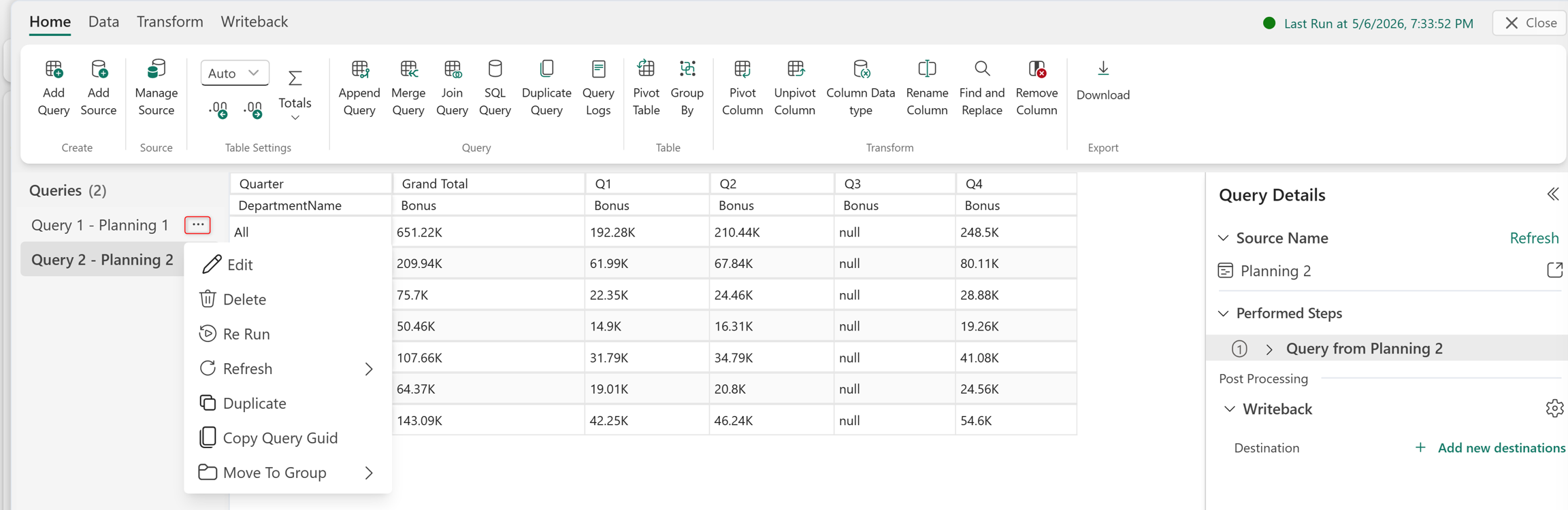
Within Infobridge, hover over the query name and select More options (…) to edit, delete, duplicate, rerun the job, or copy the query ID.
Import data into a bridge
Infobridge supports data integration to centralize data for analysis and reporting. Import and consolidate data from planning sheets, PowerTable sheets, and CSV, Excel, JSON, and Parquet files into a unified planning model.
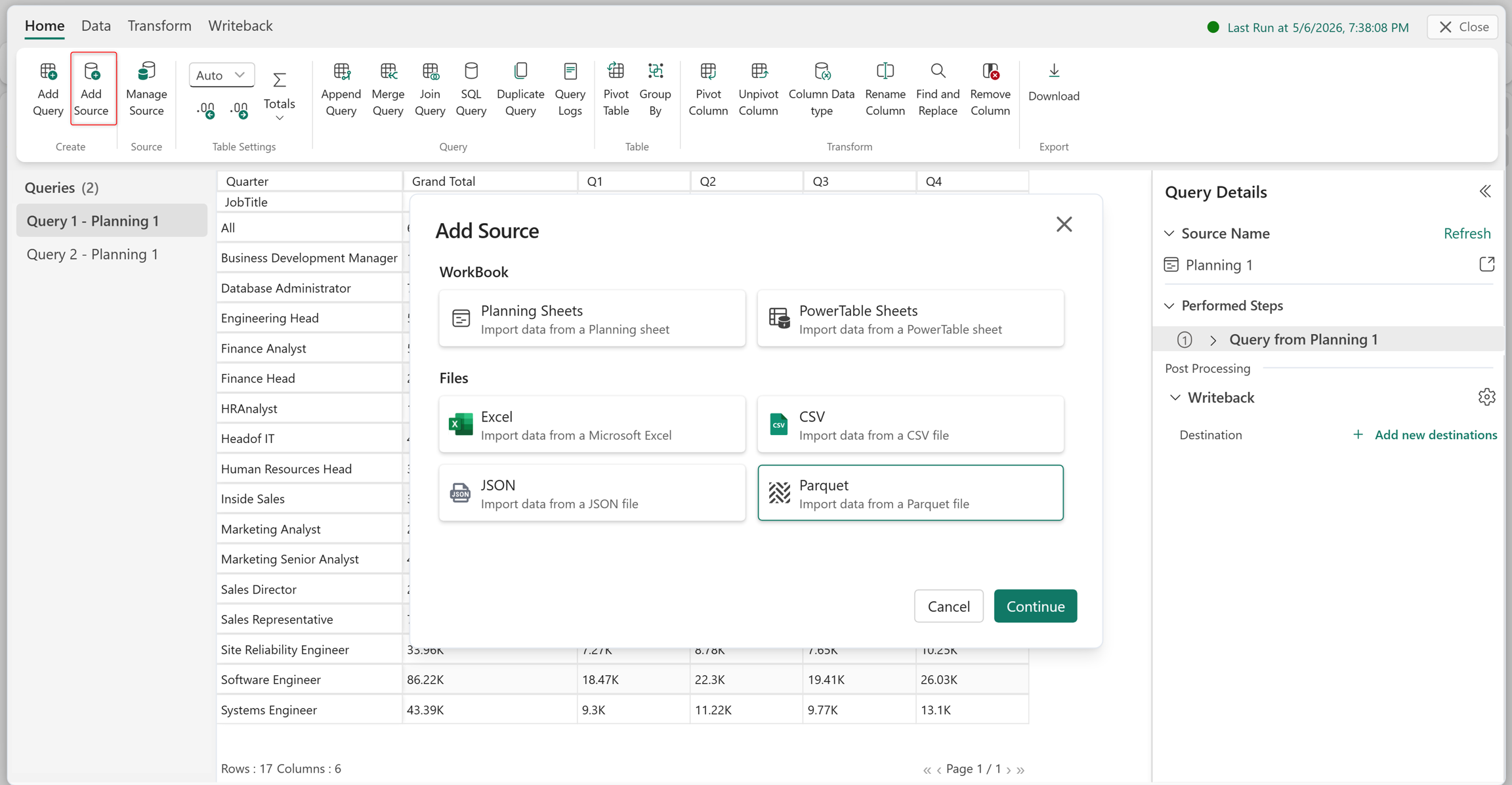
Select Add Source and choose the source type.
For file-based sources, select and upload the file.
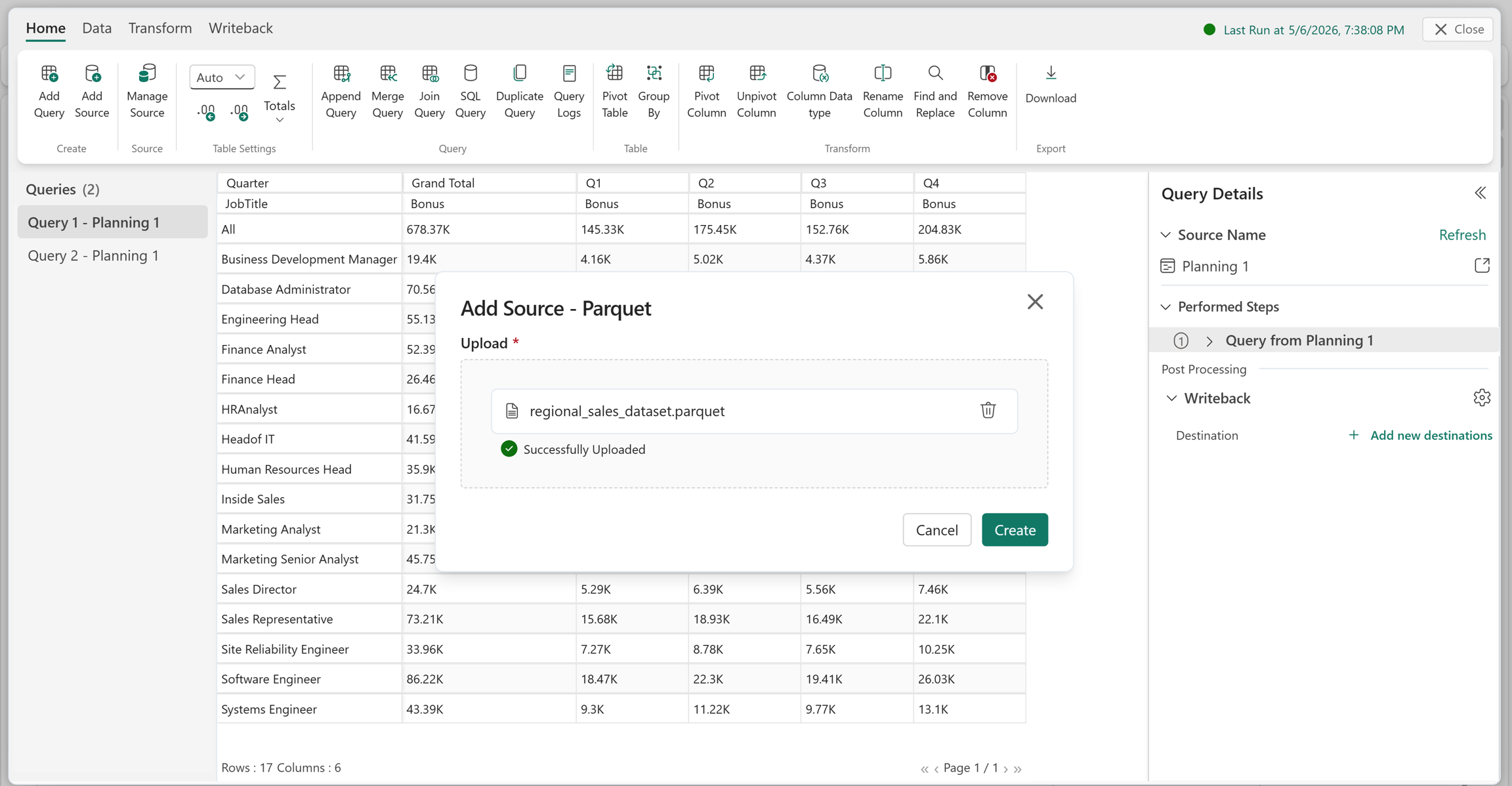
Infobridge adds a new query that holds the source data to the bridge.
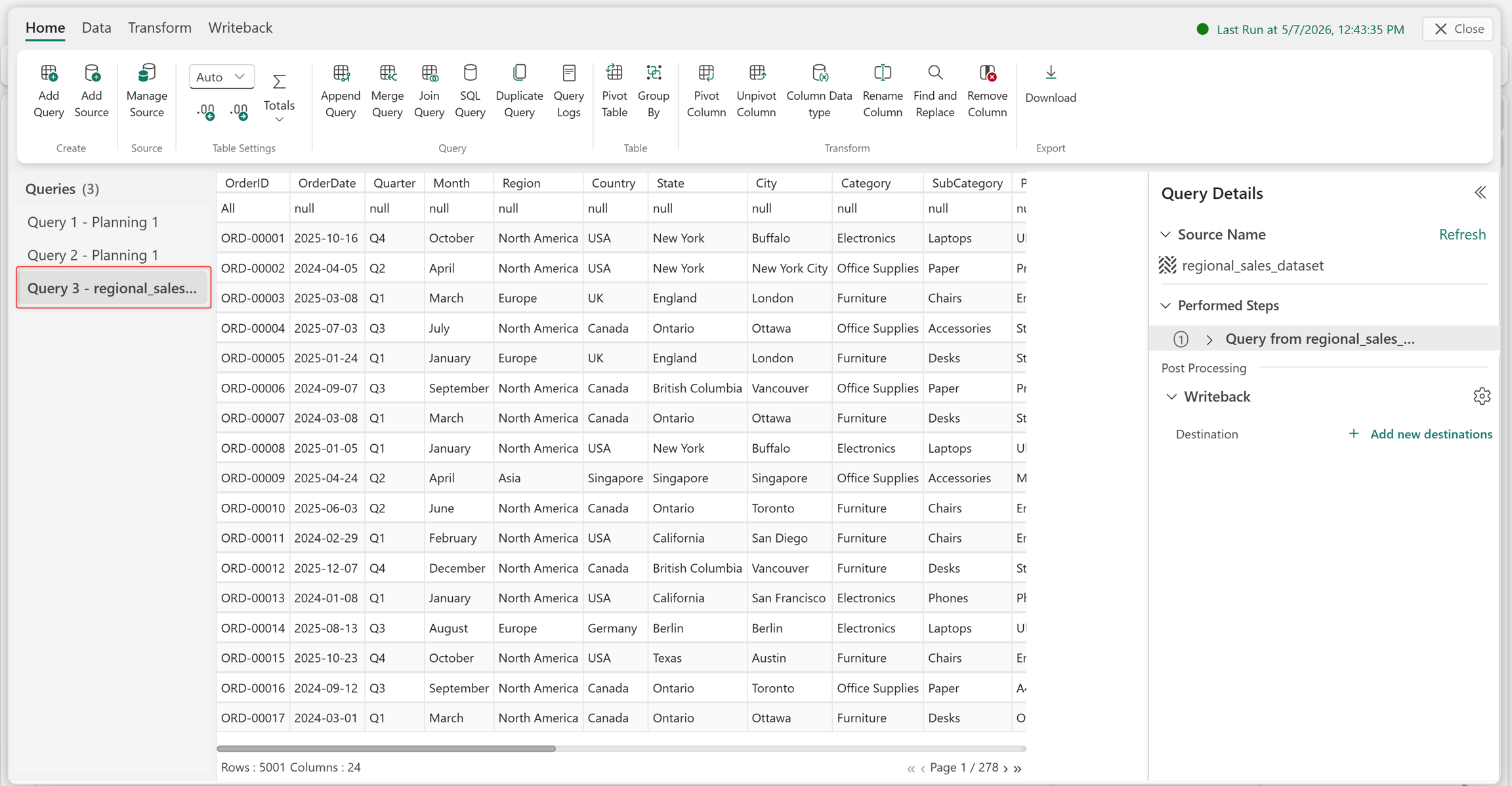
To use data from the query in a planning sheet, import dimensions and measures from the Queries section of the Data pane.