Bilješka
Pristup ovoj stranici zahtijeva provjeru vjerodostojnosti. Možete pokušati da se prijavite ili promijenite direktorije.
Pristup ovoj stranici zahtijeva provjeru vjerodostojnosti. Možete pokušati promijeniti direktorije.
This article describes how to create a table app by connecting the PowerTable sheet to a semantic model. You can save the data table, along with any changes or updates, to your preferred destination database. You can also write back subsequent changes to the same database table.
Note
You can also create a table by uploading data from an Excel or CSV file. For more information, see Create a table app with PowerTable sheets. To connect an existing database table to a PowerTable sheet and create a table app, see Connect to a database.
Prerequisites
Before you begin, make sure that you have the following prerequisites in place:
- Connections established to the Fabric SQL database and/or semantic model that contain the data for your PowerTable.
- A plan item created in your Fabric workspace.
Create a PowerTable sheet
In your plan, select New PowerTable Sheet or select the PowerTable icon on the landing page. Enter a name for the sheet and select Create.
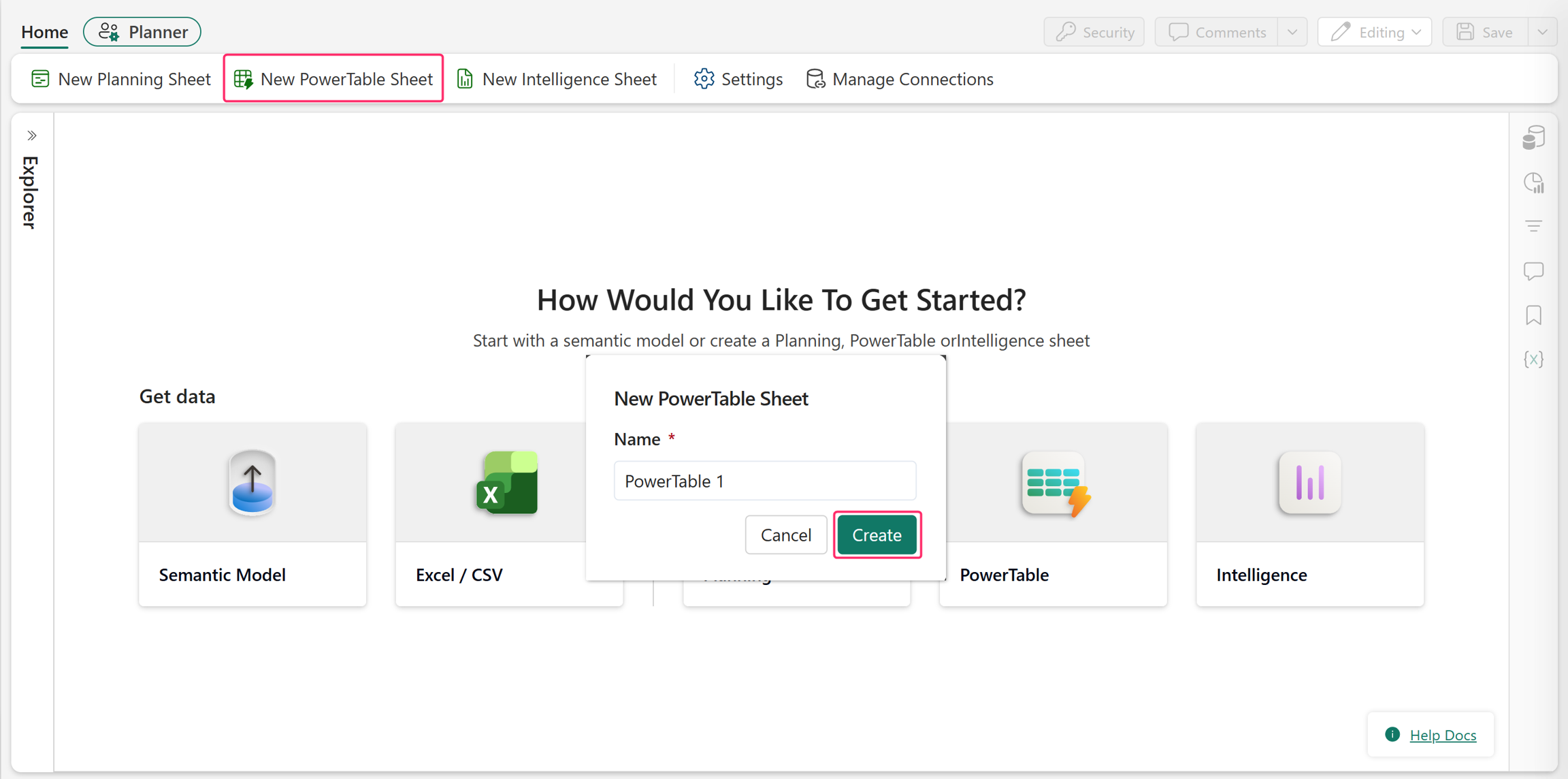
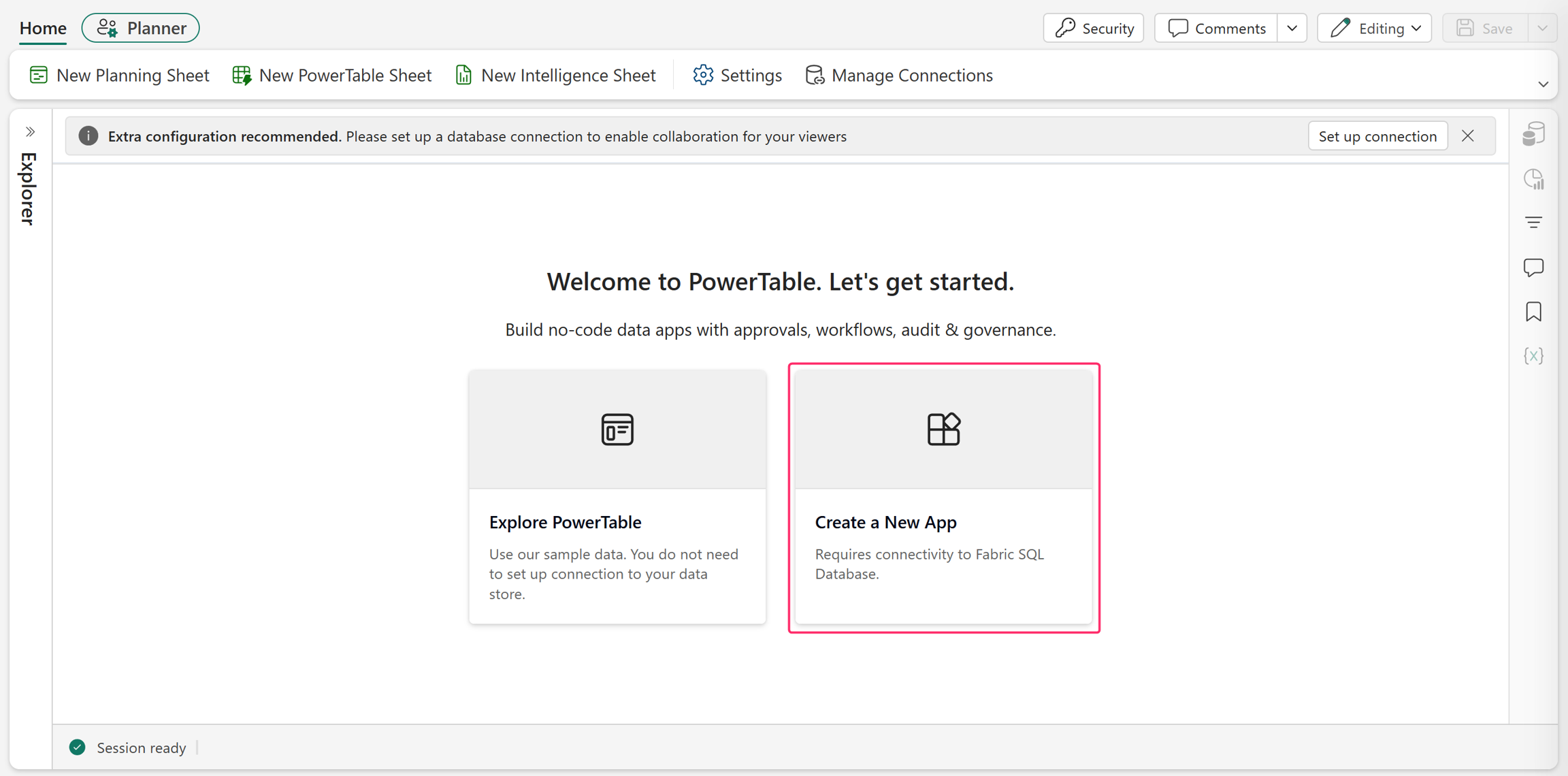
Select Create a New App to create your app. You can also select Explore PowerTable to experience a sample PowerTable app.
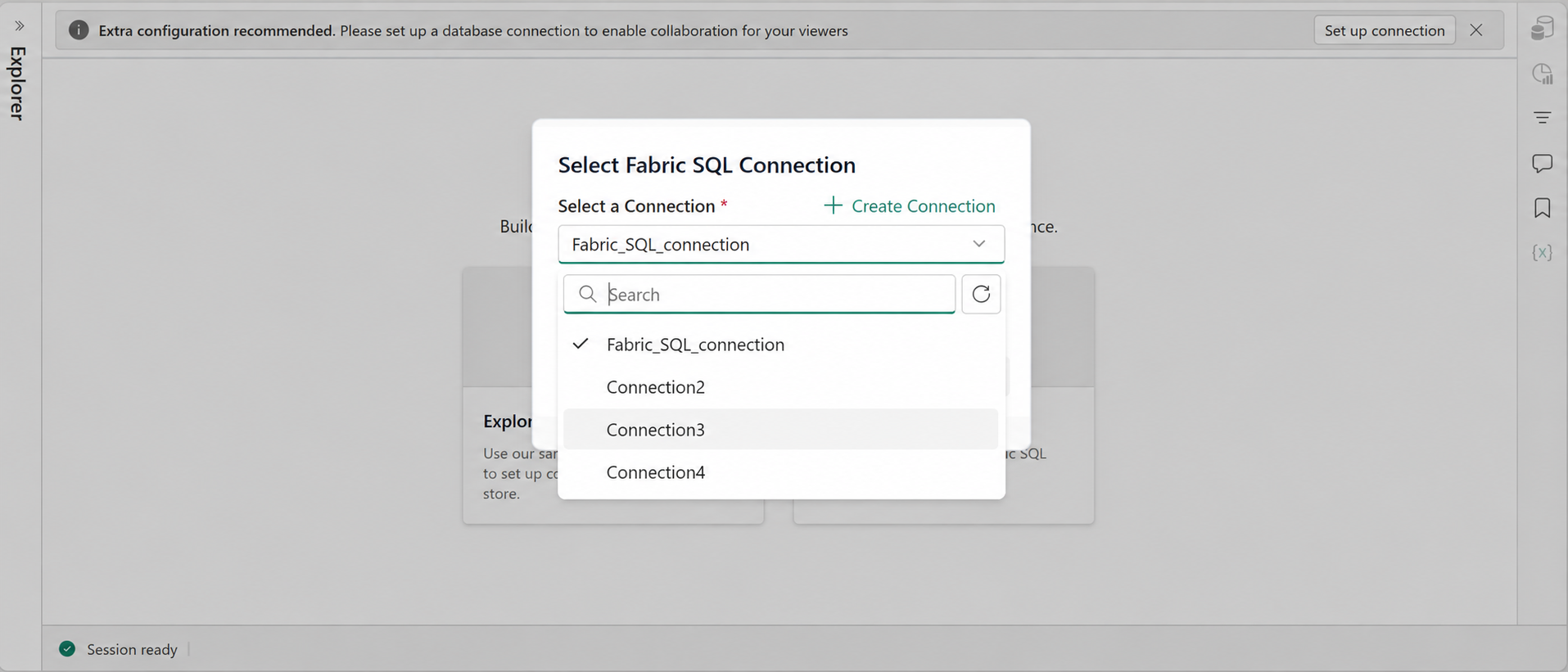
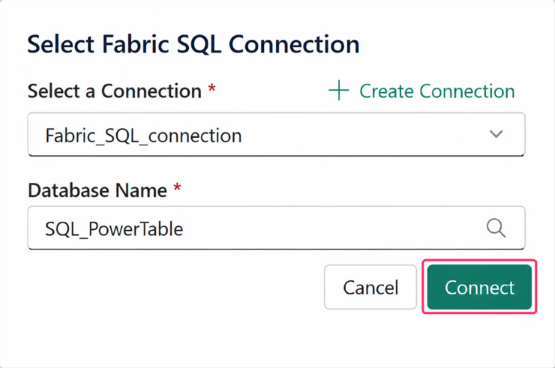
Select a Connection: Choose a Fabric SQL connection if available. If there are no connections, create one by selecting Create Connection.
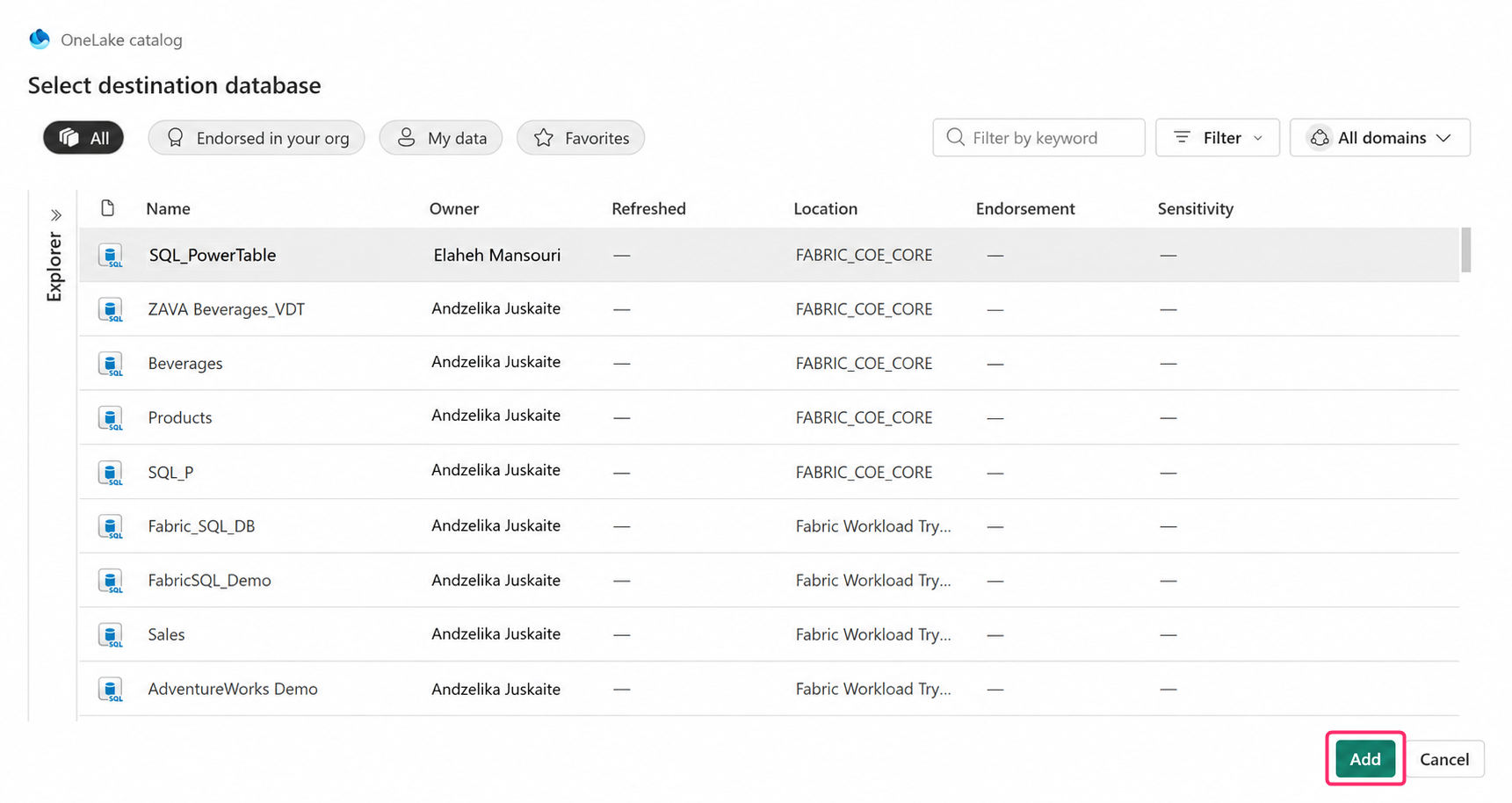
Database Name: Select the destination Fabric SQL database to store the table data. Select Add.
Select Connect.
Create a table
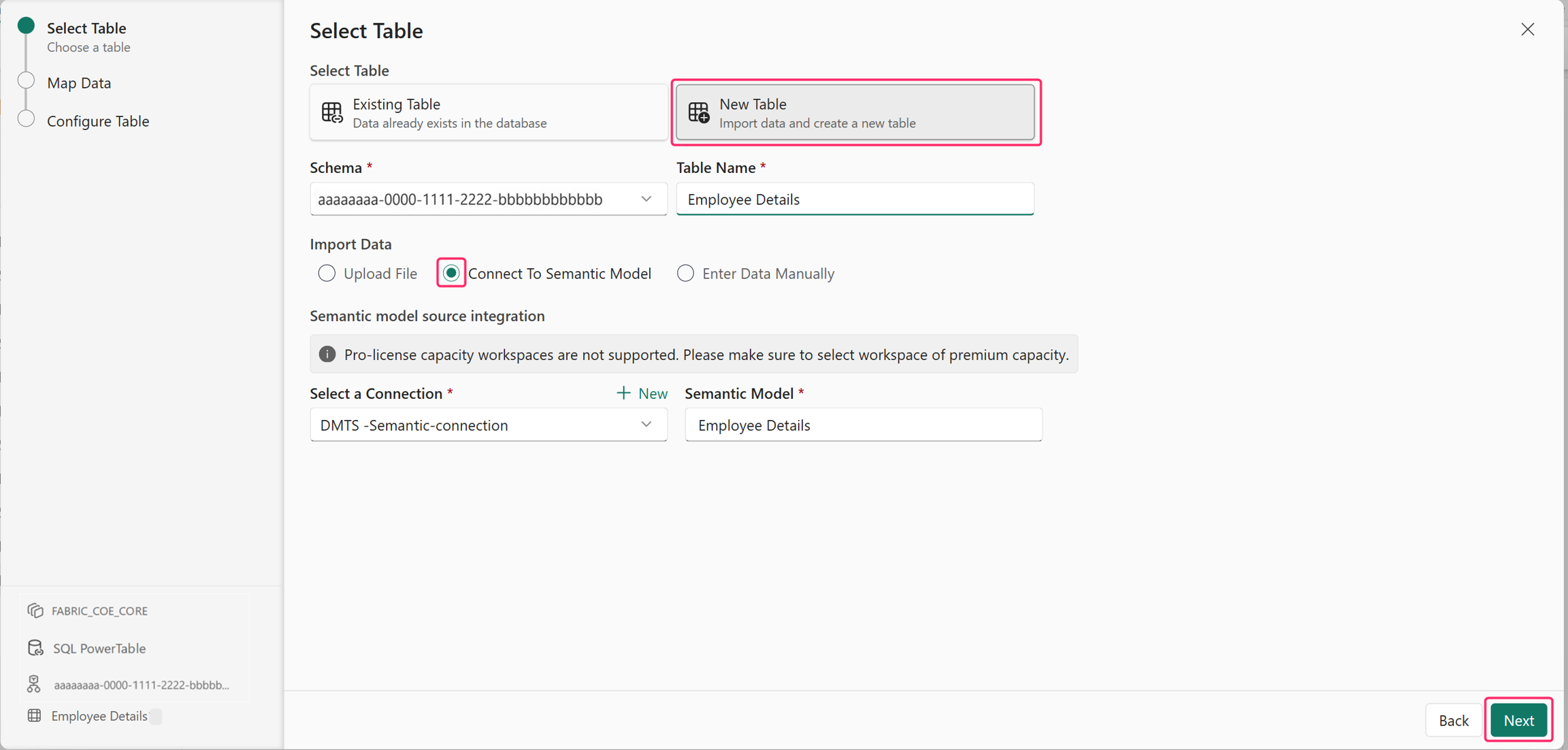
Select New Table.
Choose the database schema.
Enter a Table Name.
Choose Connect To Semantic Model in Import Data.
Select your Connection and the required Semantic Model.
Select Next.
Note
Capacity workspaces with Pro licenses are not supported. Make sure to select a workspace of premium capacity.
Map data
Map and assign your data to the table by selecting the required fields and corresponding values.
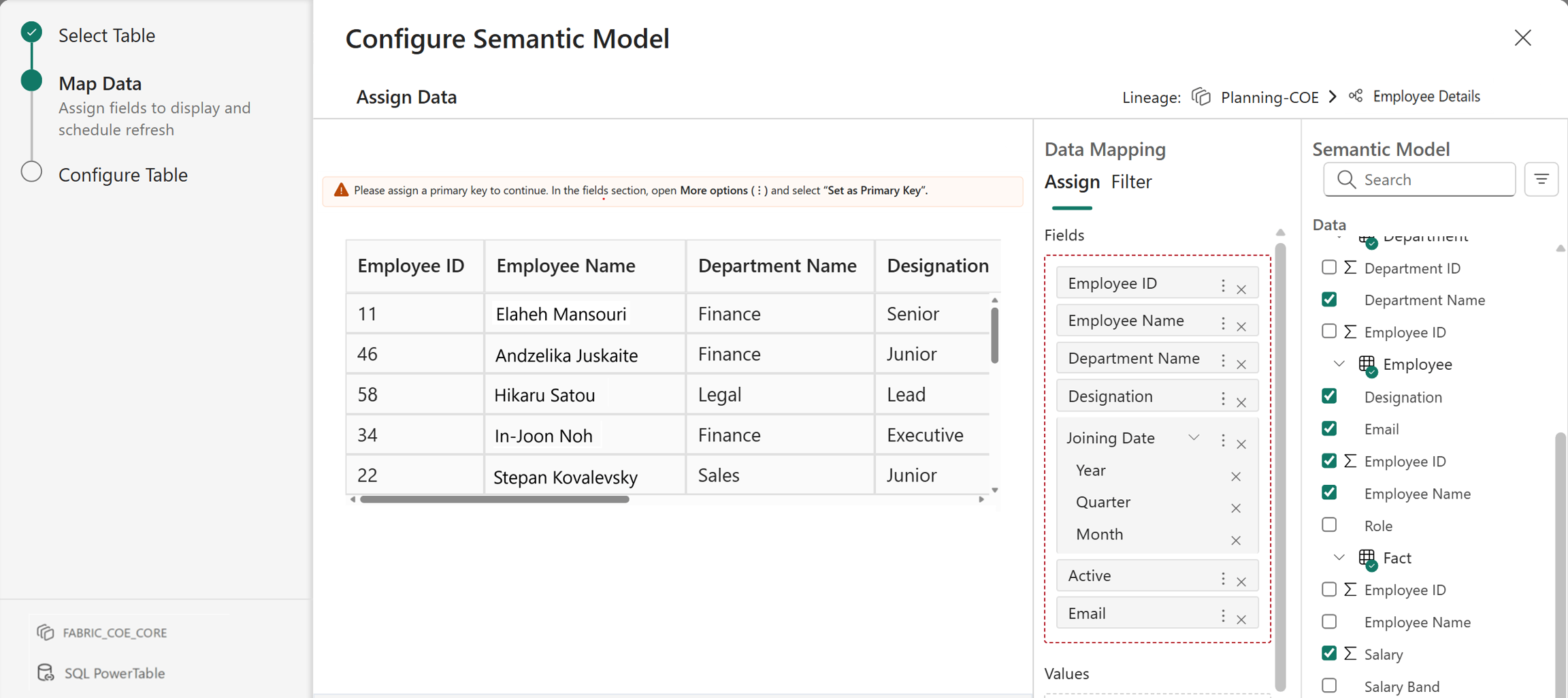
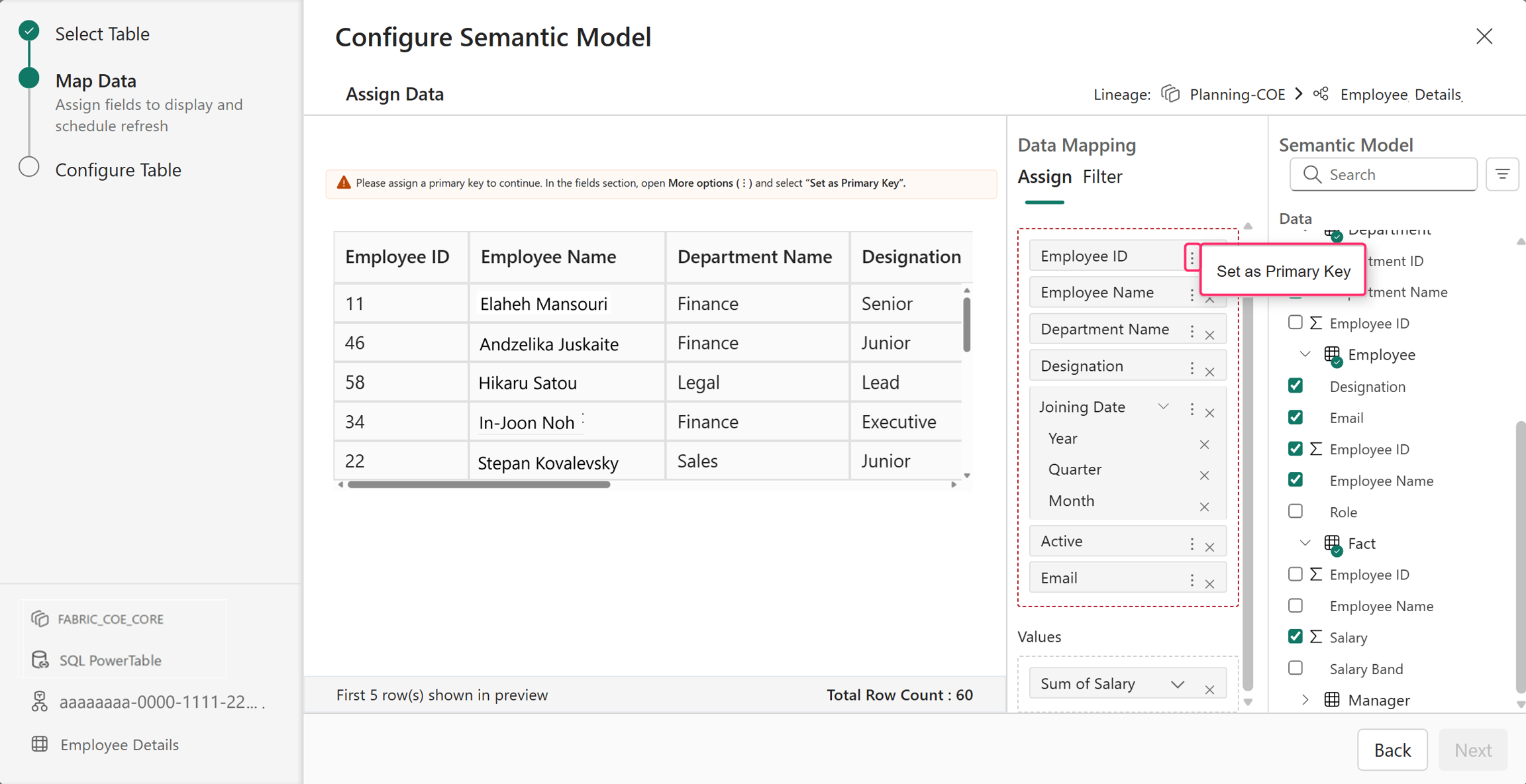
Set the primary key fields by selecting the three dots and selecting primary keys.
If needed, you can use filters to include only specific field values from the table.
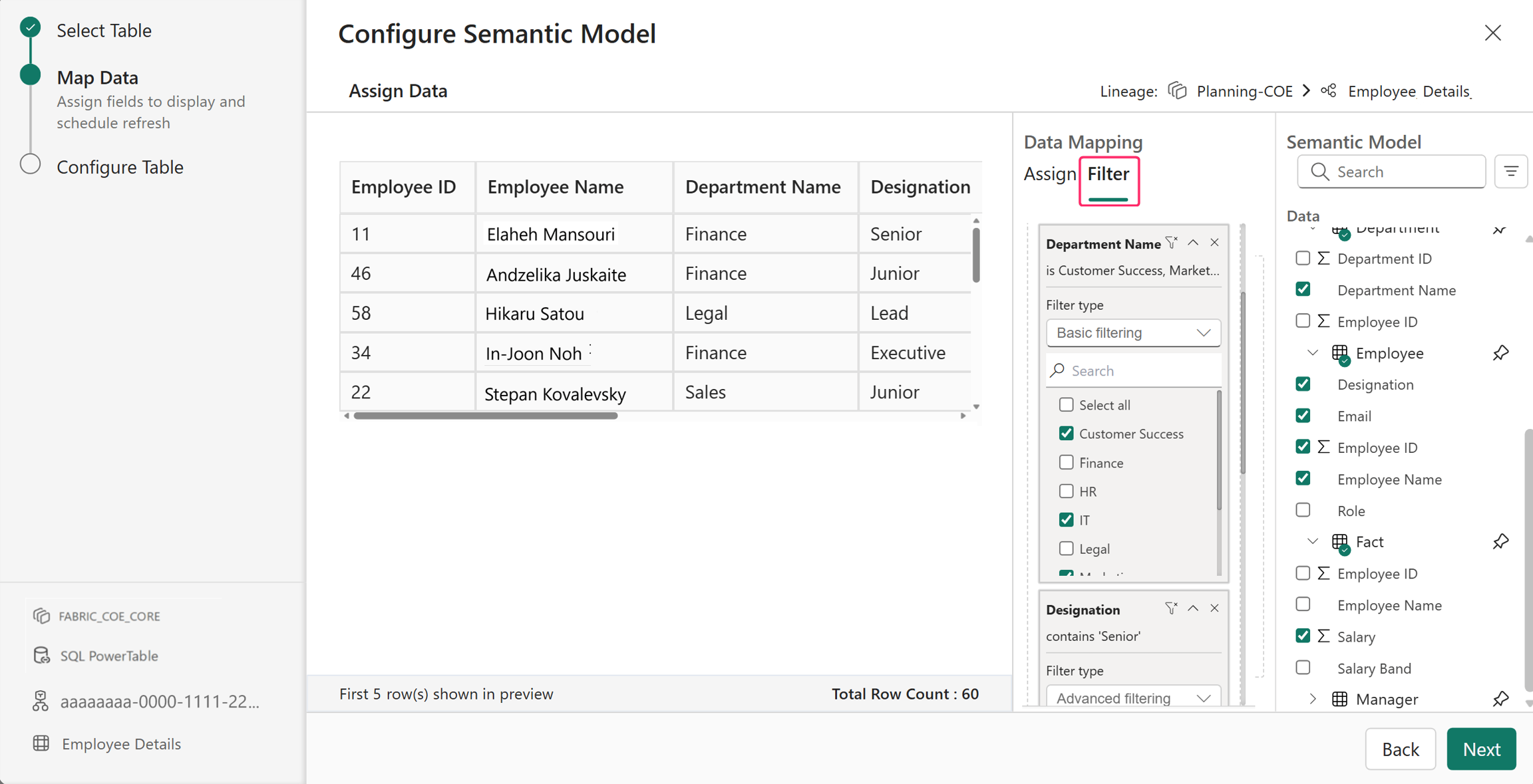
Select Next.
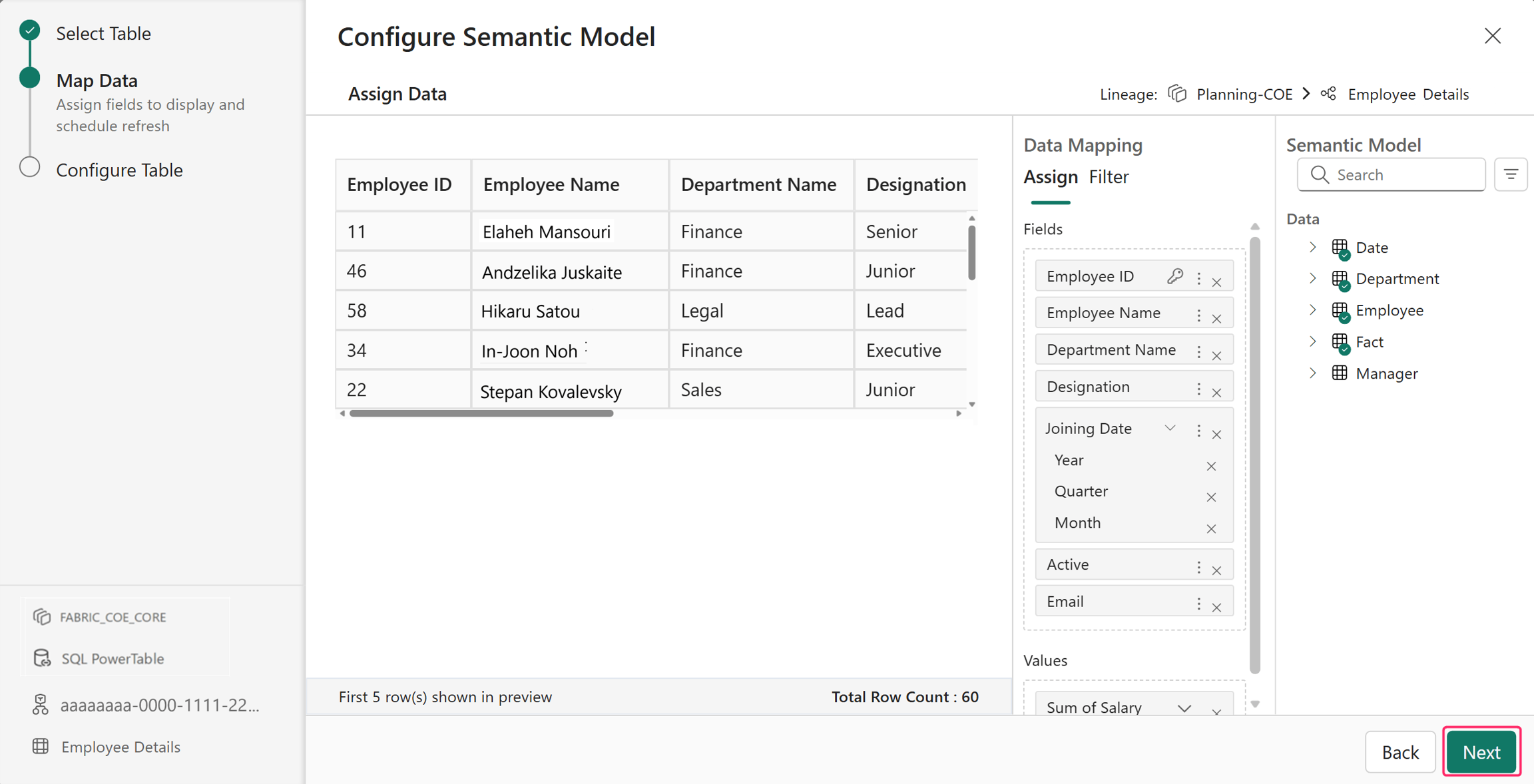
Configure table
PowerTable sheets automatically detect column properties and rename any unsupported column names to match the supported format. You can review and modify them as needed.
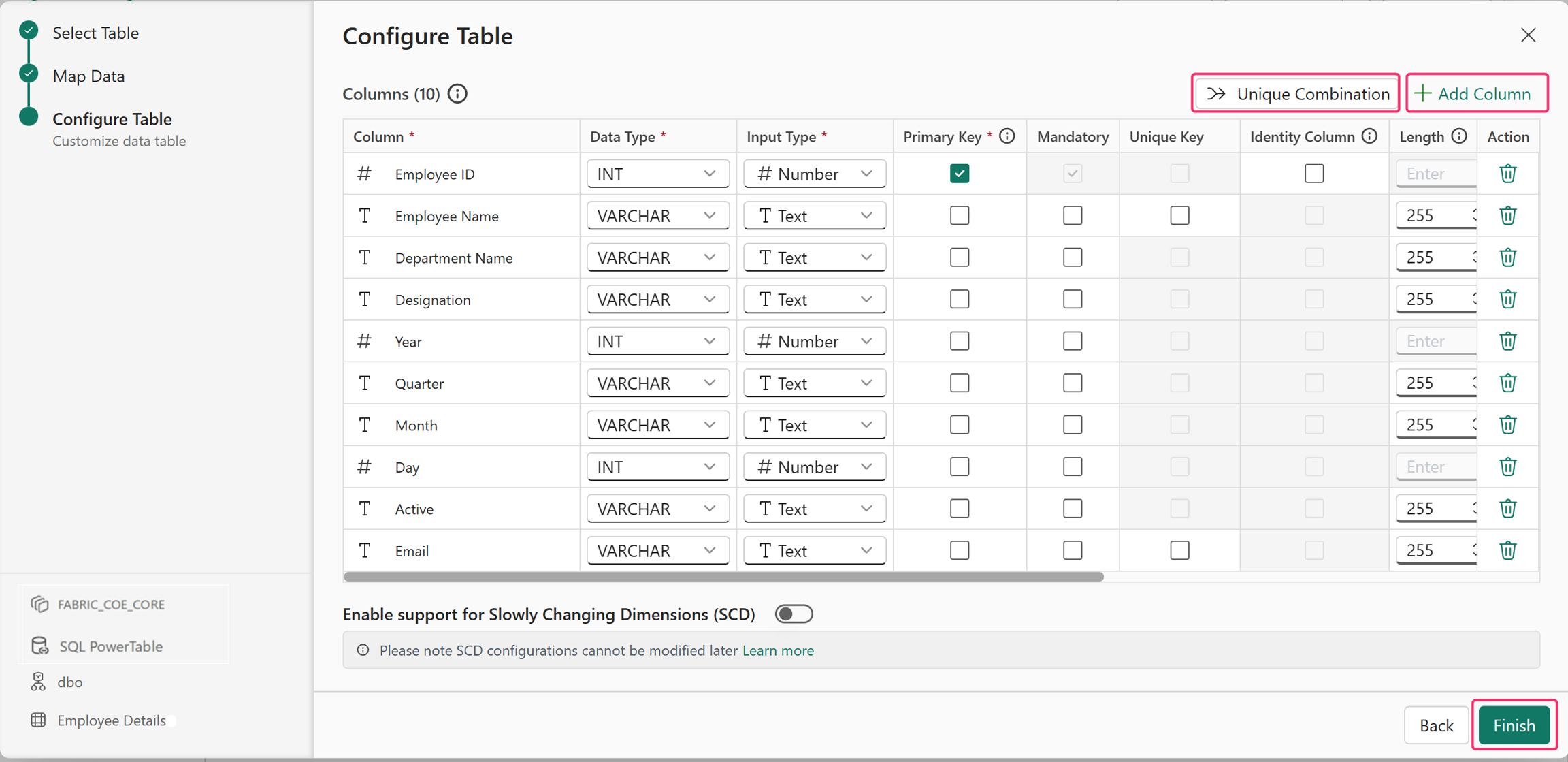
- Review the detected column settings.
- If the primary key isn't selected, select the appropriate column as the primary key.
- Configure columns as required:
- Mark fields as Mandatory if they must contain values.
- Set fields with distinct values as Unique Key to allow unique values.
- Set a column as an Identity Column when you need PowerTable to generate unique, sequential values automatically. Only numeric columns and primary key columns can be configured as identity columns.
- Modify column properties, including:
- Length
- Data type
- Input type
- Display name
- Enter default values for columns, if required.
- Optionally, select Add Column to create additional columns.
- To create a composite primary key, select Unique Combination, and then select two or more columns to define a unique combination key.
Note
In this step, you can enable Slowly Changing Dimensions (SCDs) by turning the toggle. For a table, this is a one-time configuration that you can't modify later.
Finish
Select Finish.
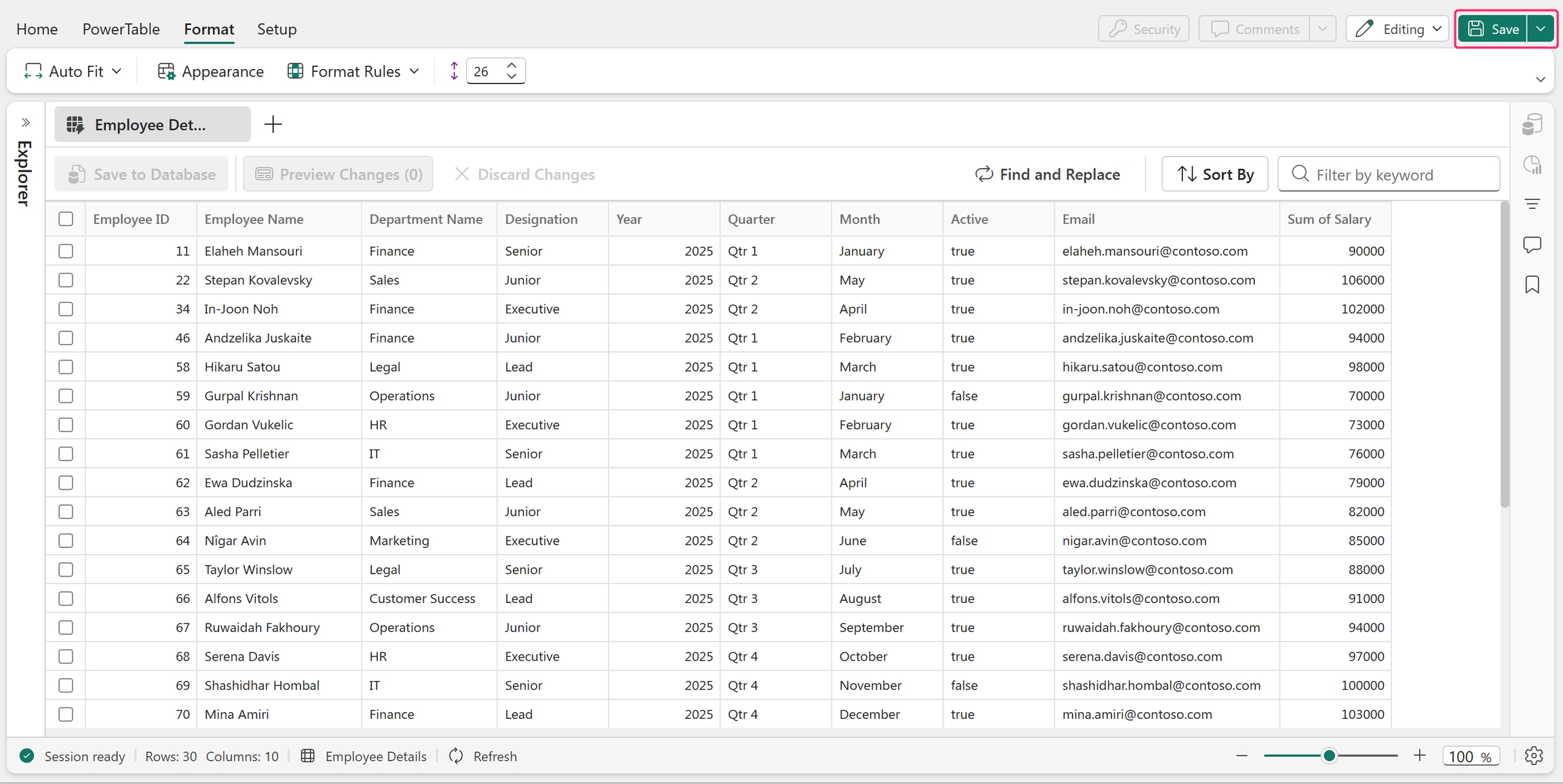
The table app is created successfully in PowerTable with the configured columns and values. Select Save to save your table.
FAQ
Do changes made in PowerTable update the semantic model or its underlying data source?
No. PowerTable uses the semantic model only to seed the destination table. It doesn't update the semantic model or its underlying data source.
When you create a PowerTable app from a semantic model, PowerTable reads the semantic model and copies its data into the selected Fabric SQL database destination table.
After the initial load:
- PowerTable writes all changes directly to the Fabric SQL database destination table.
- Changes made in PowerTable don't update the semantic model or its underlying data source.
Are there any exceptions to this behavior based on the underlying data source (Lakehouse, Warehouse, or external database) or on the semantic model storage mode?
No. The Save to Database option always writes data to the configured Fabric SQL database destination table, regardless of the semantic model's underlying data source or storage mode.
When you create a PowerTable app from a semantic model:
- The semantic model only seeds the PowerTable with initial data. The underlying data source, whether a Lakehouse, Warehouse, or external database, doesn't receive any data.
- The semantic model's storage mode, whether Import, DirectQuery, or Direct Lake, doesn't affect the write path. It only determines how PowerTable reads the seed data.
- After the initial load, PowerTable writes all changes directly to the configured Fabric SQL database destination table.
When do newly added members in PowerTable appear on a planning sheet? Is this scenario supported?
Yes. PowerTable supports this scenario. Newly added members appear in the planning sheet in two ways:
- Direct connection: When PowerTable writes to a Fabric SQL database table, the table appears in the planning sheet's data pane under Data > From Sheets, where you can assign its columns directly as dimensions and measures. There's no replication or intermediate semantic model. Newly added members are available in the planning sheet as soon as you commit the changes.
- Direct Lake connection: When the planning sheet uses a Direct Lake semantic model, PowerTable writes the data to the Fabric SQL database table, which is automatically replicated to OneLake. The Direct Lake semantic model reads the replicated data from OneLake. When automatic updates are enabled, newly added members automatically appear in the planning sheet after the changes reach OneLake, although a short delay might occur because replication has near-real-time latency.
Note
Schema changes, such as adding or modifying columns, might require a semantic model refresh.
Next steps
Configure access control and automated workflows and approvals for your new app.