Bilješka
Pristup ovoj stranici zahtijeva provjeru vjerodostojnosti. Možete pokušati da se prijavite ili promijenite direktorije.
Pristup ovoj stranici zahtijeva provjeru vjerodostojnosti. Možete pokušati promijeniti direktorije.
OneLake enforces security on two planes:
- Control plane permissions: Govern what you can do to an item, such as creating, configuring, sharing, or managing it. Set control plane permissions at the workspace level with workspace roles and at the item level through sharing and the item's Manage permissions page.
- Data plane permissions: Govern what data you can see or change. For OneLake, this plane is OneLake security. Define these roles on an item and scope them down to folders, tables, schemas, rows, and columns.
The following table compares the two planes:
| Axis | Control plane | Data plane |
|---|---|---|
| What it governs | Management actions on items, such as create, configure, share, and delete. | Access to the data itself, such as read and write on tables and files. |
| Where it's set | Workspace roles and item permissions. | Defined on an item, then scoped to folders, tables, rows, and columns. |
| Granularity | Item-level capabilities. | Down to individual rows and columns. |
| Who it affects | Everyone in the workspace. | Mainly Viewers or users with Read permission. Admins, Members, and Contributors already have data access. |
To control what someone can do, use the control plane with workspace and item roles. To control which specific data someone sees, use the data plane with OneLake security.
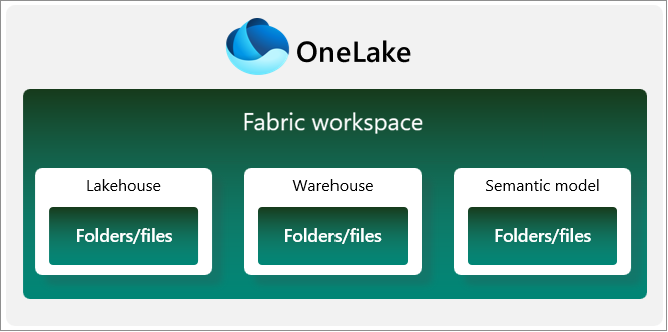
OneLake is a hierarchical data lake, like Azure Data Lake Storage (ADLS) Gen2 or the Windows file system. The two planes apply at different levels of this hierarchy:
Workspace: A collaborative environment for creating and managing items. Manage control plane security through workspace roles at this level.
Item: A set of capabilities bundled together into a single component. A data item in Fabric is one that stores data, such as a lakehouse, warehouse, or SQL database in Fabric. Items inherit permissions from the workspace roles but can have additional control plane permissions. You also define OneLake security roles on an item.
Folders and below: Folders, such as
Tables/orFiles/, along with tables, schemas, rows, and columns, organize data within an item. OneLake security scopes data plane access at these levels.
Items always live within workspaces, and workspaces always live directly under the OneLake namespace.
Manage control plane permissions with workspace and item roles
OneLake manages permissions at the workspace and item levels. Workspace and item permissions are the control plane security model for items in OneLake.
Grant access with workspace roles
Workspace permissions define what actions users can take within a workspace and its items. These permissions are primarily control plane permissions. They determine administrative and item management capabilities, not direct data access. However, items and folders generally inherit workspace permissions to grant data access by default. Workspace permissions apply to all items within that workspace.
The four different workspace roles grant different types of access. The following table lists the default behaviors of each workspace role:
| Role | Can add admins? | Can add members? | Can edit OneLake security? | Can write data and create items? | Can read data in OneLake? | Can update and delete the workspace? |
|---|---|---|---|---|---|---|
| Admin | Yes | Yes | Yes | Yes | Yes | Yes |
| Member | No | Yes | Yes | Yes | Yes | No |
| Contributor | No | No | No | Yes | Yes | No |
| Viewer | No | No | No | No | No* | No |
* You can give Viewers access to data by using OneLake security roles.
Learn more about Roles in workspaces in Fabric.
Simplify the management of Fabric workspace roles by assigning them to security groups. This method lets you control access by adding or removing members from the security group.
Share items and set item-level permissions
By using the sharing feature, you can give a user direct access to an item. The user can't see other items in the workspace and isn't a member of any workspace roles. Item permissions grant access to connect to that item and any of its endpoints that the user can access.
| Permission | See the item metadata? | See data in SQL? | See data in OneLake? |
|---|---|---|---|
| Write | Yes | Yes | Yes |
| Read | Yes | No | No |
| ReadData | No | Only in Delegated mode | No |
| ReadAll | No | No | Only through the DefaultReader |
Access through the SQL analytics endpoint also depends on the SQL analytics endpoint mode. Depending on the mode, users might need SQL permissions or the ReadData item permission in addition to Read access on the item.
You can also configure permissions on an item's Manage permissions page. On this page, you can add or remove individual item permission for users or groups. The item type determines which permissions are available.
Manage data access with OneLake security roles
OneLake security provides granular role-based security for data stored in OneLake and enforces that security consistently across all compute engines in Fabric. OneLake security is the data plane security model for data in OneLake.
Fabric users in the Admin or Member workspace roles can create OneLake security roles to grant users access to data within an item. Each role has four components:
- Permissions: The permissions the role grants on the data, such as Read or ReadWrite.
- Type: The role type. OneLake security supports only Grant roles, which give access to data.
- Data in role: The tables, folders, or schemas that the role grants access to. You can also define data access with row-level and column-level security on tables.
- Members in role: The Microsoft Entra identities assigned to the role, such as users, groups, or nonuser identities.
OneLake security roles grant access to data for users in the Viewer workspace role or with Read permission on the item. Workspace Admins, Members, and Contributors already have read and write permissions on all data in a workspace, so they're not affected by OneLake security roles. A DefaultReader role exists in all lakehouses and gives any user with the ReadAll permission access to data in the lakehouse. You can delete or edit the DefaultReader role to remove that access.
To work with OneLake security, use these data access articles:
- How OneLake security controls data access details the full permissions model and how OneLake evaluates roles.
- Create and manage OneLake security roles shows you how to create, edit, and delete roles, assign members, and apply row-level and column-level security to tables and folders.
- Table, column, and row-level security in OneLake explains how each type of data access control works and how OneLake enforces it.
- Read data secured with OneLake security describes which engines can read secured data and the requirements for each.
Enforce OneLake security in authorized third-party engines (preview)
Configure your third-party engines as authorized engines so that they can enforce OneLake security roles. External query engines can register as authorized engines, retrieve security policy definitions and precomputed effective access through OneLake APIs, and enforce table permissions, row-level security (RLS), and column-level security (CLS) at query time. OneLake remains the single source of truth for security policies. Policies are authored once and enforced consistently across Fabric engines and authorized external engines.
For more information, see OneLake security integrations.
Secure data accessed through shortcuts
Shortcuts in OneLake simplify data management. OneLake folder security applies to shortcuts based on roles defined in the lakehouse where the data is stored.
For more information on shortcut security considerations, see How OneLake security controls data access > Shortcuts.
For information on access and authentication details for specific shortcuts, see types of OneLake shortcuts.
Authenticate to OneLake with Microsoft Entra ID
OneLake uses Microsoft Entra ID for authentication. Use it to give permissions to user identities and service principals. OneLake automatically extracts the user identity from tools that use Microsoft Entra authentication and maps it to the permissions you set in the Fabric portal.
Note
To use service principals in a Fabric tenant, a tenant administrator must enable Service Principal Names (SPNs) for the entire tenant or specific security groups. Learn more about enabling Service Principals in Developer settings of the tenant admin portal.
Track OneLake activity with audit logs
To view your OneLake audit logs, follow the instructions in Track user activities in Fabric. OneLake operation names correspond to ADLS APIs such as CreateFile or DeleteFile. OneLake audit logs don't include read requests or requests made to OneLake via Fabric workloads.
Encrypt data and secure networking in OneLake
OneLake protects your data by encrypting it both at rest and in transit, and by letting you restrict network access with private links. The following sections describe each of these safeguards.
Encrypt data at rest with Microsoft-managed and customer-managed keys
Data stored in OneLake is encrypted at rest by default by using Microsoft-managed keys. Microsoft-managed keys are rotated appropriately. OneLake encrypts and decrypts data transparently and is FIPS 140-2 compliant.
You can use encryption at rest by using customer-managed keys to add another layer of protection by using keys you own and control. For more information, see Customer-managed keys for Fabric workspaces.
Encrypt data in transit by using TLS
Data in transit across the public internet between Microsoft services is always encrypted by using at least TLS 1.2. Fabric negotiates to TLS 1.3 whenever possible. Traffic between Microsoft services always routes over the Microsoft global network.
Inbound OneLake communication also enforces TLS 1.2 and negotiates to TLS 1.3 whenever possible. Outbound Fabric communication to customer-owned infrastructure prefers secure protocols but might fall back to older, insecure protocols (including TLS 1.0) when newer protocols aren't supported.
Secure OneLake access by using private links
To configure private links in Fabric, see Set up and use private links.
Allow apps running outside of Fabric to access data
You can allow or restrict access to OneLake data from applications that are outside of the Fabric environment. Admins can find this setting in the OneLake section of the admin portal tenant settings.
When you turn on this setting, users can access data from all sources. For example, turn this setting on if you have custom applications that use ADLS APIs or OneLake file explorer. When you turn off this setting, users can still access data from internal apps like Spark, Data Engineering, and Data Warehouse, but can't access data from applications running outside of Fabric environments.