Bilješka
Pristup ovoj stranici zahtijeva provjeru vjerodostojnosti. Možete pokušati da se prijavite ili promijenite direktorije.
Pristup ovoj stranici zahtijeva provjeru vjerodostojnosti. Možete pokušati promijeniti direktorije.
This article describes how to get events from an Azure Service Bus queue or a topic subscription into Real-Time hub.
Prerequisites
- Access to a workspace in the Fabric capacity license mode or trial license mode with Contributor or higher permissions.
- Appropriate permission to get access keys for the Service Bus namespace, queues, or topics. The Service Bus namespace should be publicly accessible and not behind a firewall or secured in a virtual network. If it resides in a protected network, connect to it by using Eventstream connector virtual network injection.
Navigate to Add data page
Sign in to Microsoft Fabric.
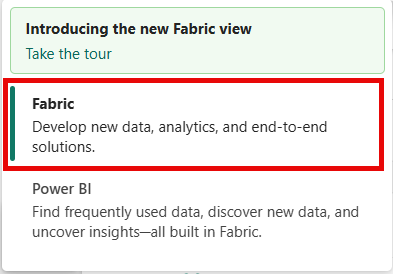
If you see Power BI at the bottom-left of the page, switch to the Fabric workload by selecting Power BI and then by selecting Fabric.
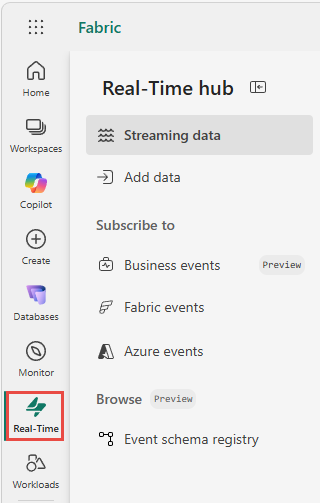
Select Real-Time on the left navigation bar.
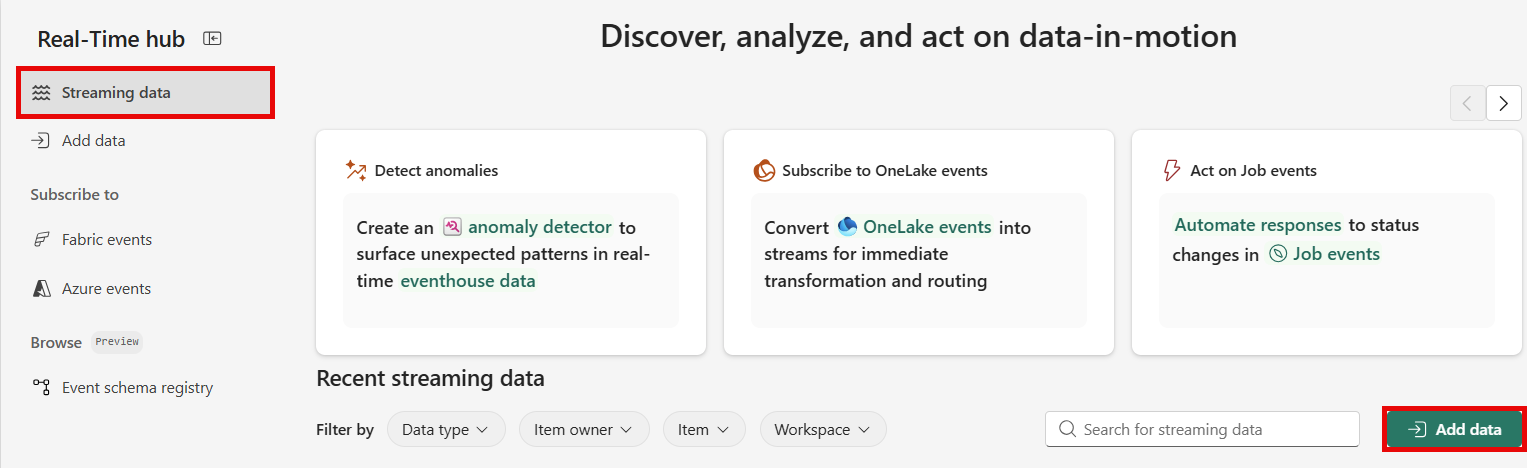
The Streaming data page opens by default. Click on the Add data button to get to the Add data page.
You can also get to the Add data page directly by selecting the Add data option in the left navigation bar.
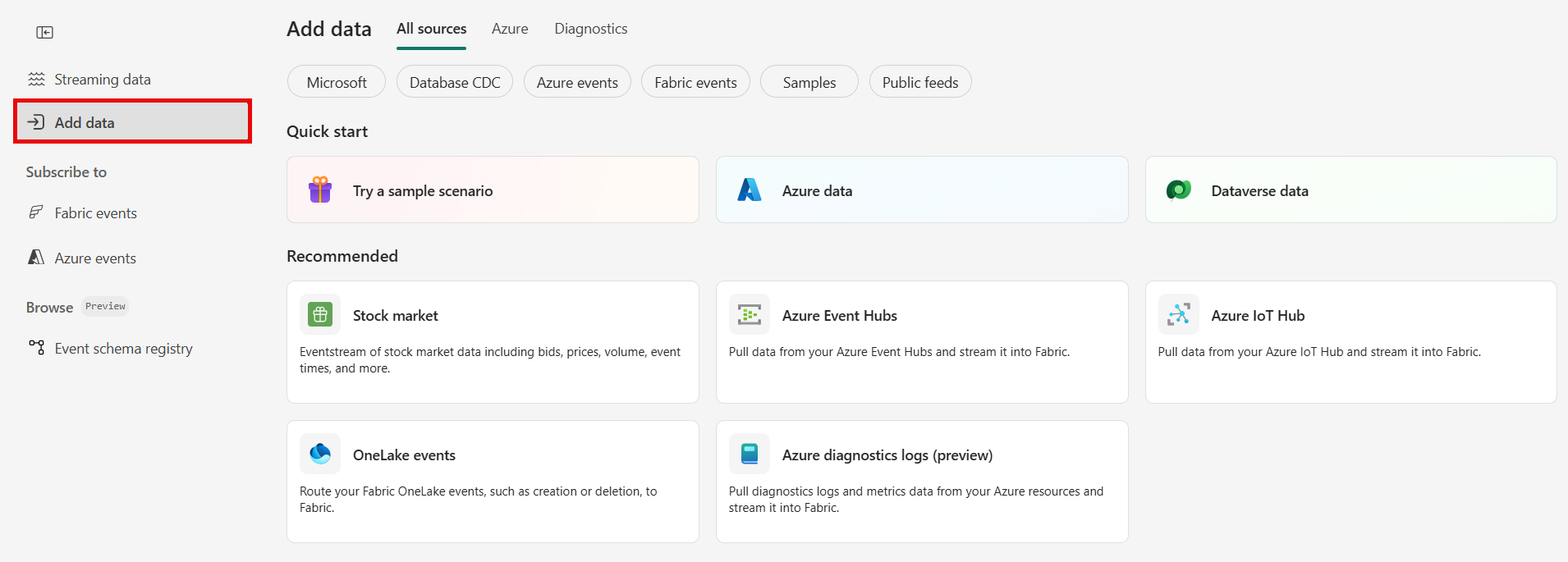
On the Add data page, you can connect to an Azure Service Bus queue or a topic subscription using the All sources tab or the Azure tab (recommended). This article covers both ways to connect to an Azure Service Bus resource.
Use the Azure tab to connect to a Service Bus resource (recommended)
On the Add data page, switch to the Azure tab.
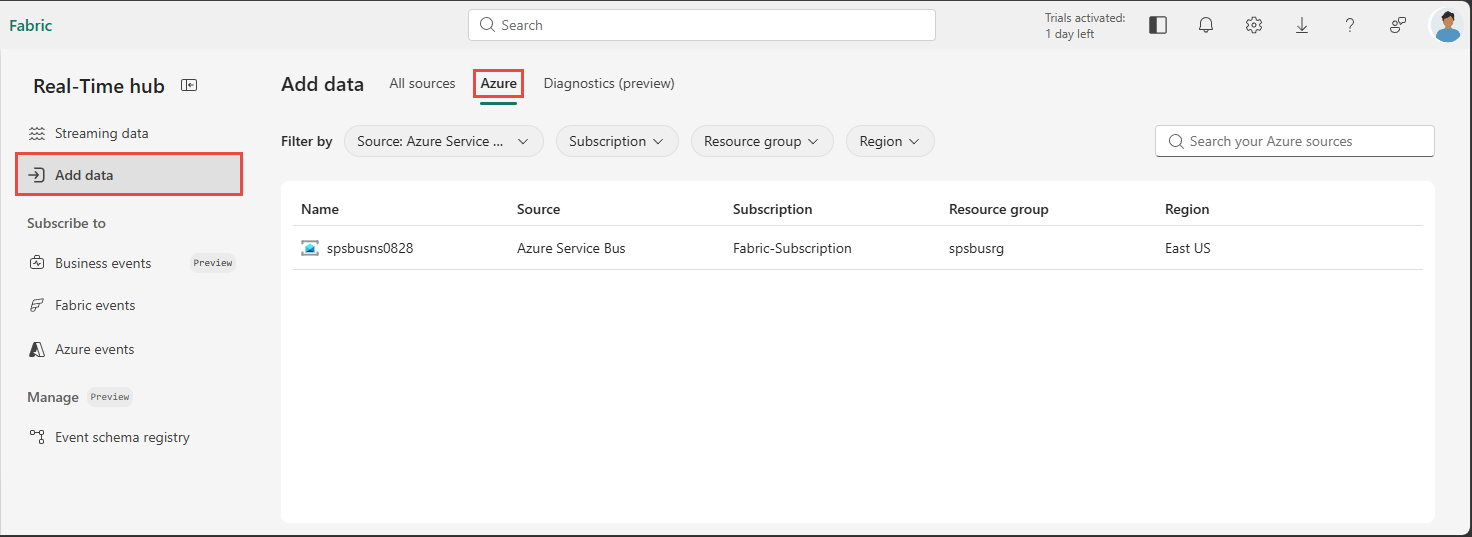
Hover the mouse over your Azure Service Bus namespace in the list, and select the Connect button that appears. Alternatively, select ... and then Connect from the dropdown menu.
Use the search bar to quickly find your Service Bus namespace if you have many Azure resources. Or, use filters to filter the list by source type (Azure Service Bus namespace), subscription, resource group, or region.
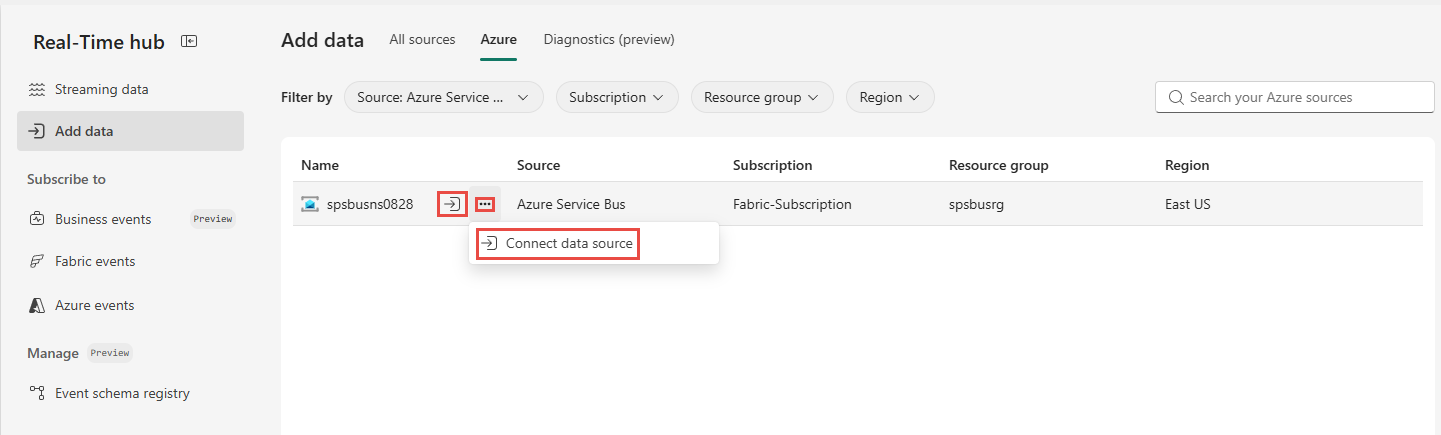
Configure the Service Bus source
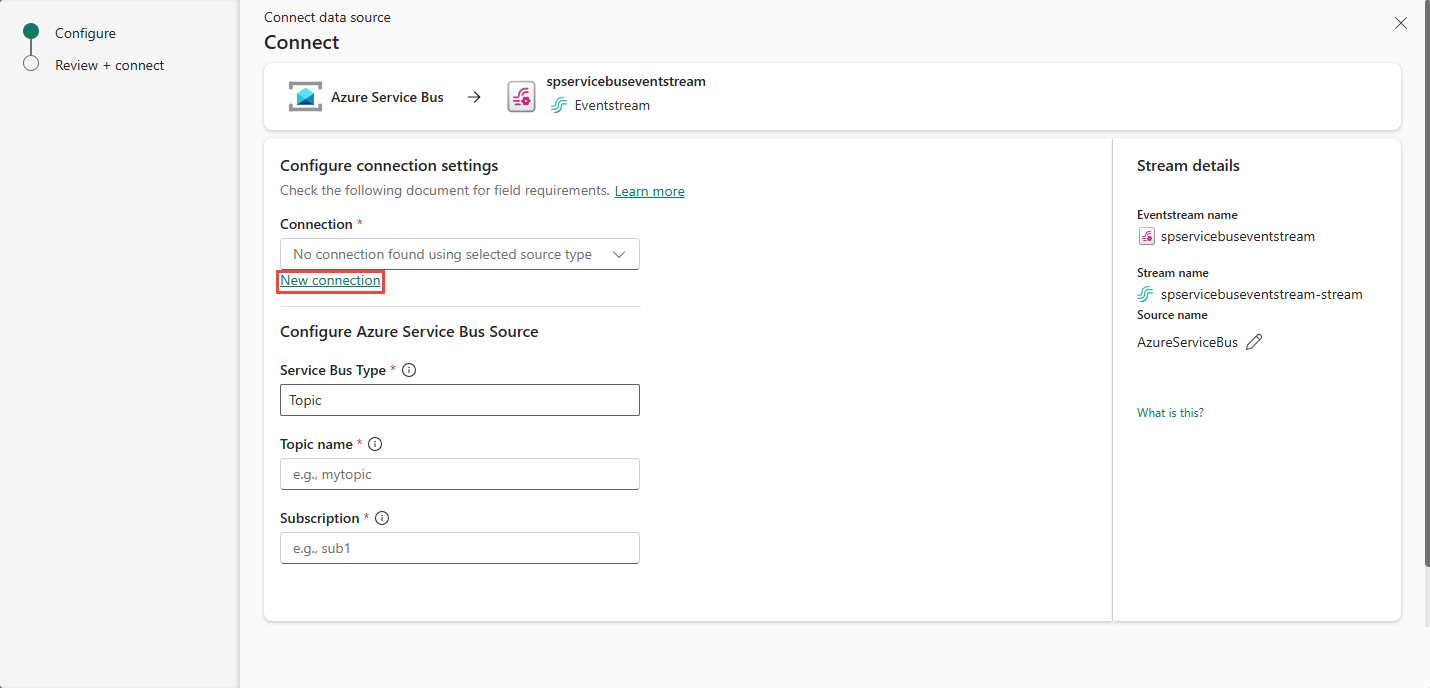
On the Connect page, select New connection.
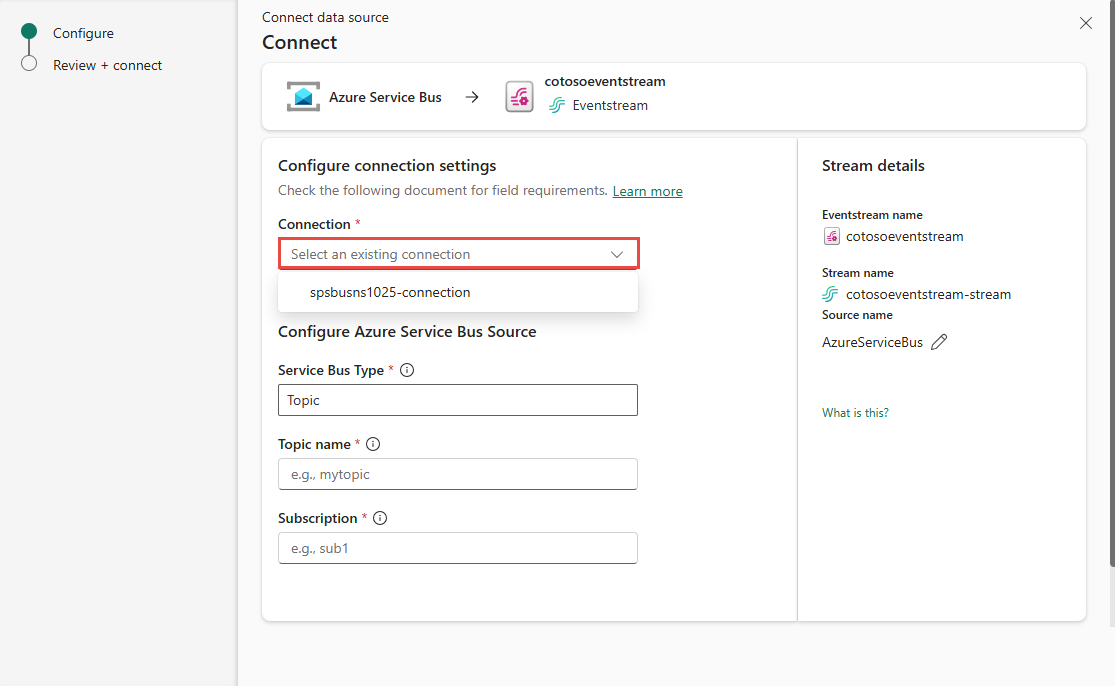
If there's an existing connection to your Azure Service Bus resource, select that existing connection, and then move on to configuring Service Bus Type in the following steps.
In the Connection settings section, for Host Name, enter the host name for your service bus. You can get the name from the Overview page of your Service Bus namespace. It's in the form of
NAMESPACENAME.servicebus.windows.net.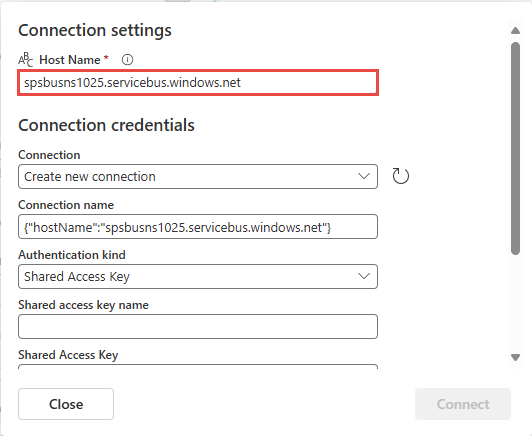
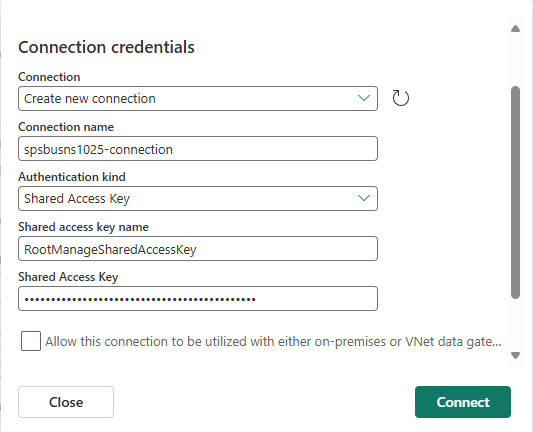
In the Connection credentials section, follow these steps:
For Connection name, enter a name for the connection to the Service Bus queue or topic.
For Authentication kind, confirm that Shared Access Key is selected.
For Shared access key name, enter the name of the shared access key.
For Shared Access Key, enter the value of the shared access key.
To get the access key's name and value, follow these steps:
- In the Azure portal, go to the page for your Service Bus namespace.
- On the left menu, select Shared access policies.
- Select the access key from the list. Note the name of the access key.
- Select the copy button next to the Primary key value.
Select Connect.
In the Configure Azure Service Bus Source section, follow these steps:
For Service Bus Type, select Topic (default) or Queue.
If you selected Topic:
- For Topic name, enter the name of the topic.
- For Subscription, enter the name of the subscription to that topic.
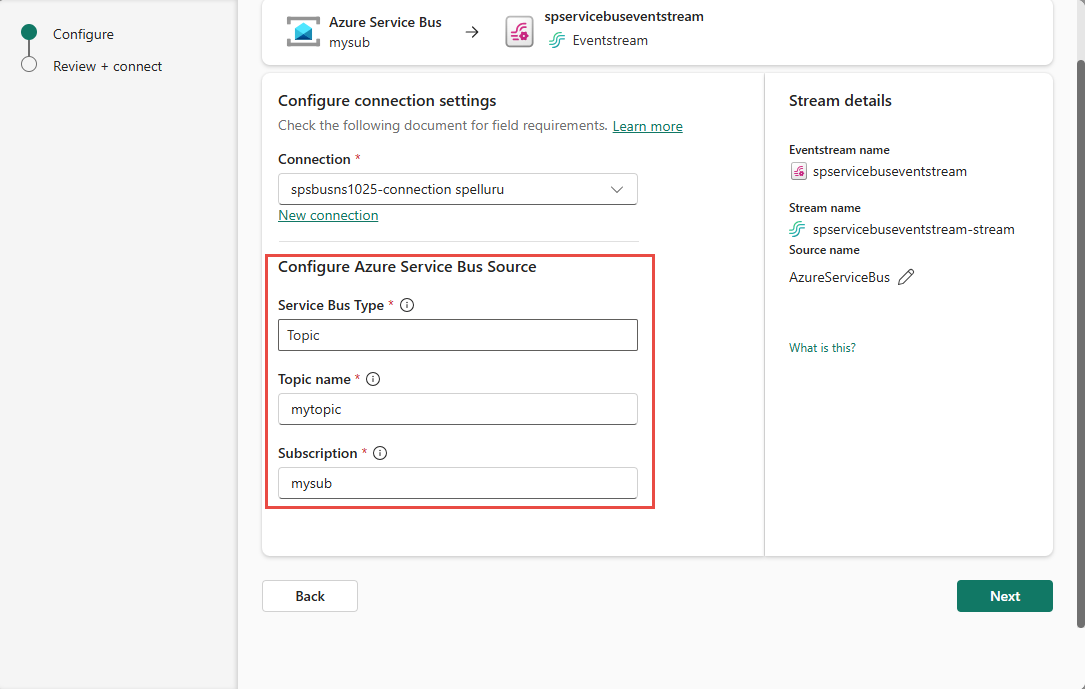
If you selected Queue, enter the name of the queue.
Stream or source details
On the Connect page, follow one of these steps based on whether you're using Eventstream or Real-Time hub.
Eventstream:
In the Source details pane to the right, follow these steps:
For Source name, select the Pencil button to change the name.
Notice that Eventstream name and Stream name are read-only.
Real-Time hub:
In the Stream details section to the right, follow these steps:
Select the Fabric workspace where you want to create the eventstream.
For Eventstream name, select the Pencil button, and enter a name for the eventstream.
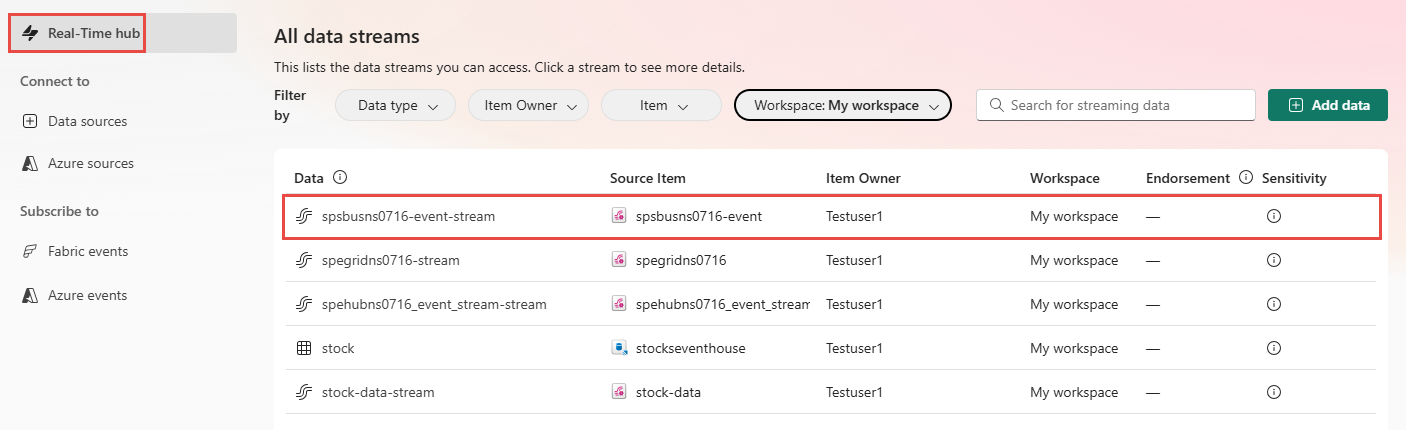
The Stream name value is automatically generated for you by appending -stream to the name of the eventstream. This stream appears on the real-time hub's All data streams page when the wizard finishes.
Select Next at the bottom of the Configure page.
Review and connect
On the Review + connect screen, review the summary, and select Add (Eventstream) or Connect (Real-Time hub).
View data stream details
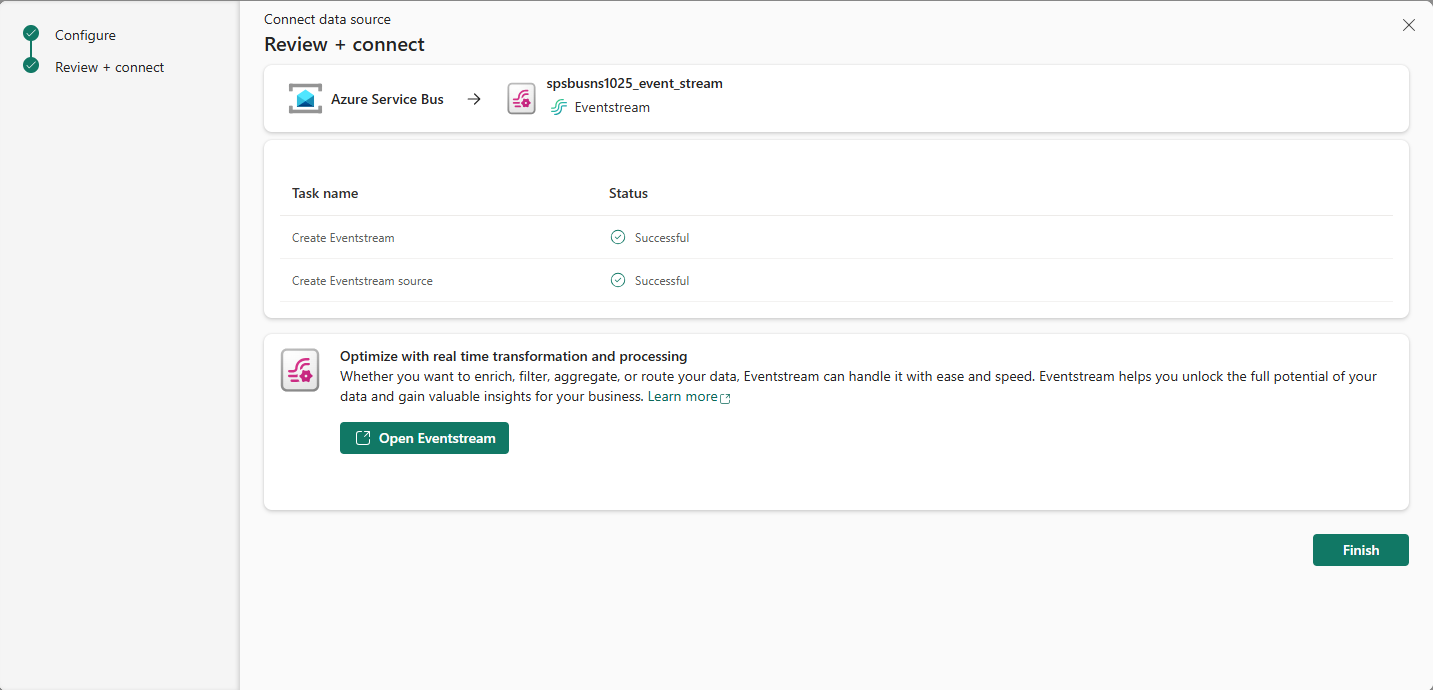
On Review + connect, select Open eventstream. The wizard opens the event stream it created for you with the selected Service Bus resource as a source. To close the wizard, select Finish at the bottom of the page.
You see the stream in the Recent streaming data section of the Real-Time hub home page. For detailed steps, see View details of data streams in Fabric Real-Time hub.
Use All sources tab to connect to a Service Bus resource
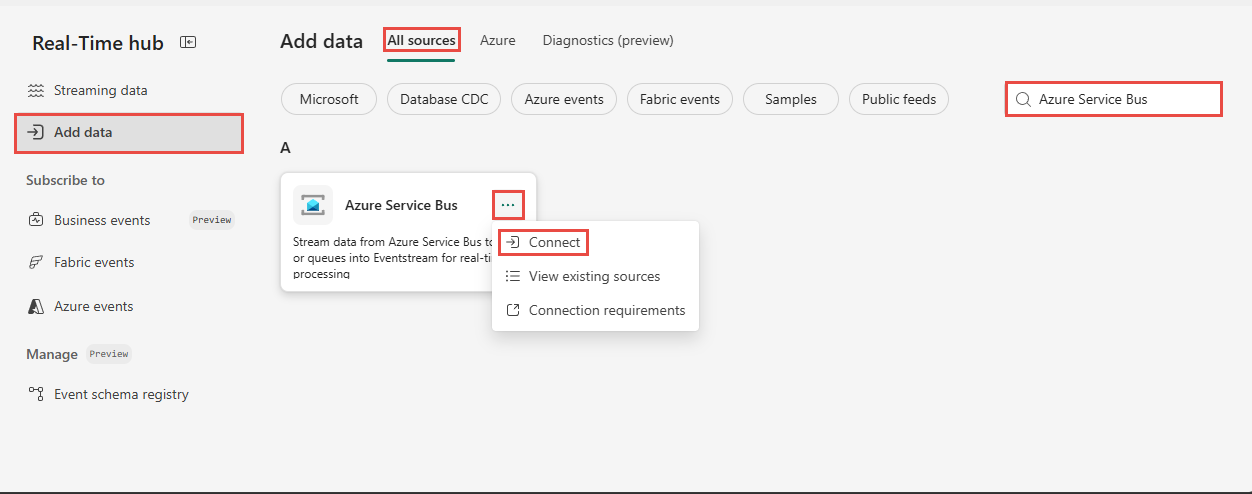
On the Add data page, switch to the All sources tab, if you aren't already on the tab.
Scroll to find Azure Service Bus or search for Azure Service Bus in the search bar.
Hover the mouse over the Azure Service Bus tile, and select the Connect button that appears. Alternatively, select ... and then Connect from the dropdown menu.
Follow instructions in the Configure the Service Bus source section to configure the Service Bus source.
Note
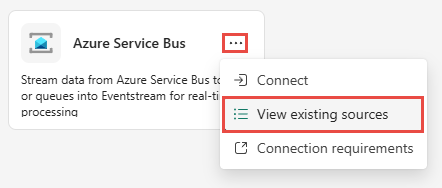
If you select View existing sources, you see the list of Service Bus namespaces. Use instructions from the Use the Azure tab to connect to a Service Bus resource (recommended) section to connect to a Service Bus resource.
Related content
To learn about consuming data streams, see the following articles: