Bilješka
Pristup ovoj stranici zahtijeva provjeru vjerodostojnosti. Možete pokušati da se prijavite ili promijenite direktorije.
Pristup ovoj stranici zahtijeva provjeru vjerodostojnosti. Možete pokušati promijeniti direktorije.
As organizations scale their usage of Microsoft Fabric, maintaining healthy capacities becomes increasingly important. With Capacity Overview Events in the Real-Time Hub, administrators can monitor capacity behavior in real time and take action when conditions require attention.
In this tutorial, you create an automated workflow that sends an Outlook email alert when your capacity approaches throttling conditions.
Prerequisites
You must have access to an existing non-trial Fabric capacity where you're assigned the Capacity Admin role.
Navigate to Real-Time hub
- Sign in to Microsoft Fabric.
- Select Real-Time on the left navigation bar.
Launch the Set alert page
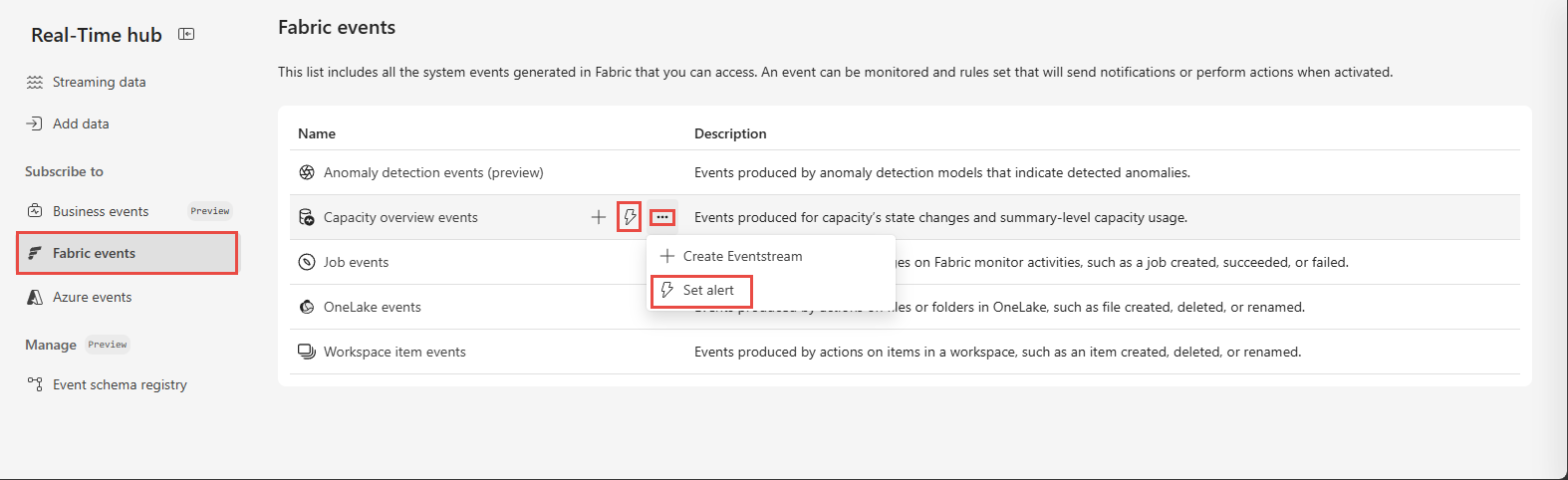
In Real-Time hub, select Fabric events.
Find Capacity Overview Events in the list.
Move the mouse over Capacity Overview Events, and select the Set alert button.
Configure the alert details
On the Add rule page, in the Details section, enter a name for the rule in the Rule name field. For example, Capacity Throttling Alert.
Configure the monitor section
- In the Monitor section, confirm that Capacity Overview Events is selected in the Source field.
- In the Connect data source wizard, complete these steps:
- For Event type(s), select
Microsoft.Fabric.Capacity.Summaryand keep the Event scope as By capacity. - Select the capacity you want to monitor.
- Select Next and then Save.
- For Event type(s), select
Configure the condition
In the Condition section, configure the following parameters:
- Check: On each event
- Grouping field:
capacityId - When:
backgroundRejectionThresholdPercentage - Condition: Increases to or above
- Value:
80 - Occurrence: Every time the condition is met
Note
The field backgroundRejectionThresholdPercentage is used in this example because it indicates when background operations are being rejected due to capacity pressure. Depending on your business need, you can also use interactiveDelayThresholdPercentage (indicates when interactive operations are being delayed) or interactiveRejectionThresholdPercentage (indicates when interactive operations are being rejected).
Note
The value 80 is used as an example in this tutorial. Adjust this threshold based on your operational policy and business requirements.
Configure the action
In the Action section, configure an email alert:
- For Select action, select Send email.
- For To, enter the email address of the capacity administrator or team responsible for monitoring.
- For Subject, enter a subject such as
Fabric Capacity Throttling Alert. - For Headline, enter a headline such as
Capacity threshold exceeded. - For Notes, type
Your Fabric capacity has exceeded the configured rejection threshold: @backgroundRejectionThresholdPercentage%.
Note
Type @backgroundRejectionThresholdPercentage instead of copying it so the variable can be populated properly. You can also use the @ button next to the text box to select from available properties.
Tip
In addition to email alerts, you can trigger automitigation logic by selecting Run function as the action and pointing to a user-defined function (UDF) that implements your mitigation workflow.
Save and start the alert
- In the Save location section, select the workspace where you want to create the activator item, or select an existing one. Enter a name for the activator item.
- Select Create at the bottom of the page to create the rule.
Your real-time alerting workflow is now active.
Observe the alert
Once the rule is created and started, it automatically listens for Capacity Overview Events from the selected capacity. When an event arrives where the backgroundRejectionThresholdPercentage increases to or above the threshold you configured, the activator sends an email alert to the specified recipients.