Bilješka
Pristup ovoj stranici zahtijeva provjeru vjerodostojnosti. Možete pokušati da se prijavite ili promijenite direktorije.
Pristup ovoj stranici zahtijeva provjeru vjerodostojnosti. Možete pokušati promijeniti direktorije.
Reference data is a static or slowly changing dataset that you use to look up values and add context to your real-time events. This article shows you how to join a data stream with a reference data source in the event processing editor so that each event carries the extra context it needs before it reaches a destination.
For example, a stream of sensor readings might contain only a deviceId along with device telemetry data. By joining that stream with a reference table of device metadata, you can add the device details such as name, location, manufacturer, installation date, and more to every event without changing the event source.
How reference data join works
A reference data join combines two inputs:
- The data stream: The live events that flow through your eventstream from a source.
- The reference data: A bounded dataset that changes infrequently, such as a product catalog, a device registry, or a lookup table of region codes.
Using reference data join setup, Eventstream matches each incoming event against the reference data by using a join condition that you define. When the condition matches, the operator adds the selected reference fields to the event.
Reference data stored in Lakehouse Delta tables
Eventstream uses Delta tables stored in Microsoft Fabric Lakehouse as the reference dataset.
You can create these tables in two ways:
Option 1: Native Lakehouse Tables
Create reference data directly in a Fabric Lakehouse.
Organizations commonly maintain these tables through:
- Data pipelines
- Dataflows
- Notebooks
- Spark jobs
- Manual updates
Option 2: Shortcut-Based Tables
Create a shortcut in Lakehouse to add any one lake delta table as a reference data source in Eventstream. You can also use files present in Lakehouse as a reference data source by using the Lakehouse load to tables functionality.
Optionally, set up the reference data to refresh on a schedule so that changes to the underlying table appear in the join. Choose a refresh interval that balances freshness against cost for your scenario. Learn more about Shortcuts in a lakehouse.
Prerequisites
- Access to a workspace in the Microsoft Fabric capacity license mode or the trial license mode with Contributor or higher permissions.
- An eventstream with enhanced capabilities that has at least one source and one destination.
- A lakehouse or warehouse table that holds the reference data you want to join.
Add reference data source to an event stream
Before you can join a stream with reference data, add the reference data as an input:
Open your event stream and select Edit on the ribbon to enter Edit mode.
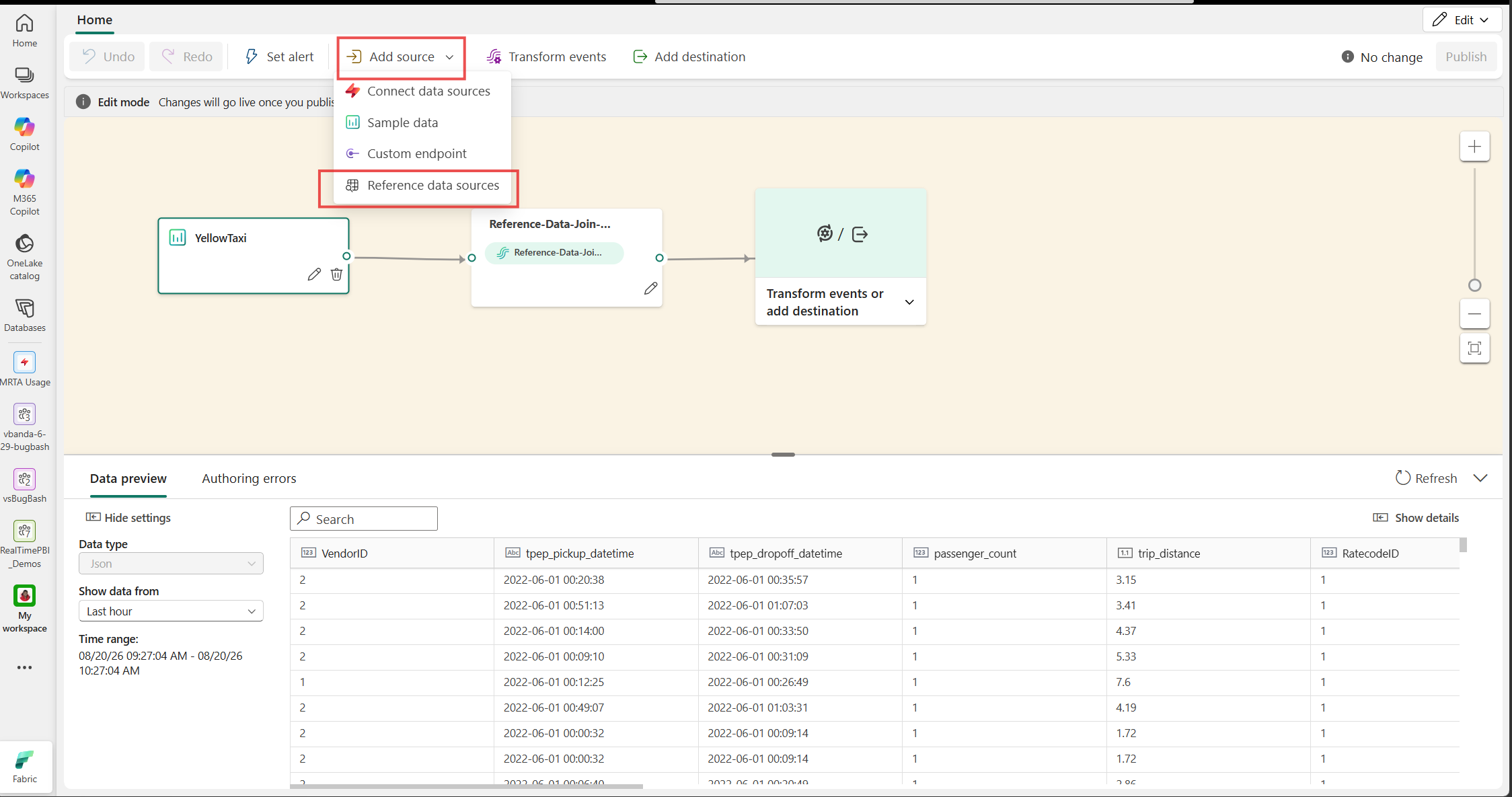
On the ribbon, select Add source > Reference data sources.
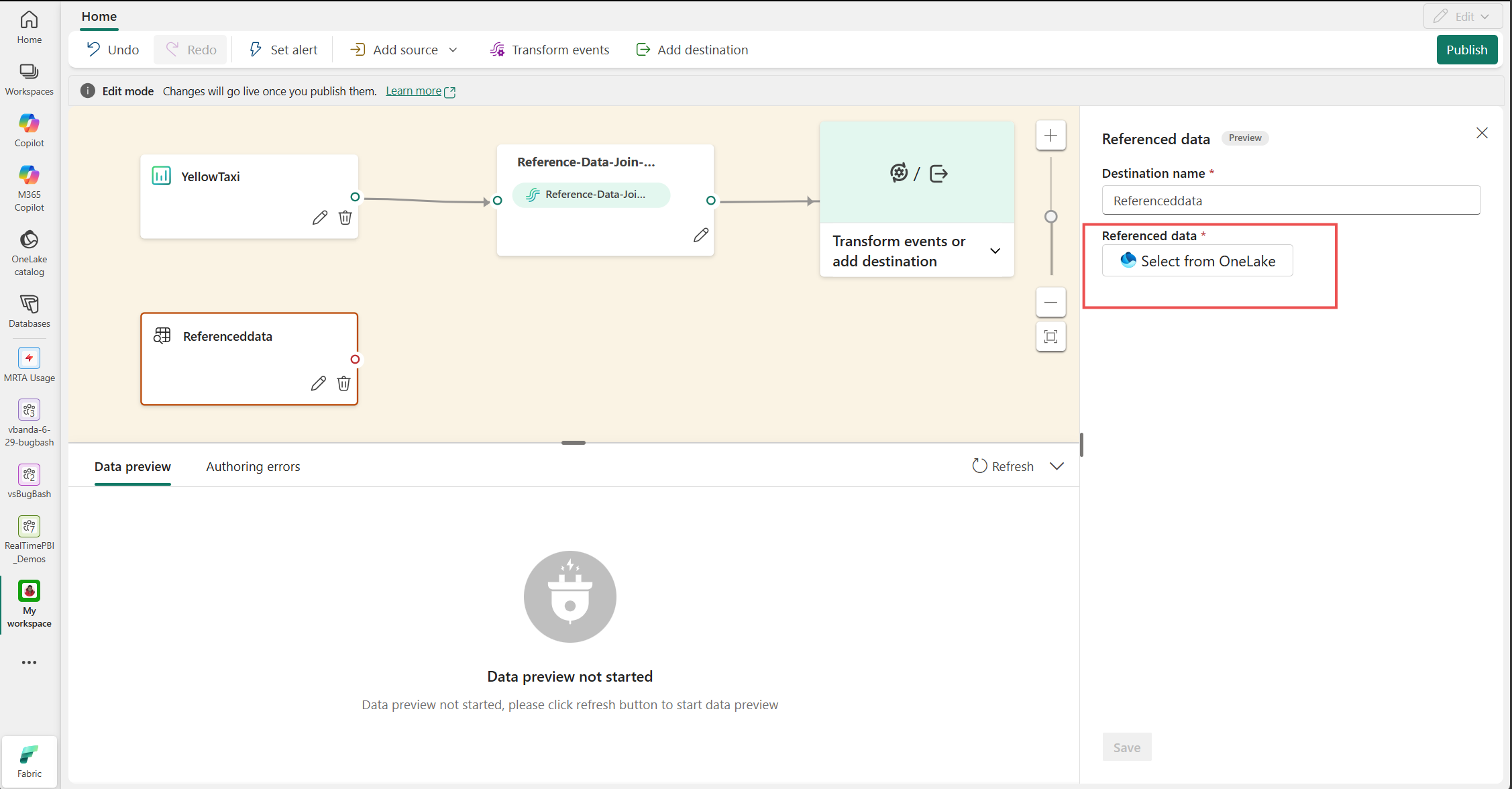
Enter a name for the reference data source node, and then select Select from OneLake.
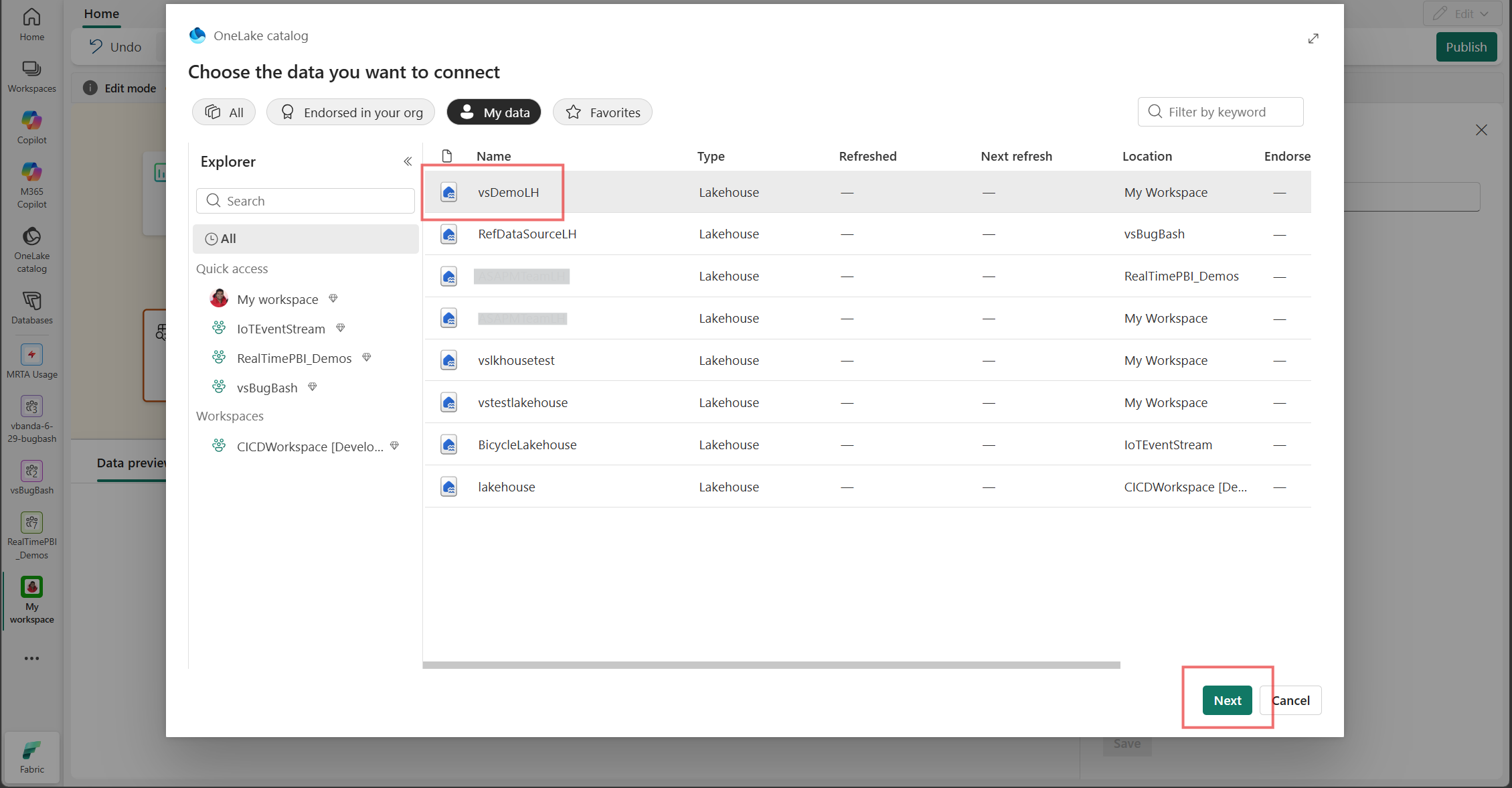
In the OneLake catalog, select the lakehouse that contains the reference data, and then select Next.
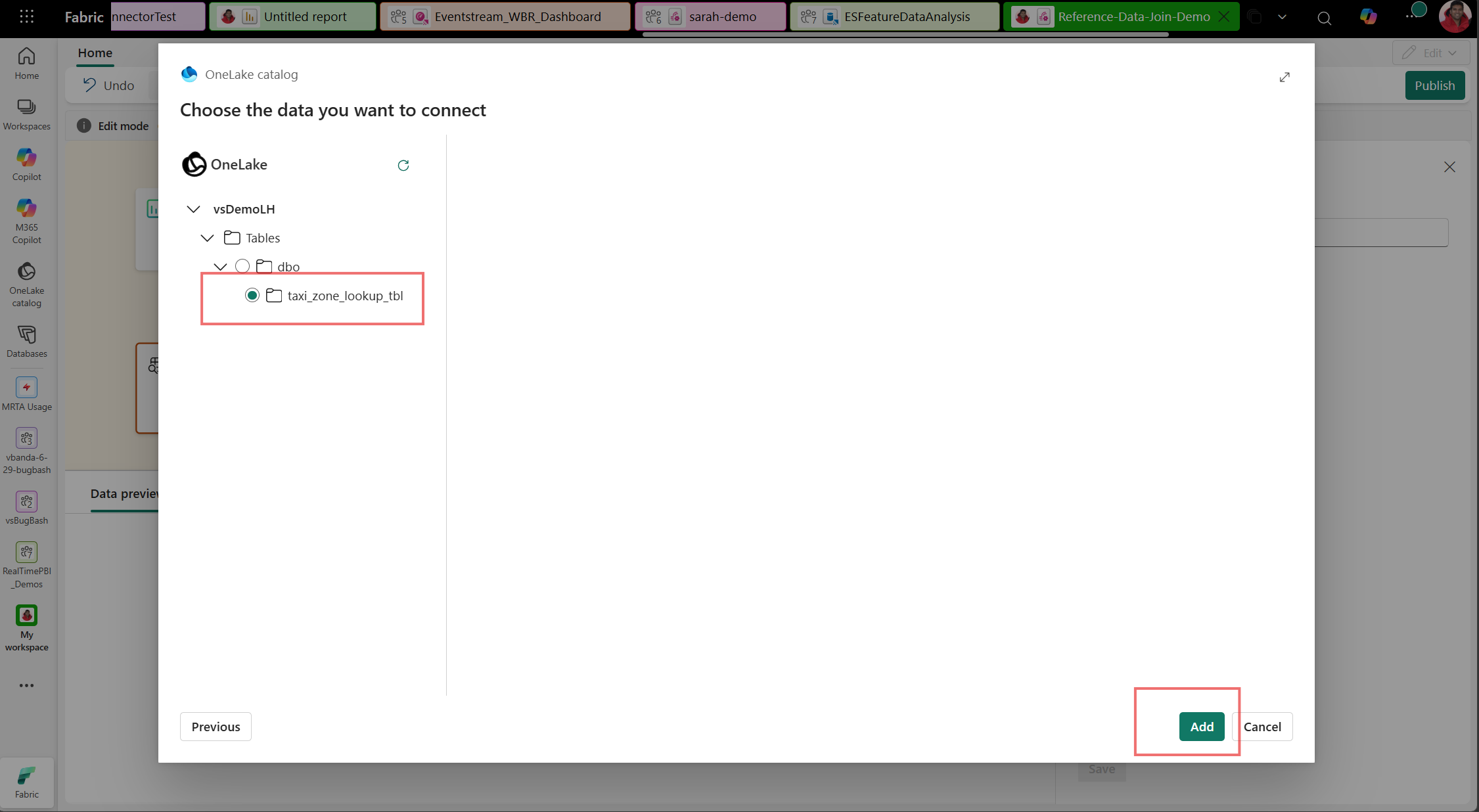
Expand Tables, select the Delta table that contains the reference data, and then select Add.
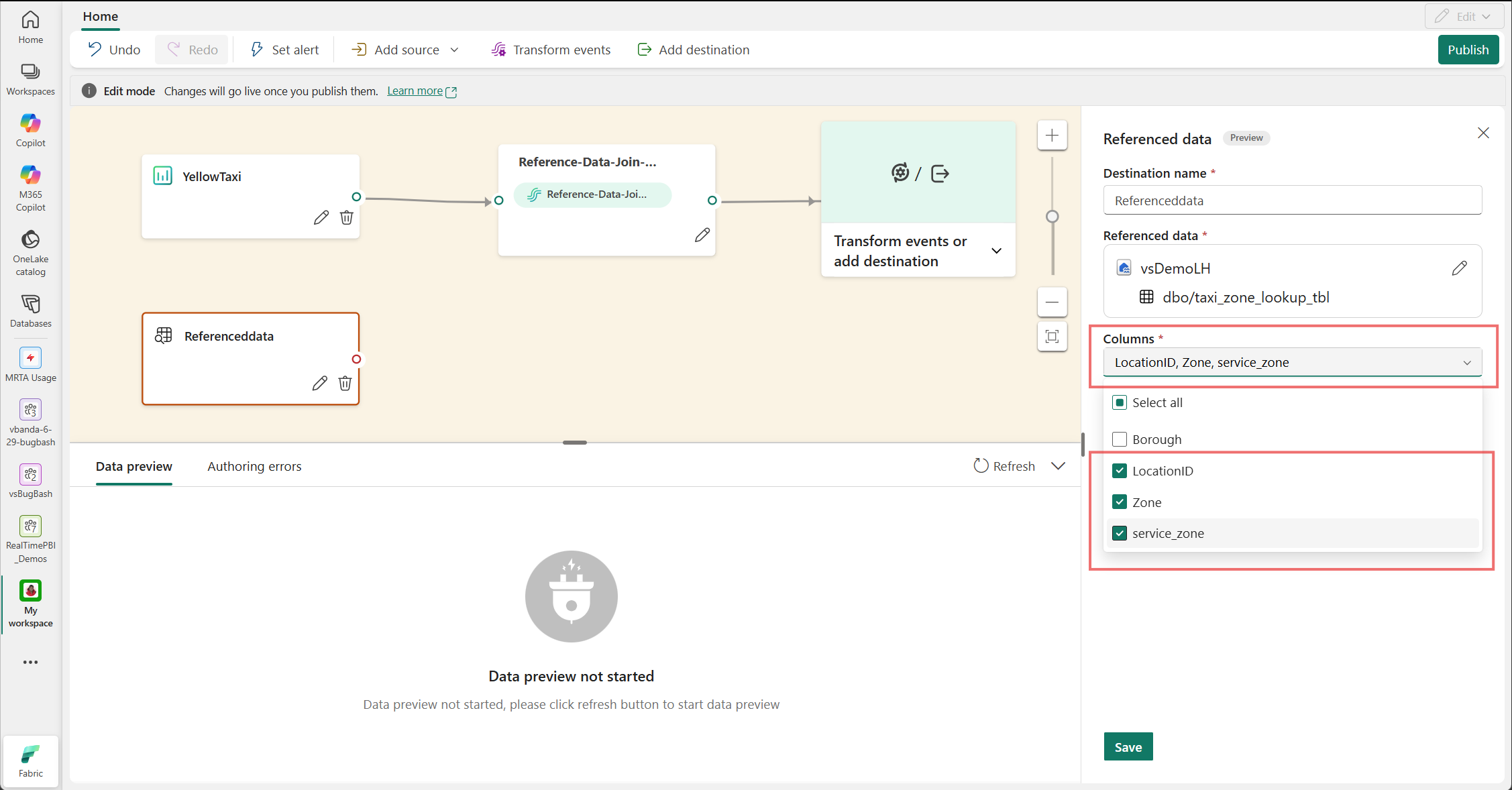
Under Columns, select the columns to include in the reference data source.
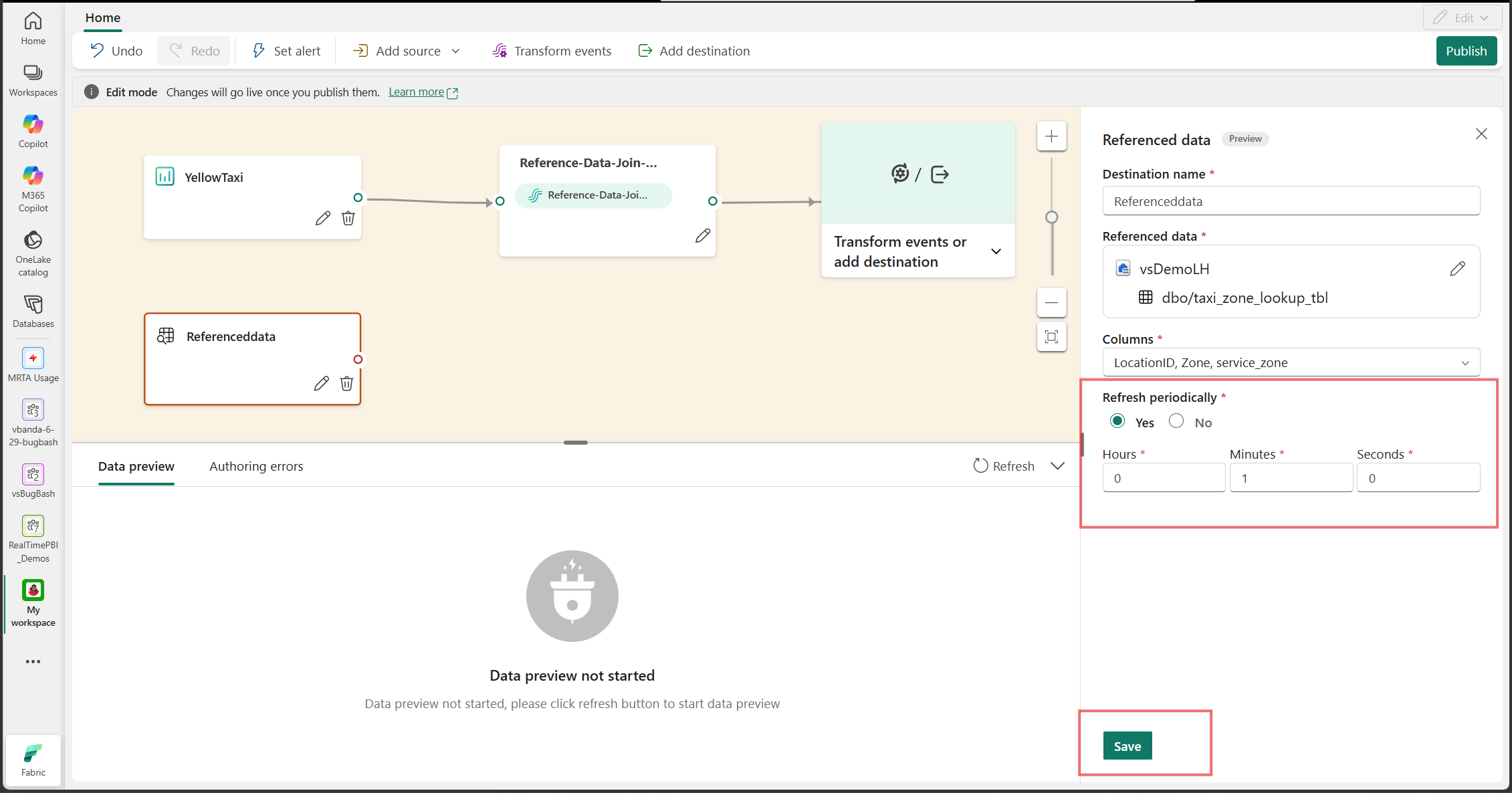
To reload the reference data on a schedule, select Yes under Refresh periodically, and then enter the refresh interval.
Select Save to add the reference data source to the canvas.
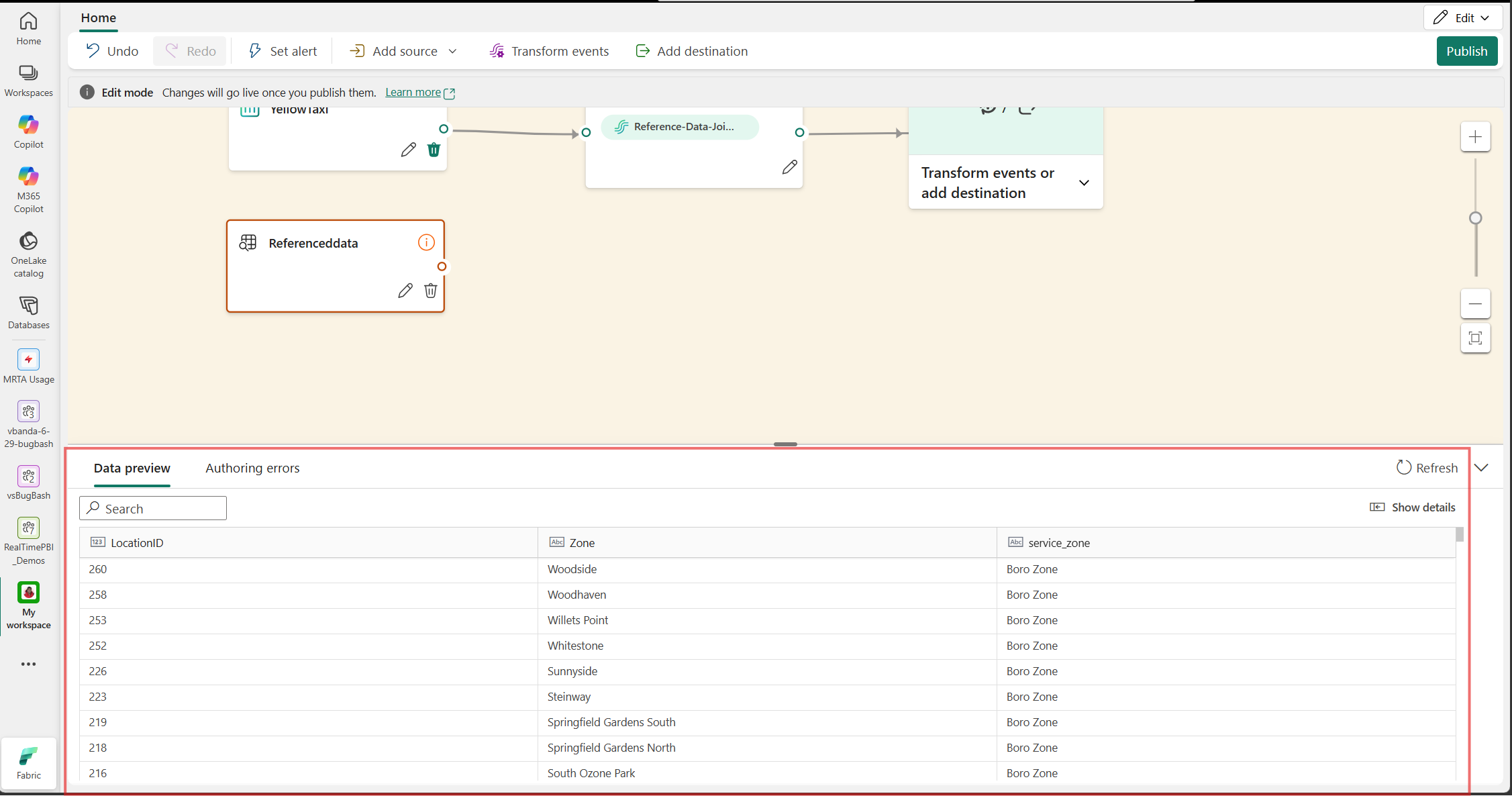
Select the reference data source on the canvas, and then select Refresh in the Data preview pane to verify the data.
Join a data stream with reference data
After you add the reference data, use the Join operator to enrich your stream:
In Edit mode, select the output connector on the reference data source, and then select Transform events.
In the Transform events pane, under No code operators, select Configure for Join.
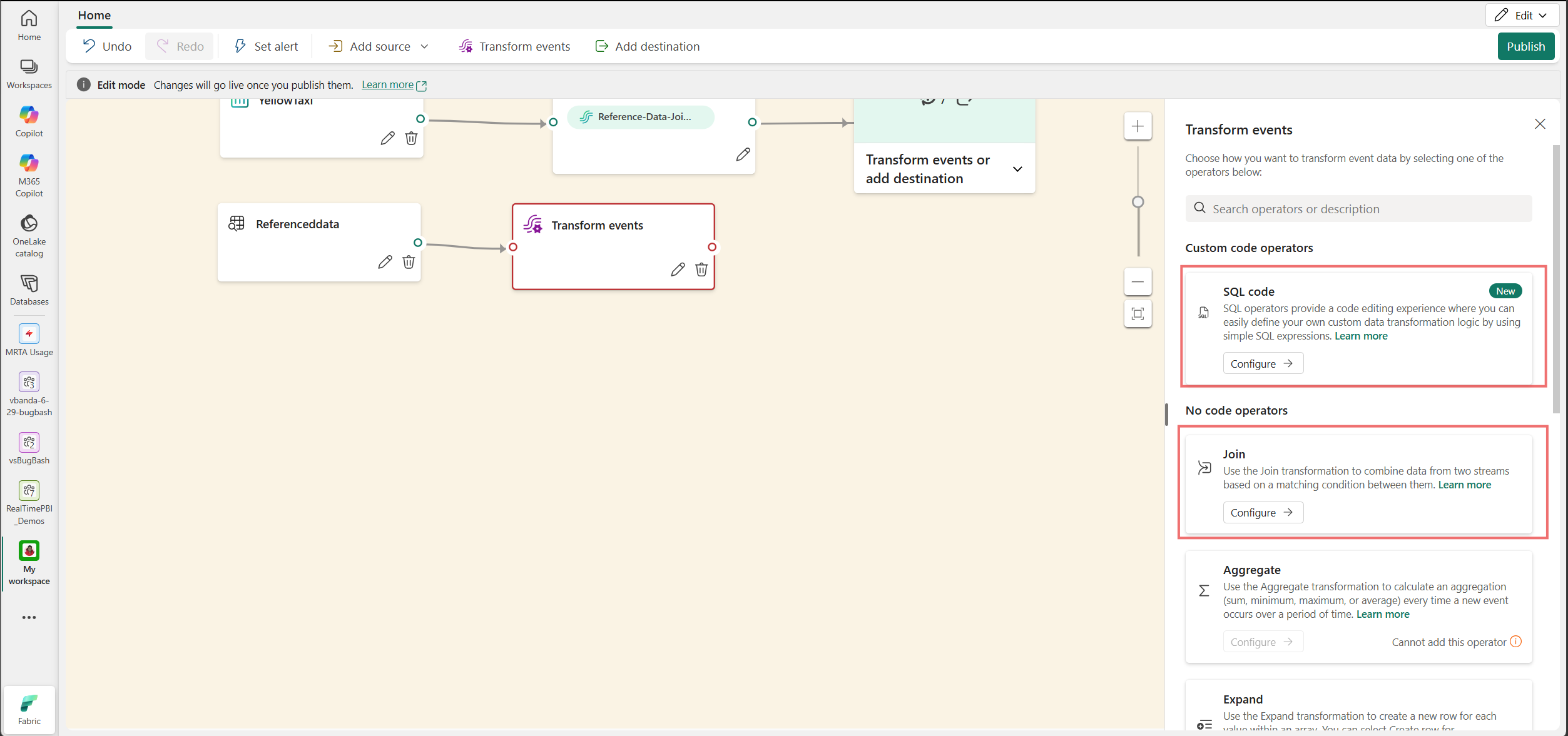
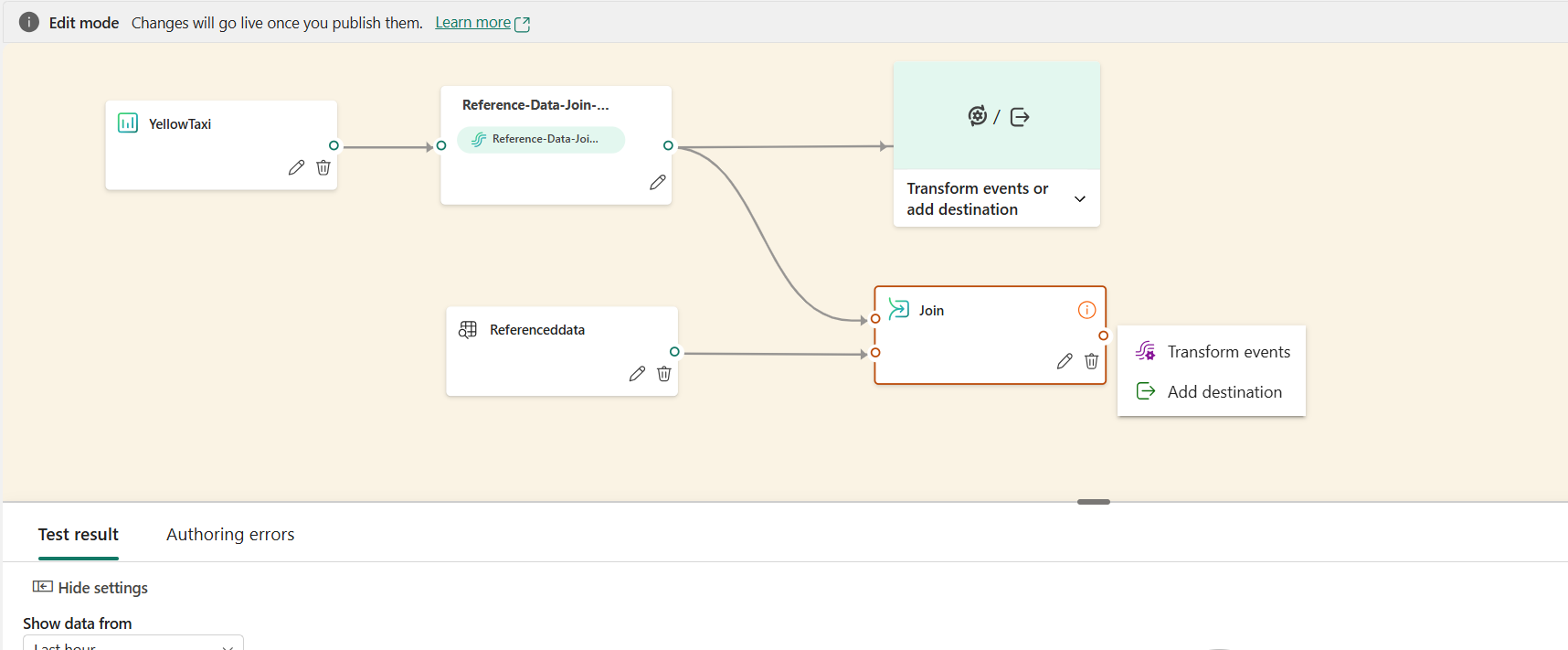
Connect the event stream and the reference data source to the Join operator. The event stream must be the left input, and the reference data source must be the right input.
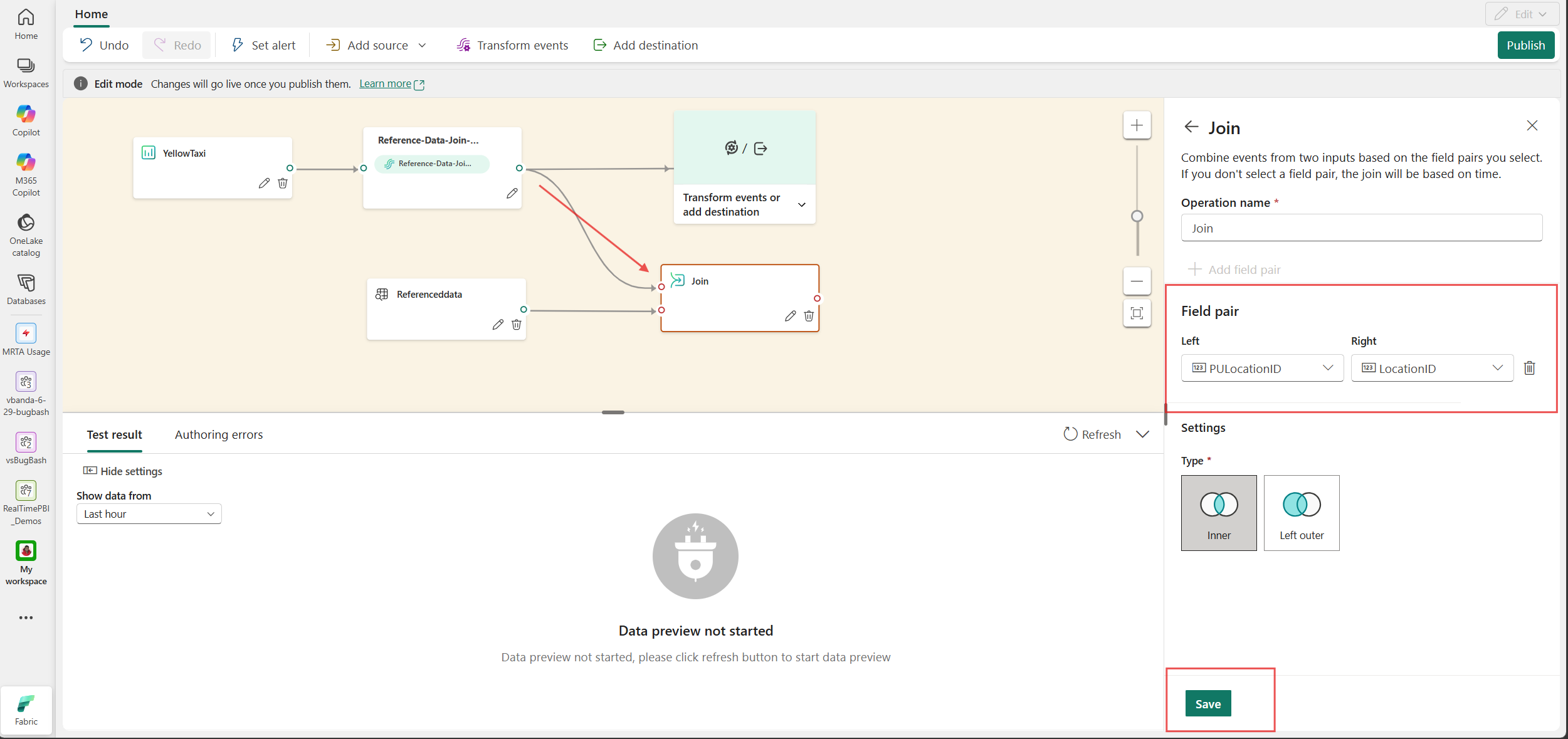
In the Join pane, add a field pair that matches a field from the event stream to a column from the reference data, such as
PULocationIDandLocationID.Select the join Type that fits your scenario:
- Inner: Returns only events that have a matching row in the reference data.
- Left outer: Returns every event, with reference fields left empty when there's no match.
Select Save to apply the operator.
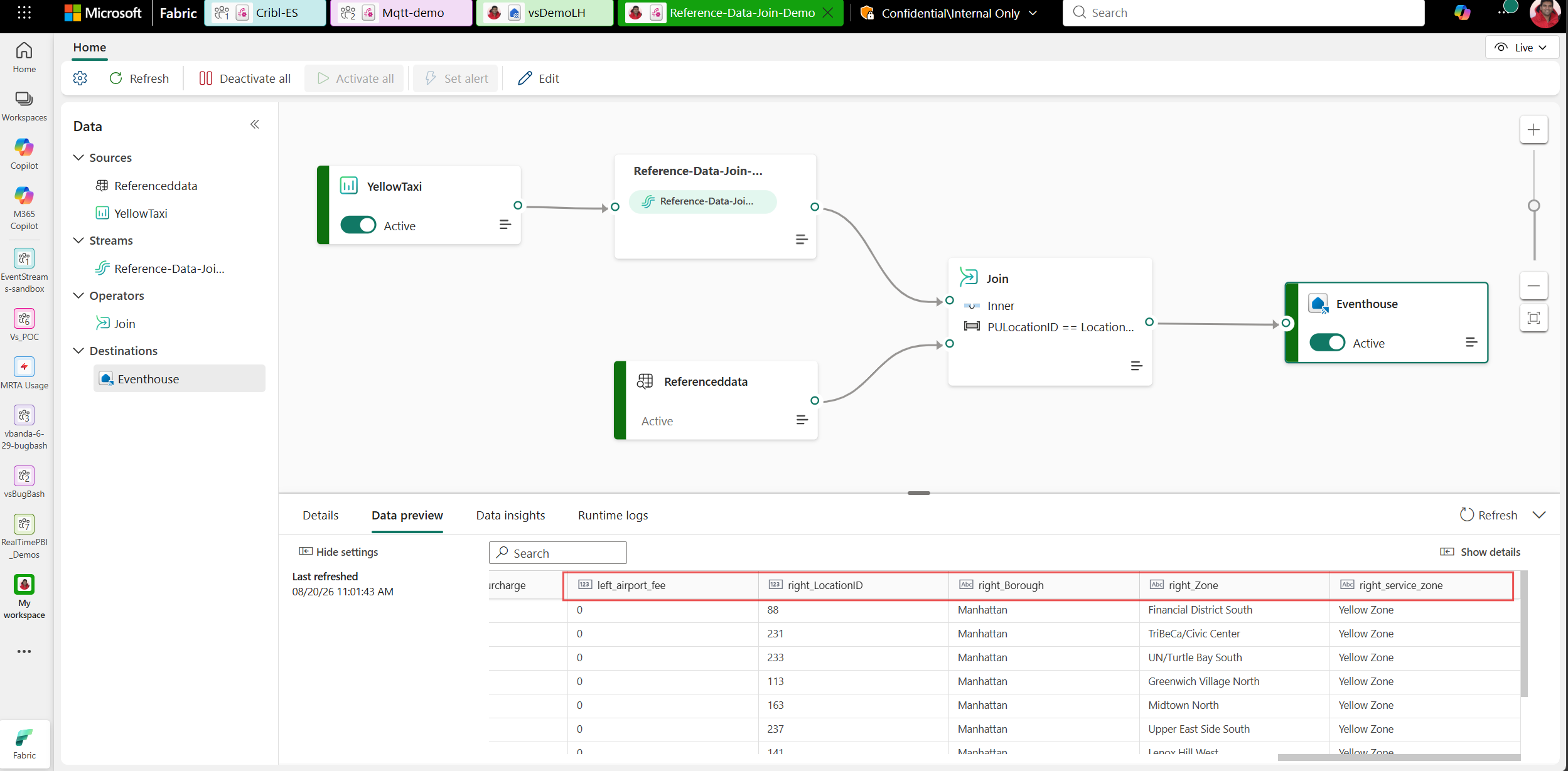
The output schema now includes the enriched fields. You can add more operators after the join or connect the join directly to a destination.
Reference data join using SQL operator
You can also use the SQL operator in the event processing editor to join a data stream with reference data. This approach provides more flexibility for complex join logic and transformations.
Set up a SQL node for reference data join
To create a reference data join using SQL:
In Edit mode, select Add source > Reference data sources to add your reference data.
On the ribbon, select Transform Events > SQL.
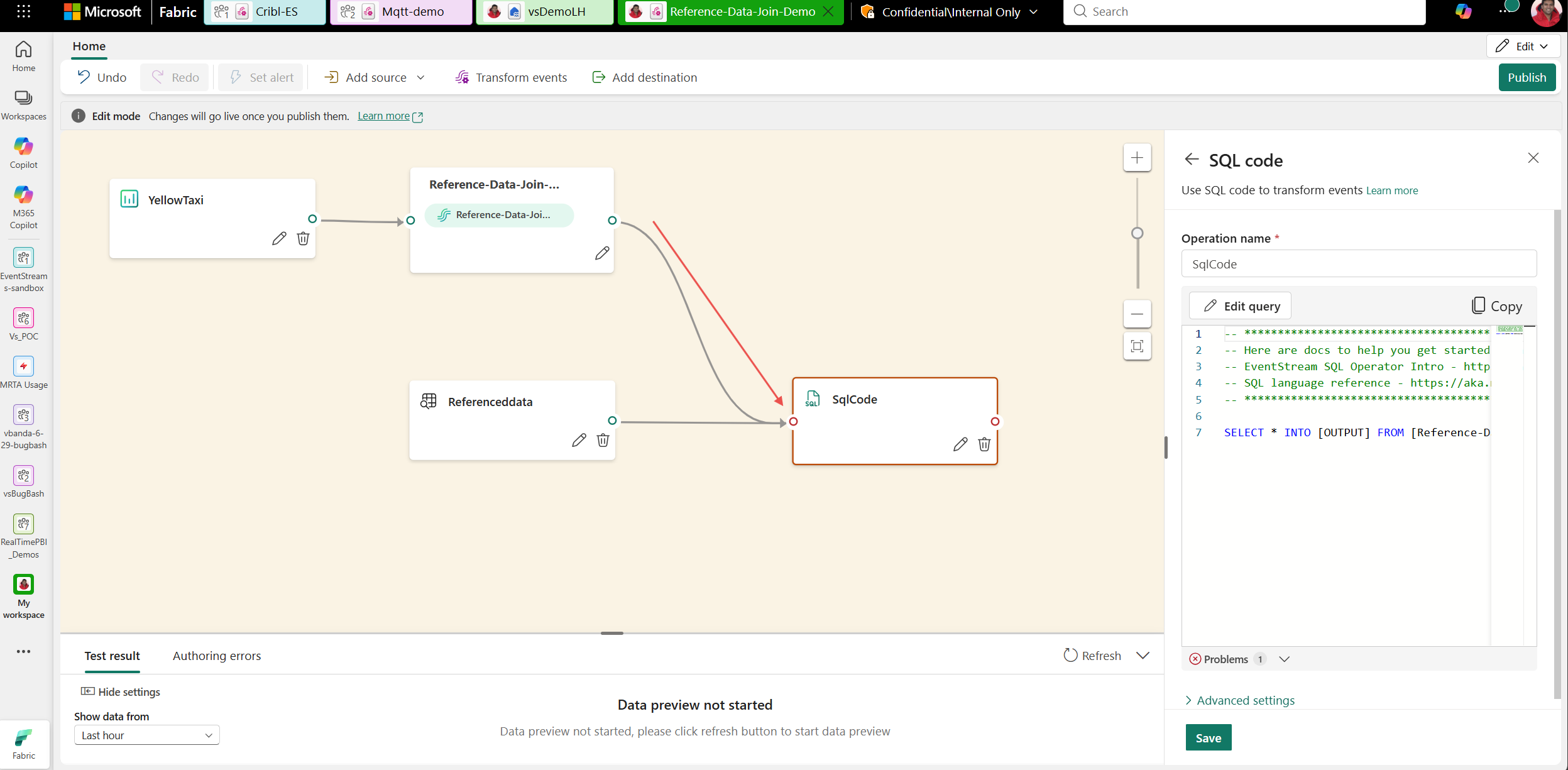
Connect the event stream node and the reference data source to the SQL operator.
Author a SQL join query
Select the SQL operator node and select Edit Query to enter SQL editor authoring view.
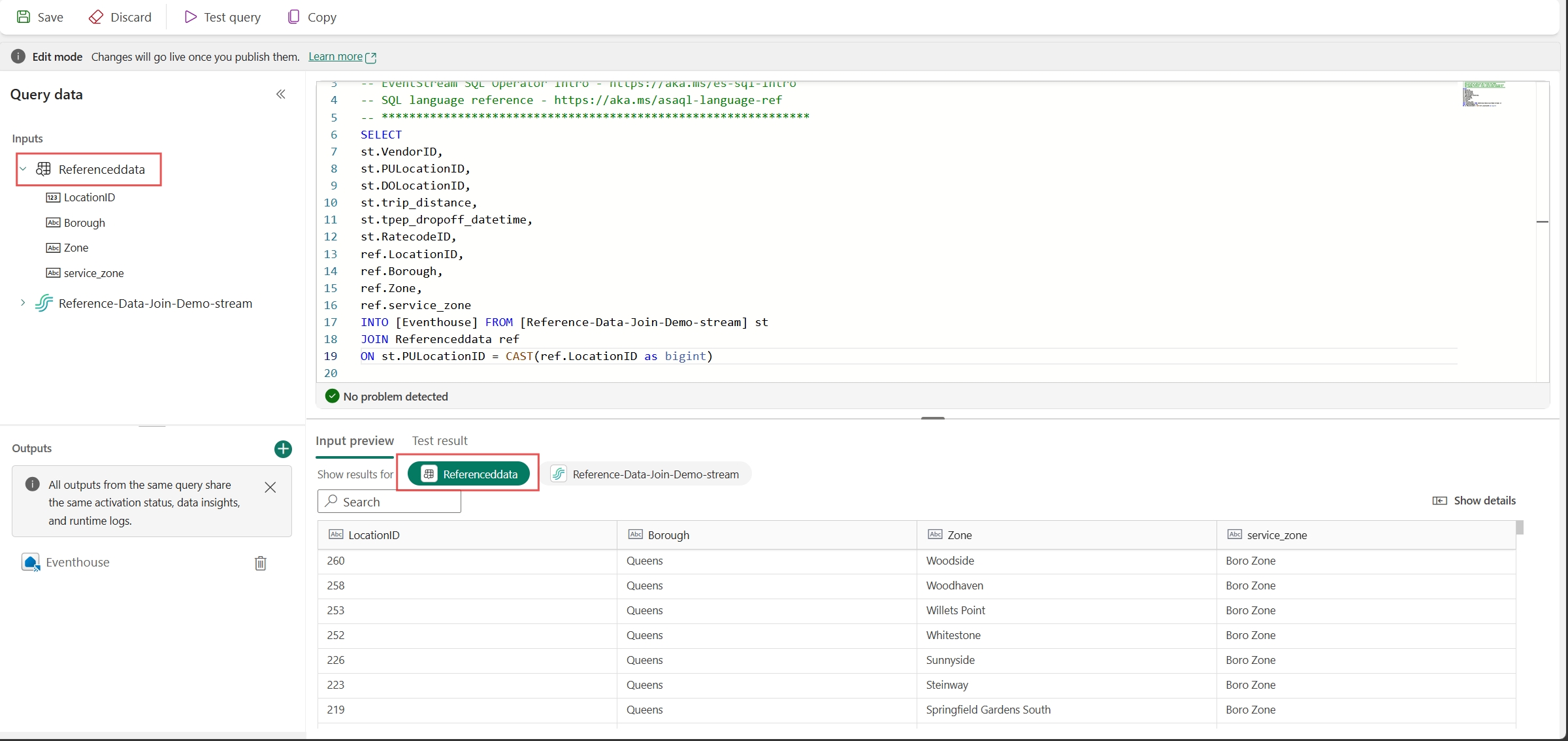
In the SQL editor, you can see both the streaming source and the reference source in the left data explorer panel. Write a SQL query that joins the two inputs. You can also preview reference data under Input Preview by selecting the reference data tab. Select Test query from the ribbon to validate the result under Test result.
The SQL operator supports filtering, transforming, and enriching your events with reference data columns.
After you author your query, select Save to apply the SQL operator.
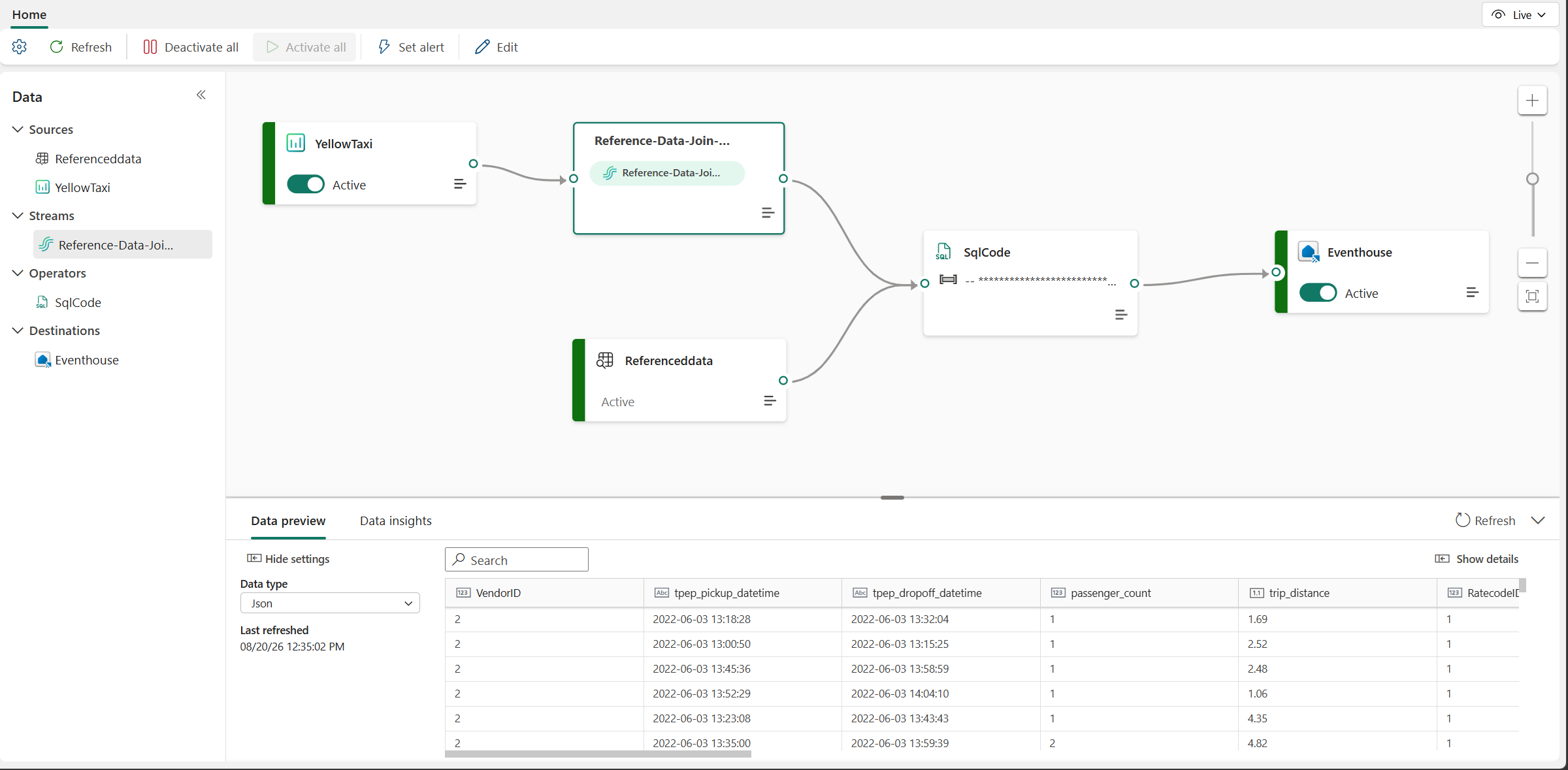
The output schema now includes the enriched fields from your reference data. Complete the destination setup and publish the topology. You can add more than one reference data source by adding a new reference data source and connecting the node to the SQL Operator input.
Considerations and limitations
- EventStream doesn't support Delta tables with Delta Lake column mapping enabled (delta.columnMapping.mode) as reference data sources. If your Delta table has the delta.columnMapping.mode table property configured, create a new Delta table without column mapping and use that table as the reference data source.
- EventStream doesn't support Delta tables with deletion vectors as reference data sources.
- Choose a refresh interval that reflects how often the reference table changes. A shorter interval increases freshness but consumes more resources.
- Make sure the join keys use compatible data types on both inputs.