Bilješka
Pristup ovoj stranici zahtijeva provjeru vjerodostojnosti. Možete pokušati da se prijavite ili promijenite direktorije.
Pristup ovoj stranici zahtijeva provjeru vjerodostojnosti. Možete pokušati promijeniti direktorije.
Use the following procedures to connect to your Microsoft 365 Government Community Cloud (GCC) tenant data by using the Microsoft 365 Usage Analytics report in Power BI Desktop.
Note
These instructions are specifically for Microsoft 365 GCC tenants and aren't applicable to GCC High and DOD.
Before you begin
To initially configure Microsoft 365 Usage Analytics:
- You must be a Microsoft 365 Global Administrator to enable data collection.
Important
Microsoft recommends that you use roles with the fewest permissions. Using roles with the fewest permissions helps improve security for your organization. Global Administrator is a highly privileged role that should be limited to emergency scenarios when you can't use an existing role. For more information, see About administrator roles in the Microsoft 365 admin center.
- You must have the Power BI Desktop application to use the template file.
- You must have a Power BI Pro license or Premium capacity to publish and view the report.
Step 1: Make your organization's data available for the Microsoft 365 Usage Analytics report
Sign in to the Microsoft 365 admin center.
From the left navigation bar, select … Show all, and then select Reports to expand it.
Under Reports, select Usage.
In the Microsoft 365 usage analytics section of the Usage page, select Get Started.
Under Enable Power BI for usage analytics in the Reports pane, select Make organizational usage data available to Microsoft 365 usage analytics for Power BI, and then select Save.
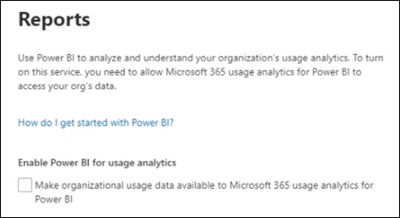
Selecting this option starts a process to make your organization's data accessible for this report. You might see a message that states We're getting your data ready for Microsoft 365 usage analytics. This process can take 24 hours to complete.
When your organization's data is ready, refreshing the page shows a message stating that your data is now available, and provides your tenant ID number. You must use the tenant ID in a later step when you attempt to connect to your tenant data.
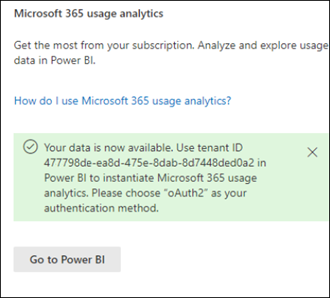
Important
When your data is available, don't select Go to Power BI. That option takes you to the Power BI Marketplace. The template app for this report that GCC tenants require isn't available in the Power BI Marketplace.
Step 2: Download the Power BI template, connect to your data, and publish the report
Microsoft 365 GCC users can download and use the Microsoft 365 Usage Analytics report template file to connect to their data. You need Power BI Desktop to open and use the template file.
Note
A template app for the Microsoft 365 Usage Analytics report isn't available for GCC tenants in the Power BI Marketplace.
Download the Power BI template.
Once the Power BI template is downloaded, open it using Power BI Desktop.
When prompted for a TenantID, enter the tenant ID you received when you prepared your organization's data for this report in Step 1, and then select Load. It can take several minutes for your data to load.
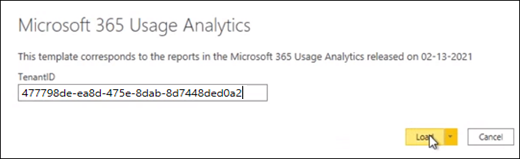
When loading completes, your report is displayed, and you see an executive summary of your data.
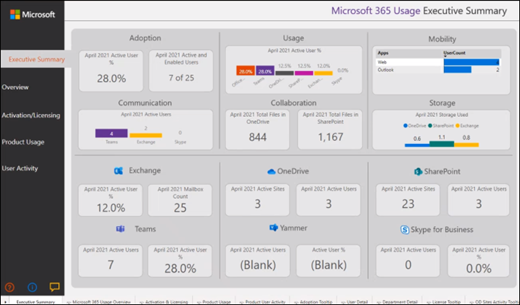
Save your changes to the report.
Select Publish in the Power BI Desktop menu to publish the report to the Power BI service where it can be viewed. This feature requires either a Power BI Pro license or Power BI Premium capacity. As part of the publish process, you must select a destination to publish to an available workspace in the Power BI service.
