Bilješka
Pristup ovoj stranici zahtijeva provjeru vjerodostojnosti. Možete pokušati da se prijavite ili promijenite direktorije.
Pristup ovoj stranici zahtijeva provjeru vjerodostojnosti. Možete pokušati promijeniti direktorije.
Appropriate roles: Report viewer | Executive report viewer
In Partner Center, AI Business Solutions & Security Insights is a unified reporting dashboard that brings together customer signals, account-level opportunity targeting, incentive performance, referrals, downloads, and API access in one connected experience.
Within the Growth Opportunities partners can use propensity, usage, licensing, eligibility, and readiness signals to identify the right customers, prioritize outreach, drive adoption, expand usage, monetize value, and scale customer-growth motions. These insights enable partners to make data-driven decisions for their organization, and to identify new opportunities for growing customer and business success.
Partners can also track their progress toward meeting Modern Work performance measurement requirements and concurrent engagement caps within the Microsoft Commerce Incentives (MCI) Performance section of the dashboard.
Inside the FastTrack Referrals section, FastTrack partners can get access to all FastTrack referrals in one location, along with a list of tenants that have been assigned to their partner organization.
Why Am I Seeing No Data in AI Business Solutions & Security Insights?
AI Business Solutions & Security Insights displays data only for customers and partners who meet specific eligibility, association, consent, and role requirements in Partner Center. If a dashboard, field, or tenant appears blank or is missing, review the following:
Partner association
Data appears only for customers where your organization is associated with either: CSP (Cloud Solution Provider), or CPOR (Claiming Partner of Record). Customers engaged through other programs, for example, MCI (Microsoft Commerce Incentives), EA (Enterprise Agreement), or ECIF (End-Customer Investment Funds), won't display data unless they're also linked through CSP or CPOR.
Tenant size thresholds
Copilot and secure productivity tabs:
- SMB/SMC tenants: Data is shown only for customers with more than 25 Microsoft 365 licenses.
- Enterprise tenants: Data is shown only for customers with more than 150 Microsoft 365 licenses.
Enterprise Agreement (EA) Data
EA renewal dates are only visible if your organization is the transacting EA partner.
User roles and permissions
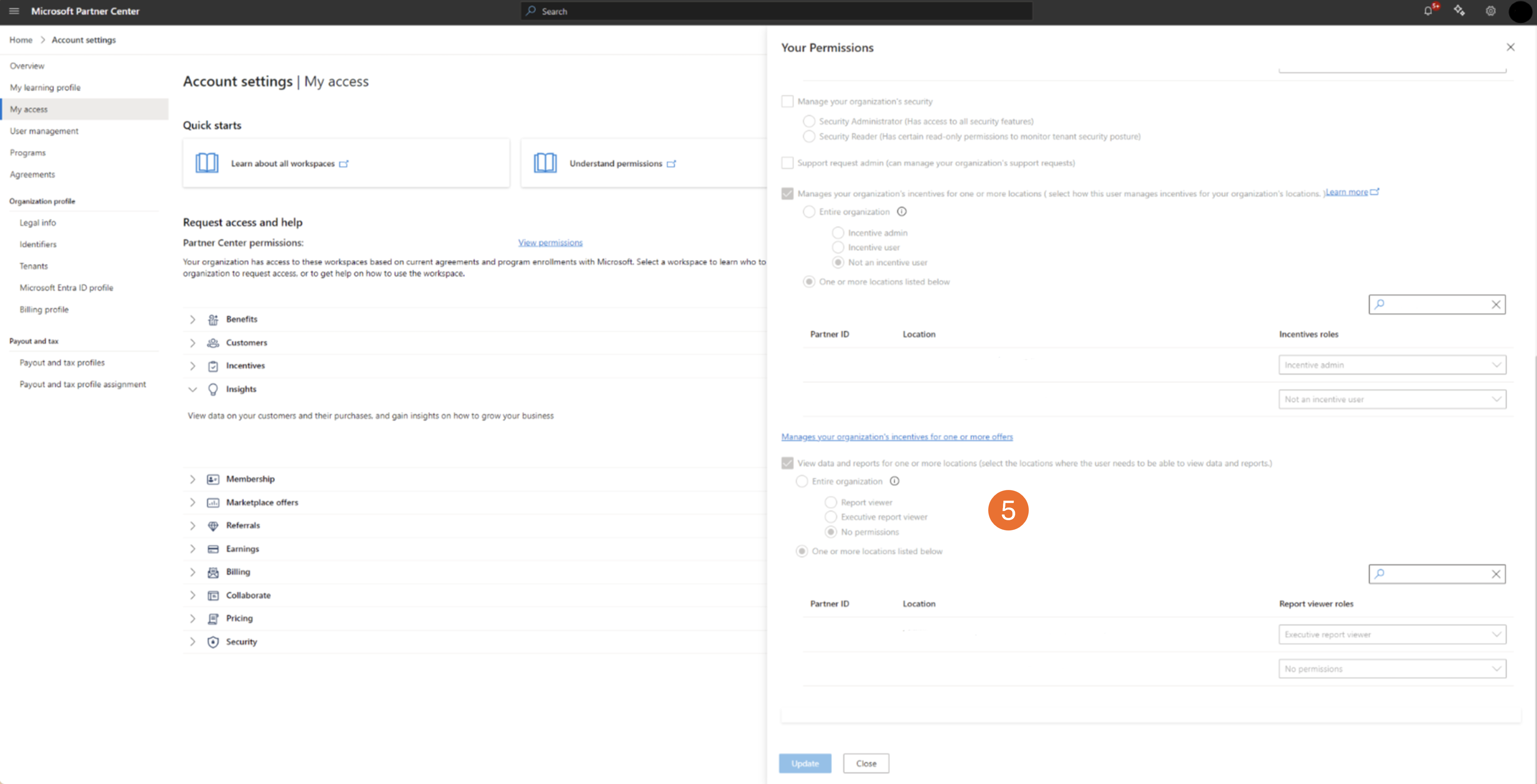
To access Insights data, you need the correct Partner Center role: Report Viewer or Executive Report Viewer. If you're an admin, follow the admin instructions in the next section to verify your role. Otherwise, follow the self-service instructions.
Self-service instructions:
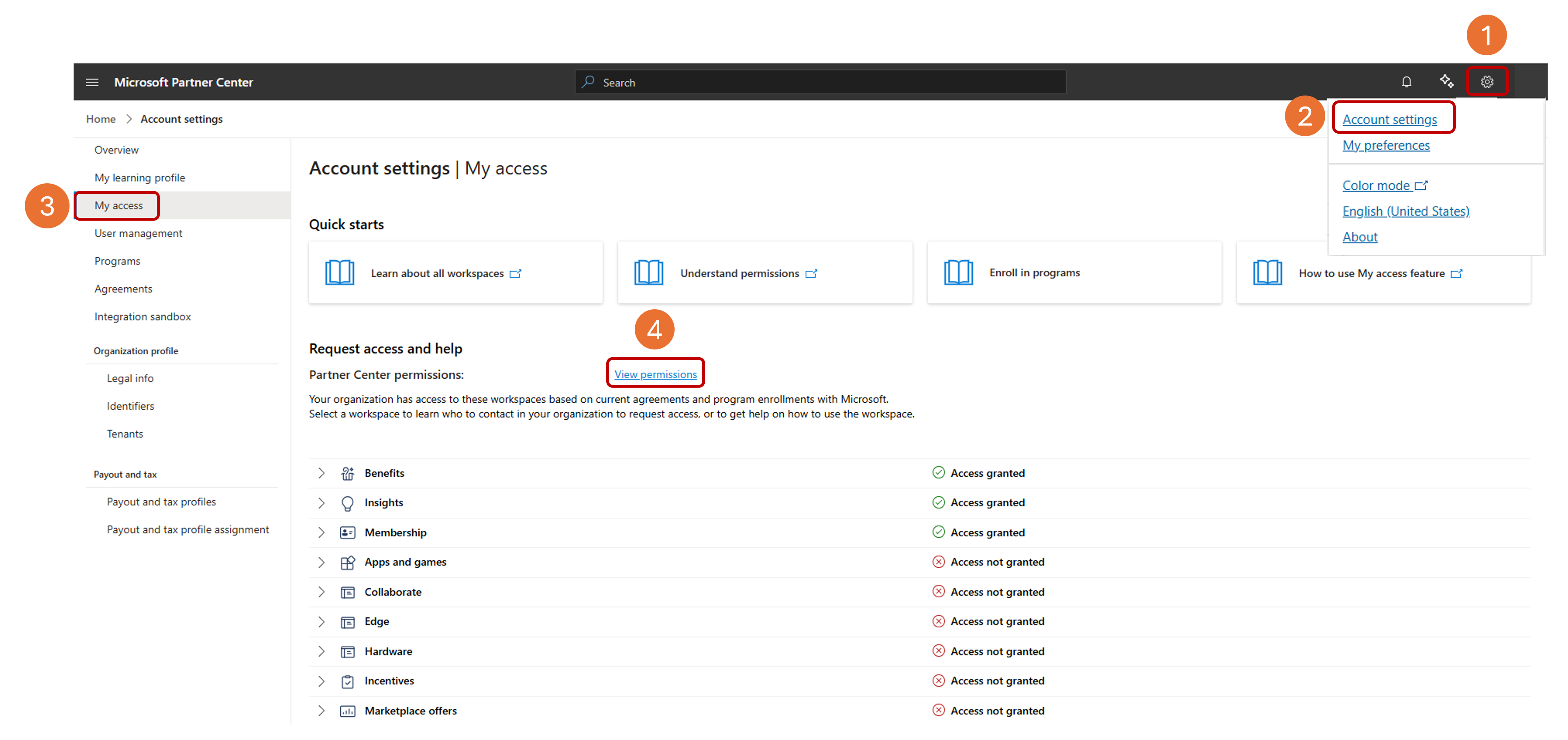
- Sign in to partner.microsoft.com/dashboard and select the Settings (gear) icon.
- Select Account settings.
- Select My access.
- Select View permissions.
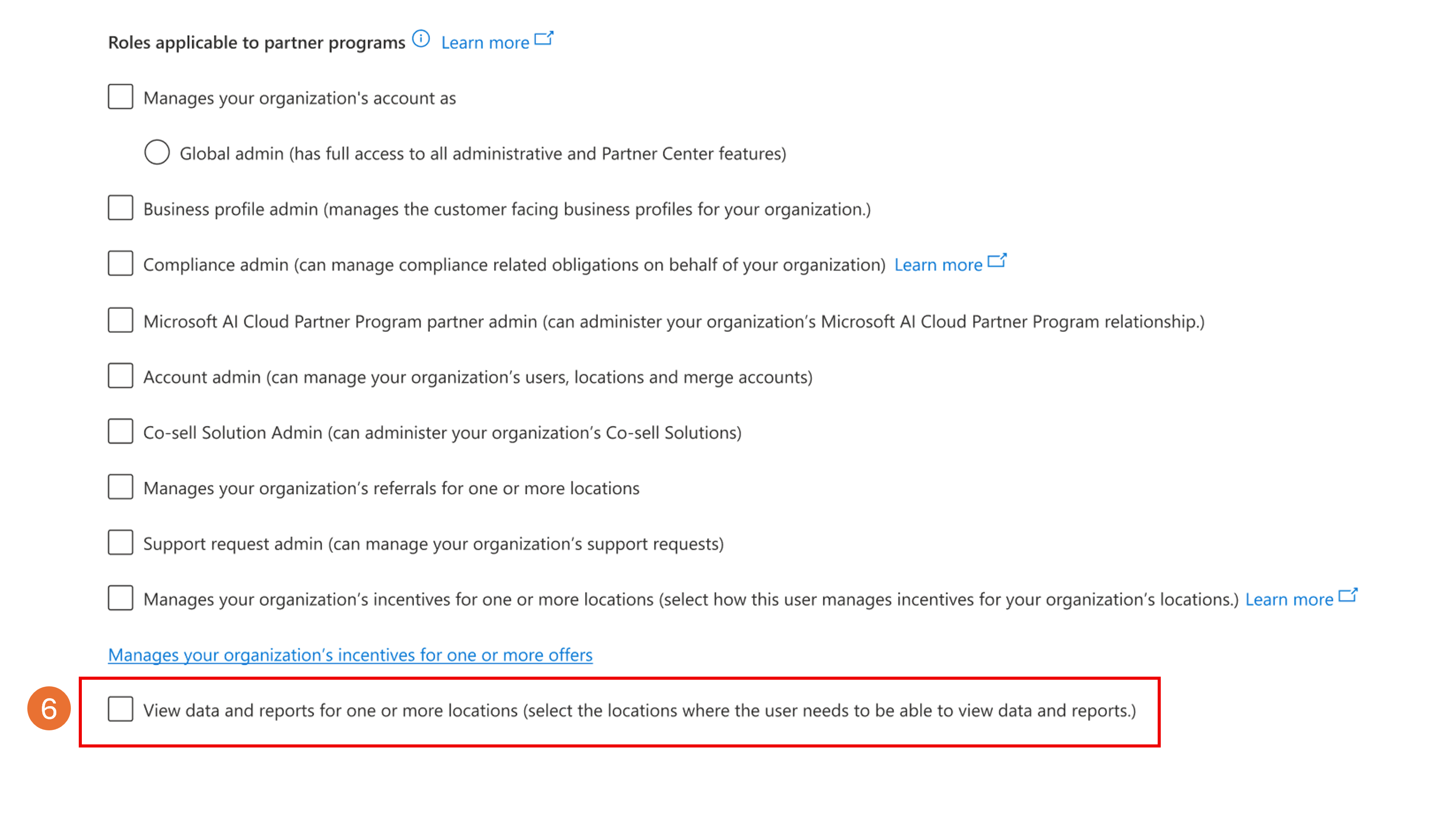
- Scroll down to the View data and reports for one or more locations section and validate if you have Report Viewer or Executive Report viewer role permissions.
- If there are no assignments or the assignment is incorrect, look up Admin roles on the User Management page.
- Email the admin to request access.
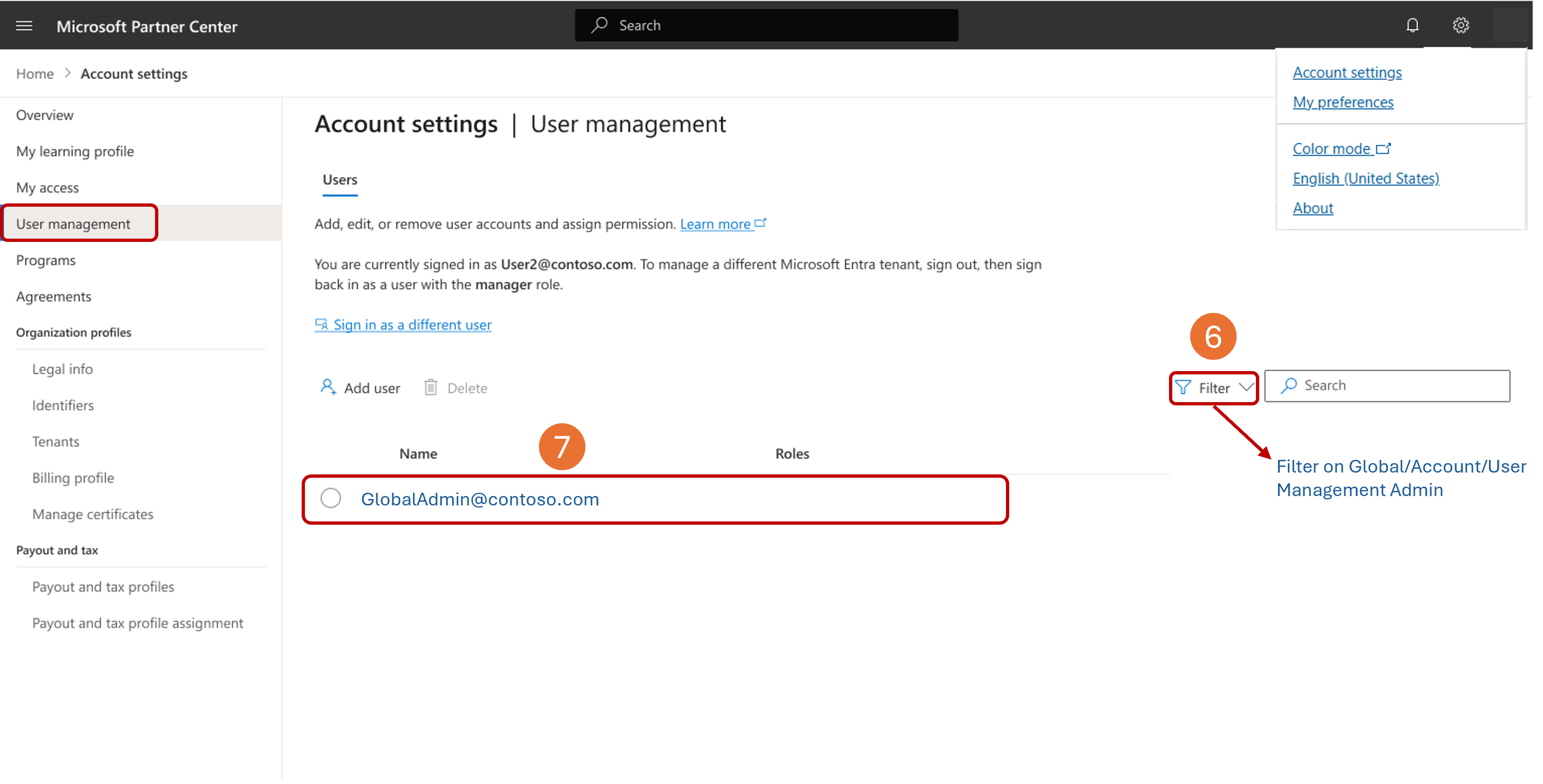
Admin instructions:
- Sign in to partner.microsoft.com/dashboard and select the Settings (gear) icon.
- Select Account settings.
- Select User management.
- Find the user whose information you want to modify.
- Choose the user from the list.
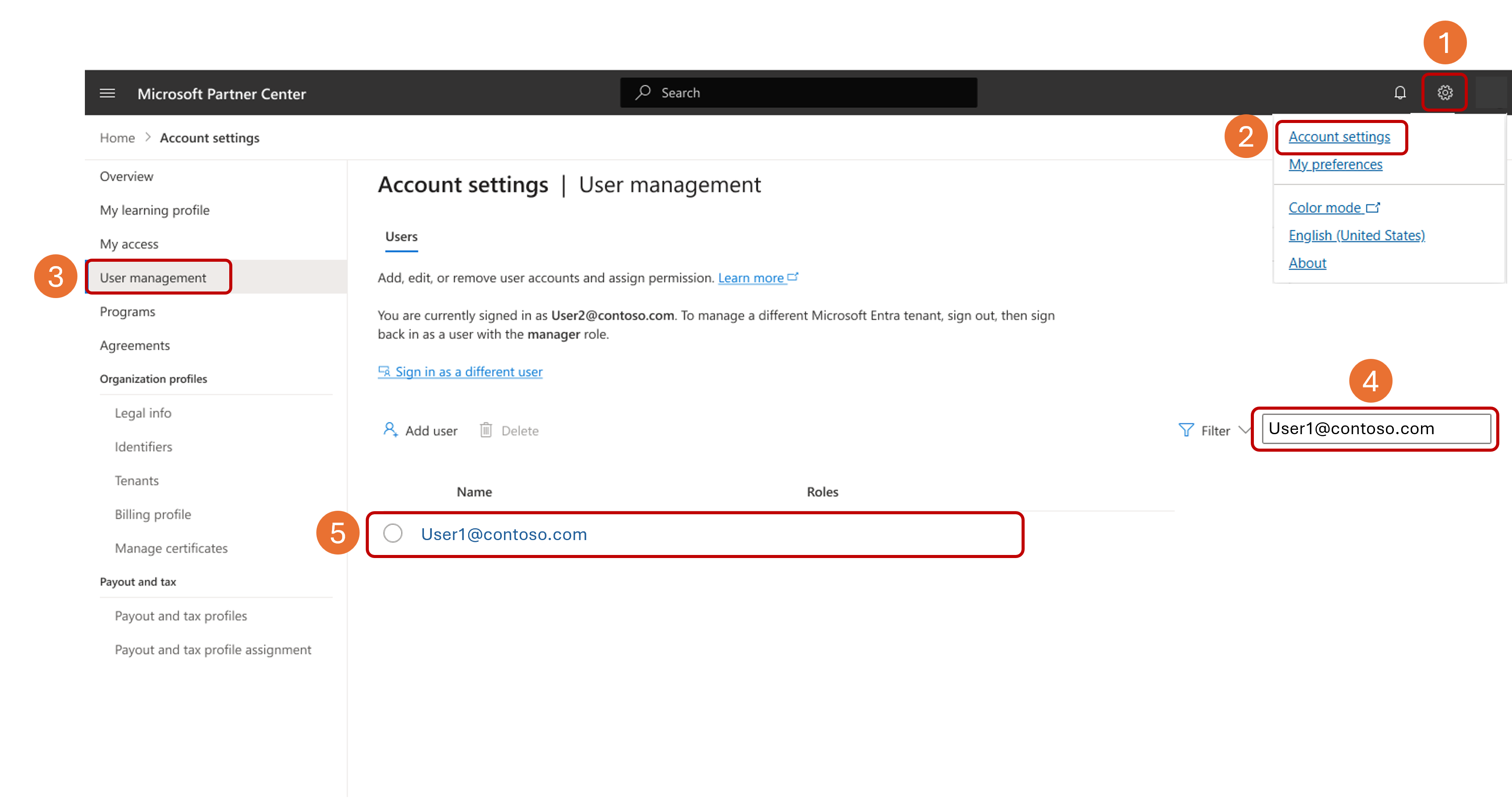
- In the flyout, select View data and reports viewer for one or more locations.
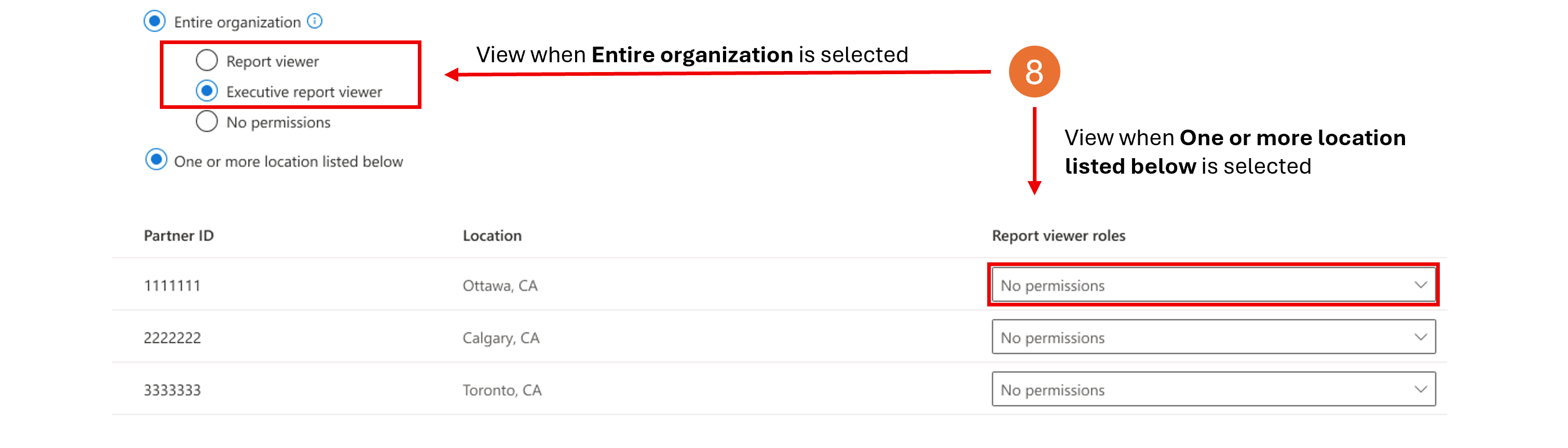
- Select the level of access based on user needs: Entire Organization or One or more locations listed below.

- Select Report Viewer or Executive Report Viewer.
If you have any questions about AI Business Solutions & Security Insights, reach out to https://aka.ms/ASPXSupport.