Bilješka
Pristup ovoj stranici zahtijeva provjeru vjerodostojnosti. Možete pokušati da se prijavite ili promijenite direktorije.
Pristup ovoj stranici zahtijeva provjeru vjerodostojnosti. Možete pokušati promijeniti direktorije.
The IHV factory configures the Analytics Platform System (APS) appliance with a fixed set of IP addresses for all servers and applicable devices. When you receive the appliance, reconfigure the external (Ethernet) IP addresses to match your specific data center requirements.
Note
PDW V1 requires eight external (customer-facing) IP addresses to provide external connectivity to each of the control rack nodes. PDW 2012 (V2) enhances network communications by exposing every component of the appliance externally through IP addresses. This approach provides a more robust design which reduces costs, increases flexibility, and enhances data movement, data loading, and Hadoop integration. The number of IP addresses you need depends on the number of nodes in the appliance. To accommodate this larger block of IP addresses, set up a separate subnet for PDW. Within this subnet, there's sufficient IP address space (up to 250 addresses) to accommodate the components of up to five PDW racks.
The Network Configuration page enables you to view the externally facing network settings for the nodes on your Analytics Platform System appliance. This page is read-only.
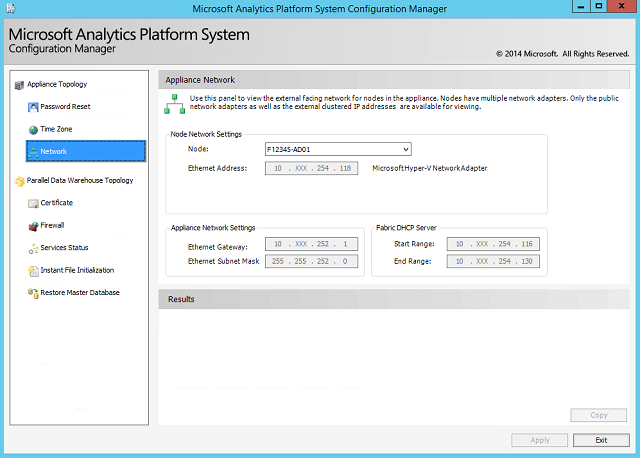
Update the network configuration on your appliance
Change the IP addresses of the Microsoft Fabric domain and workload domain by editing the AplianceInfo.xml file and then running setup. This operation is offline. The PDW regions automatically stop during the IP address change.
Note
Provide domain names during setup. Specify up to six alphanumeric characters, starting with a letter. A frequent naming system creates a Fabric domain starting with F and a PDW workload domain starting with P. This format is presumed throughout the help file topics but isn't required.
Change the IP addresses of the Analytics Platform System
Using the Remote Desktop application, connect to HST01 by using the workload domain administrator account.
On the HST01 node, open the appliance info file at
c:\pdwinst\media\AplianceInfo.xml.Note
If the file isn't present, create a new file.
Update the Ethernet IP values as needed, and save the file.
In a command prompt window, run the following setup command to update the IP addresses for the PDW region, using the P/F/H domain names and the administrator passwords.
c:\pdwinst\media\setup.exe /action="ConfigureEthernet" /DomainAdminPassword="<password>" /ApplianceInfoFile="C:\PDWINST\media\ApplianceInfo.xml"
Manufacturer references
For more information about Dell appliances, see:
PowerConnect Switch Instructions: Dell PowerConnect 6200 Series System CLI Reference Guide
iDRAC/BMC: Integrated Dell Remote Access Controller 7 (iDRAC7) Version 1.30.30 User's Guide