Bemærk
Adgang til denne side kræver godkendelse. Du kan prøve at logge på eller ændre mapper.
Adgang til denne side kræver godkendelse. Du kan prøve at ændre mapper.
Azure DevOps Services
Important
This feature is in limited preview.
Some features might not be available in your environment yet as Microsoft rolls out preview capabilities in stages. Functionality might change or be removed without notice. Preview features have no Service Level Agreement (SLA) and limited support.
Use GitHub Copilot to review pull requests in Azure Repos. Copilot acts as an automated reviewer that posts comments and suggestions on changed code, so you get feedback before a human reviewer signs off.
To use the feature, a Project Collection Administrator turns it on for the organization, a Project Administrator manages project-level defaults, repository owners override settings for individual repositories, and individual users opt in through Preview features (unless the administrator enables the preview for everyone).
Prerequisites
| Category | Requirements |
|---|---|
| Organization | An organization in Azure DevOps. |
| Repository | A Git repository in Azure Repos. TFVC isn't supported. |
| Organization permissions | Project Collection Administrator to enable the feature at the organization level. |
| Project permissions | Project Administrator to enable the feature at the project level. |
| Repository permissions | Repository owner or administrator to enable the feature for a repository. |
| Billing | An Azure subscription linked to your Azure DevOps organization. Copilot code review usage is billed through Azure Cost Management. For details, see Billing. |
Enable Copilot code review
At the organization level
A Project Collection Administrator must enable Copilot code review for the organization before project owners can turn it on for individual projects and repositories.
If you select the organization-level Enable all option, Copilot code review is enabled for every project in the organization and every repository in those projects. You don't need to enable each project or repository individually.
Sign in to your Azure DevOps organization (
https://dev.azure.com/{yourorganization}).Select Organization settings > Repos > Repositories.
Under GitHub Copilot code review, toggle Allow repositories in this organization to use Copilot code review to On.
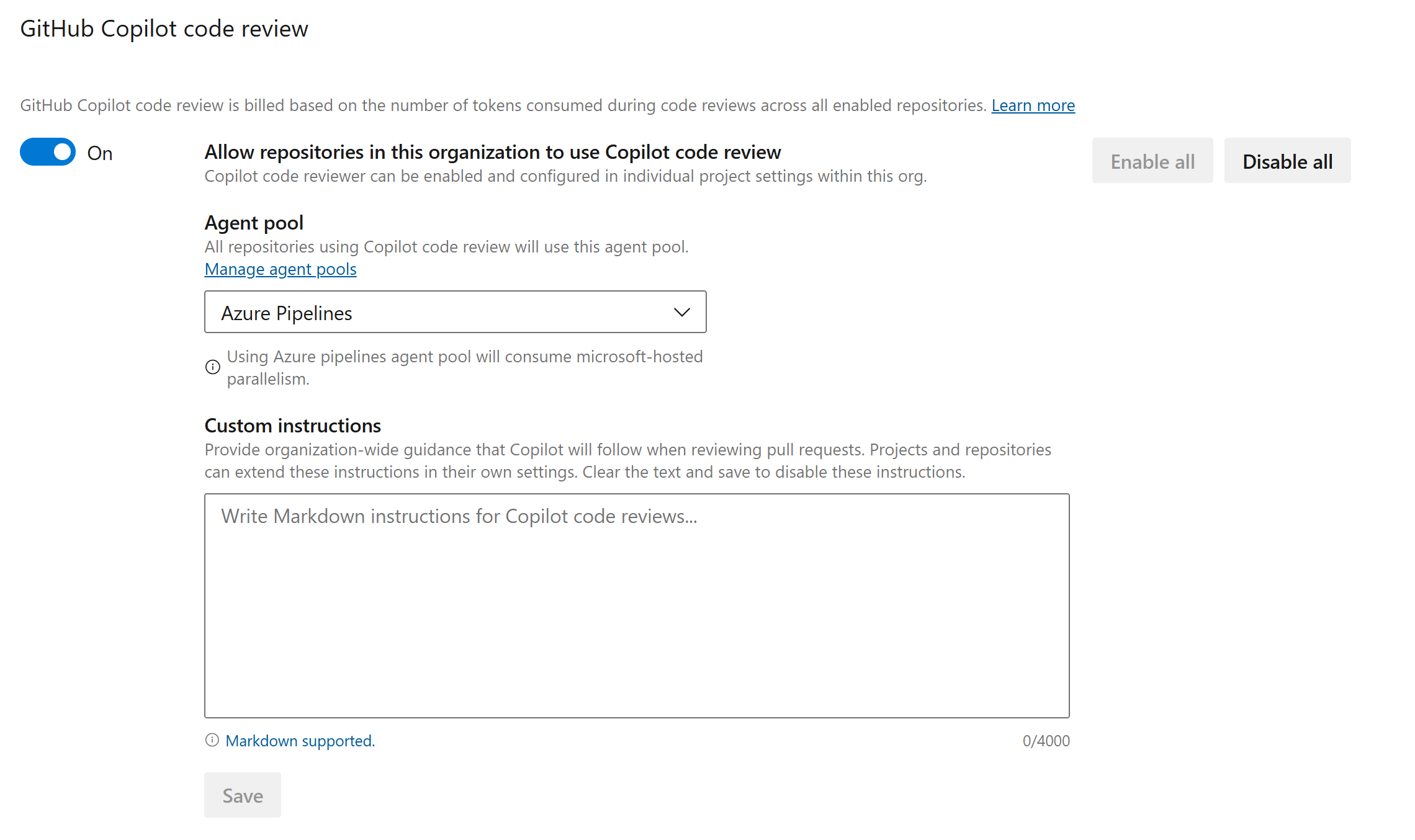
At the project level
After organization-level access is enabled, a Project Administrator can optionally enable the feature at the project level. This option provides fine-grained control over which projects in the organization can use Copilot code review.
If you select the project-level Enable all option, Copilot code review is enabled for every repository in that project. You don't need to enable each repository individually.
Select Project settings > Repos > Repositories.
Under GitHub Copilot code review, toggle Enable Copilot code review for this project to On.
This setting applies to all repositories in the project unless overridden at the repository level. You can still enable or disable the feature for individual repositories as needed.
At the repository level
After you enable organization-level access (and optionally project-level access), a repository owner turns on Copilot code review for each repository that should use it.
Select Project settings > Repos > Repositories.
Select the repository you want to enable.
On the Settings tab, toggle Enable Copilot code review for pull requests in this repository to On.


To verify the feature is enabled, open any pull request in the repository. GitHub Copilot should now appear as an available reviewer in the Reviewers list.
Configure Copilot code review
After you enable the feature at all three scopes, you can configure how Copilot reviews pull requests in your repositories.
Set up automatic review policies
Copilot can automatically review new pull requests without requiring manual requests. You can configure this policy for all repositories in a project or for individual repositories.
Feature enablement and automatic review are separate settings. Enabling Copilot code review makes it available to a repository. An automatic review policy requests a Copilot review when a new pull request is created.
Configure automatic review for all repositories in a project
Use the project-level policy to automatically request Copilot reviews across every repository in the project. You don't need to configure the policy for each repository individually.
Select Project settings > Repos > Repositories.
Under GitHub Copilot code review, toggle Automatically request Copilot code review on new pull requests for all repositories in this project to On.
This setting applies to all repositories in the project unless a repository-level policy overrides it.
Configure automatic review for one repository
Use repository-level policy when you need repository-specific behavior.
Select Project settings > Repos > Repositories.
Select the repository you want to configure.
On the Settings tab, under GitHub Copilot code review, toggle Automatically request Copilot code review on new pull requests to On.
(Optional) Configure review scope:
- Apply to all pull requests: Copilot reviews every new pull request in the repository.
- Apply to specific branch policies: Copilot reviews only pull requests that target specified branches (for example, main or develop).
Policy precedence for automatic reviews:
- The project-level automatic review policy applies to all repositories in the project.
- Repository-level automatic review settings override the project-level default for that repository.
When you enable automatic review, Copilot starts reviewing new pull requests immediately upon creation. You can still request additional reviews manually by selecting Request next to GitHub Copilot in the pull request.
Select an agent pool
Copilot code review runs review jobs by using an Azure Pipelines agent pool. By default, it uses the default Azure Pipelines pool in your organization.
Some organizations disable the default Azure Pipelines pool. In that configuration, Copilot code review can't run until you select a supported alternative pool.
If your organization has configured a Managed DevOps Pool, you can select it to run Copilot code review instead of the default pool.
Note
Self-hosted agent pools aren't supported for Copilot code review.
Select Organization settings > Repos > Repositories.
Under GitHub Copilot code review, select Compute pool from the dropdown menu.
Your organization's compute pool configuration determines the available pools. If no pools are available, contact your organization administrator.
Select Save.
The selected pool processes all Copilot code reviews for repositories in your organization. You can change this setting at any time. To use different pools for different projects or repositories, configure pool assignments through Managed DevOps Pools.
Customize Copilot's review behavior
For guidance on using custom instructions and agent skills to tailor Copilot's code review feedback, see Configure Copilot code review instructions.
Use Copilot code review
With the feature enabled at all three scopes, you can ask Copilot to review a pull request. The following sections describe what to expect.
Request a review
By default, GitHub Copilot reviews a pull request only when you ask for one:
- Open a pull request.
- In the Reviewers section, select Request next to GitHub Copilot.
- Wait for the review to complete. The review might take a few moments, depending on the size of the repository and the number of changes in the pull request. When the review finishes, the status changes to Review completed.
If Copilot identifies potential issues, it adds comments and suggestions directly to the pull request for you to examine and address.
Read Copilot's comments
- Copilot posts its feedback as a regular reviewer named GitHub Copilot on the pull request.
- Each comment appears on the line of code it applies to and, where possible, includes a suggested change that you can apply with one click.
- Copilot always leaves a Comment review. It never approves the pull request or requests changes, so its review doesn't satisfy required-reviewer policies and doesn't block merging.
- Copilot's comments behave like comments from a human reviewer. You can reply to them, react to them, resolve them, or hide them. Copilot doesn't read replies and doesn't follow up.
Re-review after new commits
Copilot doesn't automatically re-review a pull request when you push new commits. To get a fresh review after a commit, select Request again next to GitHub Copilot in the Reviewers list.
Cancel a review in progress
If a code review takes longer than expected or you need to stop it, you can cancel the review run.
- Open the pull request where Copilot is currently reviewing.
- In the Reviewers section, next to GitHub Copilot, select the Cancel button (or select More options > Cancel review).
- Confirm the cancellation when prompted.
The review run stops immediately, and no additional comments are added. The partial review results, including comments added before cancellation, remain on the pull request. You can request a new review at any time.
Requirements and limits
The following requirements and limits apply during the preview and can change.
Copilot reviews a pull request only when it meets these requirements:
| Requirement | Value |
|---|---|
| Pull request status | Active |
| Pull request merge status | No merge conflicts (Merge Succeeded) |
| Repository size | 10 GB or less |
| Pull request changed files | 100 files or fewer |
These concurrency and rate limits also apply:
| Limit | Value |
|---|---|
| Duplicate review on the same pull request version | 1 completed review per merge commit |
| Concurrent reviews per pull request | 1 |
| Concurrent reviews per organization | 5 |
| Concurrent reviews per user | 2 |
Billing
Each completed code review consumes tokens, including input tokens sent to the model, output tokens generated by the model, and cached tokens that reuse existing context. Tokens used for each review are converted into a standard billing unit called a GitHub AI credit, where 1 credit equals $0.01 USD.
For answers to frequently asked questions about Copilot code review billing and costs, see Troubleshoot Copilot code review.
Charges go to the Azure subscription linked to your Azure DevOps organization and appear as a separate meter in Azure Cost Management. The cost of each review varies based on factors like pull request size and the number of lines changed. To estimate expected costs in your environment, enable the feature for one or two repositories first and monitor daily usage.
Copilot code review charges in Azure Cost Management now include Azure DevOps project tags, enabling per-project cost reporting. You can filter or group cost analysis by these project tags to attribute usage and spend to individual Azure DevOps projects.
To monitor your daily charges:
In the Azure portal, go to your subscription.
Select Cost Management > Cost analysis.
Filter by product to view the organization's daily costs. To view costs for a specific project, add a filter or group by the Azure DevOps project tag.


Set a budget alert
Create an Azure budget that notifies you when spending reaches a threshold you set. Budgets only notify you. They don't stop reviews or change any resources. You need Owner, Contributor, or Cost Management Contributor access on the subscription linked to your Azure DevOps organization.
In the Azure portal, open the subscription linked to your Azure DevOps organization.
Select Cost Management > Budgets, and then select Add.
Under Filters, add a filter for Product and select GitHub Copilot for AzDO.

If the subscription is linked to multiple Azure DevOps organizations, add a filter for Tag and select the organization name tags you want the alert to target. If project tags are present, you can also filter or group by project tag to create project-level budget alerts.
Enter a budget name, choose a reset period and expiration date, set the budget amount, and then select Next.
Add one or more alert thresholds as a percentage of the budget (for example, 75% and 90%), set Type to Actual or Forecasted, and enter the email addresses to notify.
Select Create.


When spending reaches a threshold, Azure sends an email within an hour of the next evaluation. To review triggered alerts, select Cost Management > Cost alerts. To keep alert emails out of your junk folder, add azure-noreply@microsoft.com to your approved senders. For more information, see Create and manage budgets.
Turn off Copilot code review
To stop using Copilot code review, set the toggle to Off at the scope you want to disable:
- For one user: Turn off the Preview features toggle in your user settings.
- For one repository: Turn off the repository toggle in Project settings > Repos > Repositories.
- For the entire organization: Turn off the organization toggle in Organization settings > Repos > Repositories. This action disables the feature for all repositories.
Share feedback
To report issues or share feedback about this preview, visit the Azure DevOps Developer Community.
Troubleshoot Copilot code review
For answers to common questions about billing, data handling, compliance, and troubleshooting issues with custom instructions, see Troubleshoot Copilot code review.