Bemærk
Adgang til denne side kræver godkendelse. Du kan prøve at logge på eller ændre mapper.
Adgang til denne side kræver godkendelse. Du kan prøve at ændre mapper.
Azure DevOps Services | Azure DevOps Server | Azure DevOps Server 2022
Visual Studio 2019 | Visual Studio 2022
This article describes how to delete local and remote Git branches by using the Azure DevOps web portal, Visual Studio, or the Git command line.
Note
Deleting a branch in your local repo doesn't remove the branch on the remote.
Prerequisites
| Category | Requirements |
|---|---|
| Project access | Member of a project. |
| Permissions | - View code in private projects: At least Basic access. - Clone or contribute to code in private projects: Member of the Contributors security group or corresponding permissions in the project. - Set branch or repository permissions: Manage permissions for the branch or repository. - Set branch policies, status checks, or change the default branch: Edit policies permission for the repository or branch, or membership in the Project Administrators security group. - Import a repository: Member of the Project Administrators security group or Git project-level Create repository permission set to Allow. For more information, see Set Git repository permissions. |
| Services | Repos enabled. |
| Tools | Optional. Use az repos commands: Azure DevOps CLI. |
| Category | Requirements |
|---|---|
| Project access | Member of a project. |
| Permissions | - View code: At least Basic access. - Clone or contribute to code: Member of the Contributors security group or corresponding permissions in the project. |
| Services | Repos enabled. |
The following requirements depend on whether you delete a local or remote branch:
| Category | Requirements |
|---|---|
| Local branch | Check out a different branch before you delete the branch. Azure DevOps permissions, policies, and locks don't apply when you delete only a local branch. |
| Remote branch permission | Have the branch-level Force push (rewrite history, delete branches and tags) permission set to Allow. This requirement applies whether you delete the remote branch in the web portal, Visual Studio, or from the command line. Branch creators receive this permission by default unless the permission assignment is changed. |
| Required branch policies | Disable or remove all required branch policies before you delete the branch. You need the Edit policies permission or membership in the Project Administrators security group to manage branch policies. |
| Default branch | Set another branch as the repository's default branch before you delete the current default branch. |
| Locked branch | Unlock the branch before you delete it. To unlock a branch that another user locked, you need the Remove others' locks permission. |
If Delete branch isn't available, check your effective Force push permission and verify that the branch has no required policies, isn't the repository's default branch, and isn't locked.
Delete branch
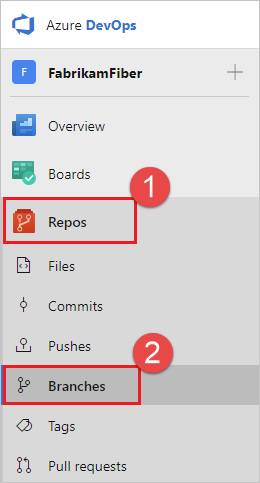
View your repo's branches by selecting Repos > Branches while viewing your repo on the web.
Select the More options button at the end of the row of the branch you want to delete.

In the options menu, select Delete branch.
In the Delete branch dialog box, select Delete.
