Bemærk
Adgang til denne side kræver godkendelse. Du kan prøve at logge på eller ændre mapper.
Adgang til denne side kræver godkendelse. Du kan prøve at ændre mapper.
This tutorial guides you through converting Oracle database schemas to Azure Database for PostgreSQL by using the Visual Studio Code PostgreSQL extension with Microsoft Foundry to automate and validate schema translation.
It covers connecting to your Oracle source and Azure Database for PostgreSQL target, configuring Microsoft Foundry, running the Migration Wizard, and reviewing generated PostgreSQL artifacts. Before you begin, make sure that you have network access and credentials for both servers and a Microsoft Foundry deployment.
Here's what you can expect during the conversion:
- Schema discovery: The tool analyzes your Oracle schema objects.
- AI processing: Microsoft Foundry processes and converts compatible objects.
- Validation: Converted objects are validated in the scratch database.
- Review tasks: Objects that require manual attention are flagged.
- Output generation: Successfully converted objects are saved as PostgreSQL files.
Prerequisites
This section describes the prerequisites for using the Oracle to Azure Database for PostgreSQL schema conversion feature in Visual Studio Code before starting a conversion.
System requirements
| Category | Details |
|---|---|
| Visual Studio Code version | 1.95.2 or later |
| GitHub Copilot subscription | Pro+, Business, Enterprise |
Operating system support
| Operating System | Support Details |
|---|---|
| Windows | x64 architecture only |
| Linux | x64 architecture |
| macOS | macOS 13+ |
Target Azure Database for PostgreSQL requirements
| Component | Version requirement |
|---|---|
| Azure Database for PostgreSQL | PostgreSQL version 15 or later |
| Scratch database | Azure Database for PostgreSQL flexible server |
AI model requirements
You need one of the following AI components configured:
| AI component | Model version |
|---|---|
| Microsoft Foundry | GPT-5.2 deployment |
Microsoft Foundry deployment configuration
In Microsoft Foundry, create a deployment that uses the gpt-5.2 model. The deployment name is the one you chose when you created the deployment; it doesn't have to match the model name.
The endpoint is your Microsoft Foundry resource URL. Microsoft Foundry resources expose several equivalent hostnames; any of the following formats is valid:
https://{your-resource}.services.ai.azure.comhttps://{your-resource}.openai.azure.comhttps://{your-resource}.cognitiveservices.azure.com
Replace {your-resource} with your Microsoft Foundry resource name (for example, oracletopg). If you need to call an inference route directly, the current preview path is /openai/responses?api-version=2025-04-01-preview.
For more information about endpoint formats and inference routes, see Endpoints for Microsoft Foundry Models.
Tip
To route Microsoft Foundry traffic through Azure API Management for centralized governance, throttling, and observability, configure an AI gateway in front of your Foundry resource and use the gateway URL as the endpoint. For more information, see Configure AI Gateway in your Foundry resources.
Required database privileges
Before you run the schema conversion, make sure that the accounts you use have the minimum required privileges on both the source Oracle database and the scratch Azure Database for PostgreSQL flexible server. The Oracle account needs read access to data and dictionary views so the tool can analyze schema and code. The Azure Database for PostgreSQL scratch account must be able to create schemas, tables, and other objects for validation. Use a dedicated service account where possible. Follow the principle of least privilege. Coordinate with your DBAs to grant any temporary elevated rights and to validate connectivity and access before you start the conversion.
Source Oracle privileges
The following minimum privileges are required on the source Oracle database:
| Privilege | Purpose |
|---|---|
| CONNECT | Basic database connection |
| SELECT_CATALOG_ROLE | Access to data dictionary views |
| SELECT ANY DICTIONARY | Read system metadata and dictionary objects |
SELECT SYS.ARGUMENT$ |
Access to procedure and function argument information |
Scratch database privileges
The following privileges are required on the Azure Database for PostgreSQL flexible server (scratch database):
| Privilege | Purpose |
|---|---|
| CREATE SCHEMA | Create validation schemas |
| CREATE ON DATABASE | Create database objects for validation |
| GRANT CONNECT ON DATABASE | Connection permissions for validation processes |
Network requirements
- Outbound connectivity: Microsoft Foundry endpoints.
- Database connectivity: Both source Oracle and target Azure Database for PostgreSQL flexible server.
- HTTPS access: Visual Studio Code Extensions Marketplace and GitHub Copilot services.
- GitHub repository access: https://github.com/microsoft/pgsql-tools/.
Oracle Instant Client (for thick client mode)
The schema conversion tool connects to Oracle by using thin client mode by default, which requires no extra software. If your environment requires thick client mode, install Oracle Instant Client on the machine that runs Visual Studio Code. The tool reads your sqlnet.ora and tnsnames.ora configuration and switches to thick mode automatically when a setting requires it.
You can determine whether thick client mode is required by checking the Oracle network configuration files in your source environment. Look for the following parameters in the sqlnet.ora file (typically located in $ORACLE_HOME/network/admin/):
| Parameter | Indicates thick mode is required |
|---|---|
SQLNET.CRYPTO_CHECKSUM_CLIENT |
Set to REQUIRED or REQUESTED for native network encryption |
SQLNET.ENCRYPTION_CLIENT |
Set to REQUIRED or REQUESTED for native network encryption |
Microsoft Foundry authentication
Configure one of the following authentication methods for Microsoft Foundry:
| Authentication method | Requirements |
|---|---|
| API key | Microsoft Foundry endpoint URL and API key. |
| Microsoft Entra ID | Azure Account extension signed in, Foundry User role (formerly Azure AI User) assigned on the Microsoft Foundry resource. |
Migration process
This section walks through the complete migration workflow. You install the PostgreSQL extension, create and test connections to your Oracle source and Azure Database for PostgreSQL target, open and initialize a migration project, configure Microsoft Foundry for schema translation, run the Migration Wizard to discover and convert schemas, validate converted objects in a scratch database, and review or fix any flagged items before you apply the generated PostgreSQL artifacts to your target.
Step 1: Install the PostgreSQL Visual Studio Code extension
Open Visual Studio Code.
Go to the Extensions view (
Ctrl+Shift+X).Search for PostgreSQL and install the PostgreSQL extension published by Microsoft.


Step 2: Create an Azure Database for PostgreSQL connection
In the PostgreSQL extension panel, create a connection to your Azure Database for PostgreSQL flexible server instance.
Enter the connection details (host, database, username, password).
Test and save the connection.


Step 3: Open a new workspace
Create a new folder on your local machine for the migration project.
Open the folder as a new workspace in Visual Studio Code.


Step 4: Initialize a migration project
Open the PostgreSQL extension.
Go to the Migrations panel.
Select Create Migration Project.


Step 5: Configure project settings
In the Migration Wizard, enter your project name.
Select Next to continue.


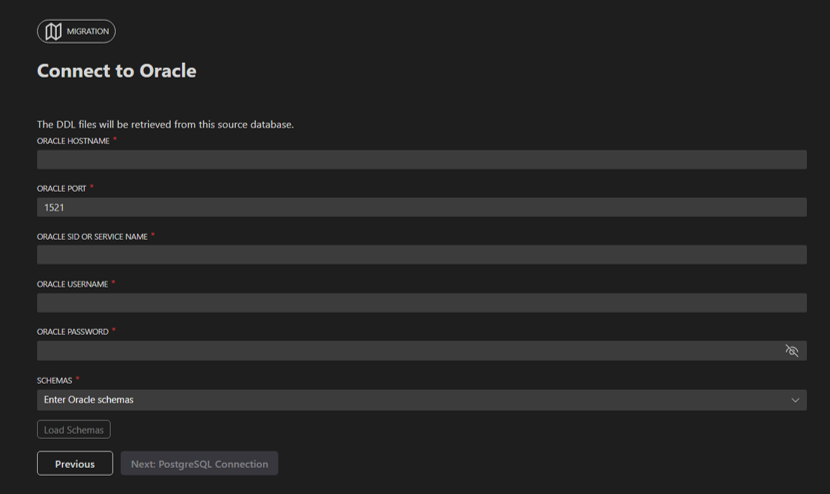
Step 6: Configure the Oracle connection
Enter your Oracle connection details:
- Host or server name.
- Port number.
- Database or service name.
- Username and password.
The tool selects thin or thick client mode automatically from your
sqlnet.oraandtnsnames.orasettings; the UI doesn't expose a manual selector. Thin mode is used by default. If yoursqlnet.orarequires thick mode, make sure that Oracle Instant Client is installed and that its location is on thePATHenvironment variable before you continue. For more information, see Oracle Instant Client.Select Load Schemas. The tool tests the Oracle connection and, if successful, lists all user-defined schemas available in Oracle.
Select one or more schemas to convert to PostgreSQL.
Select Next to continue.
Step 7: Configure an Azure Database for PostgreSQL scratch database
Select the Azure Database for PostgreSQL connection that you defined in the PostgreSQL extension.
Select the target database from the dropdown list.
Select Next to continue.


Step 8: Configure the Microsoft Foundry language model
Enter your Microsoft Foundry details:
- Endpoint URL.
- Deployment name (the name you assigned to the deployment in Microsoft Foundry; the underlying model must be
gpt-5.2).
Select the authentication method:
- API key: Enter the API key for your Microsoft Foundry deployment.
- Microsoft Entra ID: Sign in with the Azure Account extension. The tool acquires the authentication token automatically. Make sure that the signed-in identity has the Foundry User role (formerly Azure AI User) on the Microsoft Foundry resource. For more information, see Role-based access control for Microsoft Foundry.
Select Test Connection to verify the configuration.
After the connection succeeds, select Create Migration Project.


Step 9: Run the schema conversion
The system navigates to the main Migration Wizard.
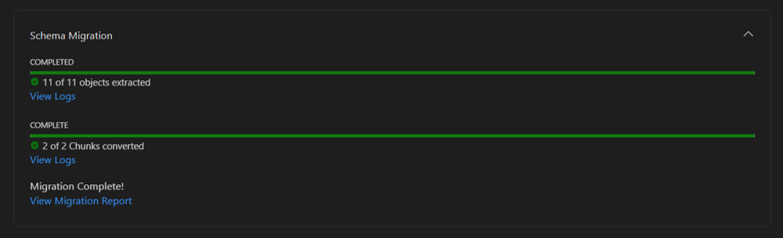
Select Migrate to start the schema conversion process.
Monitor the conversion progress in the Visual Studio Code interface.
Step 10: Review the schema conversion report
- After the schema conversion finishes, the tool generates a schema conversion report.
- Review the objects that were converted successfully and the objects that were skipped.
- The report displays the success percentage of the conversion.
Step 11: Review and refine conversion tasks
- After the schema conversion finishes, the tool creates review tasks for objects that need attention.
- Use GitHub Copilot agent mode to resolve the tasks, or manually convert the schemas to PostgreSQL.
- Compare the previous and the newly converted schema conversion statements.
- For more information about task priorities, generated SQL files, and output folders, see Review tasks and output folders for Oracle to Azure Database for PostgreSQL flexible server schema conversion.
Step 12: Validate converted objects before deployment
- Independently validate all converted objects in a nonproduction environment.
- Confirm that dependencies, constraints, and representative workloads behave as expected.
- Review the resolutions for all review tasks and retest after changes.
Important
Customer validation responsibility: The same AI engine used for schema conversion can also assist with validation and review. AI systems can occasionally confirm their own mistakes. To prevent data loss, functional regressions, or security issues, independently validate all converted objects and review-task resolutions before you deploy to production. As part of your controls, consider enabling Microsoft Foundry content filtering to help reduce harmful or undesired outputs. For guidance, see Content filtering for Microsoft Foundry Models.
For more information about the Visual Studio Code extension, visit PostgreSQL extension for Visual Studio Code and Cursor.