Bemærk
Adgang til denne side kræver godkendelse. Du kan prøve at logge på eller ændre mapper.
Adgang til denne side kræver godkendelse. Du kan prøve at ændre mapper.
Citrix ShareFile is a secure content collaboration, file sharing and sync solution that supports all the document-centric tasks and workflow needs of small and large businesses. Citrix ShareFile holds critical data of your organization, and that critical role makes it a target for malicious actors.
Connecting Citrix ShareFile to Defender for Cloud Apps gives you improved insights into your users' activities and provides threat detection using machine learning based anomaly detections. Before you start, make sure you meet the prerequisites described later in this article.
Use this app connector to access SaaS Security Posture Management (SSPM) features, via security controls reflected in Microsoft Secure Score. Learn more.
Main threats to your Citrix ShareFile environment
Connecting Citrix ShareFile to Defender for Cloud Apps helps you address the following threats:
- Compromised accounts and insider threats
- Data leakage
- Insufficient security awareness
- Unmanaged bring your own device (BYOD)
How Defender for Cloud Apps helps to protect your environment
Defender for Cloud Apps can help protect your Citrix ShareFile environment in the following ways:
Detect cloud threats, compromised accounts, and malicious insiders
Use the audit trail of activities for forensic investigations
SaaS security posture management for Citrix ShareFile
To see security posture recommendations for Citrix Share File in Microsoft Secure Score, create an API connector via the Connectors tab, with Owner and Enterprise permissions. In Secure Score, select Recommended actions and filter by Product = CitrixSF.
For example, recommendations for Citrix Share File include:
- Enable multi-factor authentication (MFA)
- Enable single sign on (SSO)
- Enable session timeout for web users
If a connector already exists and you don't see Citrix Share File recommendations yet, refresh the connection by disconnecting the API connector, and then reconnecting the API connector with the Access Company account permissions.
For more information, see:
Connect Citrix ShareFile to Defender for Cloud Apps
Complete the following prerequisites and steps to connect Citrix ShareFile to Microsoft Defender for Cloud Apps.
Prerequisites
The Citrix Share file user used for logging into Citrix Share file must have Access Company account permissions.
Create API keys
Perform the following steps to create the API keys required for the connector:
Go to ShareFile API Documentation, and sign in to your organization account.

Select Get an API Key.

To generate API keys (Client ID and Client Secret), go to Create New.
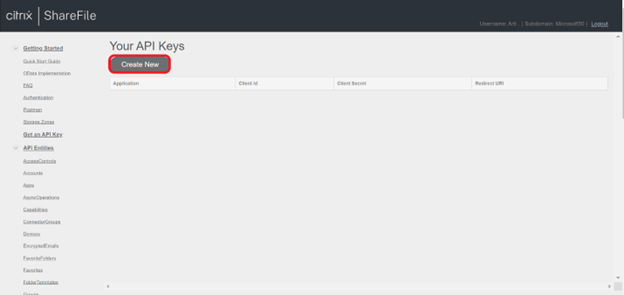
Fill out the following fields:
Application name: Microsoft Defender for Cloud Apps (you can also choose another name).
Redirect URL:
https://portal.cloudappsecurity.com/api/oauth/saga.For US Government GCC customers, enter
https://portal.cloudappsecuritygov.com/api/oauth/sagaas the redirect URL.For US Government GCC High customers, enter
https://portal.cloudappsecurity.us/api/oauth/sagaas the redirect URL.
Select Generate API Key.
Copy the Client ID and Client Secret.
Configure Defender for Cloud Apps
Use the following steps to configure the Citrix ShareFile connector in Defender for Cloud Apps:
In the Microsoft Defender Portal, select Settings. Then choose Cloud Apps. Under Connected apps, select App Connectors.
In the App connectors page, select +Connect an app, followed by Citrix ShareFile.

In the pop-up, give the connector a descriptive name, and select Connect Citrix ShareFile.

In the Citrix ShareFile connector details screen, enter the following fields:
- The Client ID and Client Secret that you created in the Citrix ShareFile API portal.
- Client Subdomain: Enter your account's subdomain. For example, if your account's URL is "mycompany.sharefile.com", you would enter "mycompany".
Select Connect in Citrix ShareFile.
In the Microsoft Defender Portal, select Settings. Then choose Cloud Apps. Under Connected apps, select App Connectors. Make sure the status of the connected App Connector is Connected.
Rate limits
The default rate limit is 420 requests per minute.
Next steps
If you run into any problems, we're here to help. To get assistance or support for your product issue, please open a support ticket.