Note
Access to this page requires authorization. You can try signing in or changing directories.
Access to this page requires authorization. You can try changing directories.
Applies to: ✔️ SMB file shares
Distributed File Systems Namespaces, commonly referred to as DFS Namespaces or DFS-N, is a Windows Server server role that simplifies the deployment and maintenance of SMB file shares in production. DFS Namespaces provides storage namespace virtualization, so you can provide a layer of indirection between the UNC path of your file share and the actual file share. DFS Namespaces works with SMB file shares, agnostic of where those file shares are hosted. You can use it with SMB shares hosted on an on-premises Windows File Server with or without Azure File Sync, Azure file shares directly, SMB file shares hosted in Azure NetApp Files or other third-party offerings, and even with file shares hosted in other clouds.
At its core, DFS Namespaces provides a mapping between a user-friendly UNC path, like \\contoso\shares\ProjectX, and the underlying UNC path of the SMB share, like \\Server01-Prod\ProjectX or \\storageaccount.file.core.windows.net\projectx. When the end user navigates to their file share, they type the user-friendly UNC path, but their SMB client accesses the underlying SMB path of the mapping. You can also extend this concept to take over an existing file server name, such as \\MyServer\ProjectX. You can use this capability to achieve the following scenarios:
Provide a migration-proof name for a logical set of data. For example, you can map
\\contoso\shares\Engineeringto\\OldServer\Engineering. When you complete your migration to Azure Files, you can change the mapping to\\storageaccount.file.core.windows.net\engineering, so that when an end user accesses the user-friendly UNC path, they're seamlessly redirected to the Azure file share path.Establish a common name for a logical set of data distributed to multiple servers at different physical sites, such as through Azure File Sync. In this example, a name such as
\\contoso\shares\FileSyncExampleis mapped to multiple UNC paths such as\\FileSyncServer1\ExampleShare,\\FileSyncServer2\DifferentShareName, and\\FileSyncServer3\ExampleShare. When the user accesses the user-friendly UNC, they get a list of possible UNC paths and choose the one closest to them based on Windows Server Active Directory (AD) site definitions.Extend a logical set of data across size, IO, or other scale thresholds. This extension is useful for user directories, where every user gets their own folder on a share, and for scratch shares, where users get arbitrary space for temporary data. With DFS Namespaces, you stitch together multiple folders into a cohesive namespace. For example,
\\contoso\shares\UserShares\user1maps to\\storageaccount.file.core.windows.net\user1,\\contoso\shares\UserShares\user2maps to\\storageaccount.file.core.windows.net\user2, and so on.
You can see an example of how to use DFS Namespaces with your Azure Files deployment in the following video overview.

Note
Skip to 10:10 in the video to see how to set up DFS Namespaces.
If you already have a DFS Namespace in place, no special steps are required to use it with Azure Files and File Sync. If you access your Azure file share from on-premises, normal networking considerations apply. For more information, see Azure Files networking considerations.
This article covers the parts of a DFS Namespaces deployment that are specific to Azure Files. For the underlying Windows Server concepts and the full set of namespace procedures, see DFS Namespaces overview and Deploying DFS Namespaces.
Prerequisites
To use DFS Namespaces with Azure Files and File Sync, you need the following resources:
An Active Directory domain. You can host this domain anywhere, such as on-premises, in an Azure virtual machine (VM), or in another cloud.
A domain-joined Windows Server member server with the DFS Namespaces server role installed. DFS Namespaces is available on all supported Windows Server versions.
Important
Don't host a root consolidated namespace on an Active Directory domain controller. Taking over an existing file server name requires a dedicated member server or a Windows Server failover cluster.
An SMB file share hosted in a domain-joined environment, such as an Azure file share in a domain-joined storage account, or a file share on a domain-joined Windows File Server with Azure File Sync. For more information, see Identity-based authentication.
Network reachability from your clients to the SMB file shares. For more information, see Networking considerations for direct access.
Domain Administrator rights, or delegated write access to the
servicePrincipalNameattribute of the affected computer accounts. The name-takeover procedure modifies Active Directory objects and requires an elevated session.
Install the DFS Namespaces server role
If you already use DFS Namespaces, skip this step.
Open Server Manager and select Manage > Add Roles and Features. Choose Role-based or feature-based installation. On the Server Roles page, select DFS Namespaces under File and Storage Services > File and iSCSI Services. The wizard adds any required supporting roles or features.

For more installation options, see Install DFS Namespaces.
Choose a namespace type
DFS Namespaces provides two namespace types: domain-based and stand-alone. For a full comparison, including scale limits, availability options, and Active Directory requirements, see Choose a namespace type.
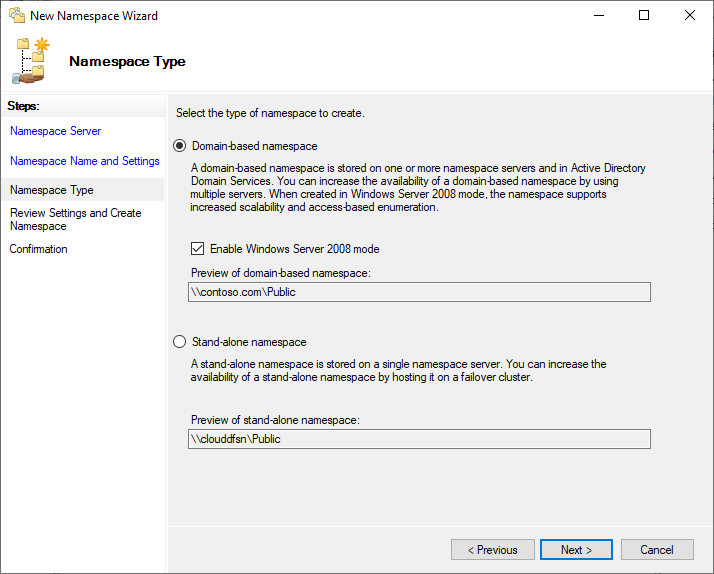
For Azure Files, the choice usually comes down to a single question:
- If you need to preserve an existing on-premises file server name such as
\\MyServer\share, choose a stand-alone namespace and use root consolidation. This approach is recommended when you migrate file shares to Azure Files, because it keeps document shortcuts, embedded links, and hardcoded UNC paths working after the migration. The rest of this article focuses on this scenario. - For any other scenario, choose a domain-based namespace.
Stand-alone namespaces have trade-offs to plan for:
- Namespace metadata is stored in the registry of the namespace server, not in Active Directory. Include the namespace configuration in your server backup strategy.
- You can't add multiple namespace servers to a stand-alone namespace for redundancy. For high availability, host the namespace on a Windows Server failover cluster.
- Stand-alone namespaces support lower scale targets than domain-based namespaces in Windows Server 2008 mode.
The path your users mount depends on the namespace type:
| Namespace configuration | Path to use |
|---|---|
| Stand-alone namespace with root consolidation | \\<old-server>\<share> |
| Stand-alone namespace | \\<DFS-server>\<namespace>\<share> |
| Domain-based namespace | \\<domain-name>\<namespace>\<share> |
If you chose a domain-based namespace, skip the root consolidation stages. The namespace and folder target procedure is the same for both types. Use Create the namespace and add your Azure file shares with DomainV2 as the namespace type.
Take over existing server names with root consolidation
By using root consolidation, a single DFS Namespaces server can respond to multiple file server names and route requests to the appropriate share. This capability is especially useful for adopting Azure Files, because:
- Azure file shares can't reuse existing on-premises server names.
- You address Azure file shares by using the storage account fully qualified domain name (FQDN). For example, to access share
sharein storage accountstorageaccount, use\\storageaccount.file.core.windows.net\share. That path can be confusing to end users who expect a short name, such as\\MyServer\share. Azure Files supports custom domain names when the storage account name is the domain prefix, but without DFS Namespaces, you can't use a name like\\MyServer.contoso.com\share.
You can use root consolidation only with stand-alone namespaces. If you already have a domain-based namespace for your file shares, you don't need a root consolidated namespace.
To make a root consolidated namespace highly available, host it on a failover cluster. To build the underlying cluster, see Create a failover cluster. If you take this approach, register the alias against the cluster name object (CNO), not against an individual node.
The following diagram shows a highly available root consolidation deployment. An Azure Load Balancer fronts a Windows Server failover cluster of DFS Namespaces servers that host the root consolidated namespaces, so clients continue to reach the retired file server names after their shares move to Azure Files.

Taking over an existing server name is a cutover, not an additive change. Complete the following stages in order:
- Enable root consolidation on the DFS Namespaces server.
- Create the namespace and add your Azure file shares, using a namespace named
#<old-server-name>. - Transfer the server name and service principal names from the source file server.
- Create DNS entries for existing file server names.
- Verify the name takeover.
Important
Stages 3 and 4 take the source file server offline, so the interval between shutting it down and completing the DNS change is an outage for your users. Schedule a maintenance window.
Before you begin, inventory everything else that resolves to the source server name. Print queues, DFS Replication members, database aliases, scheduled tasks, backup jobs, and hardcoded scripts that reference the old name stop working when the name is redirected to a DFS Namespaces server, because a namespace server only returns SMB referrals. Migrate or retire those dependencies first.
Enable root consolidation
From an elevated PowerShell session on the namespace server, set the following registry values and then restart the DFS Namespaces service. The service reads these values only at startup; until it restarts, you can't create a namespace whose name begins with #.
New-Item `
    -Path "HKLM:SYSTEM\CurrentControlSet\Services\Dfs" `
    -Type Registry `
    -ErrorAction SilentlyContinue
New-Item `
    -Path "HKLM:SYSTEM\CurrentControlSet\Services\Dfs\Parameters" `
    -Type Registry `
    -ErrorAction SilentlyContinue
New-Item `
    -Path "HKLM:SYSTEM\CurrentControlSet\Services\Dfs\Parameters\Replicated" `
    -Type Registry `
    -ErrorAction SilentlyContinue
Set-ItemProperty `
    -Path "HKLM:SYSTEM\CurrentControlSet\Services\Dfs\Parameters\Replicated" `
    -Name "ServerConsolidationRetry" `
    -Type DWord `
    -Value 1

Restart-Service -Name "Dfs"
On a failover cluster, set the registry values on every node and then fail the clustered namespace role over so that each node restarts the service.
Create the namespace and add your Azure file shares
The basic unit of management for DFS Namespaces is the namespace, whose root is the starting point of the tree. In \\contoso.com\Public\, the namespace root is Public. Within a namespace, folders with folder targets point at the SMB file shares that hold your content, and folders without folder targets add structure and hierarchy.
For the general Windows Server procedures, see Create a DFS namespace, Create a folder in a DFS namespace, and Add folder targets. When you target Azure file shares, keep the following points in mind:
- Use the storage account FQDN for the folder target. Point folder targets at
\\<storage-account>.file.core.windows.net\<share>. Azure Files also supports custom domain names when the storage account name is the domain prefix, but using one for a folder target adds a second DNS and Kerberos dependency behind every referral. Use the FQDN unless you already depend on custom domain names. - Expect a connectivity warning in DFS Management. When you add a folder target for an Azure file share, the console might report that
storageaccount.file.core.windows.netcan't be contacted. This warning is expected. Select Yes to continue. - Root consolidation namespaces need a
#prefix. The namespace name must match the server you're replacing, prepended with#. To take over a server namedMyServer, create a namespace called#MyServer. The PowerShell example adds the prefix for you. The DFS Management console doesn't, so type it in yourself. - Folder names must match the old share names. A client that opens
\\MyServer\Financeis served by the folderFinancein the#MyServernamespace, so folder names must match the source server's share names exactly.
In the DFS Management console, select Namespaces > New Namespace and follow the New Namespace Wizard. Then select the new namespace, select New Folder, enter a folder name, and select Add to supply the UNC path of your Azure file share as a folder target.

Confirm that the namespace resolves through the namespace server's own name before you continue. The old server name doesn't work yet; it starts working after the next two stages.
Test-Path -Path "\\CloudDFSN\#MyServer\Finance"
If the path doesn't resolve, verify that the client can reach the Azure file share directly at \\<storage-account>.file.core.windows.net\<share>. DFS Namespaces only returns a referral, so any networking or authentication problem with the underlying share surfaces here. For more information, see Networking considerations for direct access.
Transfer the server name and service principal names
Root consolidation lets the DFS Namespaces server answer to the old file server's name, but two other things must be true before a client can authenticate to that name:
- The SMB server on the namespace server must accept a connection made to a name other than its own computer name.
- Kerberos must resolve
cifs/MyServerto the account that services the request. If that service principal name (SPN) is still registered on the decommissioned file server's computer account, clients get a ticket for the wrong account. The connection then fails with "The target account name is incorrect" or silently falls back to NTLM.
The netdom computername command handles both requirements. It registers the old name as an alternate computer name on the namespace server, which adds the name to the server's msDS-AdditionalDnsHostName attribute and registers the matching HOST/<alias> SPNs. A HOST SPN implicitly covers a set of service classes that includes cifs, so a client request for cifs/MyServer resolves to the namespace server's account. For the full list of service classes, see setspn.
Don't substitute a hand-built setspn registration for netdom. Registering cifs/MyServer on the namespace server's account configures Kerberos but not the SMB server, and the directory service rejects SPNs that aren't derived from the target account's own names. For more information, see SMB file server share access is unsuccessful through DNS CNAME alias.
Warning
Don't delete the source computer account. Disabling it keeps the account, its security identifier (SID), and its group memberships intact, so you can roll the cutover back by re-enabling the account and restoring its SPNs. Deleting the account makes rollback much harder.
Important
Run the directory changes in this procedure against the same domain controller, and preferably against the PDC emulator. Active Directory uses multi-master replication with loose consistency, so replicas aren't guaranteed to be consistent with each other at any point in time. If you remove the old registration on one domain controller and then add it against a different one, the duplicate check can still see the removed registration and refuse to write. To find the PDC emulator, run (Get-ADDomain).PDCEmulator, and then run the commands from a session on that server.
Shut down the source file server. The source server and the DFS Namespaces server can't both answer to the same name. Power the server off rather than removing it from the domain.
Disable the source computer account. In Active Directory Users and Computers, right-click the computer object and select Disable Account. To do the same from PowerShell on a machine with the Active Directory module installed, run:
$oldServer = "MyServer"
Disable-ADAccount -Identity ($oldServer + '$')
Remove SPNs from the source computer account. Disabling an account doesn't remove its SPNs. Registrations left behind on the old account block the next step, because the same name can't be registered on two accounts. Duplicate SPNs are a documented cause of
KDC_ERR_PRINCIPAL_NOT_UNIQUE. For more information, see Kerberos generates KDC_ERR_S_PRINCIPAL_UNKNOWN or KDC_ERR_PRINCIPAL_NOT_UNIQUE error. List what's registered, and then delete theHOSTandcifsentries:setspn -L MyServer setspn -D HOST/MyServer MyServer setspn -D HOST/MyServer.contoso.com MyServerDelete any explicit
cifs/entries the same way. Ifsetspn -Lshows other service classes such asTERMSRVorMSSQLSvc, the old name is still serving something other than SMB. Resolve that dependency before you continue.Add the old name as an alternate computer name on the namespace server. Run
netdomfrom an elevated command prompt on the namespace server. For a single DFS Namespaces server, target that server's computer account. For a clustered stand-alone namespace, target the cluster name object (CNO), not the individual node accounts.netdomships with the AD DS tools in Remote Server Administration Tools; installRSAT-AD-Toolsif the command isn't available.netdom computername CloudDFSN.contoso.com /add:MyServer.contoso.comSpecify both names as fully qualified domain names.
netdomregisters theHOST/MyServerandHOST/MyServer.contoso.comSPNs on the target account and adds the name to the account'smsDS-AdditionalDnsHostNameattribute, which allows the SMB server to accept connections made to the old name.Verify the result. The
/verifyswitch checks that a DNS record and an SPN exist for each registered name:netdom computername CloudDFSN.contoso.com /enumerate:AlternateNames netdom computername CloudDFSN.contoso.com /verifyIf
netdomreports that the name is already in use, it's still registered elsewhere in the forest. Locate the conflicting object before you continue:setspn -T contoso -F -Q */MyServerIf the only object returned is the source computer account you edited in the previous step, the removal didn't replicate to the domain controller you're querying yet. Wait for replication to converge, or rerun the commands against the PDC emulator.
Create DNS entries for existing file server names
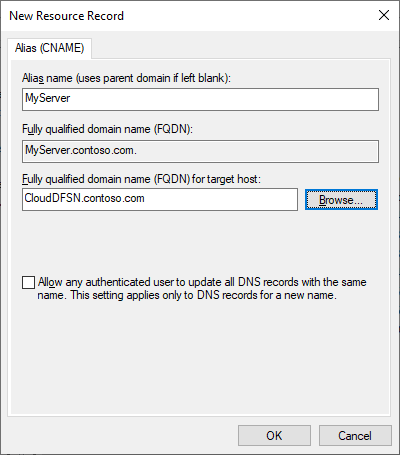
For DFS Namespaces to respond to existing file server names, create alias (CNAME) records that point the old file server names to the DFS Namespaces server. The exact procedure depends on which DNS server your organization uses. The following steps use the DNS server included with Windows Server.
On a Windows DNS server, open the DNS management console and go to the forward lookup zone for your domain. Right-click the zone and select New Alias (CNAME). In the dialog box, enter the short name of the file server you're replacing. Then enter the name of the DFS-N server in the Fully qualified domain name (FQDN) for the target host text box. Select OK to create the CNAME record.
Verify the name takeover
Test from a domain-joined client, signed in as a user with permissions on the target Azure file share. Don't test from the DFS Namespaces server itself, because a loopback connection doesn't use the same authentication path that a remote client uses.
Confirm that the alternate name registration replicated to every domain controller. The client's key distribution center isn't necessarily the domain controller you changed, and Active Directory replicas aren't guaranteed to be consistent at any point in time:
$oldServer = "MyServer"
$dfsnServer = "CloudDFSN"
Get-ADDomainController -Filter * | ForEach-Object {
    $spns = (Get-ADComputer -Identity $dfsnServer -Properties servicePrincipalName `
        -Server $_.HostName).servicePrincipalName
    [pscustomobject]@{
        DomainController = $_.HostName
        HasHostSpn       = [bool]($spns -contains "HOST/$oldServer")
    }
}
If any domain controller reports
False, replication isn't complete. Wait and check again before you continue, because a client that authenticates through that domain controller still fails.Confirm that the old server name now resolves to the DFS Namespaces server:
Resolve-DnsName -Name "MyServer" -Type CNAMEOpen the share through the old name and confirm that you see the contents of the Azure file share:
Test-Path -Path "\\MyServer\Finance"
Get-ChildItem -Path "\\MyServer\Finance"
Confirm that the session authenticated with Kerberos rather than falling back to NTLM by checking that a ticket was issued for the old name:
klistLook for a ticket whose server field is
cifs/MyServer. Kerberos issues this ticket against the namespace server's account because theHOST/MyServerregistration covers thecifsservice class. If no such ticket exists, the most common causes are that the alternate name registration didn't replicate to the domain controller the client is using, that a registration was left on the disabled account, or that a duplicate exists elsewhere in the forest.
If DNS or Kerberos changes don't take effect immediately, clear the client-side caches and retry:
ipconfig /flushdns
klist purge
Clearing the client caches doesn't help if the underlying change didn't replicate yet. If a retry still fails, recheck replication convergence in step 1 before you change anything else.
Access-based enumeration (ABE)
Access-based enumeration hides files and folders that a user doesn't have permission to access. In DFS Namespaces, enabling ABE on a namespace applies only to the DFS-N folders in that namespace. To control enumeration of a folder target's contents, enable ABE on the target file share itself. ABE requires all namespace servers to run Windows Server 2008 or later, and domain-based namespaces must use Windows Server 2008 mode. For details, see Enable access-based enumeration on a namespace.
Because you can't enable ABE on an Azure file share, using ABE to control the visibility of files and folders inside an SMB Azure file share isn't a supported scenario. This limitation exists because DFS-N works by referral rather than as a proxy in front of the folder target. When a user types \\mydfsnserver\share, the SMB client gets the referral \\mydfsnserver\share => \\server123\share and mounts the latter directly, so the DFS-N server is no longer in the data path.
ABE only works where the DFS-N server hosts the level of the hierarchy that you want to filter, before the redirection. Both of the following layouts work, because the per-user folder names live in the namespace on the DFS-N server:
\\DFSServer\users\contosouser1 => \\SA.file.core.windows.net\contosouser1\\DFSServer\users\contosouser1 => \\SA.file.core.windows.net\users\contosouser1, wherecontosouser1is a subfolder of theusersshare.
If each user is a subfolder after the redirection, ABE doesn't work, because the per-user folders are never enumerated by the DFS-N server:
\\DFSServer\SomePath\users => \\SA.file.core.windows.net\users
See also
- Configuring file share access: Identity-based authentication and Networking considerations for direct access.
- DFS Namespaces overview
- Deploying DFS Namespaces
- Choose a namespace type
- netdom computername
- setspn
- SMB file server share access is unsuccessful through DNS CNAME alias
- Create a failover cluster