i lost previous version on my powerpoint work. I was working on desktop

Sheikh, Sarah S 0 Reputation points
2026-06-10T16:46:14.7166667+00:00

i was working on powerpoint and lost my work. I was working on desktop

Microsoft 365 and Office | PowerPoint | For business | Windows
0 comments No comments

2 answers

Sort by: Most helpful
  1. Jay Tr 14,310 Reputation points Microsoft External Staff Moderator
    2026-06-10T17:57:03.8333333+00:00

    Hi @Sheikh, Sarah S

    Thank you for reaching out and for sharing your concern. 

    To recover the previous version of your PowerPoint file, please follow these steps: 

    1. Recover from OneDrive version history if enabled 

    If the file is in OneDrive or SharePoint 

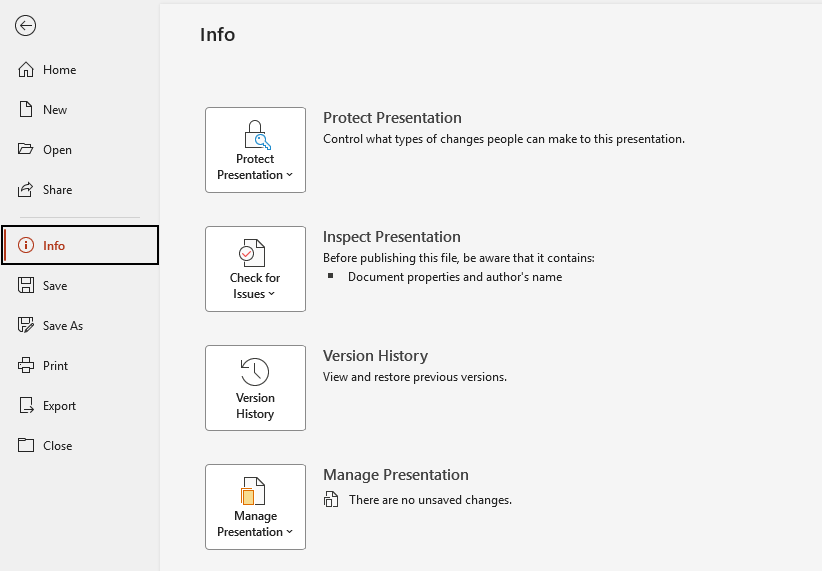
    • Open PowerPoint, navigate to File > Info > Version History.  
    User's image 

    • Restore the previous version.
    1. Check AutoRecover folder  
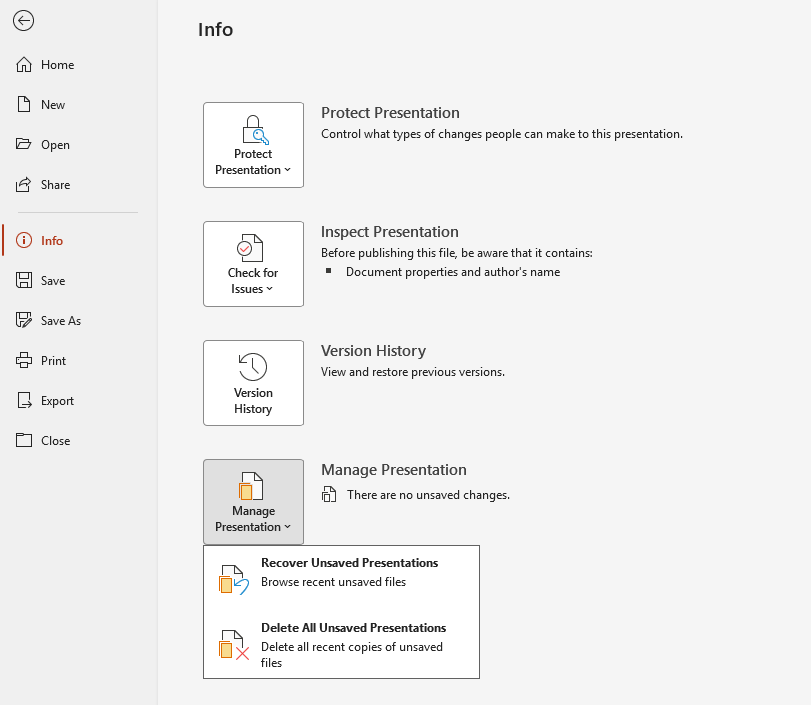
    • In PowerPoint, go to File > Info. 
    • Select Manage Presentation> Recover Unsaved Presentations.  
    User's image 

    1. Check system backups  
    • In File Explorer, go to the folder where the workbook was stored.  
    • Right-click the file or the containing folder > choose Restore previous versions.  
    • Look for a version with similar name, if any. If found, choose Restore. 
    1. Check Recycle bin  
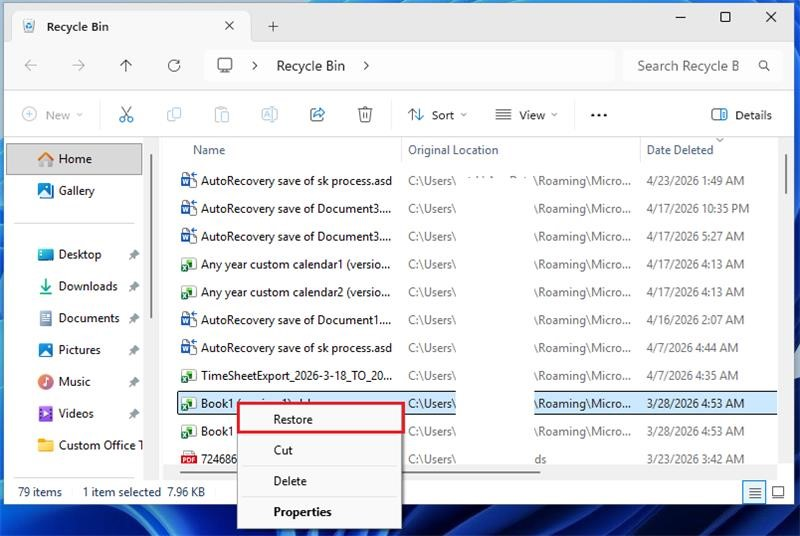
    • On your device Recycle bin, look for Excel files with similar names deleted from April 16th.  
    • Once found, right-click and select Restore.  
    User's image 

    I hope this information is helpful. Please follow these steps and let me know if it works for you. If not, we can work together to resolve this.     

    Thank you for your patience and your understanding. If you have any questions or need further assistance, please feel free to share them in the comments on this post so I can continue to support you.  

    I look forward to continuing the conversation.


    If you have extra questions about this answer, please click "Comment". 

    Note: Please follow the steps in our documentation to enable e-mail notifications if you want to receive the related email notification for this thread.     

    Was this answer helpful?


  2. AI answer

    2026-06-10T16:46:29.6133333+00:00

    To try to recover the previous version of the PowerPoint file worked on the desktop, use these options depending on how the file was saved.

    1. If the file was saved at least once
      1. Open PowerPoint.
      2. Select File > Info.
      3. Under Manage Presentation, look for a file labeled (when I closed without saving).
      4. Select that file.
      5. In the yellow bar at the top, select Restore to overwrite the current version with this recovered one.
    2. If the file was never saved (no name given yet)
      1. Open PowerPoint.
      2. Go to File > Info > Manage Presentation > Recover Unsaved Presentations.
      3. In the window that opens, select the most recent file that matches the time of the lost work, then select Open.
      4. When it opens, immediately select Save As and save it with a new name and location.
    3. Use AutoRecover folder directly (desktop PowerPoint)
      1. In PowerPoint, select File > Home.
      2. At the bottom, select Recover Unsaved Presentations to open the AutoRecover folder.
      3. Look for recent .pptx or temporary files from the time the work was lost, open them, then save them normally.
      4. If needed, note the AutoRecover path shown under File > Options > Save and open that folder in File Explorer: C:\Users\<username>\AppData\Roaming\Microsoft\PowerPoint (replace <username> with the Windows account name).
    4. If the file was stored in OneDrive or SharePoint
      1. Open the presentation from OneDrive/SharePoint in PowerPoint.
      2. Select File > Info.
      3. Select Version History.
      4. In the pane that opens, select an earlier version to open it.
      5. If it has the needed content, select Restore to roll back to that version.
    5. After an unexpected crash or shutdown
      1. Reopen PowerPoint.
      2. If the Document Recovery pane appears, select the most recent recovered version of the presentation.
      3. Use Save As immediately to keep that recovered copy.

    If none of these locations contain the file or an earlier version, there is no additional supported recovery method in the provided documentation.


    References:

    AI-generated content may be incorrect. Read our transparency notes for more information.

    Was this answer helpful?

Your answer

Answers can be marked as 'Accepted' by the question author and 'Recommended' by moderators, which helps users know the answer solved the author's problem.