Hello Shaun Dobbie,
Thank you very much for your detailed report and for sharing the screenshots, I really appreciate the effort you’ve taken to explain the behavior clearly.
Just to make sure I understand your goal correctly, are you trying to have the text fit tightly within the cell, similar to what is shown in the example image below (where the text appears to sit closely within the row without extra spacing)?
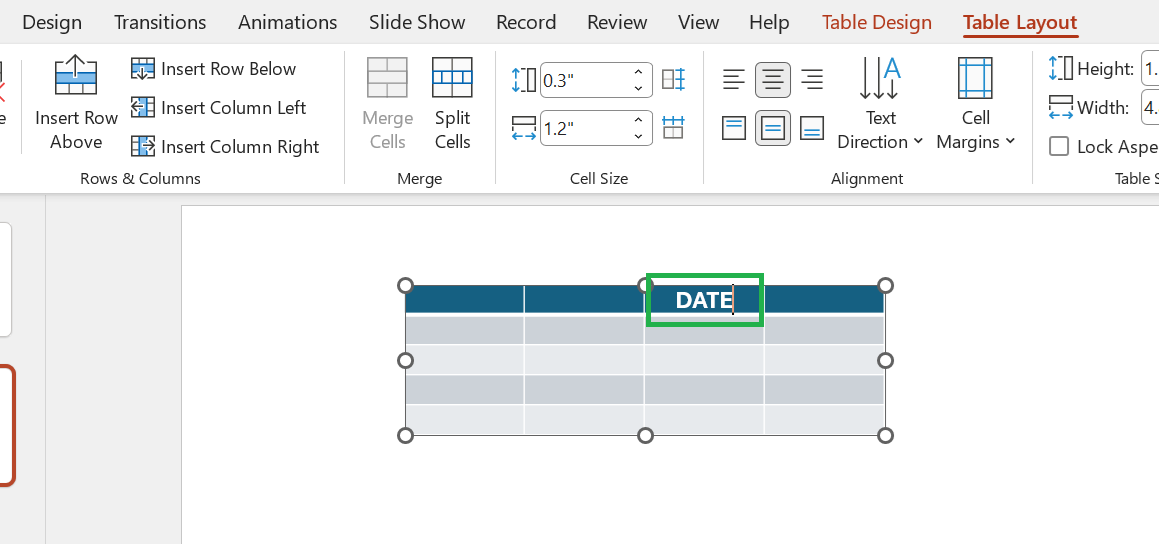
I’ve done a quick test on my side, and when I set Cell Margins to “None”, I was able to reduce the row height down to 0.3 cm in my environment. Based on that, I’m wondering if there might be some additional spacing factors in your setup that are affecting the result.
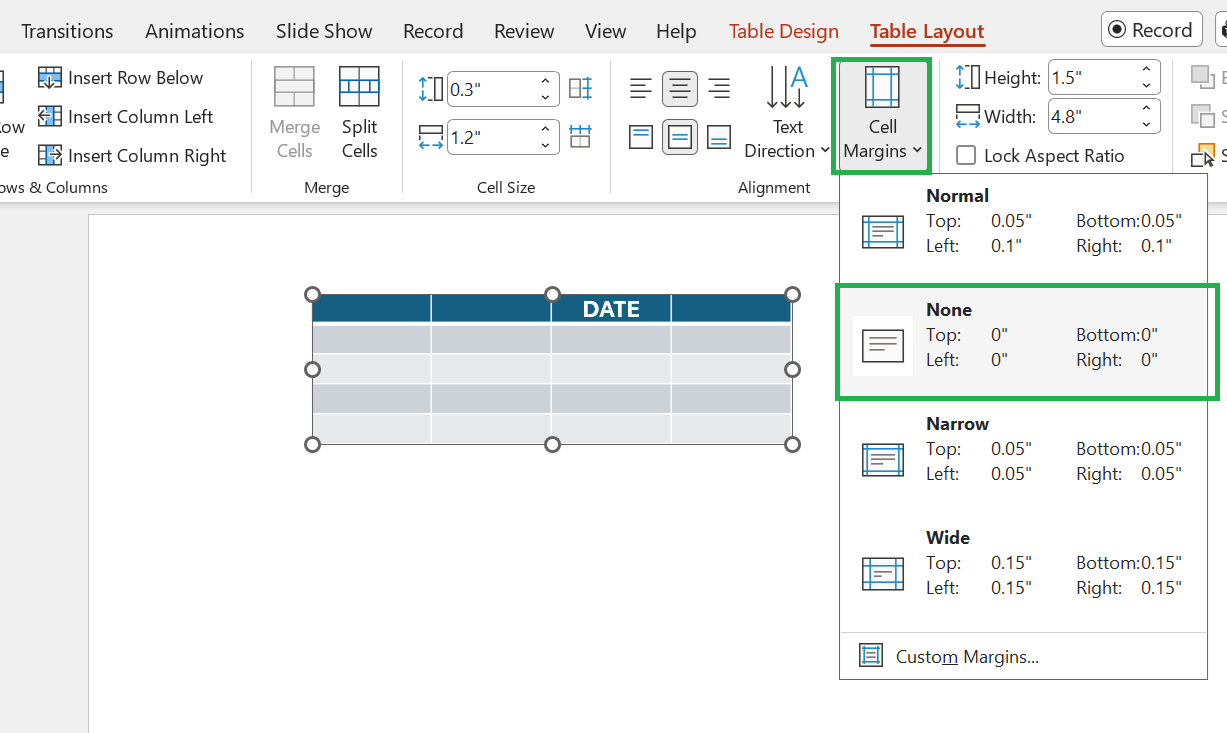
If possible, could you help check a couple of things:
- Whether there might be any hidden characters or extra spacing (such as extra line breaks) inside the cell
- Try increasing the font size of the text to see if it adjusts and fits more closely within the row
- Create a new table and apply the same font size and settings, just to compare whether the behavior is consistent
From what I’ve seen, this kind of behavior can sometimes depend on the specific setup, including the template, font type, or slide configuration, so it can vary between environments.
If you’re able to share a bit more detail about the exact steps you followed, I’d be happy to try reproducing it on my side and take a closer look. That would help me better understand the behavior and provide more precise guidance.
Thank you again for your patience and cooperation, I’ll do my best to assist further once I have a bit more information.
Best regards,
Note: Please follow the steps in our documentation to enable e-mail notifications if you want to receive the related email notification for this thread.
' cx='32' cy='32' r='32' /%3E%3Ctext x='50%25' y='55%25' dominant-baseline='middle' text-anchor='middle' fill='%23FFF' %3ESD%3C/text%3E%3C/svg%3E)


' cx='32' cy='32' r='32' /%3E%3Ctext x='50%25' y='55%25' dominant-baseline='middle' text-anchor='middle' fill='%23FFF' %3EDN%3C/text%3E%3C/svg%3E)