Hello,
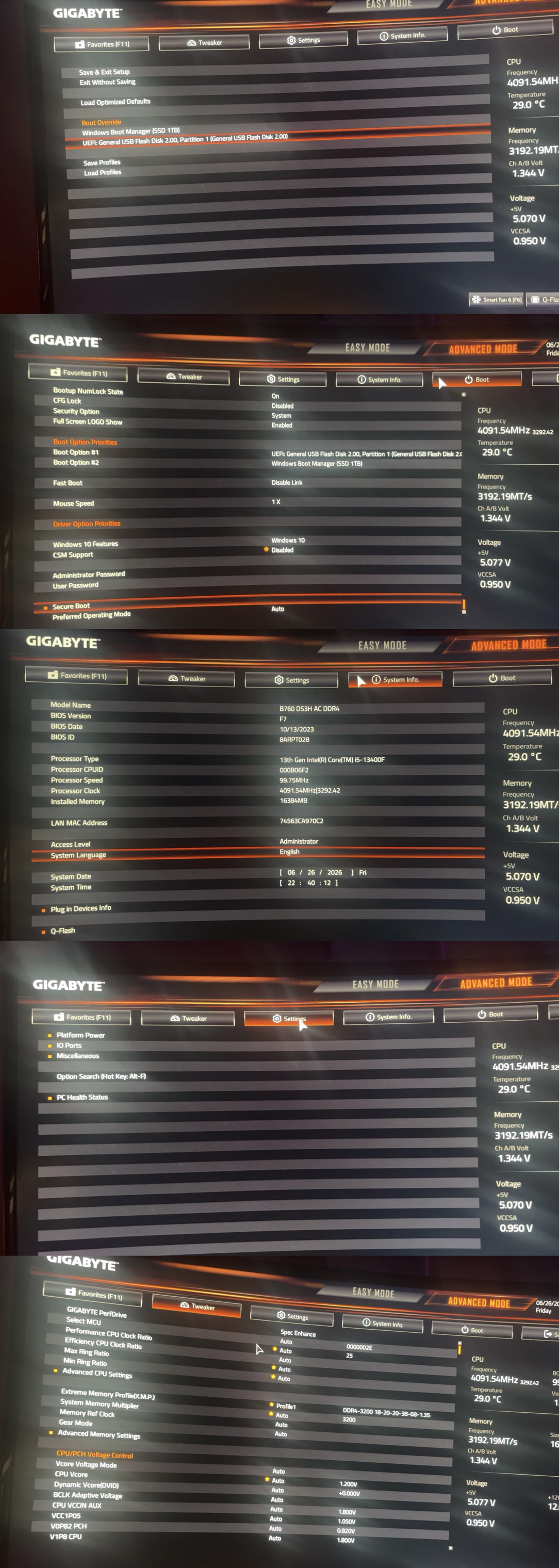
My computer is stuck in a BIOS loop after I tried doing a clean reinstall of Windows 11 Home.
I used the Windows 11 Media Creation Tool on a separate laptop to create a bootable USB installer. I confirmed the USB had the expected Windows setup files on it (such as bootmgr and setup.exe.) Then I plugged the USB into my PC, entered BIOS, set the USB as the first boot option, and started the Windows 11 installation.
The installation appeared to go normally at first. It reached 100%, then restarted. As soon as the PC restarted, I removed the USB stick.
After that first restart, the PC went straight back into BIOS. I changed the first boot option to “Windows Boot Manager,” but it still sent me back to BIOS. I then tried reinstalling Windows 11 again using a different USB stick, but the same issue happened.
PC details:
- Motherboard: Gigabyte B760 DS3H AC DDR4
- BIOS version: F7
- CPU: Intel Core i5-13400F
- RAM: 16GB
- GPU: Intel Arc
- SSD: OLOy 1TB NVMe M.2 SSD
- OS: Windows 11 Home
At this point, I'm completely lost. Here's some troubleshooting I have already tried:
- Tried more than one USB stick.
- Tried rear motherboard USB ports.
- Used Boot Override to boot with Windows Boot Manager. It returns to BIOS.
- Used Boot Override to boot with the UEFI USB option. It also returns to BIOS.
- Confirmed the SSD appears in BIOS as “SSD 1TB. Ran the NVMe/SSD self-test in BIOS, and it passed.
- Confirmed Secure Boot is enabled/active. I tried to disable Secure Boot, but BIOS would not let me.
- Confirmed CSM is disabled.
- Confirmed Intel PTT/TPM is enabled.
- Confirmed Fast Boot is disabled.
Currently, the PC still returns to BIOS no matter which boot option I choose. What should I try next?
' cx='32' cy='32' r='32' /%3E%3Ctext x='50%25' y='55%25' dominant-baseline='middle' text-anchor='middle' fill='%23FFF' %3EC%3C/text%3E%3C/svg%3E)

' cx='32' cy='32' r='32' /%3E%3Ctext x='50%25' y='55%25' dominant-baseline='middle' text-anchor='middle' fill='%23FFF' %3EIB%3C/text%3E%3C/svg%3E)