Opengl Libraries

Sid Kraft 46 Reputation points
2026-06-29T13:56:39.0933333+00:00

Trying to implement the OpenGL libraries, in Visual Studio using C++, getting the following errors:

After opening the PowerShell,

-vcpkg Install OpenGL

getting the errors:

"could not locate a manifest(vcpkg.json) above the current working directory

this vcpkg distribution does not have a classic mode instance

sounds like a highly technical response which I do not understand. How can I execute successfully, Sid Kraft

Developer technologies | C++

A high-level, general-purpose programming language, created as an extension of the C programming language, that has object-oriented, generic, and functional features in addition to facilities for low-level memory manipulation.

0 comments No comments

2 answers

Sort by: Most helpful
  1. Nancy Vo (WICLOUD CORPORATION) 6,595 Reputation points Microsoft External Staff Moderator
    2026-06-30T03:40:51.4633333+00:00

    Hello @Sid Kraft ,

    Thanks for your question.

    I have seen your previous issue, and I have recommended you how to install. However, Visual Studio has a built-in version of vcpkg that is very strict. It refuses to install libraries globally and instead demands a "shopping list" file (called a manifest) for every single project.

    Therefore, we are going to bypass the strict built-in version by downloading the standalone classic version of vcpkg.

    I have tested this on my end and it works. Please try the following steps and let me know the results.

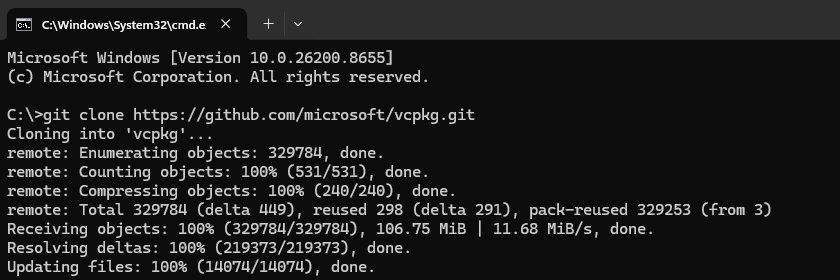
    1. Download the standalone tool Let's put this in your main C: drive so it's easy to find.
    • cd C:\
    • git clone https://github.com/microsoft/vcpkg.git
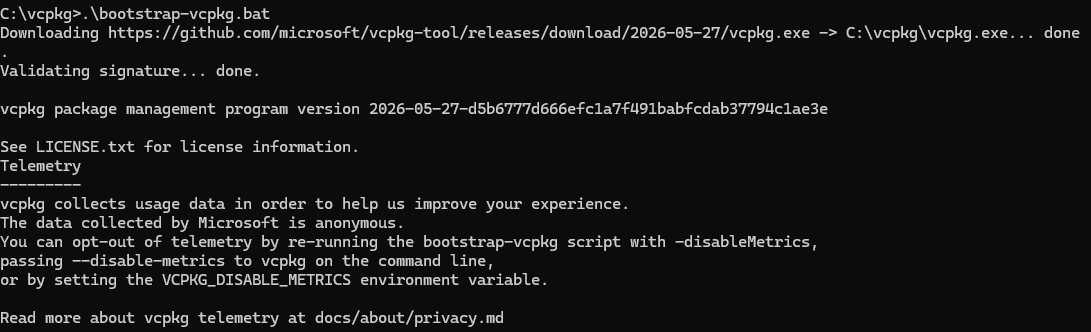
    1. Build the tool Now you need to navigate into that new folder and activate it.
    • cd vcpkg
    • .\bootstrap-vcpkg.bat

    Note: This step might take a minute as it sets itself up.

    1. Install OpenGL and Link to Visual Studio Now that you are in the correct folder, you can run our original commands. Make sure to include the .\ at the start of the commands, as this tells your computer to use this specific classic version!
    • .\vcpkg install opengl
    • .\vcpkg integrate install

    I ran the following code in a new project to test, and it successfully works:

    #include <windows.h>
    #include <iostream>
    #include <GL/gl.h>
    
    int main()
    {
        std::cout << "If this prints, vcpkg successfully linked OpenGL." << std::endl;
        return 0;
    }


    User's image

    User's image User's image

    User's image

    User's image I hope this addresses your question. If this response was helpful, please consider following the guidance to provide feedback.

    Was this answer helpful?


  2. AI answer

    2026-06-29T13:56:54.4033333+00:00

    The error message indicates that the vcpkg instance being used is the Visual Studio–embedded copy, which cannot run in classic mode and therefore requires a vcpkg.json manifest file.

    To resolve this and successfully install OpenGL-related libraries:

    1. Use manifest mode (recommended)
      • Create a vcpkg.json file in the root folder of the C++ project (the same folder as your CMakeLists.txt or project files).
      • Add dependencies in the dependencies section, for example:
             {
               "dependencies": [ "opengl" ]
             }
        
      • Open PowerShell in that project folder (where vcpkg.json is located).
      • Run:
             vcpkg install
        
      • In manifest mode, vcpkg install reads vcpkg.json and installs the listed libraries into the vcpkg_installed subfolder. This is the mode recommended for most users.
    2. Or switch to a standalone vcpkg for classic mode
      • Install a standalone copy of vcpkg (for example, from the vcpkg GitHub repo) in a writable folder.
      • In PowerShell, point environment variables to that standalone vcpkg:
             $env:VCPKG_ROOT="path/to/standalone/vcpkg"
             $env:PATH="$env:PATH;$env:VCPKG_ROOT"
        
      • Then use classic mode syntax to install packages, for example:
             vcpkg install opengl
        
      • In classic mode, packages are installed into the installed/ directory under the vcpkg root and can be shared across projects.

    The key is that the Visual Studio–embedded vcpkg cannot be used in classic mode, so either create a vcpkg.json and use manifest mode, or use a standalone vcpkg installation configured via VCPKG_ROOT and PATH for classic mode.


    References:

    AI-generated content may be incorrect. Read our transparency notes for more information.

    Was this answer helpful?

Your answer

Answers can be marked as 'Accepted' by the question author and 'Recommended' by moderators, which helps users know the answer solved the author's problem.