Note
Access to this page requires authorization. You can try signing in or changing directories.
Access to this page requires authorization. You can try changing directories.
If you followed the previous tutorials, you have a working Kubernetes cluster and Azure Store Front app.
In this tutorial, you scale out the pods in the app, try pod autoscaling, and scale the number of Azure VM nodes to change the cluster's capacity for hosting workloads. You learn how to:
- Scale the Kubernetes nodes.
- Manually scale Kubernetes pods that run your application.
- Configure autoscaling pods that run the app front end.
Before you begin
In previous tutorials, you packaged an application into a container image, uploaded the image to Azure Container Registry, created an AKS cluster, deployed an application, and used Azure Service Bus to redeploy an updated application. If you haven't completed these steps and want to follow along, start with Tutorial 1 - Prepare application for AKS.
This tutorial changes pod and node counts and can increase compute costs. Use an identity with permission to scale AKS workloads and node pools, such as Contributor or Owner for the resource group.
This tutorial requires Azure CLI version 2.34.1 or later. Run az --version to find the version. If you need to install or upgrade, see Install Azure CLI.
Manually scale pods
AKS desktop
Edit the scaling configuration for the order-service by selecting Scaling > Select Deployment: order-service > Edit Configuration > Number of Replicas: 5.

Verify that the deployment update completes before continuing.
View the pods in your cluster using the
kubectl getcommand.kubectl get podsThe following example output shows the pods running the Azure Store Front app:
NAME                               READY     STATUS     RESTARTS   AGE
order-service-848767080-tf34m      1/1       Running    0          31m
product-service-4019737227-2q2qz   1/1       Running    0          31m
store-front-2606967446-2q2qz       1/1       Running    0          31m
Manually change the number of pods in the store-front deployment using the
kubectl scalecommand.kubectl scale --replicas=5 deployment.apps/store-frontVerify the additional pods were created using the
kubectl get podscommand.kubectl get pods --selector app=store-frontThe following example output shows the additional pods running the Azure Store Front app:
NAME                              READY     STATUS    RESTARTS   AGE
store-front-3309479140-2hfh0      1/1       Running   0          3m
store-front-3309479140-bzt05      1/1       Running   0          3m
store-front-3309479140-fvcvm      1/1       Running   0          3m
store-front-3309479140-hrbf2      1/1       Running   0          15m
store-front-3309479140-qphz8      1/1       Running   0          3m
Autoscale pods
AKS desktop
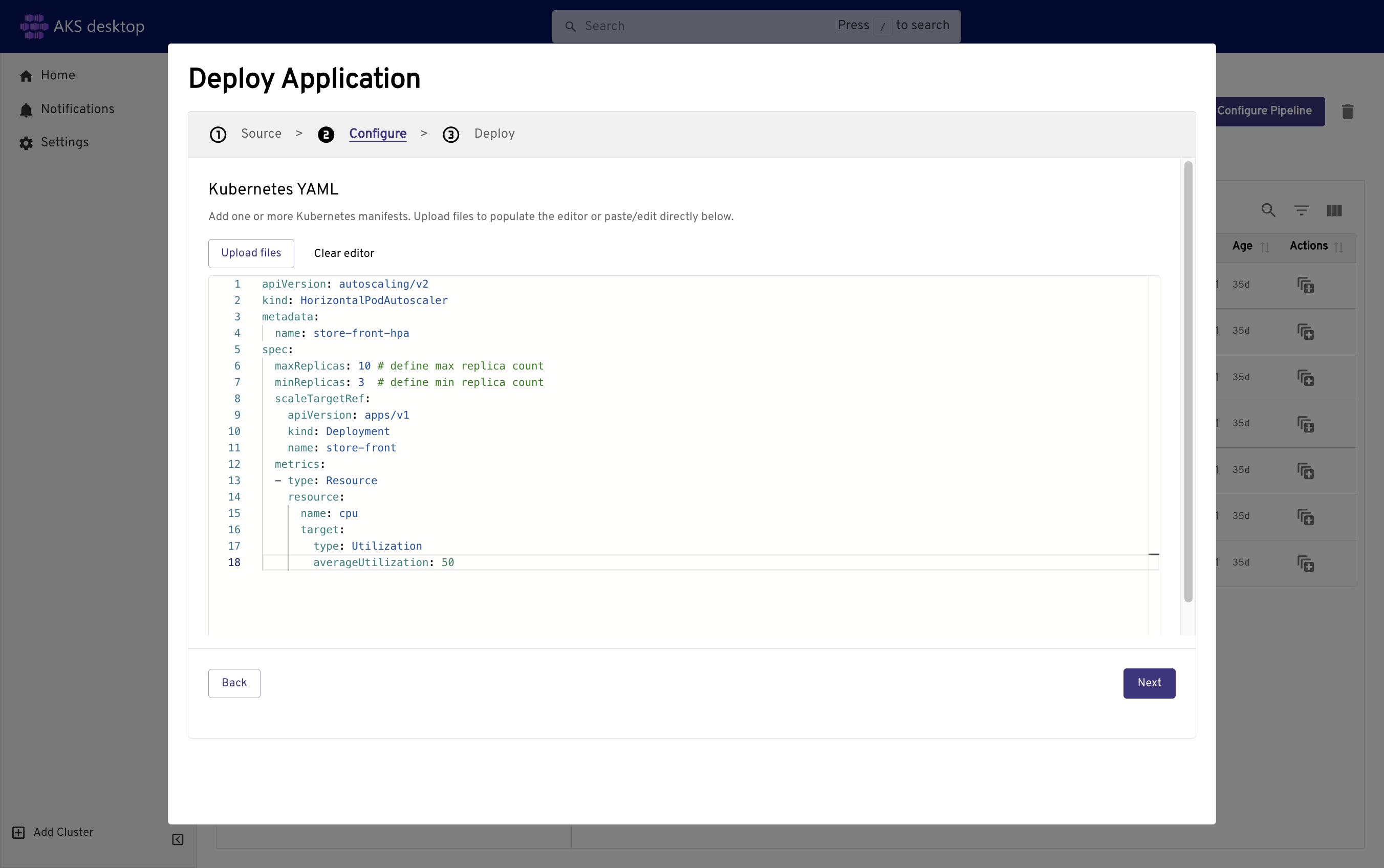
Within the Project, select the Deploy Application button > Kubernetes YAML.

Copy and paste this YAML autoscaler manifest and resource limits.
apiVersion: autoscaling/v2
kind: HorizontalPodAutoscaler
metadata:
  name: store-front-hpa
spec:
  maxReplicas: 10 # define max replica count
  minReplicas: 3  # define min replica count
  scaleTargetRef:
    apiVersion: apps/v1
    kind: Deployment
    name: store-front
  metrics:
  - type: Resource
    resource:
      name: cpu
      target:
        type: Utilization
        averageUtilization: 50
Select Next > Deploy > Close.
Select Scaling > Select Deployment: store-front. You can see the scaling mode is now set to HPA, Replica Bounds, and CPU Usage / Target set by the configuration.

Verify that HPA mode is enabled and the replica bounds match the manifest values.
Command line
To use the horizontal pod autoscaler, all containers must have defined CPU requests and limits, and pods must have specified requests. In the aks-store-quickstart deployment, the front-end container requests 1m CPU with a limit of 1000m CPU.
These resource requests and limits are defined for each container, as shown in the following condensed example YAML:
...
  containers:
  - name: store-front
    image: ghcr.io/azure-samples/aks-store-demo/store-front:latest
    ports:
    - containerPort: 8080
      name: store-front
...
    resources:
      requests:
        cpu: 1m
...
      limits:
        cpu: 1000m
...
Autoscale pods using a manifest file
Create a manifest file to define the autoscaler behavior and resource limits, as shown in the following condensed example manifest file
aks-store-quickstart-hpa.yaml:apiVersion: autoscaling/v2 kind: HorizontalPodAutoscaler metadata: name: store-front-hpa spec: maxReplicas: 10 # define max replica count minReplicas: 3 # define min replica count scaleTargetRef: apiVersion: apps/v1 kind: Deployment name: store-front metrics: - type: Resource resource: name: cpu target: type: Utilization averageUtilization: 50Apply the autoscaler manifest file using the
kubectl applycommand.kubectl apply -f aks-store-quickstart-hpa.yamlCheck the status of the autoscaler using the
kubectl get hpacommand.kubectl get hpaAfter a few minutes, with minimal load on the Azure Store Front app, the number of pod replicas decreases to three. You can use
kubectl get podscommand again to see the unneeded pods being removed.Continue when the
TARGETSandREPLICAScolumns show expected autoscaling behavior forstore-front-hpa.
Note
You can enable the Kubernetes-based Event-Driven Autoscaler (KEDA) AKS add-on to your cluster to drive scaling based on the number of events needing to be processed. For more information, see Enable simplified application autoscaling with the Kubernetes Event-Driven Autoscaling (KEDA) add-on (Preview).
Manually scale AKS nodes
Note
If you created an AKS Automatic cluster, these steps don't apply because the cluster autoscales nodes.
If you created your AKS Standard cluster by using the commands in the previous tutorials, your cluster has three nodes. If you want to increase or decrease this amount, you can manually adjust the number of nodes.
The following example increases the number of nodes to five in the Kubernetes cluster named myAKSCluster. The command takes a couple of minutes to complete.
Scale your cluster nodes using the
az aks scalecommand.Once the cluster scales successfully, your output is similar to the following example output:
az aks nodepool list --resource-group myResourceGroup --cluster-name myAKSCluster --query "[].{name:name,count:count}" -o tableaz aks scale --resource-group myResourceGroup --name myAKSCluster --node-count 5Once the cluster successfully scales, your output will be similar to following example output:
"aadProfile": null,
"addonProfiles": null,
"agentPoolProfiles": [
  {
    ...
    "count": 5,
    "mode": "System",
    "name": "nodepool1",
    "osDiskSizeGb": 128,
    "osDiskType": "Managed",
    "osType": "Linux",
    "ports": null,
    "vmSize": "Standard_DS2_v2",
    "vnetSubnetId": null
    ...
  }
  ...
]
You can also autoscale the nodes in your cluster. For more information, see Use the cluster autoscaler with node pools.
Next steps
In this tutorial, you used different scaling features in your Kubernetes cluster. You learned how to:
- Manually scale Kubernetes pods that run your application.
- Configure autoscaling pods that run the app front end.
- Manually scale the Kubernetes nodes.
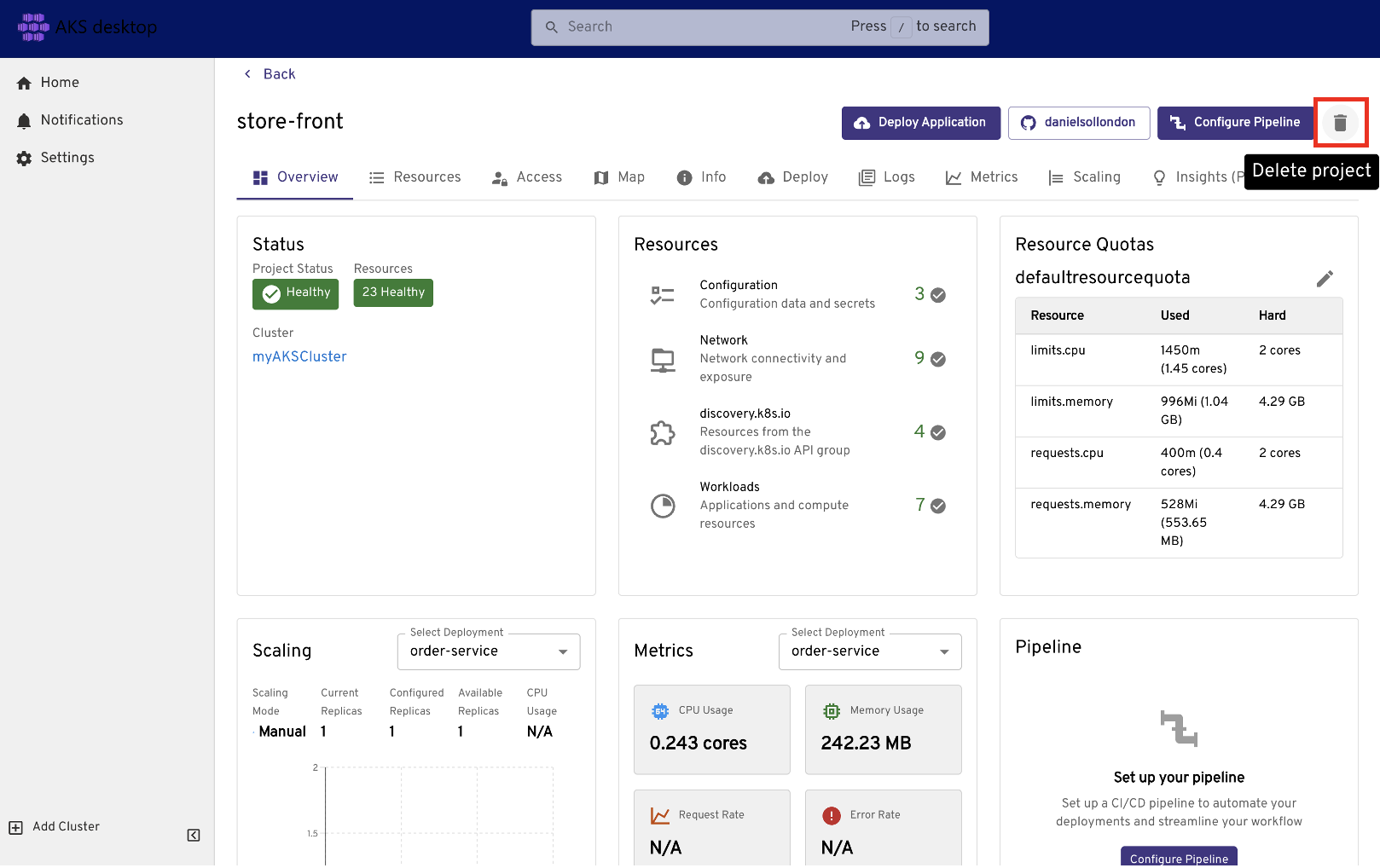
If you're finished, select the Delete icon, and in the confirmation message select Also delete the namespace.
In the next tutorial, you learn how to upgrade Kubernetes in your AKS cluster.