Note
Access to this page requires authorization. You can try signing in or changing directories.
Access to this page requires authorization. You can try changing directories.
Application Insights now supports Microsoft Entra authentication. By using Microsoft Entra ID, you can ensure that only authenticated telemetry is ingested in your Application Insights resources.
Using various authentication systems can be cumbersome and risky because it's difficult to manage credentials at scale. You can now choose to opt out of local authentication to ensure only telemetry exclusively authenticated by using managed identities and Microsoft Entra ID is ingested in your resource.
This feature enhances the security and reliability of the telemetry used to make critical operational (alerting and autoscaling) and business decisions.
Prerequisites
To enable Microsoft Entra authenticated ingestion, complete the following steps:
- Be familiar with Managed identity, Service principal, and Assigning Azure roles.
- Have an Owner role to the resource group, required for granting access by using Azure built-in roles.
- Understand the unsupported scenarios.
Unsupported scenarios
The following Software Development Kits (SDKs) and features don't support use with Microsoft Entra authenticated ingestion:
- Application Insights Java 2.x SDK. Microsoft Entra authentication is only available for Application Insights Java Agent greater than or equal to 3.2.0.
- Application Insights JavaScript SDK.
- Application Insights OpenCensus Python SDK (retired) with Python version 3.4 and 3.5.
- Automatic instrumentation for Python on Azure App Service.
Configure and enable Microsoft Entra ID-based authentication
Create an identity by using a managed identity or a service principal if you don't already have one.
Use a managed identity:
Set up a managed identity for your Azure service (Virtual Machines or App Service).
Don't use a service principal:
For more information about how to create a Microsoft Entra application and service principal that can access resources, see Create a service principal.
Assign the required role to the Azure identity, service principal, or Azure user account.
Follow the steps in Assign Azure roles to add the Monitoring Metrics Publisher role to the expected identity, service principal, or Azure user account by setting the target Application Insights resource as the role scope.
Note
Although the Monitoring Metrics Publisher role says "metrics," it publishes all telemetry to the Application Insights resource.
Follow the configuration guidance in accordance with the language that follows.
Note
Support for Microsoft Entra ID in the Application Insights .NET SDK is included starting with version 2.18-Beta3.
The SDK supports the credential classes provided by Azure Identity.
Prerequisites
Use
DefaultAzureCredentialfor local development.Sign in to Visual Studio by using the expected Azure user account. For more information, see Authenticate via Visual Studio.
Use
ManagedIdentityCredentialfor system-assigned and user-assigned managed identities.- For system-assigned, use the default constructor without parameters.
- For user-assigned, provide the client ID to the constructor.
Configuration guidance
Install the latest Azure.Identity package.
dotnet add package Azure.IdentityProvide the desired credential class.
// Create a new ASP.NET Core web application builder.
var builder = WebApplication.CreateBuilder(args);

// Add the OpenTelemetry telemetry service to the application.
// This service will collect and send telemetry data to Azure Monitor.
builder.Services.AddOpenTelemetry().UseAzureMonitor(options => {
    // Set the Azure Monitor credential to the DefaultAzureCredential.
    // This credential will use the Azure identity of the current user or
    // the service principal that the application is running as to authenticate
    // to Azure Monitor.
    options.Credential = new DefaultAzureCredential();
});

// Build the ASP.NET Core web application.
var app = builder.Build();

// Start the ASP.NET Core web application.
app.Run();
Environment variable configuration
Use the APPLICATIONINSIGHTS_AUTHENTICATION_STRING environment variable to let Application Insights authenticate to Microsoft Entra ID and send telemetry when using Azure App Services autoinstrumentation and Configure monitoring for Azure Functions.
System-assigned identity:
App setting Value APPLICATIONINSIGHTS_AUTHENTICATION_STRING Authorization=AADUser-assigned identity:
App setting Value APPLICATIONINSIGHTS_AUTHENTICATION_STRING Authorization=AAD;ClientId={Client id of the User-Assigned Identity}

Query Application Insights by using Microsoft Entra authentication
You can submit a query request by using the Azure Monitor Application Insights endpoint https://api.applicationinsights.io. To access the endpoint, you must authenticate through Microsoft Entra ID.
Set up authentication
To access the API, register a client app with Microsoft Entra ID and request a token.
On the app's overview page, select API permissions.
Select Add a permission.
On the APIs my organization uses tab, search for Application Insights and select Application Insights API from the list.
Select Delegated permissions.
Select the Data.Read checkbox.
Select Add permissions.
After you register your app and grant it permissions to use the API, grant your app access to your Application Insights resource.
From your Application Insights resource overview page, select Access control (IAM).
Select Add role assignment.
Select the Reader role and then select Members.
On the Members tab, choose Select members.
Enter the name of your app in the Select box.
Select your app and choose Select.
Select Review + assign.
After you finish the Active Directory setup and permissions, request an authorization token.
Note
For this example, use the Reader role. This role is one of many built-in roles and might include more permissions than you require. You can create more granular roles and permissions.
Request an authorization token
Before you begin, make sure you have all the values required to make the request successfully. All requests require:
- Your Microsoft Entra tenant ID.
- Your App Insights App ID - If you're currently using API Keys, it's the same app ID.
- Your Microsoft Entra client ID for the app.
- A Microsoft Entra client secret for the app.
The Application Insights API supports Microsoft Entra authentication with three different Microsoft Entra ID OAuth2 flows:
- Client credentials
- Authorization code
- Implicit
Client credentials flow
In the client credentials flow, use the token with the Application Insights endpoint. Make a single request to receive a token by using the credentials you provide for your app when you register an app in Microsoft Entra ID.
Use the https://api.applicationinsights.io endpoint.
Client credentials token URL (POST request)
POST /{TenantId}/oauth2/token
Host: https://login.microsoftonline.com
Content-Type: application/x-www-form-urlencoded

grant_type=client_credentials
&client_id=<ClientId>
&resource=https://api.applicationinsights.io
&client_secret=<ClientSecret>
A successful request receives an access token in the response:
{
  "token_type": "Bearer",
  "expires_in": "86399",
  "ext_expires_in": "86399",
  "access_token": "eyJ0eXAiOiJKV1QiLCJ.....Ax"
}
Use the token in requests to the Application Insights endpoint:
POST /v1/apps/{AppId}/query?timespan=P1D
Host: https://api.applicationinsights.io
Authorization: Bearer {AccessToken}
Content-Type: application/json

{
  "query": "requests | take 10"
}
Response example:
{
  "tables": [
    {
      "name": "PrimaryResult",
      "columns": [
        {
          "name": "timestamp",
          "type": "datetime"
        },
        {
          "name": "id",
          "type": "string"
        },
        {
          "name": "source",
          "type": "string"
        },
        {
          "name": "name",
          "type": "string"
        },
        {
          "name": "url",
          "type": "string"
        },
        {
          "name": "success",
          "type": "string"
        },
        {
          "name": "resultCode",
          "type": "string"
        },
        {
          "name": "duration",
          "type": "real"
        },
        {
          "name": "performanceBucket",
          "type": "string"
        },
        {
          "name": "customDimensions",
          "type": "dynamic"
        },
        {
          "name": "customMeasurements",
          "type": "dynamic"
        },
        {
          "name": "operation_Name",
          "type": "string"
        },
        {
          "name": "operation_Id",
          "type": "string"
        },
        {
          "name": "operation_ParentId",
          "type": "string"
        },
        {
          "name": "operation_SyntheticSource",
          "type": "string"
        },
        {
          "name": "session_Id",
          "type": "string"
        },
        {
          "name": "user_Id",
          "type": "string"
        },
        {
          "name": "user_AuthenticatedId",
          "type": "string"
        },
        {
          "name": "user_AccountId",
          "type": "string"
        },
        {
          "name": "application_Version",
          "type": "string"
        },
        {
          "name": "client_Type",
          "type": "string"
        },
        {
          "name": "client_Model",
          "type": "string"
        },
        {
          "name": "client_OS",
          "type": "string"
        },
        {
          "name": "client_IP",
          "type": "string"
        },
        {
          "name": "client_City",
          "type": "string"
        },
        {
          "name": "client_StateOrProvince",
          "type": "string"
        },
        {
          "name": "client_CountryOrRegion",
          "type": "string"
        },
        {
          "name": "client_Browser",
          "type": "string"
        },
        {
          "name": "cloud_RoleName",
          "type": "string"
        },
        {
          "name": "cloud_RoleInstance",
          "type": "string"
        },
        {
          "name": "appId",
          "type": "string"
        },
        {
          "name": "appName",
          "type": "string"
        },
        {
          "name": "iKey",
          "type": "string"
        },
        {
          "name": "sdkVersion",
          "type": "string"
        },
        {
          "name": "itemId",
          "type": "string"
        },
        {
          "name": "itemType",
          "type": "string"
        },
        {
          "name": "itemCount",
          "type": "int"
        }
      ],
      "rows": [
        [
          "2018-02-01T17:33:09.788Z",
          "|0qRud6jz3k0=.c32c2659_",
          null,
          "GET Reports/Index",
          "http://fabrikamfiberapp.azurewebsites.net/Reports",
          "True",
          "200",
          "3.3833",
          "<250ms",
          "{\"_MS.ProcessedByMetricExtractors\":\"(Name:'Requests', Ver:'1.0')\"}",
          null,
          "GET Reports/Index",
          "0qRud6jz3k0=",
          "0qRud6jz3k0=",
          "Application Insights Availability Monitoring",
          "aaaaaaaa-0000-1111-2222-bbbbbbbbbbbb",
          "us-va-ash-azr_aaaaaaaa-0000-1111-2222-bbbbbbbbbbbb",
          null,
          null,
          "AutoGen_49c3aea0-4641-4675-93b5-55f7a62d22d3",
          "PC",
          null,
          null,
          "52.168.8.0",
          "Boydton",
          "Virginia",
          "United States",
          null,
          "fabrikamfiberapp",
          "RD00155D5053D1",
          "bbbbbbbb-1111-2222-3333-cccccccccccc",
          "fabrikamprod",
          "cccccccc-2222-3333-4444-dddddddddddd",
          "web:2.5.0-33031",
          "dddddddd-3333-4444-5555-eeeeeeeeeeee",
          "request",
          "1"
        ],
        [
          "2018-02-01T17:33:15.786Z",
          "|x/Ysh+M1TfU=.c32c265a_",
          null,
          "GET Home/Index",
          "http://fabrikamfiberapp.azurewebsites.net/",
          "True",
          "200",
          "716.2912",
          "500ms-1sec",
          "{\"_MS.ProcessedByMetricExtractors\":\"(Name:'Requests', Ver:'1.0')\"}",
          null,
          "GET Home/Index",
          "x/Ysh+M1TfU=",
          "x/Ysh+M1TfU=",
          "Application Insights Availability Monitoring",
          "eeeeeeee-4444-5555-6666-ffffffffffff",
          "emea-se-sto-edge_eeeeeeee-4444-5555-6666-ffffffffffff",
          null,
          null,
          "AutoGen_49c3aea0-4641-4675-93b5-55f7a62d22d3",
          "PC",
          null,
          null,
          "51.141.32.0",
          "Cardiff",
          "Cardiff",
          "United Kingdom",
          null,
          "fabrikamfiberapp",
          "RD00155D5053D1",
          "bbbbbbbb-1111-2222-3333-cccccccccccc",
          "fabrikamprod",
          "cccccccc-2222-3333-4444-dddddddddddd",
          "web:2.5.0-33031",
          "ffffffff-5555-6666-7777-aaaaaaaaaaaa",
          "request",
          "1"
        ]
      ]
    }
  ]
}
Authorization code flow
The main OAuth2 flow supported is through authorization codes. This method requires two HTTP requests to acquire a token with which to call the Azure Monitor Application Insights API. There are two URLs, with one endpoint per request. The following sections describe their formats.
Authorization code URL (GET request)
GET https://login.microsoftonline.com/{TenantId}/oauth2/authorize?
client_id=<ClientId>
&response_type=code
&redirect_uri=<RedirectUri>
&resource=https://api.applicationinsights.io
When you make a request to the authorized URL, the client\_id is the application ID from your Microsoft Entra app, copied from the app's properties menu. The redirect\_uri is the homepage/login URL from the same Microsoft Entra app. When a request is successful, this endpoint redirects you to the sign-in page you provided at sign-up with the authorization code appended to the URL. See the following example:
http://<RedirectUri>/?code=<AuthorizationCode>&session_state=<SessionState>
At this point, you obtain an authorization code, which you now use to request an access token.
Authorization code token URL (POST request)
POST /{TenantId}/oauth2/token HTTP/1.1
Host: https://login.microsoftonline.com
Content-Type: application/x-www-form-urlencoded

grant_type=authorization_code
&client_id=<ClientId>
&code=<AuthorizationCode>
&redirect_uri=<RedirectUri>
&resource=https://api.applicationinsights.io
&client_secret=<ClientSecret>
All values are the same as before, with some additions. The authorization code is the same code you received in the previous request after a successful redirect. Combine the code with the key obtained from the Microsoft Entra app. If you didn't save the key, you can delete it and create a new one from the keys tab of the Microsoft Entra app menu. The response is a JSON string that contains the token with the following schema. Types are indicated for the token values.
Response example:
{
  "access_token": "eyJ0eXAiOiJKV1QiLCJ.....Ax",
  "expires_in": "3600",
  "ext_expires_in": "1503641912",
  "id_token": "not_needed_for_app_insights",
  "not_before": "1503638012",
  "refresh_token": "eyJ0esdfiJKV1ljhgYF.....Az",
  "resource": "https://api.applicationinsights.io",
  "scope": "Data.Read",
  "token_type": "bearer"
}
The access token portion of this response is what you present to the Application Insights API in the Authorization: Bearer header. You can also use the refresh token in the future to acquire a new access_token and refresh_token when yours go stale. For this request, the format and endpoint are:
POST /{TenantId}/oauth2/token HTTP/1.1
Host: https://login.microsoftonline.com
Content-Type: application/x-www-form-urlencoded

client_id=<ClientId>
&refresh_token=<RefreshToken>
&grant_type=refresh_token
&resource=https://api.applicationinsights.io
&client_secret=<ClientSecret>
Response example:
{
  "token_type": "Bearer",
  "expires_in": "3600",
  "expires_on": "1460404526",
  "resource": "https://api.applicationinsights.io",
  "access_token": "eyJ0eXAiOiJKV1QiLCJ.....Ax",
  "refresh_token": "eyJ0esdfiJKV1ljhgYF.....Az"
}
Implicit code flow
The Application Insights API supports the OAuth2 implicit flow. This flow requires only one request, but it doesn't provide a refresh token.
Implicit code authorization URL
GET https://login.microsoftonline.com/{TenantId}/oauth2/authorize?
client_id=<ClientId>
&response_type=token
&redirect_uri=<RedirectUri>
&resource=https://api.applicationinsights.io
A successful request redirects to your redirect URI with the token in the URL:
http://<RedirectUri>/#access_token=<AccessToken>&token_type=Bearer&expires_in=3600&session_state=<SessionState>
This access_token acts as the Authorization: Bearer header value when you send it to the Application Insights API to authorize requests.
Disable local authentication
After you enable Microsoft Entra authentication, you can disable local authentication. When you disable local authentication, you can ingest telemetry authenticated exclusively by Microsoft Entra ID. This configuration affects data access, such as through API keys.
You can disable local authentication by using the Azure portal, Azure Policy, or programmatically.
Azure portal
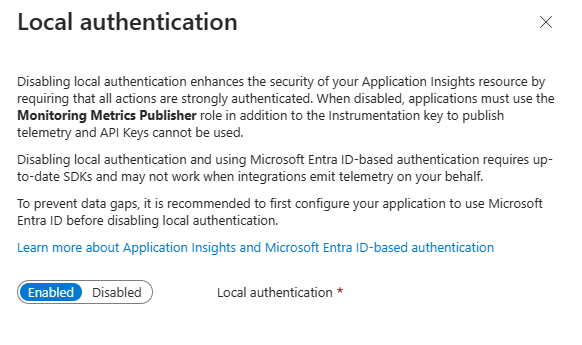
From your Application Insights resource, select Properties under Configure in the menu on the left. Select Enabled (click to change) if the local authentication is enabled.

Select Disabled and apply your changes.
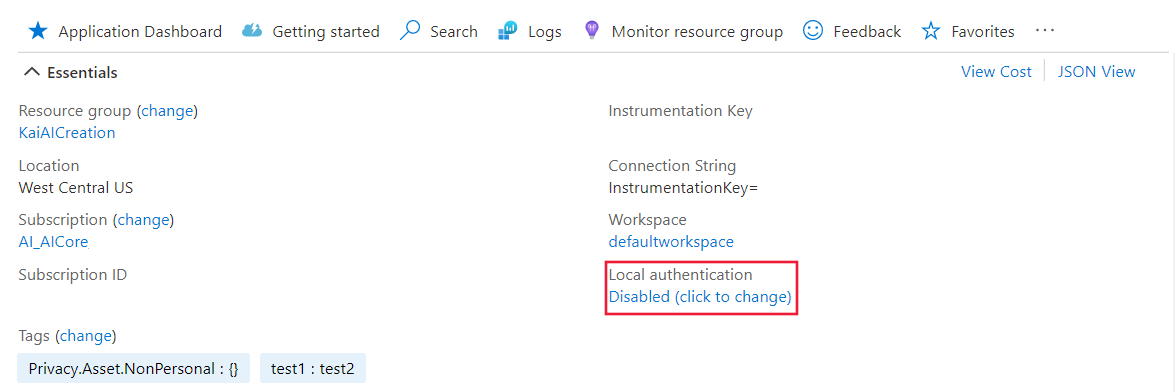
After disabling local authentication on your resource, you see the corresponding information in the Overview pane.
Azure Policy
Azure Policy for DisableLocalAuth denies users the ability to create a new Application Insights resource without this property set to true. The policy name is Application Insights components should block non-Azure Active Directory based ingestion.
To apply this policy definition to your subscription, create a new policy assignment and assign the policy.
The following example shows the policy template definition:
{
  "properties": {
    "displayName": "Application Insights components should block non-Azure Active Directory based ingestion",
    "policyType": "BuiltIn",
    "mode": "Indexed",
    "description": "Improve Application Insights security by disabling log ingestion that are not AAD-based.",
    "metadata": {
      "version": "1.0.0",
      "category": "Monitoring"
    },
    "parameters": {
      "effect": {
        "type": "String",
        "metadata": {
          "displayName": "Effect",
          "description": "The effect determines what happens when the policy rule is evaluated to match"
        },
        "allowedValues": [
          "audit",
          "deny",
          "disabled"
        ],
        "defaultValue": "audit"
      }
    },
    "policyRule": {
      "if": {
        "allOf": [
          {
            "field": "type",
            "equals": "Microsoft.Insights/components"
          },
          {
            "field": "Microsoft.Insights/components/DisableLocalAuth",
            "notEquals": "true"
          }
        ]
      },
      "then": {
        "effect": "[parameters('effect')]"
      }
    }
  }
}
Programmatic enablement
Use the DisableLocalAuth property to disable local authentication on your Application Insights resource. When you set this property to true, it enforces that Microsoft Entra authentication must be used for all access.
The following example shows the Azure Resource Manager template you can use to create a workspace-based Application Insights resource with LocalAuth disabled.
{
  "$schema": "http://schema.management.azure.com/schemas/2015-01-01/deploymentTemplate.json#",
  "contentVersion": "1.0.0.0",
  "parameters": {
    "name": {
      "type": "string"
    },
    "type": {
      "type": "string"
    },
    "regionId": {
      "type": "string"
    },
    "tagsArray": {
      "type": "object"
    },
    "requestSource": {
      "type": "string"
    },
    "workspaceResourceId": {
      "type": "string"
    },
    "disableLocalAuth": {
      "type": "bool"
    }
  },
  "resources": [
    {
      "name": "[parameters('name')]",
      "type": "microsoft.insights/components",
      "location": "[parameters('regionId')]",
      "tags": "[parameters('tagsArray')]",
      "apiVersion": "2020-02-02-preview",
      "dependsOn": [],
      "properties": {
        "Application_Type": "[parameters('type')]",
        "Flow_Type": "Redfield",
        "Request_Source": "[parameters('requestSource')]",
        "WorkspaceResourceId": "[parameters('workspaceResourceId')]",
        "DisableLocalAuth": "[parameters('disableLocalAuth')]"
      }
    }
  ]
}
Token audience
When developing a custom client to obtain an access token from Microsoft Entra ID for submitting telemetry to Application Insights, refer to the following table to determine the appropriate audience string for your particular host environment.
| Azure cloud version | Token audience value |
|---|---|
| Azure public cloud | https://monitor.azure.com |
| Microsoft Azure operated by 21Vianet cloud | https://monitor.azure.cn |
| Azure US Government cloud | https://monitor.azure.us |
If you're using sovereign clouds, you can find the audience information in the connection string as well. The connection string follows this structure:
InstrumentationKey={profile.InstrumentationKey};IngestionEndpoint={ingestionEndpoint};LiveEndpoint={liveDiagnosticsEndpoint};AADAudience={aadAudience}
The audience parameter, AADAudience, can vary depending on your specific environment.
Troubleshooting
For troubleshooting guidance, see Troubleshoot Microsoft Entra authentication issues.