Note
Access to this page requires authorization. You can try signing in or changing directories.
Access to this page requires authorization. You can try changing directories.
In this article, learn how to configure, view, and disable the vCenter login banner in an Azure VMware Solution private cloud using Run Commands.
This functionality allows SDDC administrators to display a custom message to users logging in to vCenter.
When to use login banner configuration
You can use the login banner configuration to:
- Display compliance or legal notices such as "Authorized users only".
- Provide informational messages to users before they sign in.
- Require users to acknowledge terms before accessing vCenter.
- Communicate temporary maintenance and operational notices.
Prerequisites
Before using the login banner Run Commands, ensure:
- You have permission to run Azure VMware Solution Run Commands on the target private cloud.
- You can access the vCenter instance associated with the target private cloud.
- The banner title and message content are prepared in advance.
Configure the login banner
Use the Set-VCLoginBanner Run Command to set and enable a custom message on the vCenter login page.
Parameters
- BannerTitle: The title displayed on the login page.
- BannerMessage: The message content shown to users.
- EnableConsent: Indicates whether users must acknowledge the banner before logging in.
When EnableConsent is configured:
- true: Users must acknowledge the message before signing in.
- false: The message is displayed without requiring consent.
What this command does
When executed successfully:
- The login banner title and message are configured.
- The consent checkbox setting (if enabled) is applied.
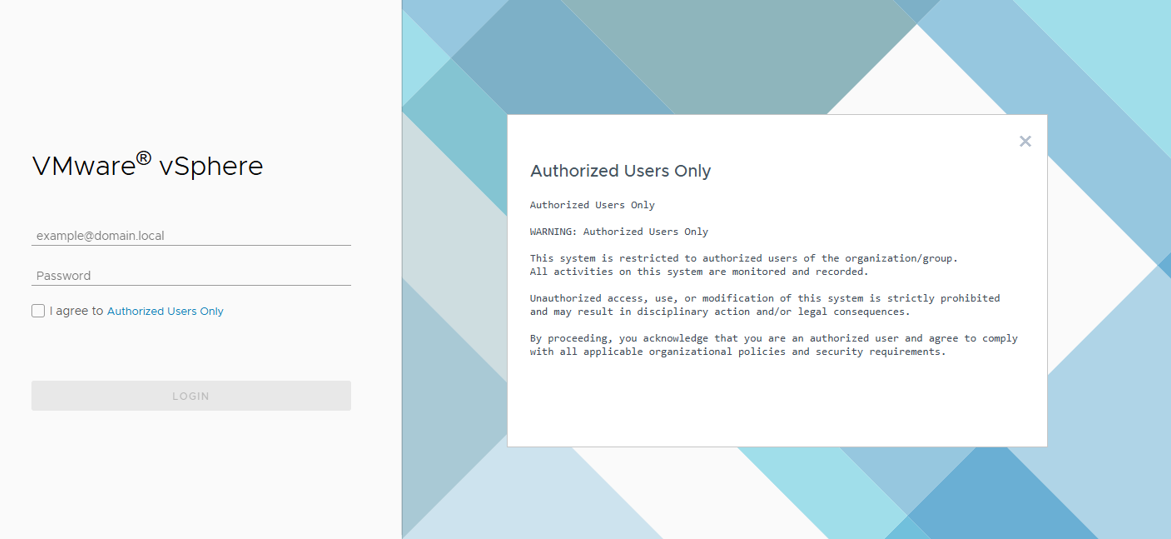
- The login banner is enabled and visible on the vCenter login page.
Validation
After configuring the login banner:
- Open the vCenter login page.
- Confirm the banner title and message are displayed.
- If consent is enabled, verify the checkbox appears before login.
Retrieve the current login banner configuration
Use the Get-VCLoginBanner Run Command to view the current login banner settings.
Output
The command returns the current login banner configuration, including:
- Banner title
- Banner message
- Consent checkbox state
- Banner enabled/display state
Disable the login banner
Use the Remove-VCLoginBanner Run Command to turn off the login banner display.
What happens when disabled
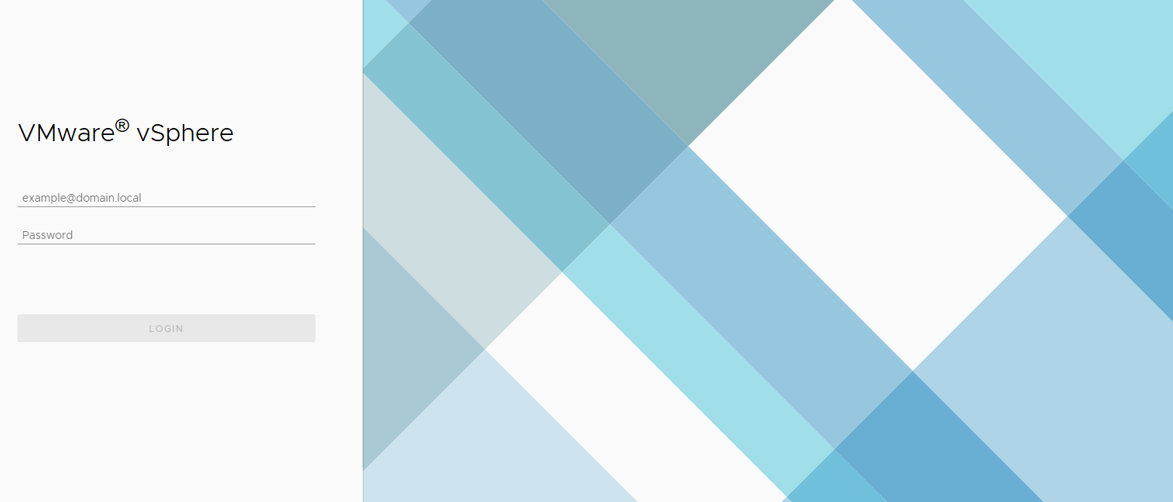
- The login banner is no longer shown to users.
- The previously configured banner title and message are preserved and can be reused later.
Troubleshooting
If the login banner doesn't appear as expected:
- Ensure the Run Command completed successfully.
- Refresh the vCenter login page.
- Clear browser cache if needed.
- Re-run the configuration command.
If the issue persists, capture the Run Command output and contact Microsoft Support.