Note
Access to this page requires authorization. You can try signing in or changing directories.
Access to this page requires authorization. You can try changing directories.
In Azure VMware Solution, vCenter Server has a built-in local user called cloudadmin assigned to the CloudAdmin role. The CloudAdmin role has vCenter Server privileges that differ from other VMware cloud solutions and on-premises deployments. You can use a run command to perform operations that normally require elevated privileges through a collection of PowerShell cmdlets.
Azure VMware Solution supports the following operations:
- Configure an external identity source
- View and set storage policies
- Deploy disaster recovery by using JetStream
- Use VMware HCX run commands
Run commands are executed one at a time in the submitted order.
View the status of an executed run command
You can view the status of any executed run command, including the output, errors, warnings, and information logs of the cmdlets.
Sign in to the Azure portal.
Note
If necessary for your situation, you can use the Azure US Government portal.
Select Run command > Run execution status.
You can sort by the various columns by selecting each column.

Select the executed run command that you want to view. A pane opens with details about the execution and other tabs for the various types of output that the cmdlet generated:
Details. Summary of the execution details, such as the name, status, package, cmdlet name, and error if the command failed.

Output. Messages in cmdlet output, which can include progress or the result of the operation. Not all cmdlets have output.

Error. Error messages generated during execution of the cmdlet, in addition to the terminating error message on the Details tab.
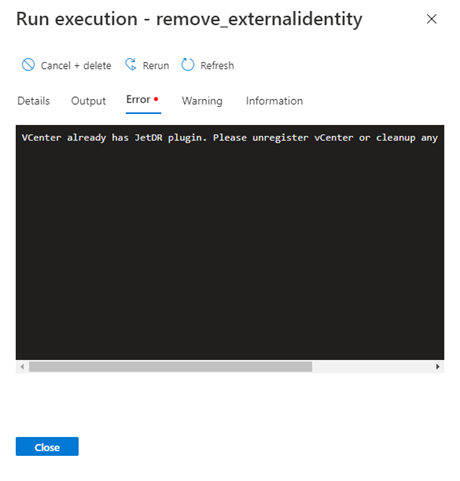
Warning. Warning messages generated during execution of the cmdlet.

Information. Progress and diagnostic messages generated during execution of the cmdlet.


Cancel and delete a job
Method 1: Command bar
This method attempts to cancel the execution of a run command, and then deletes the command upon completion.
Important
This method is irreversible.
Select Run command > Run execution status, and then select the job that you want to cancel and delete.
On the command bar, select Cancel + delete.
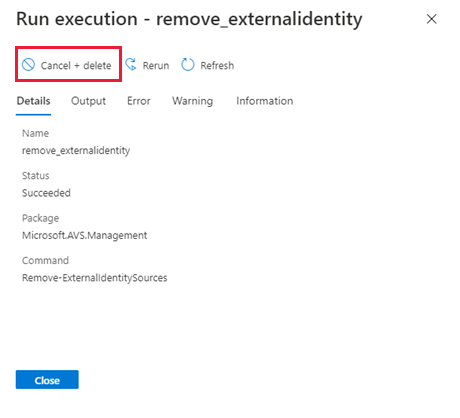
Select Yes to cancel and remove the job for all users.
Method 2: Ellipsis
Select Run command > Packages > Run execution status.
Select the ellipsis (...) for the job that you want to cancel and delete. Then select Cancel + delete.

Select Yes to cancel and remove the job for all users.
Related content
Now that you've learned about the concepts of run commands, you can use the feature to:
Configure a storage policy. Each virtual machine (VM) deployed to a vSAN datastore is assigned a vSAN storage policy. You can assign a vSAN storage policy in an initial deployment of a VM or when you do other VM operations, such as cloning or migrating.
Configure an external identity source for vCenter Server. Configure Active Directory over LDAP or LDAPS for vCenter Server to enable the use of an external identity source. Then, you can add groups from the external identity source to the CloudAdmin role.
Deploy disaster recovery by using JetStream. Store data directly to a recovery cluster in vSAN. The data is captured through I/O filters that run within vSphere. The underlying vSphere datastore can be VMFS, vSAN, vVol, or any supported hyperconverged infrastructure (HCI) platform.