Note
Access to this page requires authorization. You can try signing in or changing directories.
Access to this page requires authorization. You can try changing directories.
The Lakebase SQL Editor runs queries on your Lakebase databases directly from the Lakebase App. It offers Postgres-native features such as EXPLAIN/ANALYZE, psql-style meta-commands, and exporting results to CSV/JSON/XLSX.
Note
You can also query your Lakebase database from the SQL editor in Lakehouse, which provides visualizations, dashboards, collaboration features, and the ability to combine Lakebase data with other Unity Catalog tables. See Query from SQL editor (Lakehouse).
Use the Lakebase SQL Editor
To use the SQL Editor:
- Open the Lakebase App and select your project.
- Select SQL Editor from the sidebar, then select a branch and database.
- Enter a query into the editor and click Run to view the results.
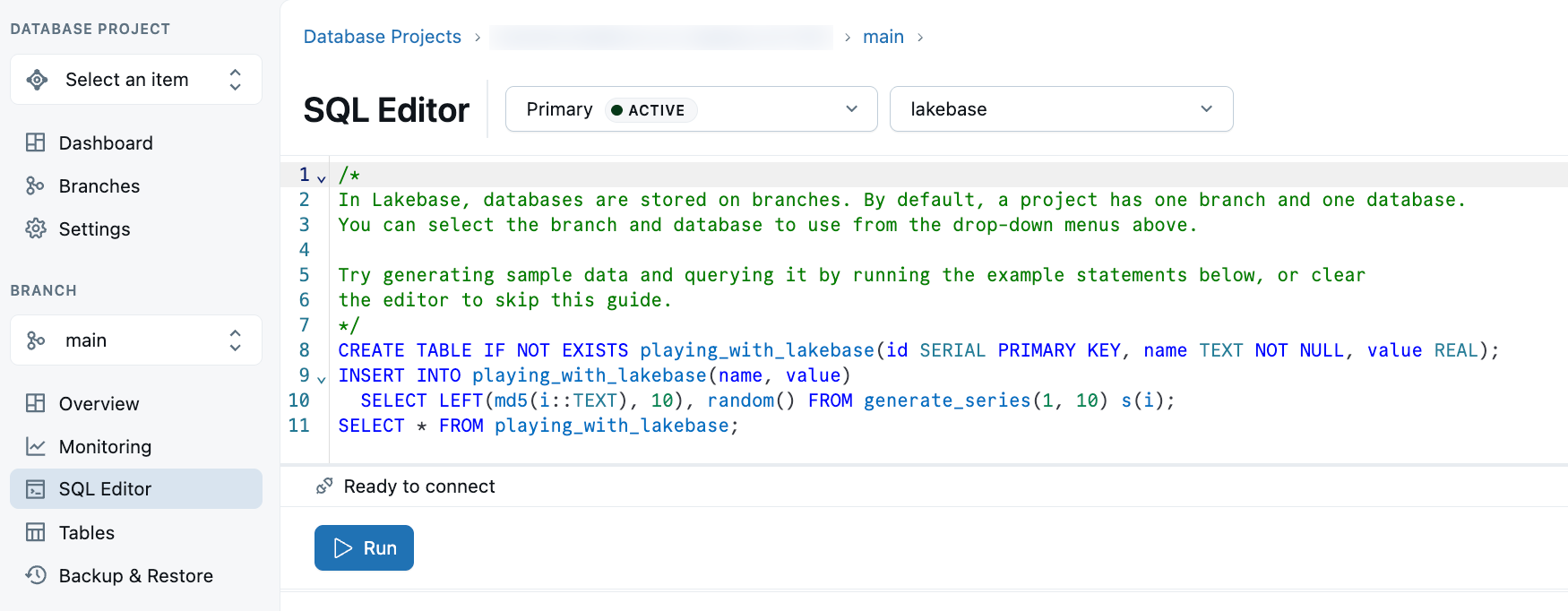
Use the following query to try the SQL Editor. The query creates a table, adds data, and retrieves the data from the table.
CREATE TABLE IF NOT EXISTS playing_with_lakebase(id SERIAL PRIMARY KEY, name TEXT NOT NULL, value REAL);
INSERT INTO playing_with_lakebase(name, value)
SELECT LEFT(md5(i::TEXT), 10), random() FROM generate_series(1, 10) s(i);
SELECT * FROM playing_with_lakebase;
Running multiple query statements at once returns a separate result set for each statement. The result sets are displayed in separate tabs, numbered in order of execution.
To clear the editor, select the contents of the text box and delete it.
Explain and analyze
The Lakebase SQL Editor has Explain and Analyze features.
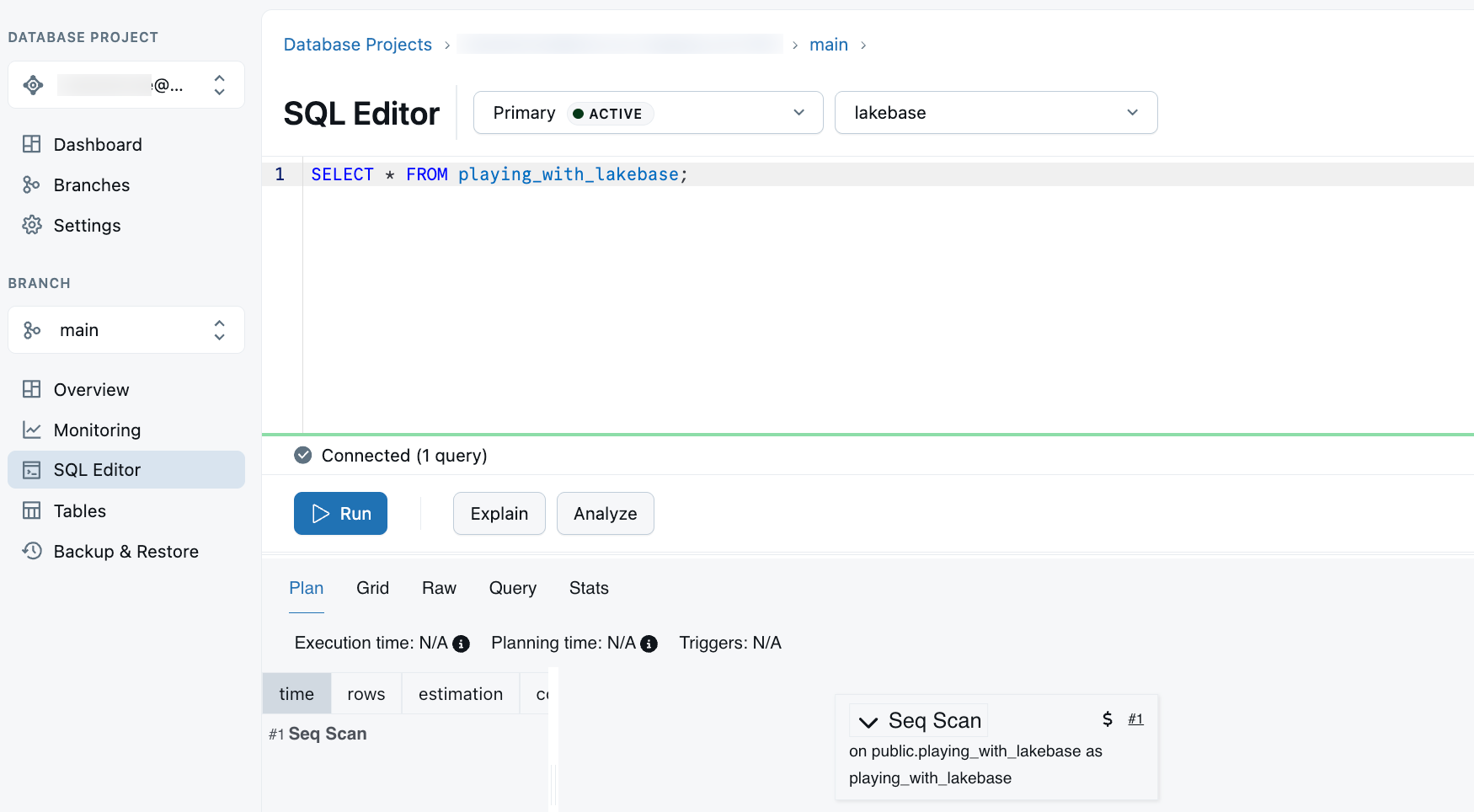
- The Explain feature runs the specified query with the Postgres EXPLAIN command, which returns the execution plan for the query. The Explain feature only returns a plan with estimates. It does not run the query.
- The Analyze feature runs the specified query with EXPLAIN ANALYZE. The
ANALYZEparameter executes the query and returns actual row counts and run times for plan nodes along with theEXPLAINestimates.
Understanding the information provided by the Explain and Analyze features requires familiarity with the Postgres EXPLAIN command and its ANALYZE parameter. See the EXPLAIN documentation and Using EXPLAIN in the PostgreSQL documentation.
Export data to CSV, JSON, and XLSX
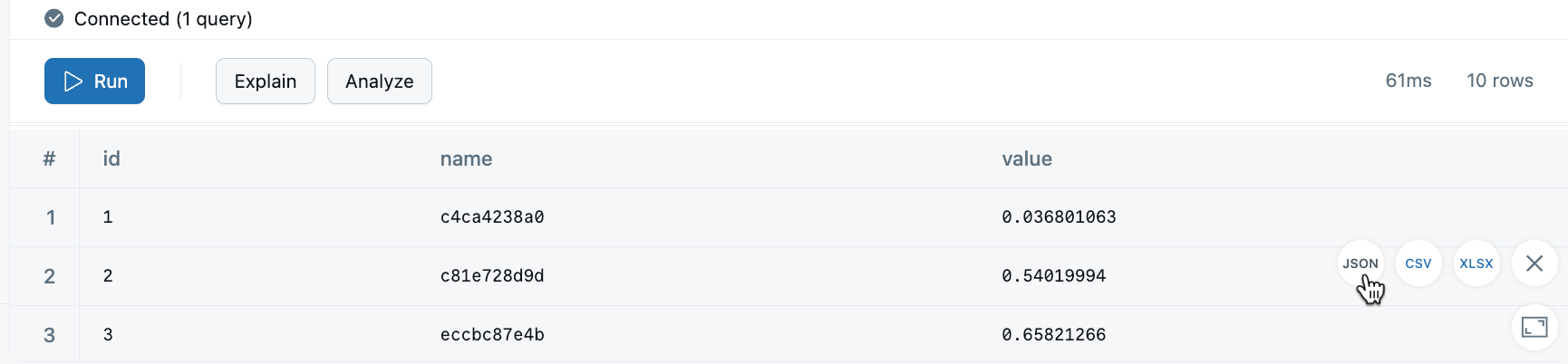
The Lakebase SQL Editor supports exporting your data to JSON, CSV, and XLSX. Access the download button from the lower right corner of the SQL Editor page. The download button only appears when there is a result set to download.
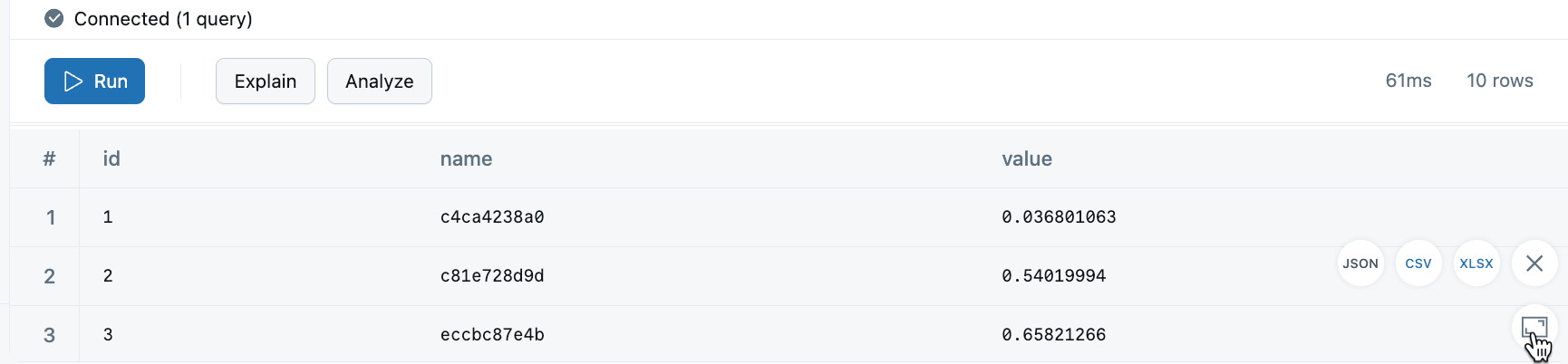
Expand results section of the SQL editor window
Expand the results section of the SQL Editor window by selecting the expand window button from the lower right corner of the SQL Editor page.
Meta-commands
The Lakebase SQL Editor supports using Postgres meta-commands, which act like shortcuts for interacting with your database. If you are already familiar with using meta-commands from the psql command-line interface, you can use many of those same commands in the Lakebase SQL Editor.
Meta-commands can speed up your workflow by providing quick access to database schemas and other critical information without needing to write full SQL queries.
Here are some commonly-used meta-commands within the Lakebase SQL Editor:
\dt— List all tables in the current database\d [table_name]— Describe a table's structure\l— List all databases\?— A cheat sheet of available meta-commands\h [NAME]— Get help for any Postgres command (e.g.,\h SELECT)
Note
Not all psql meta-commands are supported in the SQL Editor. To get a list of supported commands, use \?.
For a complete list of meta-commands and their usage, see Meta-commands in psql.
How to use meta-commands
To use a meta-command in the SQL Editor, enter the meta-command in the editor (just like a SQL query) and click Run. The result will be displayed in the output pane.
SQL Editor limitations when public access is disabled
When your workspace has Private Link configured with public access disabled, the SQL Editor proxies queries through the Lakebase backend instead of using a direct database connection. Most queries work identically to a direct connection, but the proxy is stateless and runs each statement as an independent HTTP request, which introduces the following limitations:
What works:
- Single-statement queries (SELECT, INSERT, UPDATE, DELETE, UPSERT)
- DDL statements (CREATE, ALTER, DROP TABLE, CREATE INDEX, and others)
- EXPLAIN and DESCRIBE commands (
\d,\dt,\di) - Full Postgres data type support (arrays, JSON/JSONB, numeric, timestamps, booleans)
- Query results and error messages
What does not work:
| Feature | Limitation |
|---|---|
| Transactions | BEGIN, COMMIT, ROLLBACK, and SAVEPOINT do not work as expected. Each statement auto-commits independently with no atomicity guarantee. |
| Session state | SET and SET LOCAL apply only to the current request. Temporary tables, prepared statements, cursors, and advisory locks are not available in subsequent statements. |
| LISTEN/NOTIFY | Requires a persistent connection for asynchronous notifications, which the proxy does not support. |
| COPY FROM STDIN | Cannot stream client-side data through the proxy. |
\watch |
Periodic query re-execution is not available through the stateless proxy. |
| Query cancellation | Cancellation is best-effort only. A query may continue running on the backend after a cancellation request. |
| Multi-statement scripts | Statements execute without a shared transaction. A partial script failure results in a partial commit. |
| Result size limit | Query results are limited to 32 MB. |
For workloads that require transactions or session state, connect directly to your database using a Postgres client. See Connect with psql.
Troubleshoot
If the SQL Editor displays a "Failed to fetch" or "Unknown error" message and your workspace uses Private Link, confirm that inbound Private Link (workspace-level, port 443) is correctly configured. See Troubleshoot Private Link connectivity.